
Marketplace Profile
Set up your public directory listing — profession type, visibility, cover image, tagline, About text, specialties, and clientele.
Updated 2026-11-23
The Marketplace Profile is your public listing in the therapist directory. The settings here control whether you appear and what visitors see. Open it from Business settings → Marketplace Profile.
Preview your profile
Preview at the top of the tab shows your public profile next to the settings, exactly as clients see it. It reloads each time a change is saved, so you see the result right away. On a wide screen it is open when you arrive; select Preview again to hide it. On a phone or a narrow window, the preview takes the place of the settings — select Preview to switch between the two.
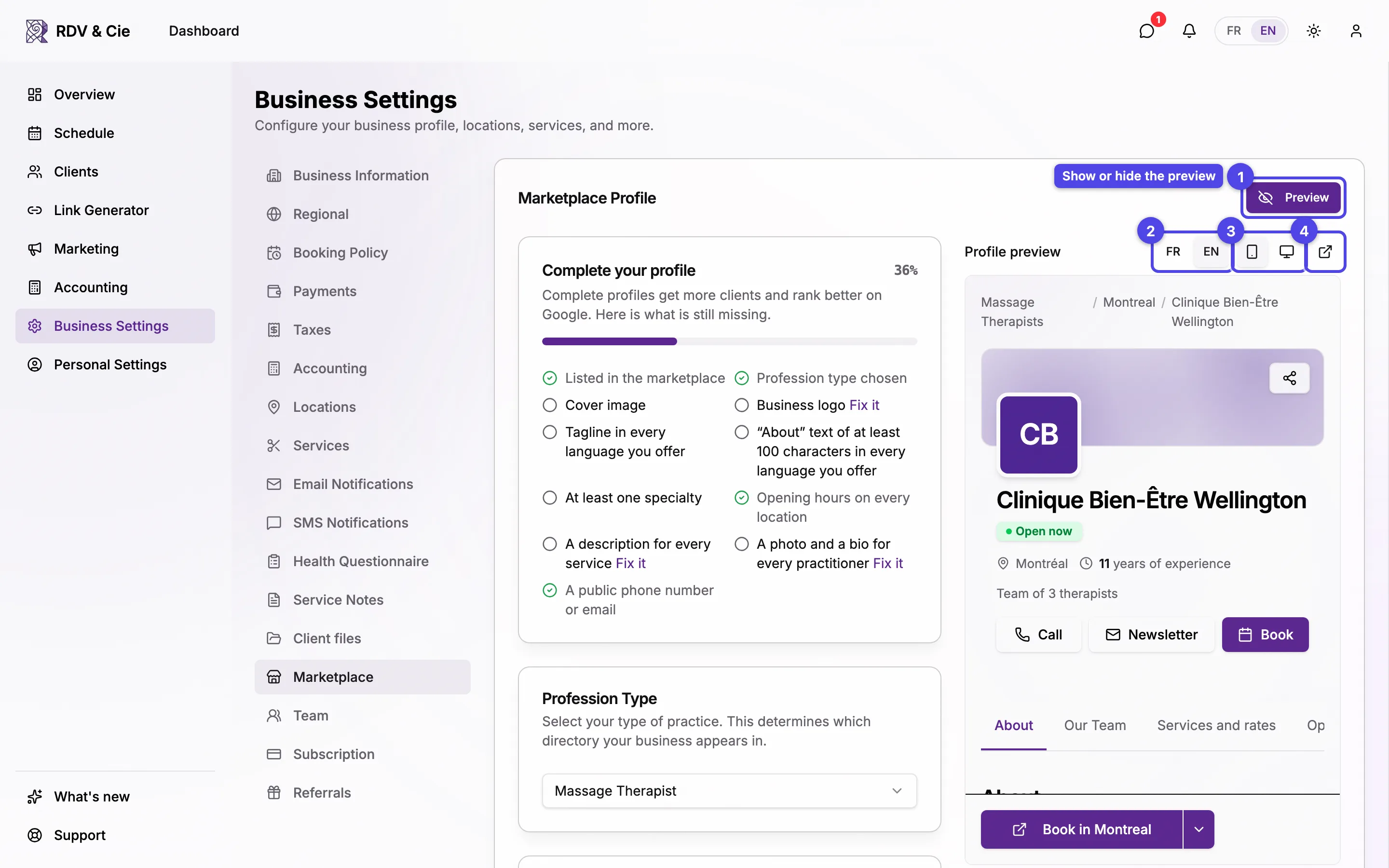
Preview
Shows or hides the Profile preview panel.
FR / EN
If your business offers both languages, switch between the French and the English version of your profile.
Mobile / Desktop
See your profile as it looks on a phone or on a computer. The Desktop view is scaled down to fit the panel.
Open in new tab
Opens the profile at full size in a new browser tab.
The preview also works while your profile is Hidden from the marketplace: only you and the team members who manage the business settings can see it, so you can get the profile ready before listing it. Links are disabled inside the preview. It needs a Profession Type and at least one location with a city that is Visible in booking page.
Complete your profile
At the top of the tab, Complete your profile shows how complete your public profile is and what is still missing. Complete profiles get more clients and rank better on Google.
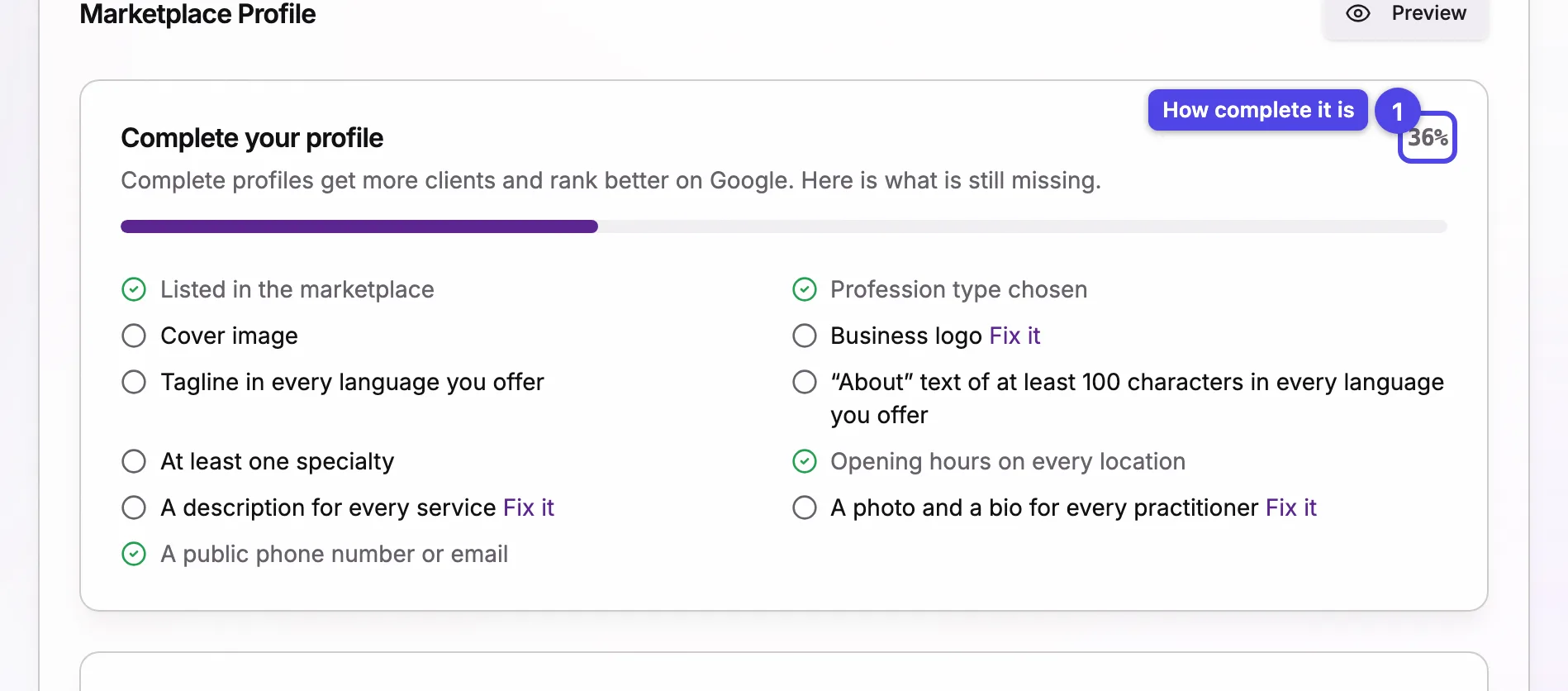
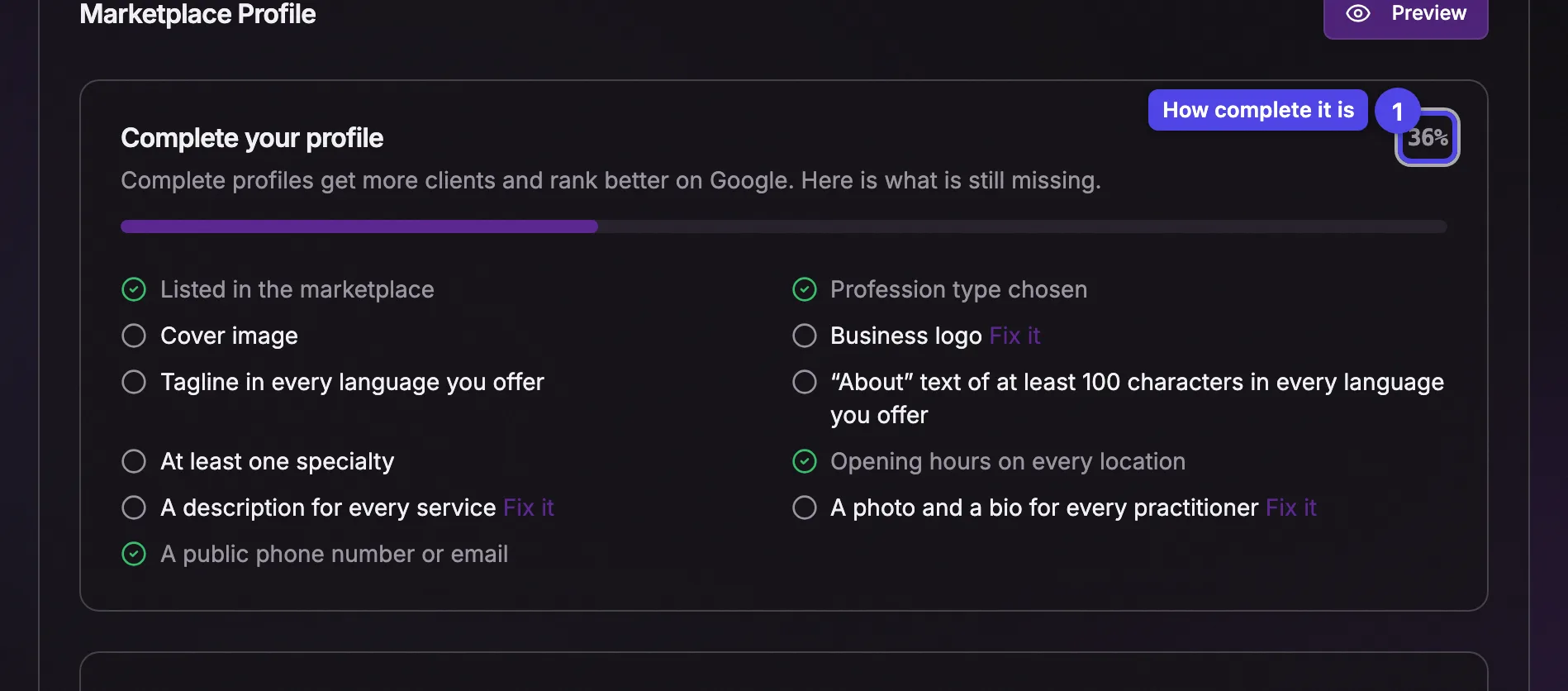
Items you edit on this tab (visibility, profession type, cover image, tagline, About text, specialties) update as you change them. The others have a Fix it link to where they are edited: your logo and public contact in Business information, opening hours in Locations, service descriptions in Services, photos and bios in Team, and your first client review in Marketing → Reviews. The card disappears once everything is done.
Profile settings
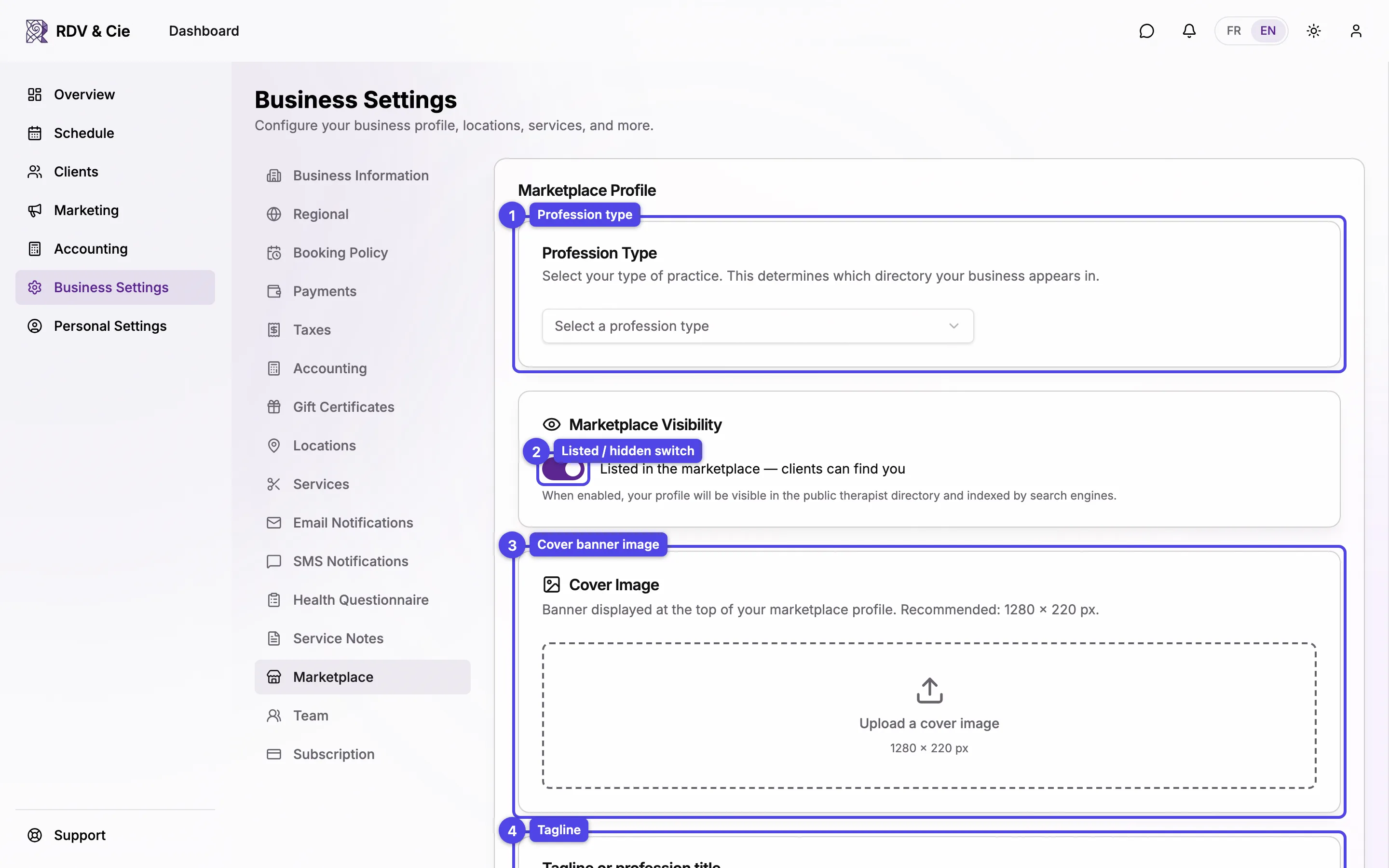
Profession Type
Pick your type of practice. This determines which directory your business appears in. Choosing a type can offer to fill in the matching default Specialties — if you already have some, you are asked whether to keep yours or replace them with the defaults.
Marketplace Visibility
The switch turns your listing on or off. When on, it reads Listed in the marketplace — clients can find you and your profile is visible in the public directory and indexed by search engines. When off, it is Hidden from the marketplace.
Cover Image
Upload a banner for the top of your profile (recommended 1280 × 220 px). Uploading opens a crop dialog with a Zoom slider. After uploading, the crop and remove (×) buttons sit on the image.
Tagline or profession title
A short line shown under your business name — for example, your modalities. Up to 200 characters, with a live counter. Bilingual businesses fill in a French and an English version.
About
A longer description of your practice, specialties, and approach. Up to 2000 characters, with a counter, in each supported language.
Specialties
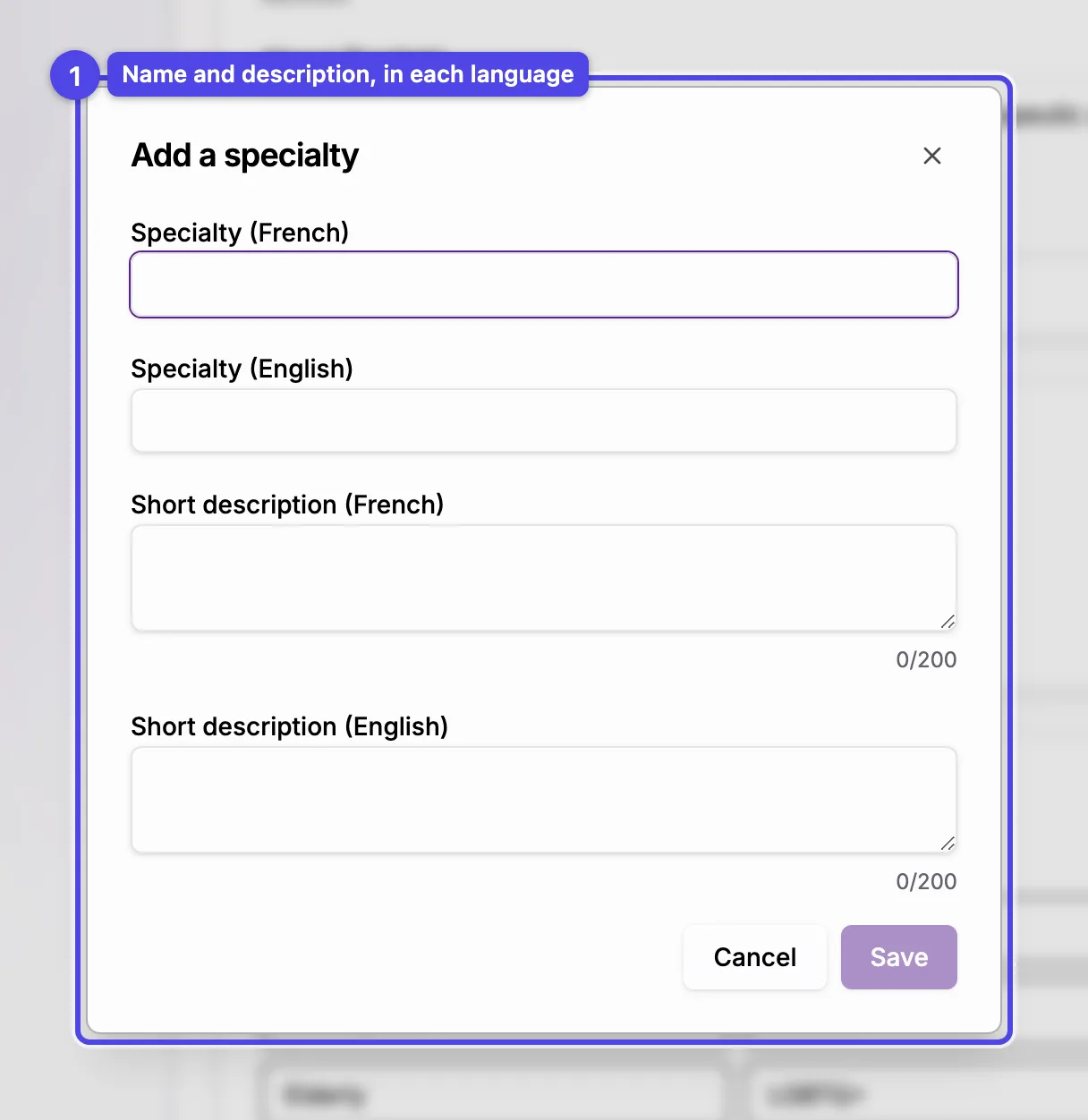
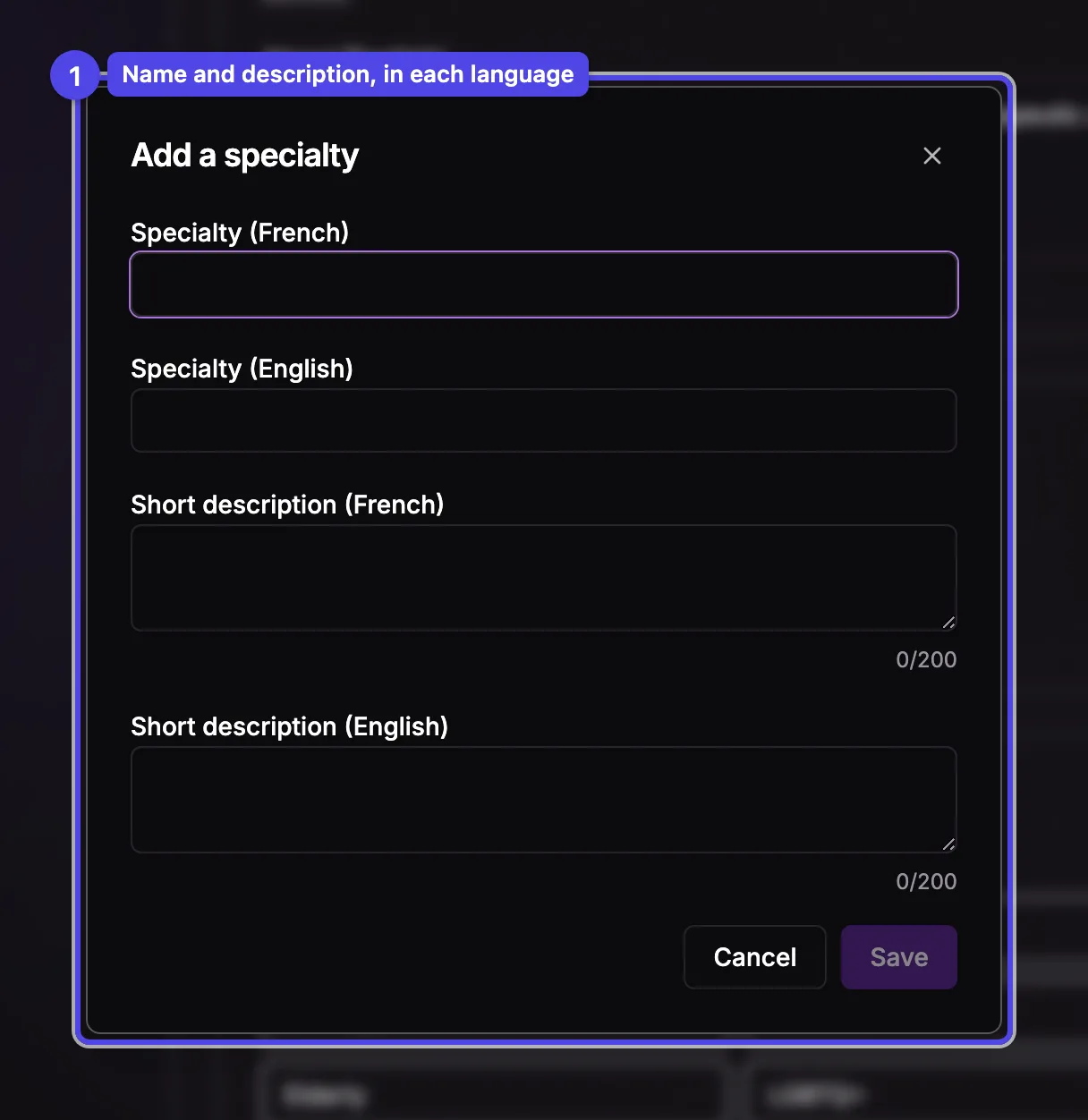
List the specialties you offer. Add a specialty opens a dialog for a name and an optional short description (in each language). Edit or delete each row with the pencil and trash icons. When a profession type is selected, a Reset to defaults button restores that type's default specialties.
Clientele
Tap the clientele types you serve to select them — selected types are highlighted. They help clients find you in directory filters.
Profile text, type, specialties, and clientele save automatically as you change them. The cover image saves immediately when you upload, crop, or remove it. The Preview updates after each save.
Your profile lists your services with their prices. To show Price on request and a "contact us" note instead, uncheck Show prices to clients in Booking Policy.