
Block off time
Hold a slot — lunch, vacation, or personal time — so clients can't book it.
Updated 2026-09-07
Blocking time holds a slot on the schedule so no one can book it online — for a lunch break, vacation, or personal time. You create a block from the Block Time Slot tab of the add-dialog. At the top of the tab, a switch picks between two modes: Blocked time (a one-off or recurring block) and Vacation (whole days picked on a calendar).
Block off time
Open the dialog
On a phone, tap the round + button; on a wider screen, click an empty grid slot. The schedule add-dialog opens.
Switch to Block Time Slot
Select the Block Time Slot tab at the top of the dialog. Leave the mode switch on Blocked time.
Fill in the details and save
Set the date and times (or All day), add an optional reason, then select Block Time.
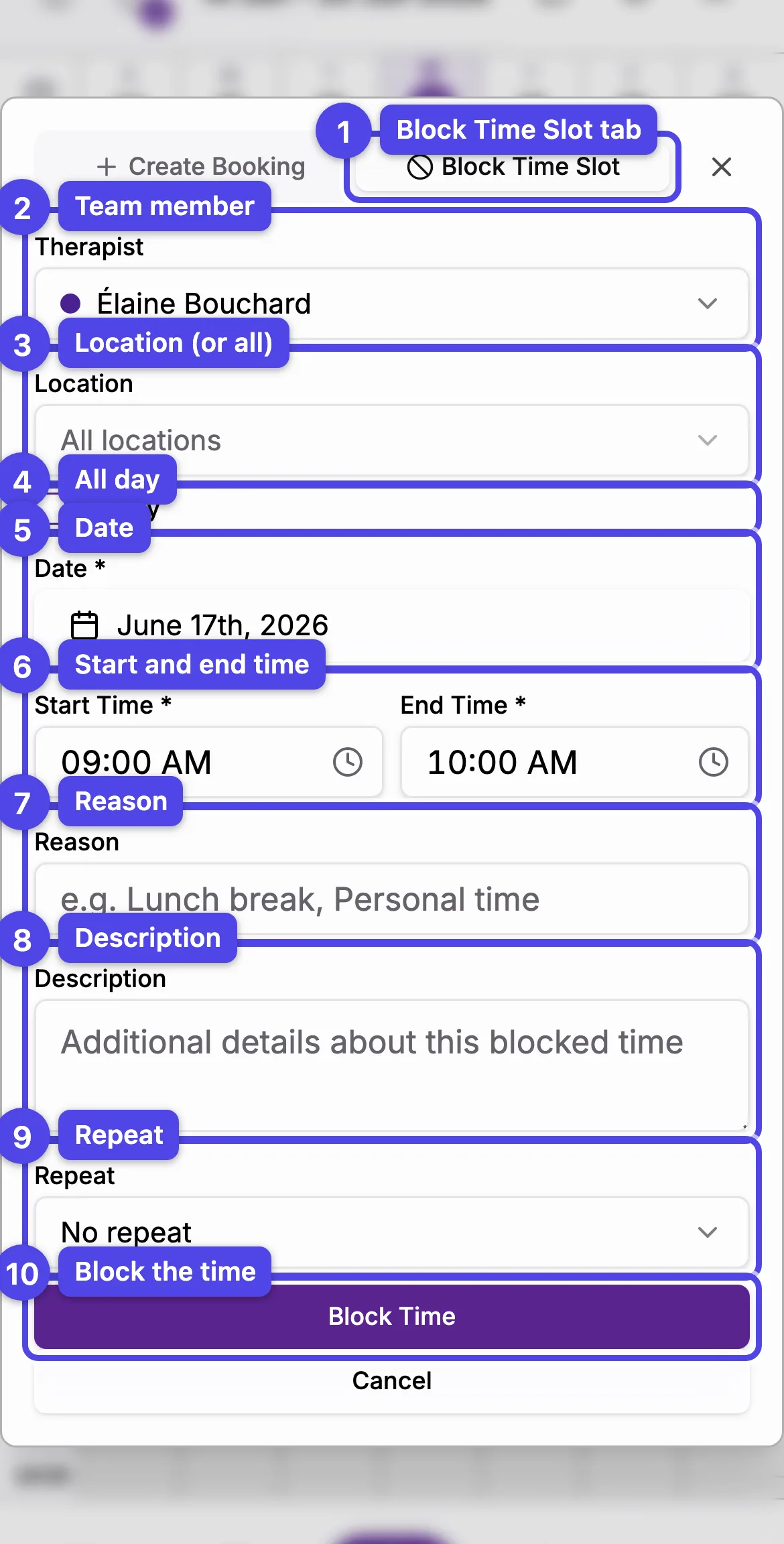
Every field
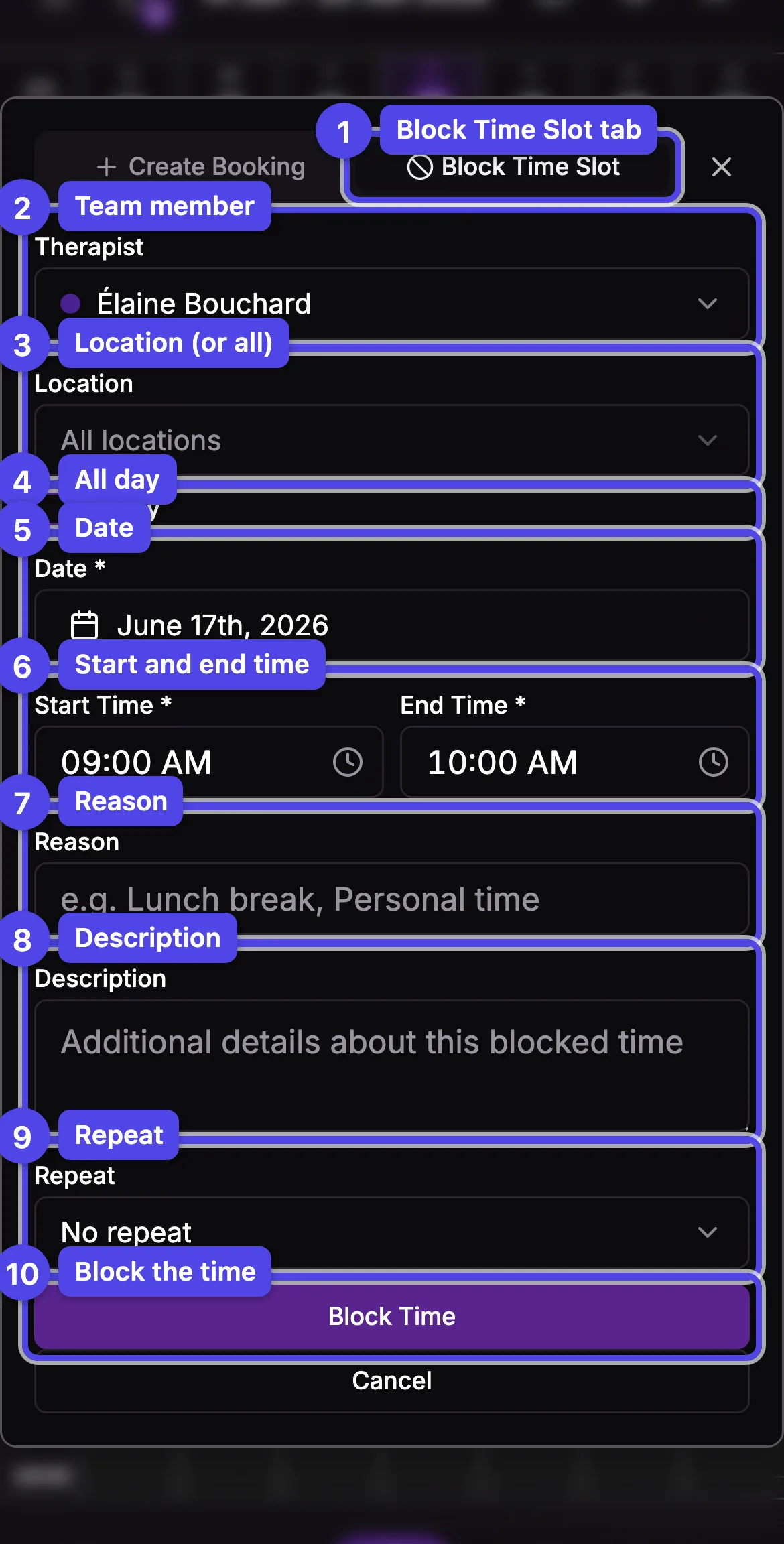
The numbers below match the screenshot.
- Block Time Slot tab — the blocking form (shown here).
- Blocked time / Vacation — the mode switch. Blocked time is the form described below; Vacation replaces it with a calendar (see Enter vacations on the calendar).
- Therapist — whose schedule to block. Shown when your business has more than one team member.
- Location — limit the block to one location, or leave All locations to block everywhere.
- All day — block the whole day. When checked, the start/end times hide.
- Date (required).
- Start Time / End Time (required) — shown only when All day is off.
- Reason — a short label (for example, Lunch break). Shows on the block.
- Description — extra details (optional).
- Address (optional) — where you'll be during the block (an off-site meeting, a training, a home visit). The section is collapsed by default — select Address (optional) to reveal the street address, City, Province, and Postal Code fields (all optional). If your Google Calendar is connected, the address shows as the location of the synced event.
- Repeat — No repeat, Daily, Weekly, Monthly, Custom, or Specific dates. Choosing a recurrence reveals a count (for example, "Repeat for 4 weeks"); Custom lets you set an interval and an Until date. Specific dates replaces the Date field with a month calendar — tap every date the block should repeat on, and the times above apply to each selected day.
- Block Time — saves the block.
Blocking is one-way: a block can sit on top of existing bookings. If it overlaps any, you'll see Bookings overlap this period and can choose Block anyway — those bookings stay on the schedule until you reschedule them.
If your Google Calendar is connected (Personal settings → Google Calendar), blocked times you create here also appear as events in your Google Calendar — and are updated or removed when you edit or delete the block. You can turn this off with the Sync my blocked times to Google Calendar option in that tab. Events you create in Google Calendar still flow the other way, showing up here as blocks synced from Google Calendar.
Enter vacations on the calendar
Switch the mode to Vacation to manage vacation days on a month calendar instead of one block at a time.
Switch to Vacation
In the Block Time Slot tab, select Vacation on the mode switch. The location, date, time, and repeat fields disappear and a month calendar appears, showing every existing vacation day hatched at its date.
Tap your vacation days
Move between months with the arrows and tap each day you're away — tapped days fill in. Tap a hatched day to remove that existing vacation; tap it again to keep it. Past days work too, so you can record or fix a forgotten vacation retroactively.
Save
Select Save vacations. New days are created, removed days are deleted, and the dialog closes.
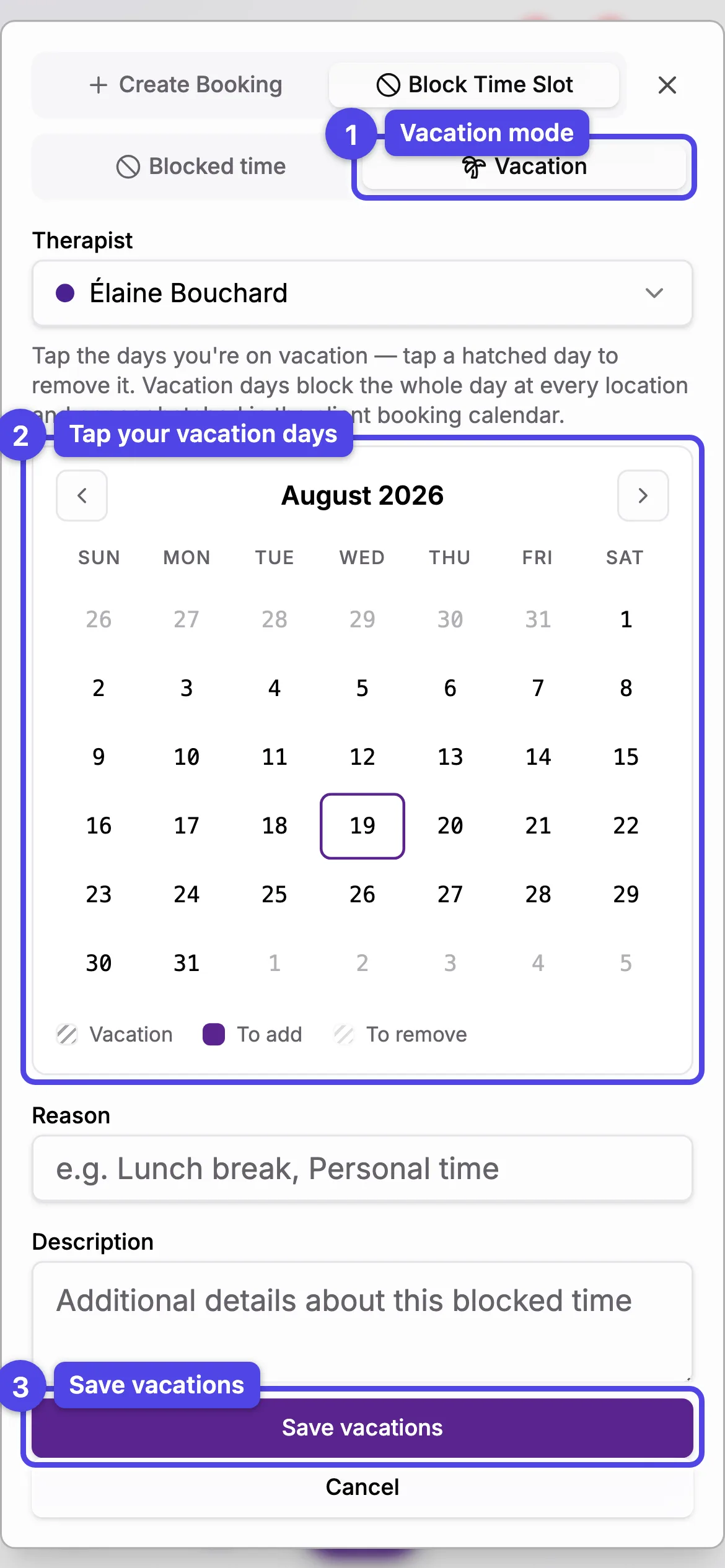
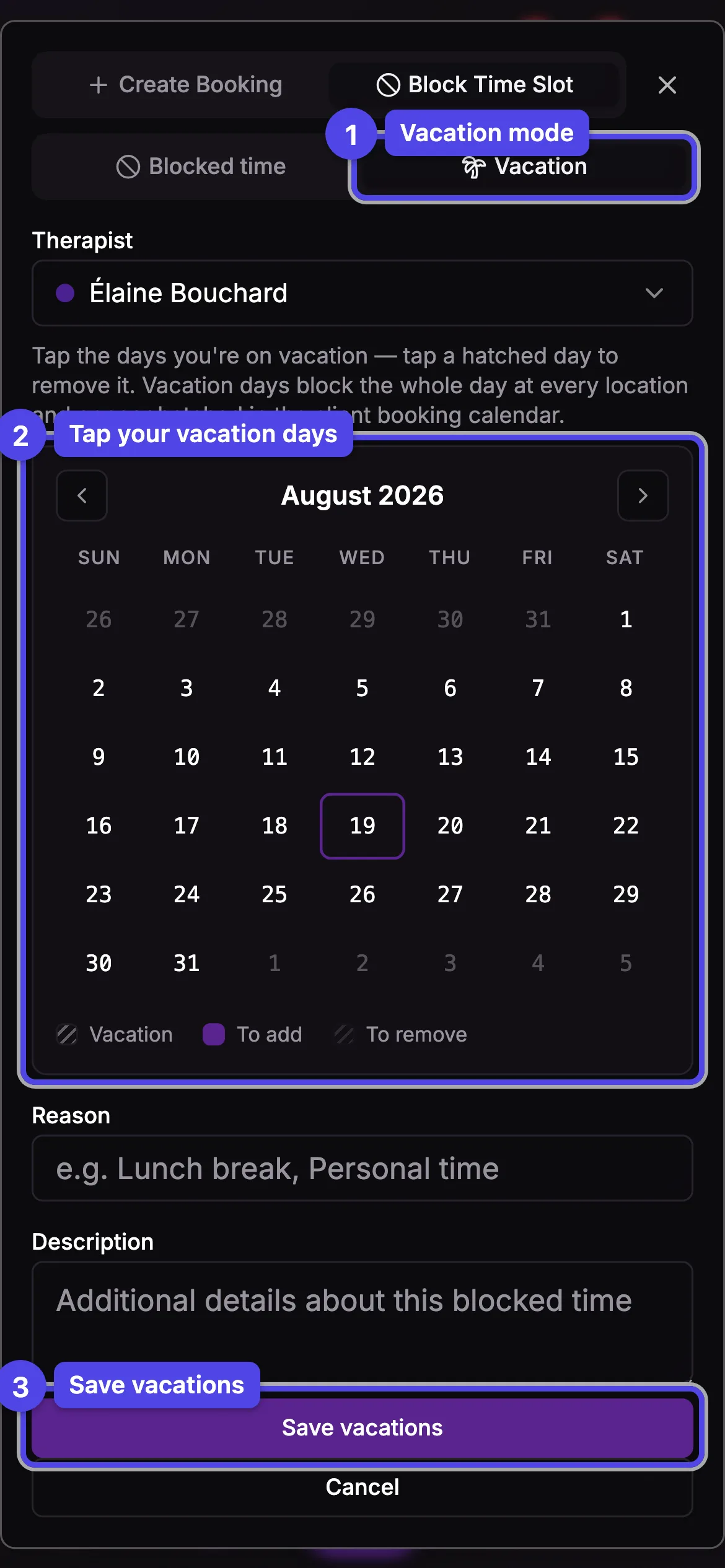
Vacation days always block the whole day at every location — there's no location choice to get wrong. In the client booking calendar they render hatched with an "on vacation" legend, so clients understand you're away rather than fully booked. On your own schedule, vacation blocks show a 🌴 icon instead of the blocked icon. The Reason and Description fields still apply — a reason like Sicily trip is saved on every day you add.
If a day you're adding already has bookings, you'll see the same Bookings overlap this period warning with the total count across all added days — those bookings stay on the schedule until you reschedule them.
Manage an existing block
Click a blocked period on the grid to open its dialog. From there you can:
- Edit — change the date, times, location, reason, description, or address. When the block has an address, the dialog shows it with a Get directions icon that opens the route in Google Maps. The same Blocked time / Vacation switch appears at the top: switching a block to Vacation makes it a whole-day, all-locations vacation. Editing a block that already is a vacation opens the same vacation calendar as when creating — tap days to add or remove them, then Save vacations.
- Remove Block — delete the block. Removing a vacation day can also be done from the vacation calendar (tap the hatched day, then Save vacations).
For a recurring block, editing or removing asks whether to apply to this one only or this and all future entries. Blocks synced from Google Calendar can't be edited here — edit them in Google Calendar, or Dismiss the event to stop it from blocking your schedule.
What's next
- Create a booking — add a booking by hand.
- Manage a booking — reschedule, complete, cancel, or mark a no-show.