
Gift certificates
Issue, track, download, and void gift certificates — by dollar amount or for a specific service.
Updated 2026-09-28
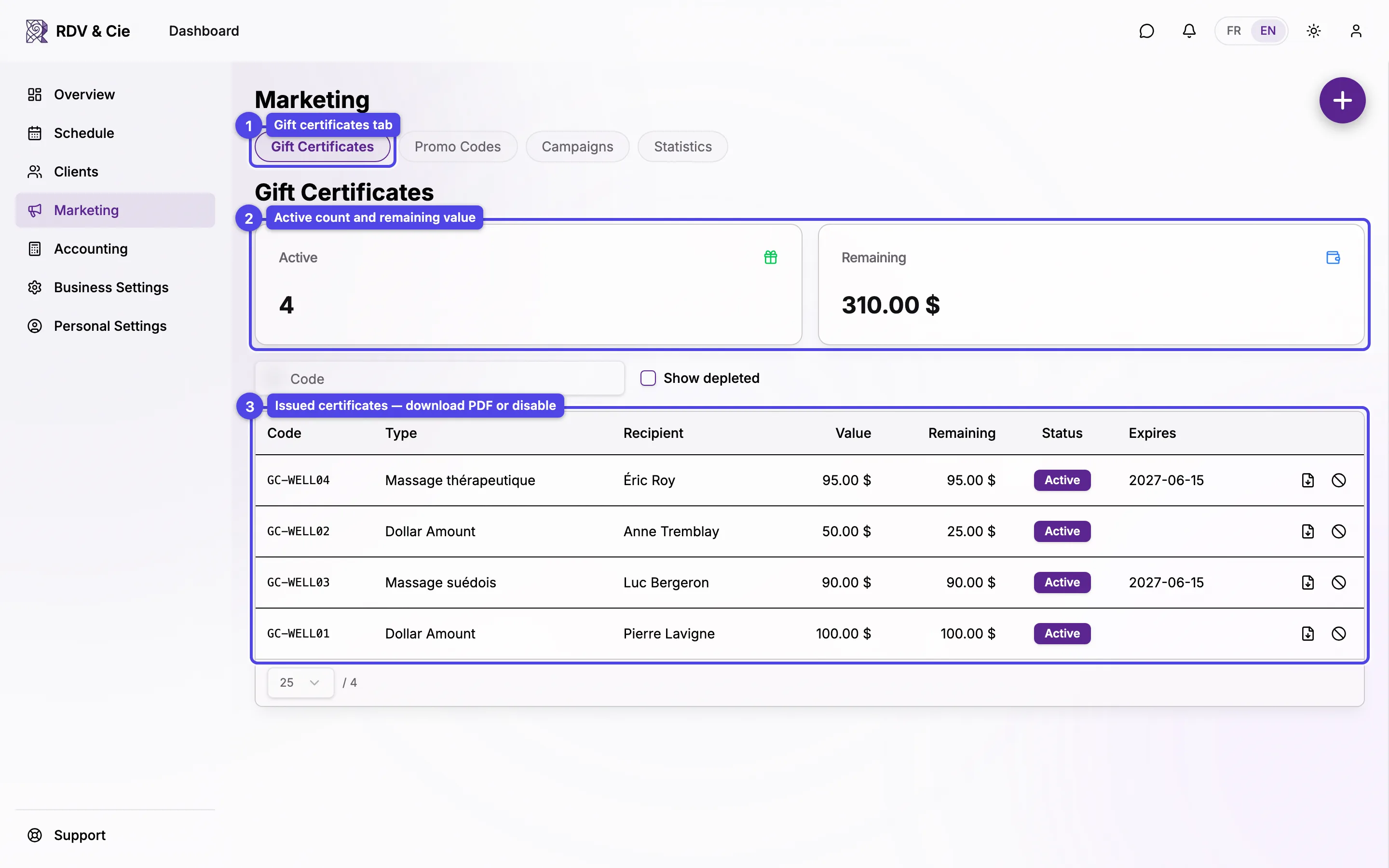
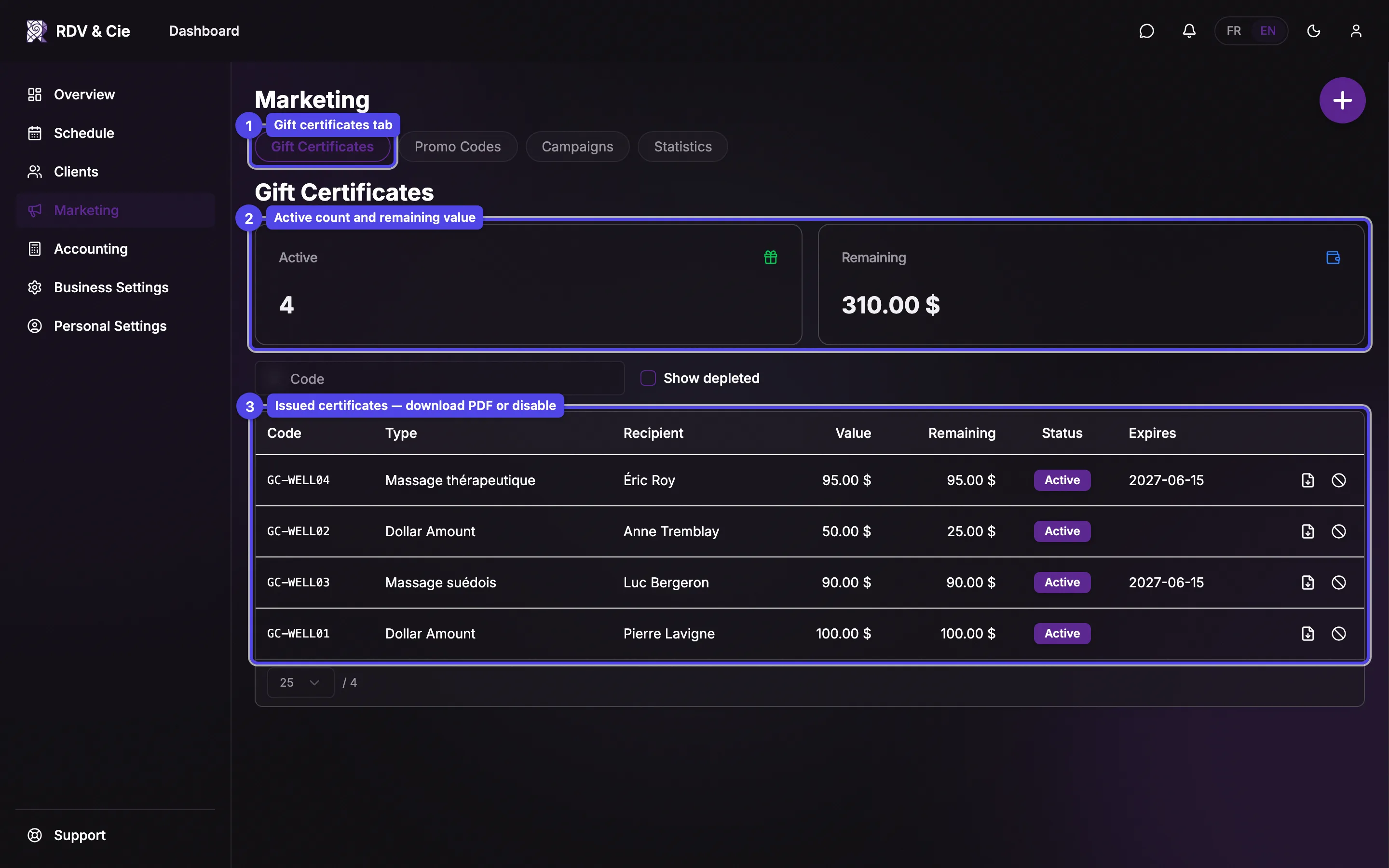
The Gift Certificates tab lists every certificate you've issued and lets you create new ones. It's the default tab when you open Marketing.
The list
Two cards at the top summarize your outstanding liability:
- Active — how many certificates still have a balance.
- Remaining — the total dollar value still owed across all active certificates.
Below them, a search box filters by code, and the Show depleted and voided checkbox adds fully-used and voided certificates back into the table. Each row shows the code, type (a dollar amount or a service name), recipient, original value, remaining value, a status badge (Active, Partially Used, Depleted, Voided), and the expiry date.
On the right of each row:
Download PDF
The download icon opens a print-ready certificate PDF — the gift the recipient receives.
Send by email
The envelope icon opens a send dialog — the recipient address (prefilled with the buyer's email when they're a linked client), the Subject, and the Message are all editable before sending. The certificate PDF is attached automatically. Use it to resend a lost certificate or send it to a different address.
Disable
The ban icon voids the certificate. You're asked to confirm; voiding can't be undone — a voided certificate stays Voided even if a booking that used it is later cancelled. The icon is hidden once a certificate is depleted or voided, and a voided certificate has no PDF or send action.
Issue a certificate
Press the round + button to open the creation dialog. The fields change depending on the type you pick.
Type and scope
- Type — Service (good for one specific service) or Dollar amount (spend on anything).
- Location — appears when you have more than one location. Leave it on All locations, or restrict the certificate to specific ones.
- Therapist (service type only) — lock the certificate to one team member, or leave it on Any therapist. The service list and the suggested price follow this choice.
- Service (service type only) — the service the certificate pays for; the
price shown is tax-inclusive. Inactive services are marked
(inactive). - Amount ($) (dollar type only) — the dollar value of the certificate.
Recipient, buyer, and delivery
Recipient
Who the certificate is for. Start typing to link an existing client, or just type a name.
Buyer
Who's paying. Linking a client fills in their email automatically.
Message
An optional personal note printed on the certificate.
Send email
On by default — emails the certificate to the buyer. The Buyer email field appears so you can confirm or change the address.
Press Create to issue it. Create stays disabled until the buyer, recipient, and either a service or an amount are filled in.
Voiding a certificate is permanent. If a client just needs a different service or therapist, void the old one and issue a new certificate — the scope is fixed when the certificate is created and can't be edited afterward.