
Booking Policy
Control booking windows, lead times, approval, cancellation policy, waiting list, receipts, reviews, price display, and no-show protection.
Updated 2026-10-02
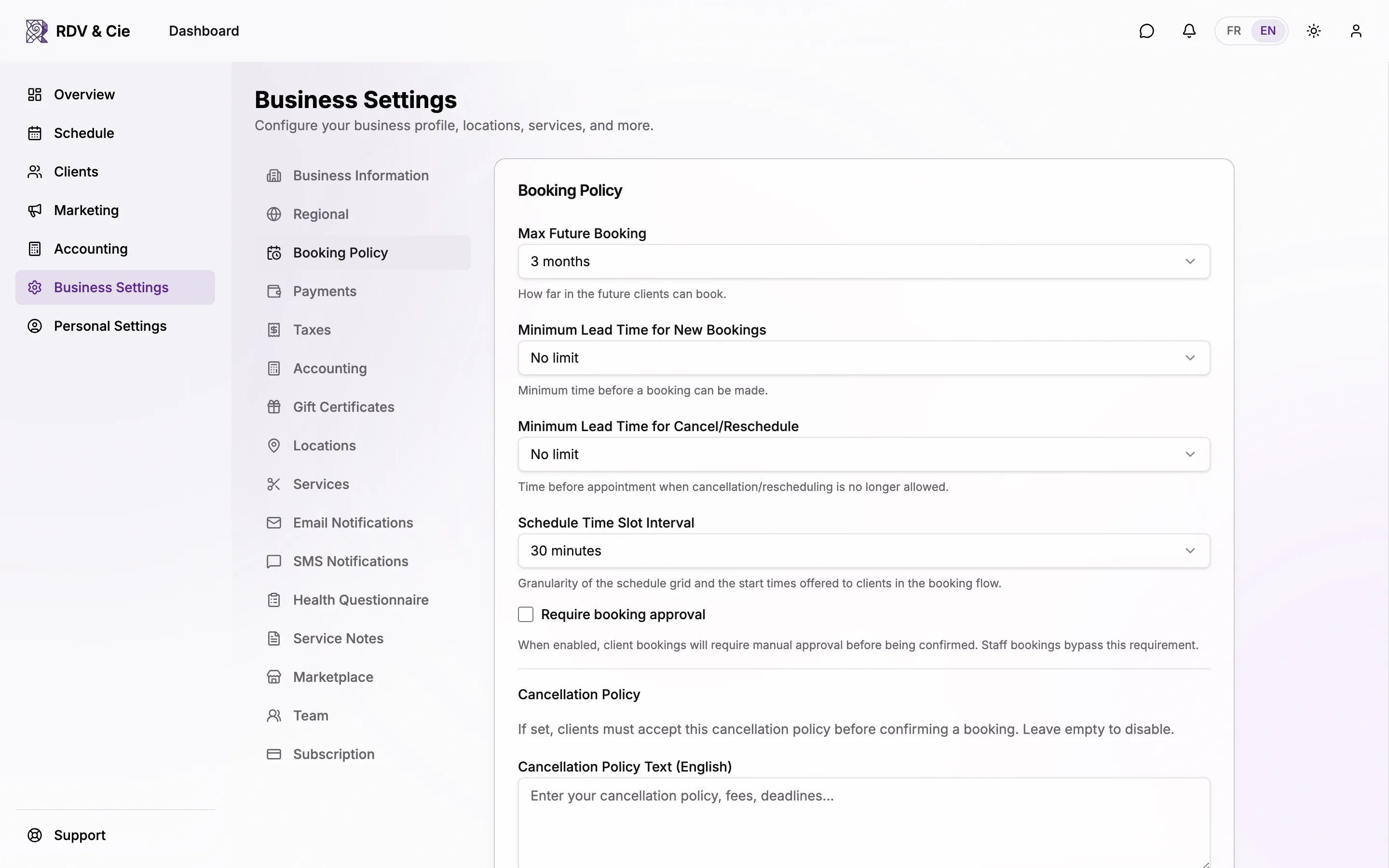
The Booking Policy section sets the rules clients follow when they book online. Everything here saves automatically — change a value and a toast confirms it.
Timing rules
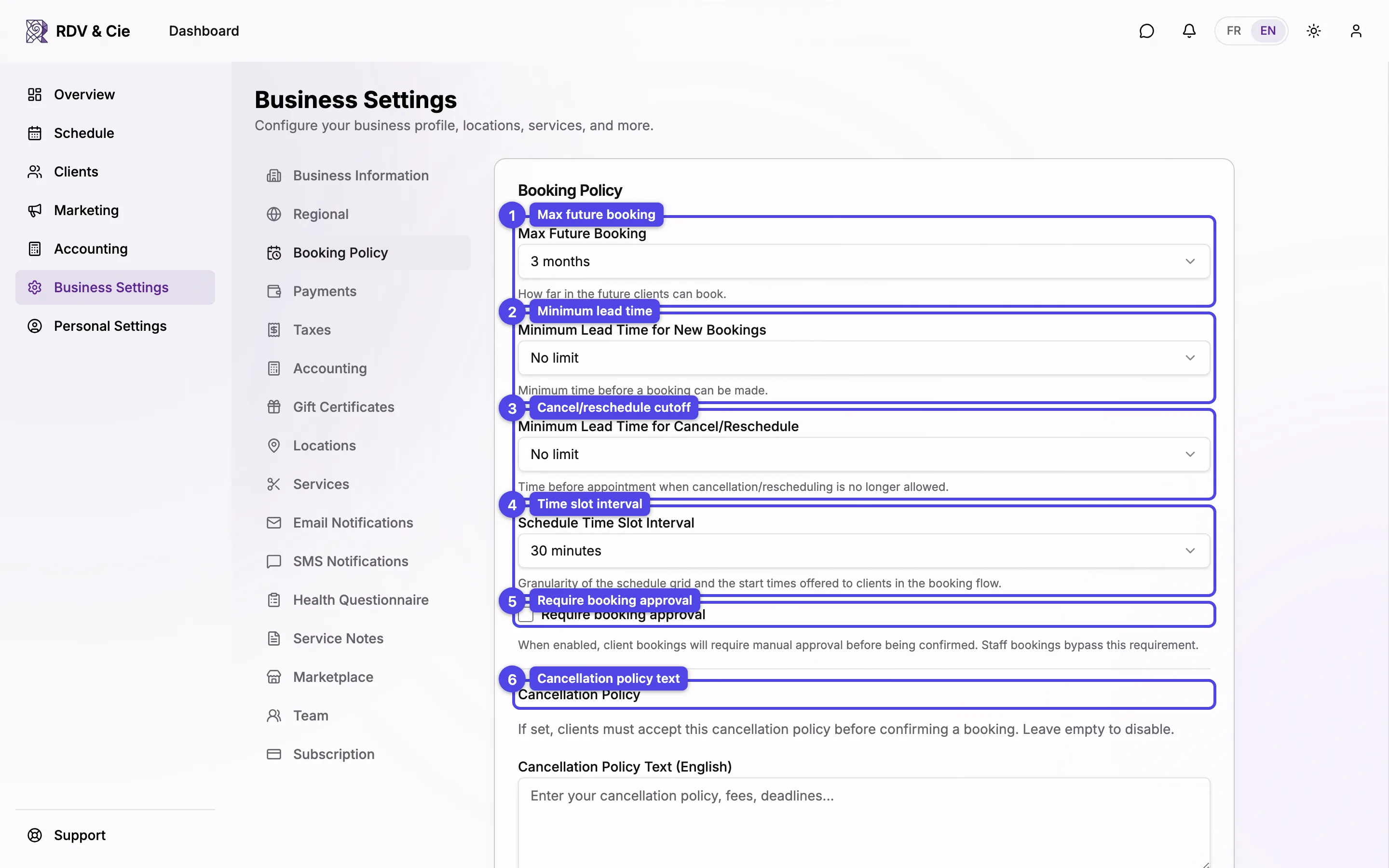
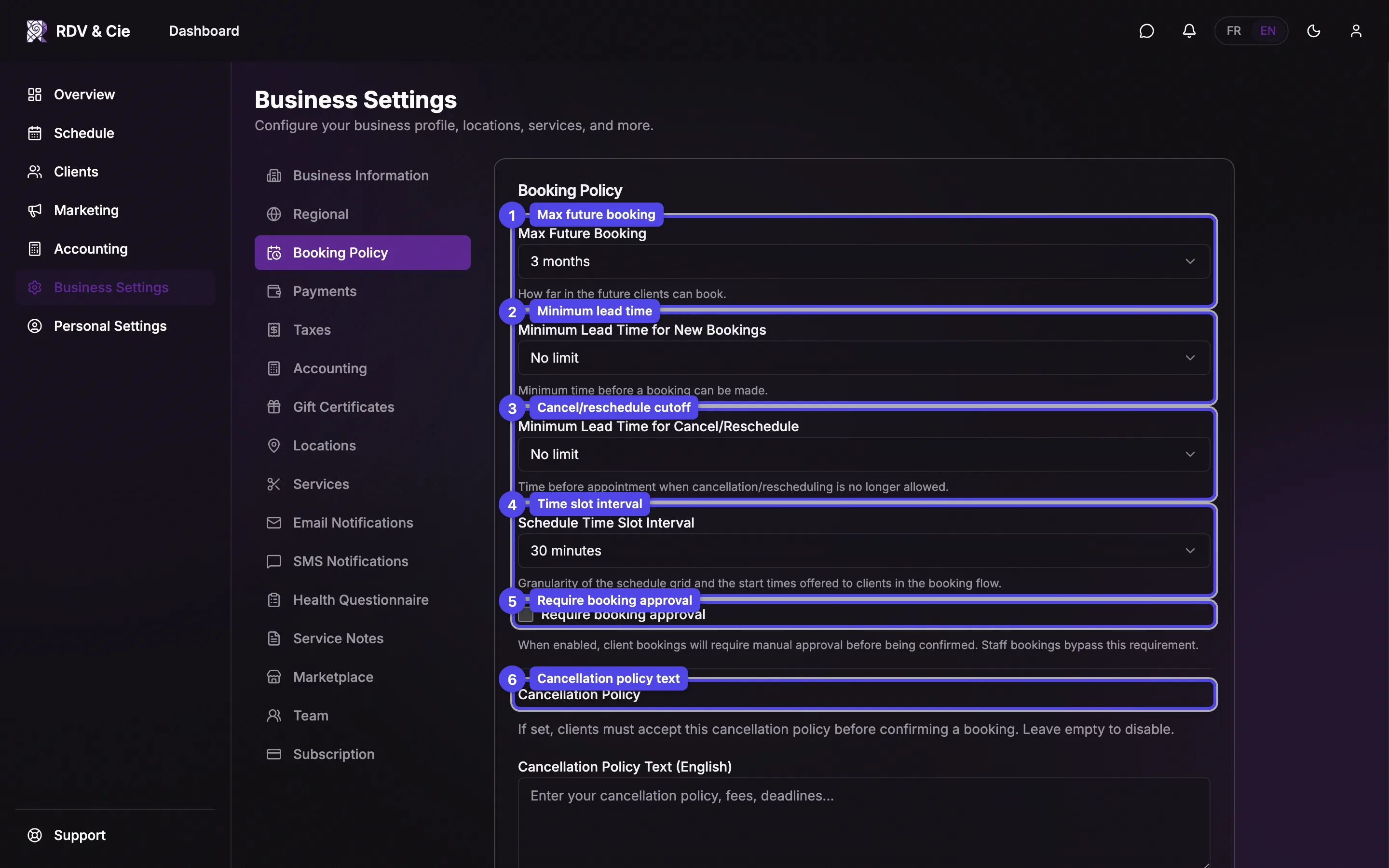
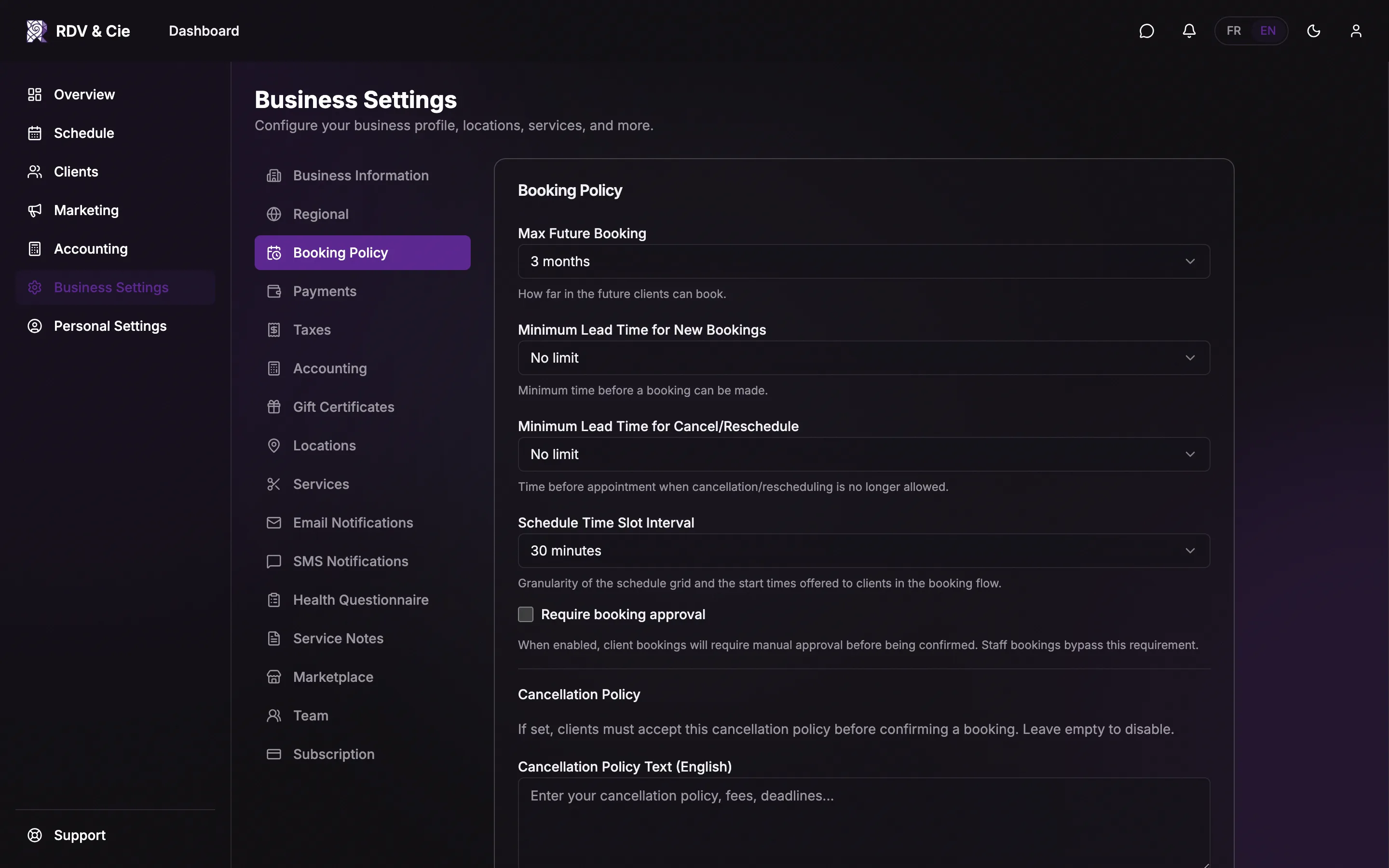
Max Future Booking
How far in the future clients can book — from 1 week up to 1 year, or No limit.
Minimum Lead Time for New Bookings
The minimum time before a booking can be made (for example, no bookings within the next 2 hours). Choose No limit to allow last-minute bookings. This is the default for the whole team — a team member can have their own value set in their Working Hours tab (see Working Hours), which replaces the business default for their bookings only.
Minimum Lead Time for Cancel/Reschedule
The cutoff before an appointment after which a client can no longer cancel or reschedule online.
Schedule Time Slot Interval
The granularity of the schedule grid and the start times offered to clients in the booking flow — from 5 minutes to 1 hour.
Require booking approval
When enabled, client bookings require manual approval before being confirmed. Staff bookings bypass this requirement.
Cancellation Policy
If you fill in the Cancellation Policy Text, clients must accept it before confirming a booking. Leave it empty to disable.
When your business supports both languages, you get two fields — Cancellation Policy Text (English) and Cancellation Policy Text (French). With a single supported language, there's one Cancellation Policy Text field.
Waiting List
Enable waiting list
Lets clients join a waiting list when no suitable time slot is available.
Maximum waiting list duration (weeks)
Clients are automatically removed from the list after this many weeks.
Notification mode
When a slot opens up, choose Notify all matching clients or Notify only the first client (oldest on list).
Insurance Receipts
Enable insurance receipts turns the receipts feature on. When disabled, it's hidden from the dashboard and client profiles.
Client Reviews
Enable client reviews sends clients a review link after completed appointments. Reviews appear on your public profile.
Therapist Selection
Skip therapist selection step stops asking clients to choose a specific therapist during booking — the system automatically assigns an available one.
Price Display
Show prices to clients is on by default. Uncheck it if you'd rather not publish your rates — for example when they vary by treatment plan or you prefer that clients call first.
When it's unchecked:
- Clients see no prices on your booking page, your marketplace profile and search results, or in booking emails and text messages (confirmations, reminders, and so on).
- Wherever a price would have been, clients see Price on request and a note inviting them to contact you, with buttons to call, email, or message you.
- Promo codes and gift certificates still work — clients see the code's terms (for example "15% off") rather than an amount.
The standard note reads "Prices aren't listed online. Contact your business for pricing information." To write your own, fill in Custom note — English (optional) and Custom note — French (optional) (a single Custom note (optional) field when your business uses one language). Leave them empty to keep the standard message.
Hiding prices only changes what clients see — each booking is still priced normally, and you see every amount in your dashboard. Receipts, bills, quotes, and payment links always show amounts. Your boutique still shows each item's sale price, since a client can't buy without it.
No-Show Protection
The No-Show Protection block only appears once you've connected a payment processor (Stripe or Square) under Payments.
- Require card on file for online bookings — clients booking online must save a credit card, which lets you charge no-show fees. Manual bookings from the dashboard are not affected.
- Default no-show charge — the default percentage of the booking price charged for no-shows. You can override it when actually charging.