
Quotes
Send a client a price estimate, record their answer, and turn an accepted quote into a bill.
Updated 2026-09-29
A quote is a price estimate you send a client before the work is agreed on — a treatment plan, a package, or a group booking. Quotes live on their own Quotes tab in Accounting, next to Bills.
A quote is never a bill: it has its own number (for example S2600001), it never counts as income, and it can't be paid. When the client says yes, you convert it into a regular bill in one click.
Create a quote
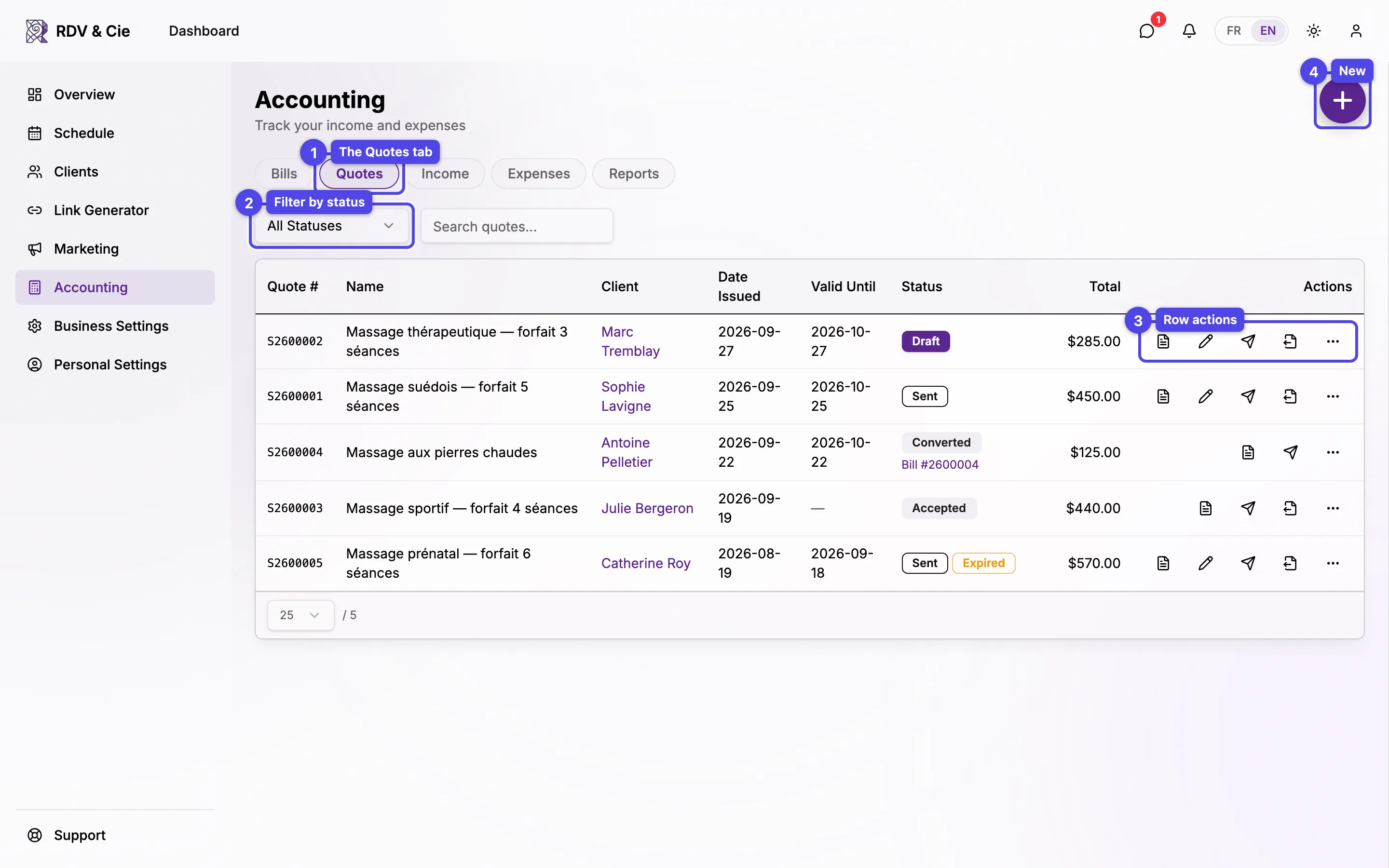
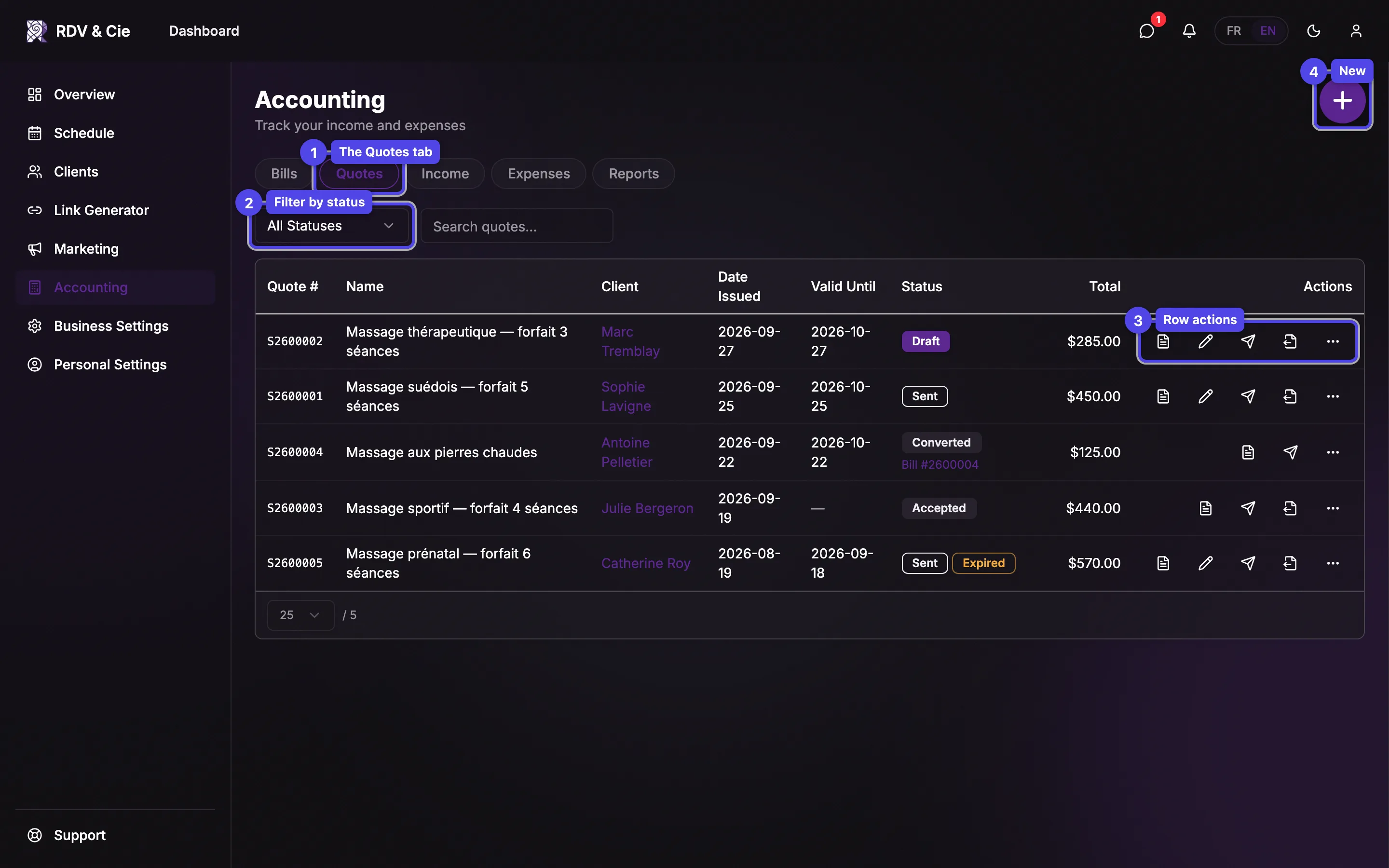
Open the Quotes tab
In Accounting, click the Quotes tab.
Filter and search
Narrow the list by status — Draft, Sent, Accepted, Declined, or Converted — or search by quote name, number, or client.
Row actions
Each row has Download PDF, Edit (drafts and sent quotes), Send, Convert to Bill, and a More actions menu.
Create Quote
The round + button opens the quote editor. It's the same editor as a bill: Quote Name, the client, the Payee (From) and Prepared For details, the line items, the discount, and the delivery fee.
You can also start a quote from a client's profile: open the client, go to the Quotes tab, and click New Quote — the client is already selected.
The validity date
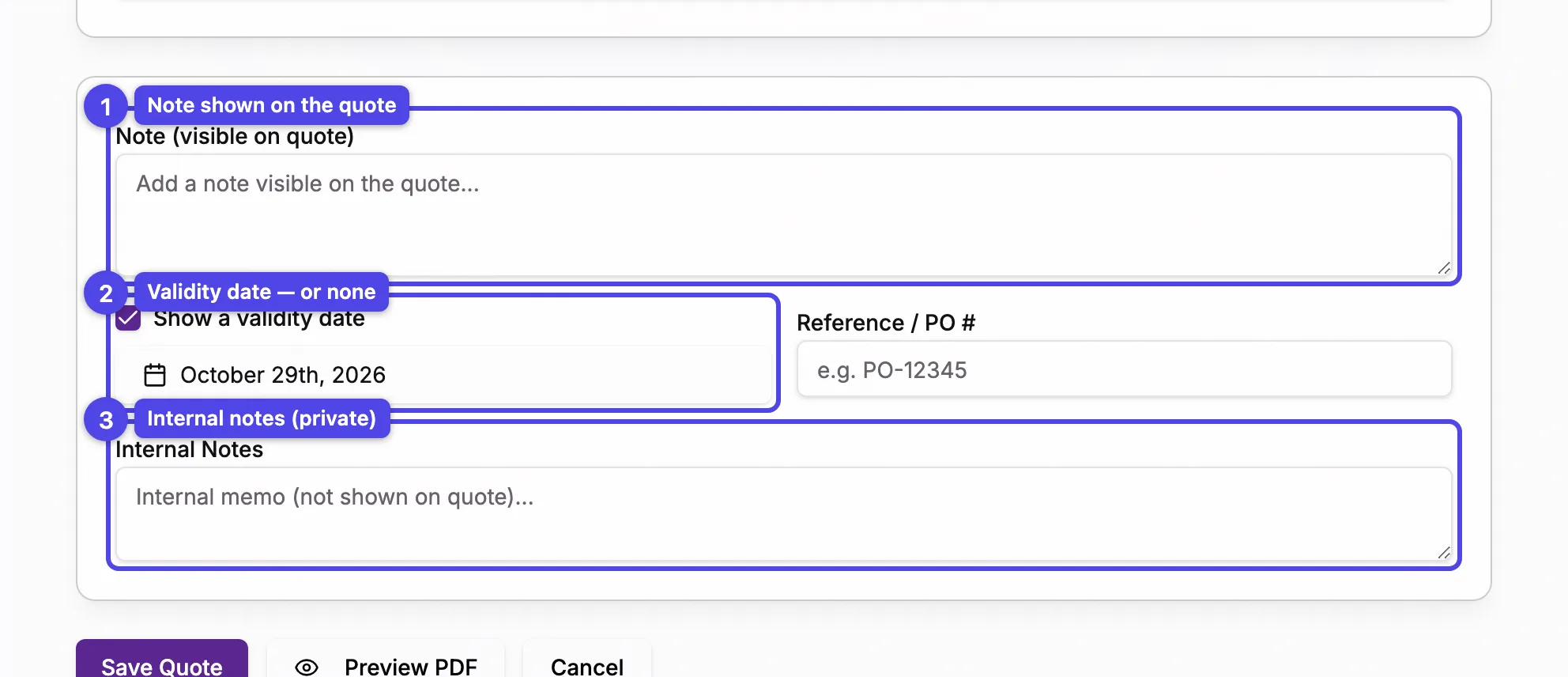
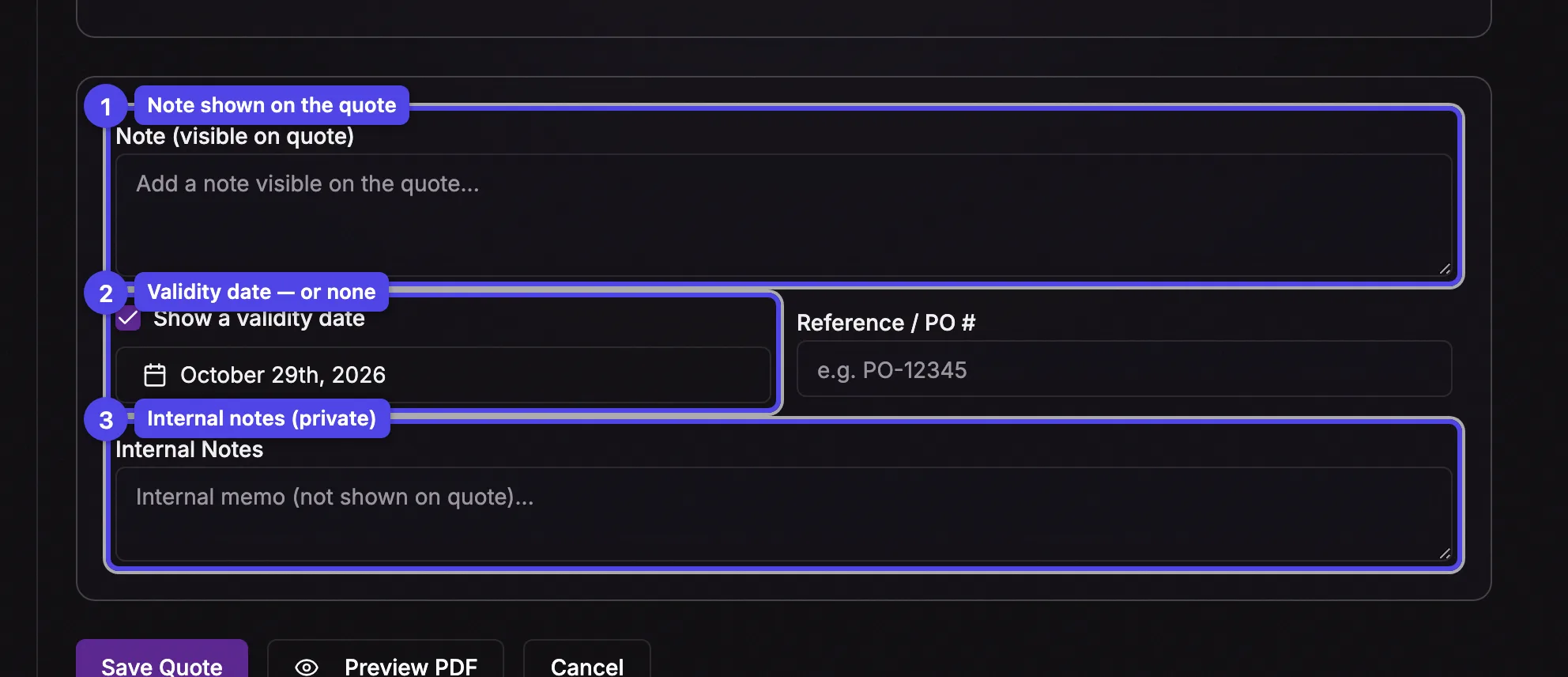
Note (visible on quote)
A note printed on the quote the client receives.
Show a validity date
When checked, the quote shows a Valid Until date — 30 days from today by default, and you can pick another one. Uncheck it and the quote shows no validity date at all.
Internal Notes
A private memo that is not shown on the quote.
Once the validity date has passed, the quote gets an Expired badge in the list. It's a reminder only: you can still send it or convert it.
Send a quote
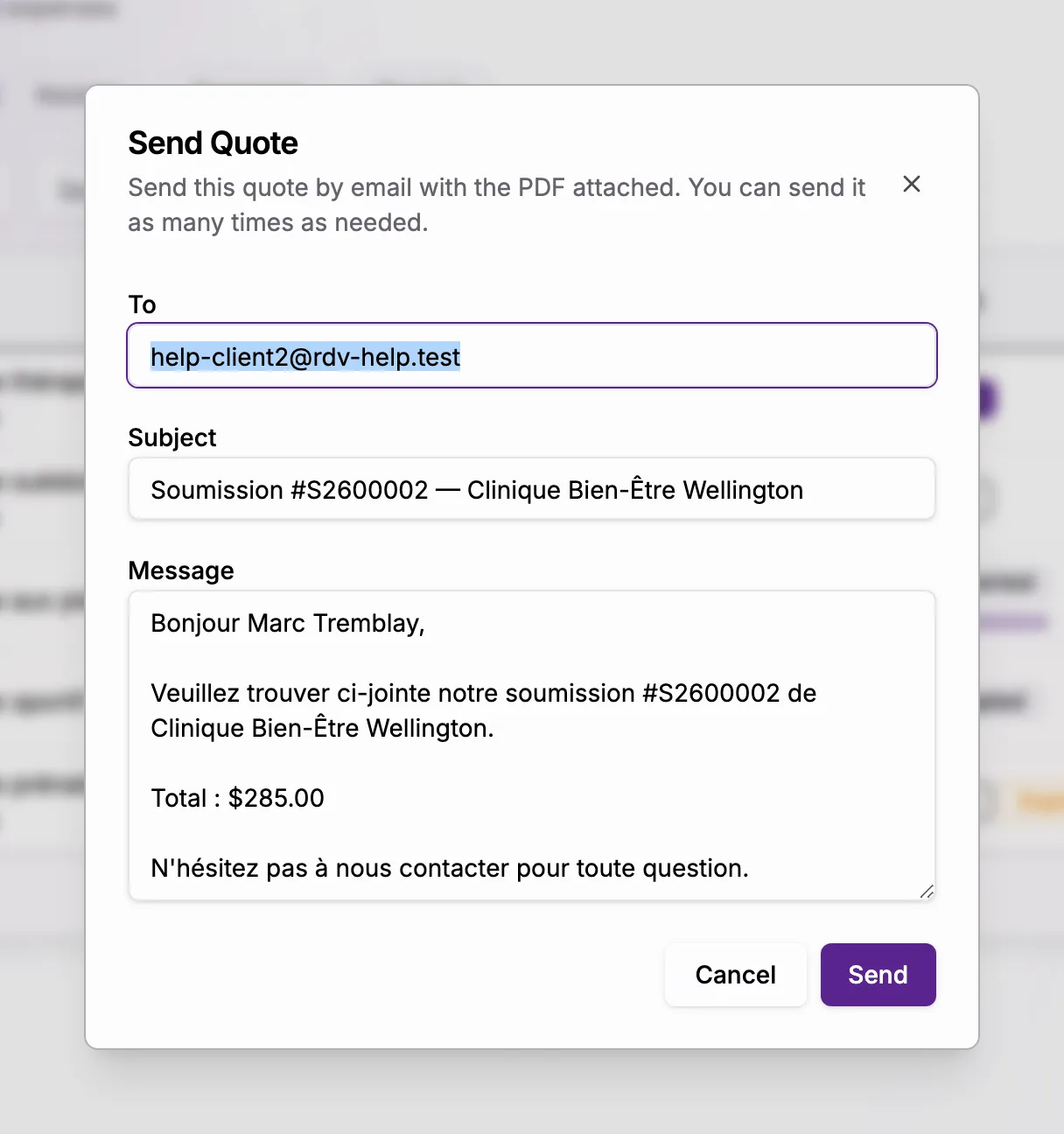
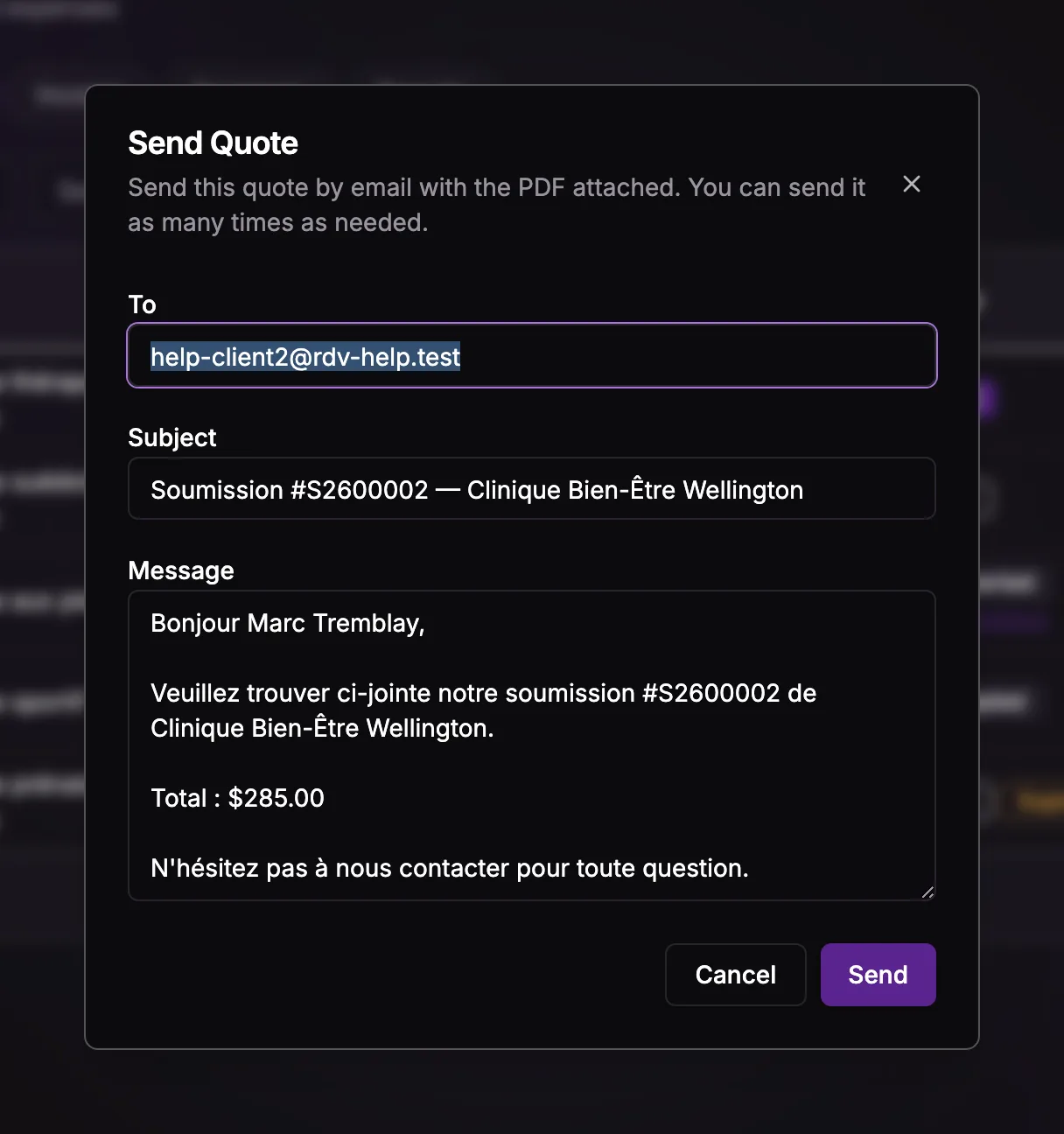
Send opens the Send Quote dialog, pre-filled from your quote email template. Edit the recipient, subject, or message, then send — the quote goes out as a PDF attachment.
Sending a Draft makes it Sent. You can send a quote as many times as you need: after a revision, or as a reminder. A draft or sent quote can still be edited, and the next send includes your changes.
The email is the Quote sent template in Business Settings → Email, under Email Templates — customize it there once and every quote uses it. See Email Notifications.
Record the client's answer
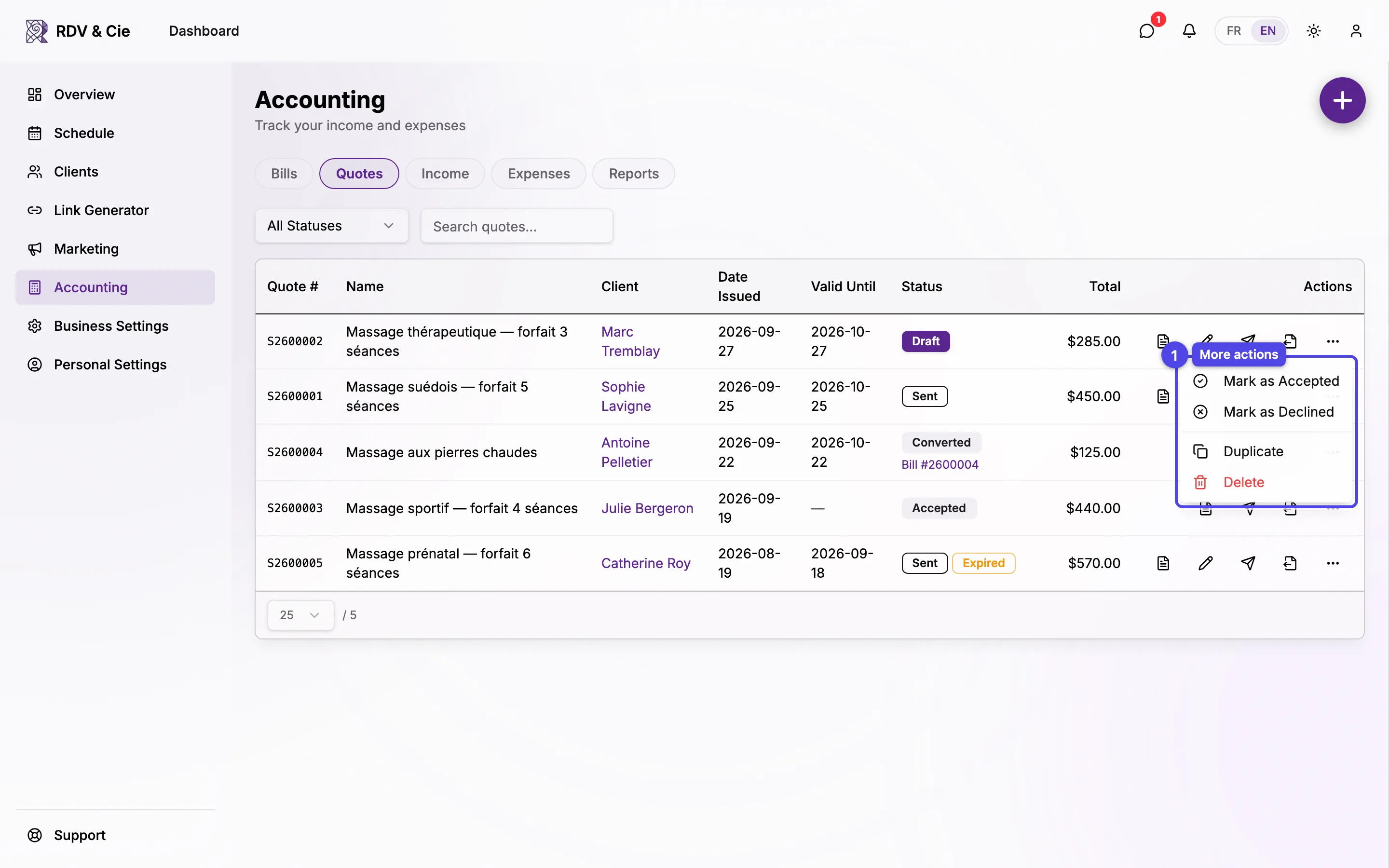
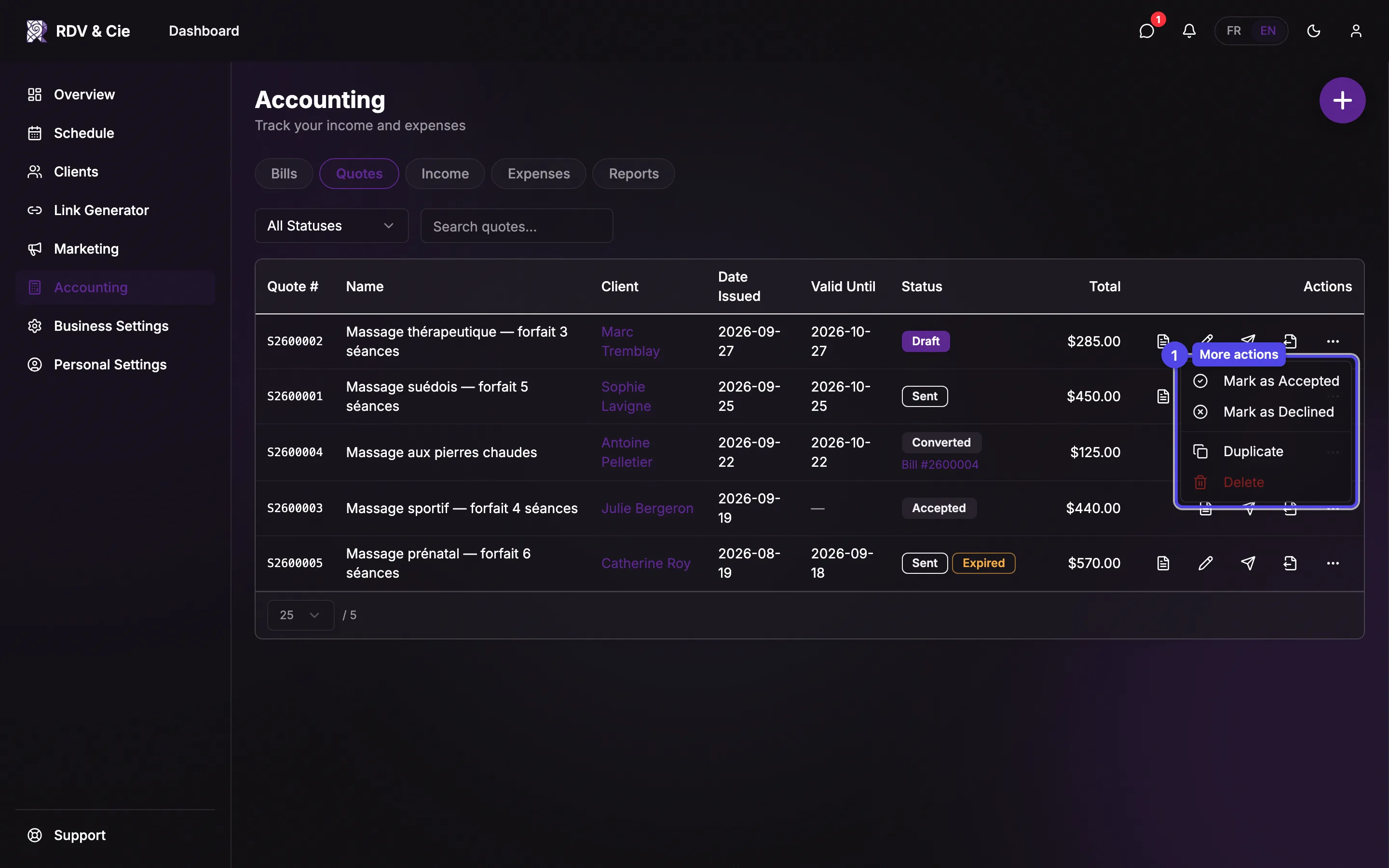
Mark as Accepted / Mark as Declined
Record the client's answer. An accepted or declined quote is locked — its content can no longer be edited.
The same menu has Reopen (on an accepted or declined quote — it goes back to Sent, or to Draft if it was never sent, so you can edit it again), Duplicate (a new draft with a new number), and Delete.
Convert a quote to a bill
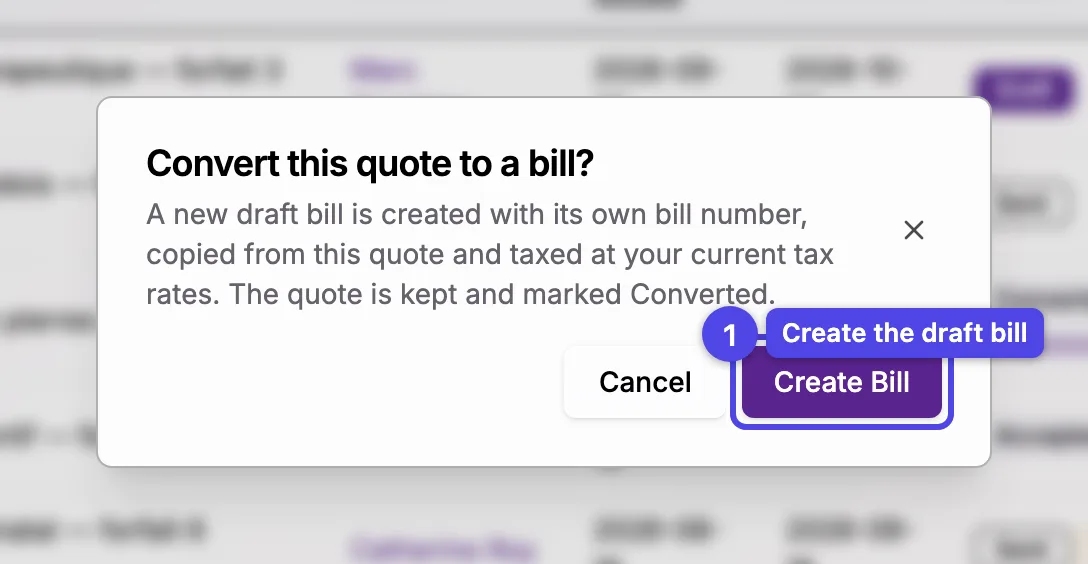
Create Bill
Convert to Bill creates a new draft (Open) bill with its own bill number, copied from the quote and taxed at your current tax rates. The bill editor opens so you can review it, then send it like any bill.
The quote is kept and marked Converted, with a link to its bill — both PDFs stay available. A draft, sent, or accepted quote can be converted; reopen a declined quote first.
A converted quote can't be edited or deleted: it records where its bill came from. To offer the client something new, Duplicate it. If you delete the draft bill it created instead, the quote goes back to Accepted and can be converted again.
Quotes use the bills permissions: employees need "read bills" to see them and "write bills" to create, send, or convert them. Clients never see quotes in their account — they receive them by email.