
Waiting List overview
Keep a list of clients waiting for a spot, with their service, therapist, location, and preferred days and times.
Updated 2026-09-30
The Waiting List holds clients who want an appointment that isn't available right now. Each entry records the service they want, where, with whom, and the days and times that work for them. When a spot opens up, the app can let waiting clients know automatically.
What's on an entry
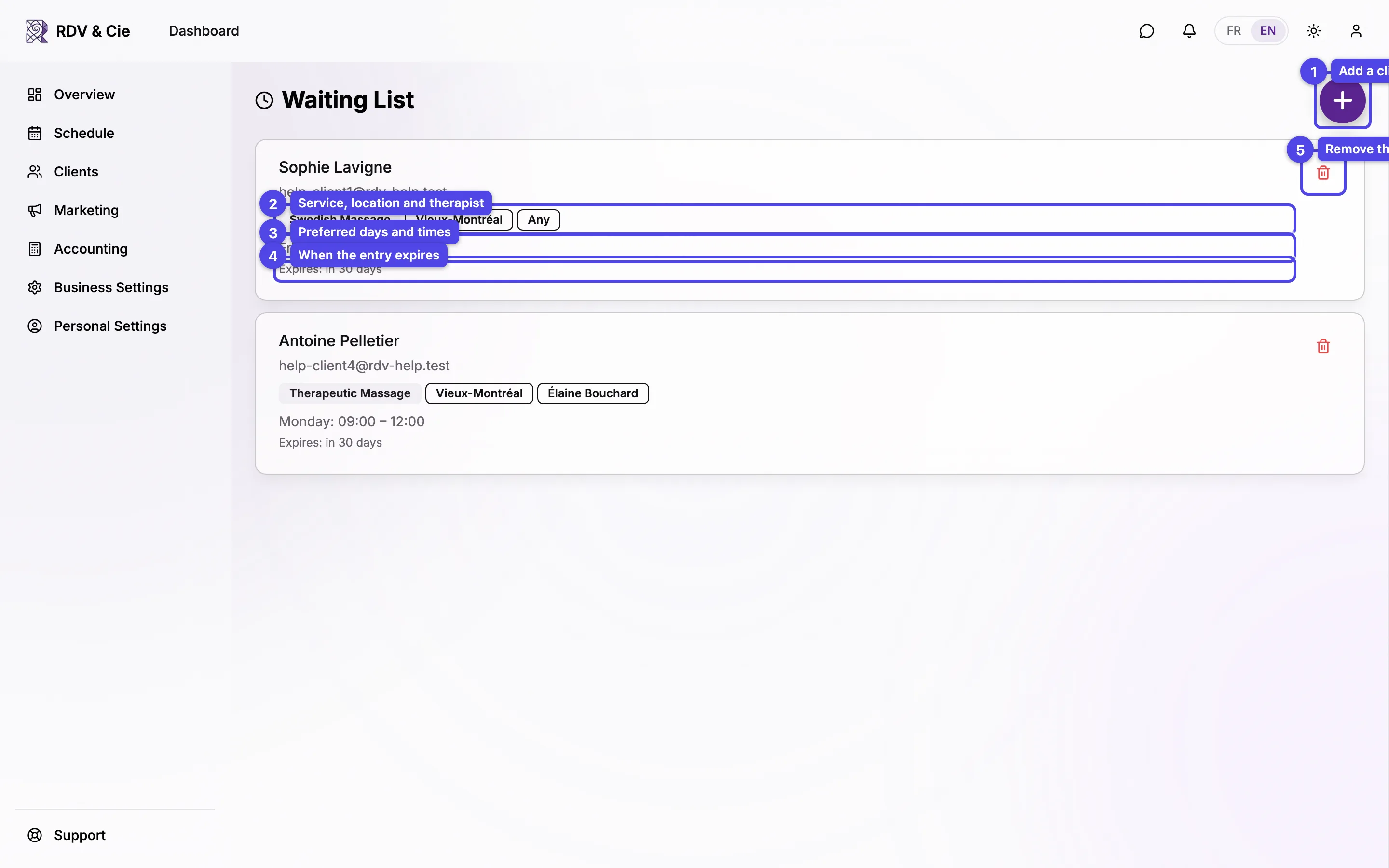
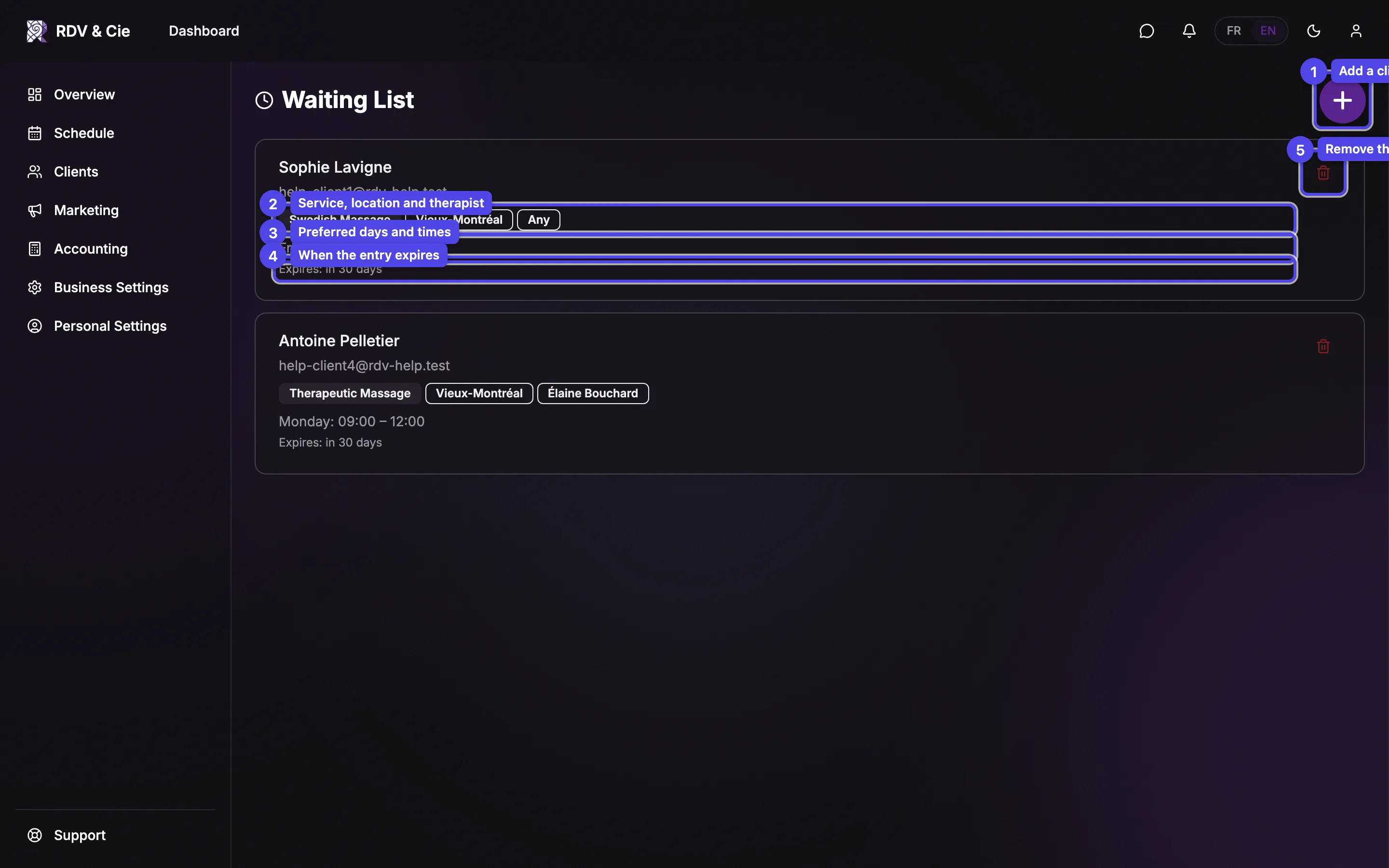
Every entry is a card. From top to bottom it shows:
Service, location and therapist
Three badges: the Service the client is waiting for, the Location, and the Therapist — either a specific person or Any when the client will take whoever is free.
Preferred Schedule
The days and time windows that work for the client (for example Friday: 13:00 – 17:00). A spot only counts as a match when it falls inside one of these windows.
Expires
Entries expire automatically. Once past their expiry they drop off the list, so it never fills up with stale requests.
Remove
The trash icon removes the entry — use it once the client has been booked or no longer wants a spot.
The client's name links to their profile overview. The Waiting List only shows entries that haven't expired yet. Clients can also leave the list themselves from the link in their confirmation email, which asks them to confirm (Leave the waiting list).
Adding a client
Press Add to waiting list (the round button) to open the dialog.
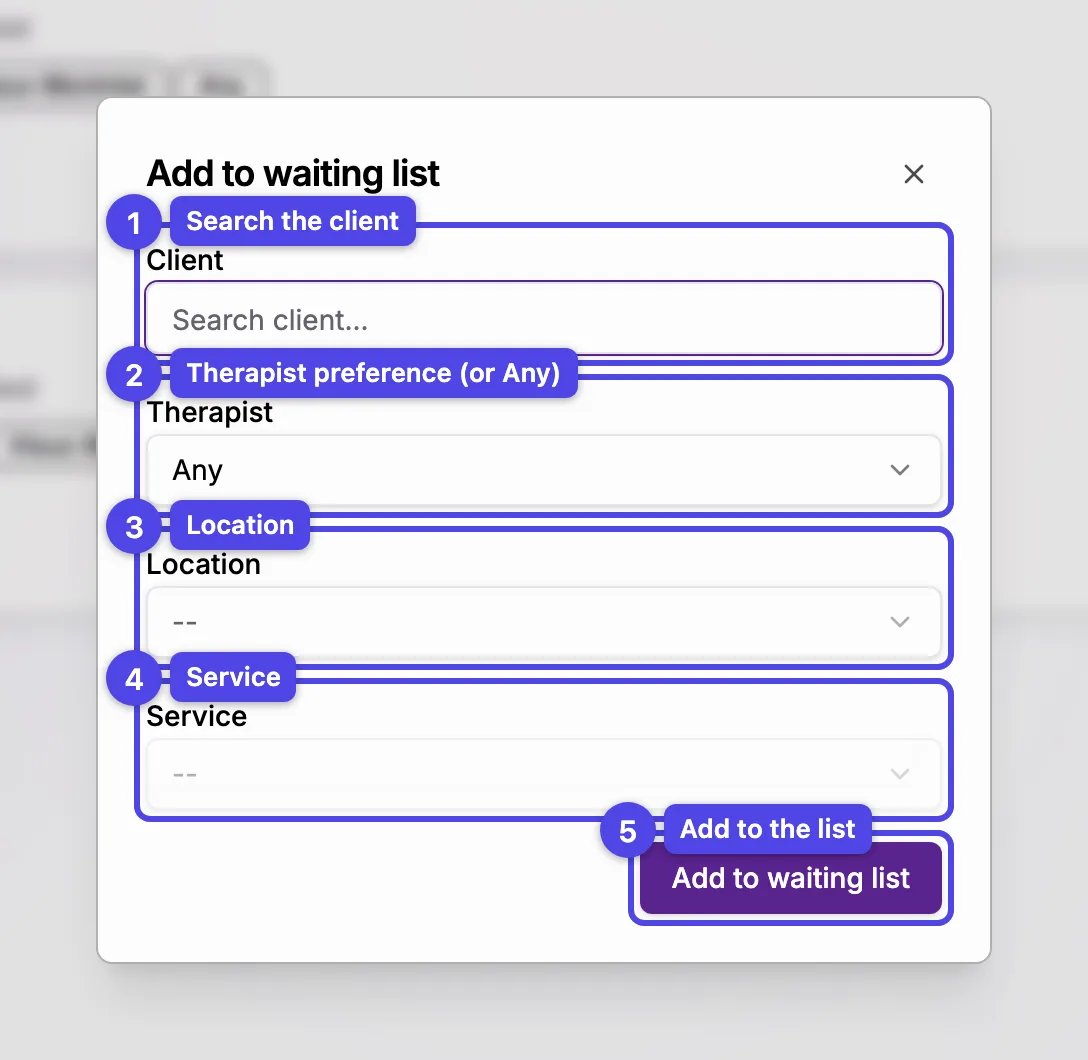
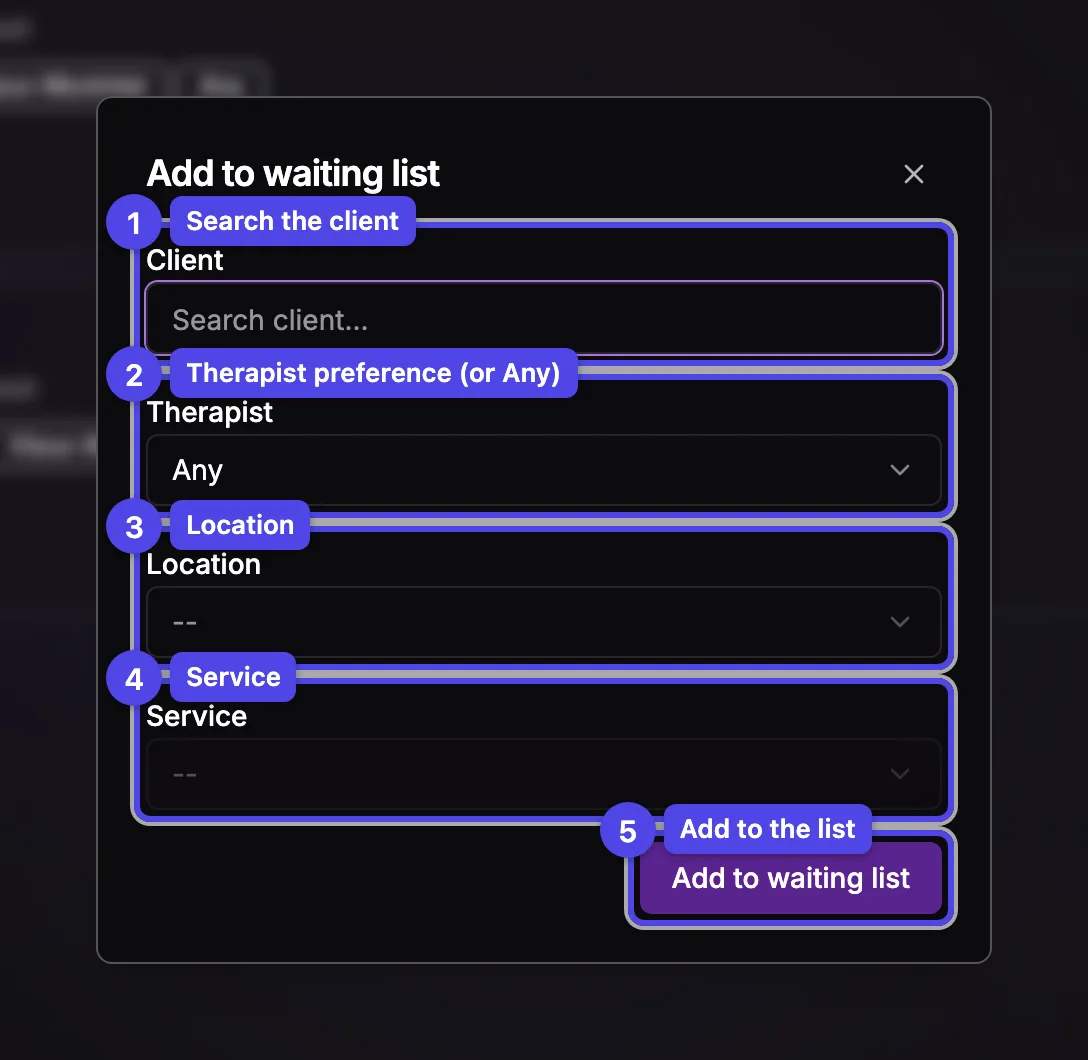
Client
Search and pick the client by name. They must already exist as a client.
Therapist
Choose a specific therapist or leave it on Any. This field only appears when your business has more than one therapist. Picking a therapist narrows the locations and services to what that person offers.
Location
Where the client wants to be seen. The list is filtered to locations where the chosen therapist works.
Service
The service the client wants. Pick the location first — the service list is filtered to what's offered there (and to the chosen therapist's services).
Preferred Schedule
Once a location and service are chosen, the days the therapist works appear as checkboxes. Tick the days that suit the client and adjust the start and end times to bound each window.
Add to waiting list
Save the entry. It appears at the bottom of the list right away.
Set the preferred windows as wide as the client will accept — wider windows catch more openings, so the client hears about more spots.
How clients get matched
When a booking is cancelled, rescheduled, or a blocked time is removed, the app re-checks the freed-up day and notifies waiting clients whose service fits in a real open slot inside one of their preferred windows. You don't have to watch the list — adding the entry is enough. Remove an entry once the client is booked.
The Waiting List is only available when it's turned on for your business. If you don't see it, it isn't enabled.