
Newsletter signup page
Turn on your public newsletter signup page, add a button to your marketplace profile, write its text and benefits with a live preview, and share the link.
Updated 2026-10-02
Your newsletter signup page is a public page where anyone can subscribe to your newsletter — handy on your website, in your Instagram bio, or as a QR code at the front desk. It shows your business name and logo, a headline, a short introduction, what subscribers get, and the subscribe form. Everyone who signs up appears in Newsletter subscribers.
Open Marketing → Newsletters → Signup page. This page has no Save button: every change saves automatically.
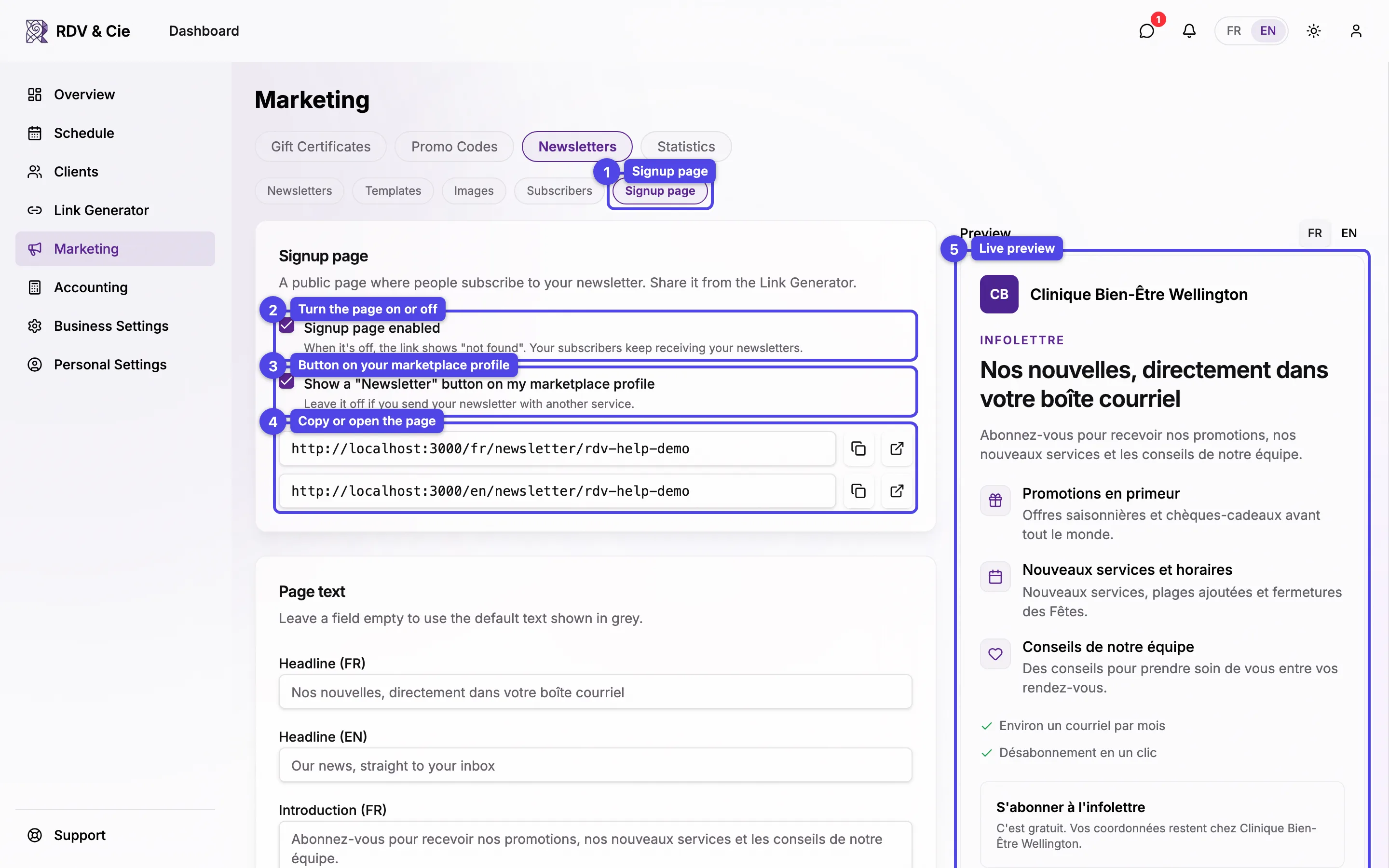
Turn the page on
Signup page
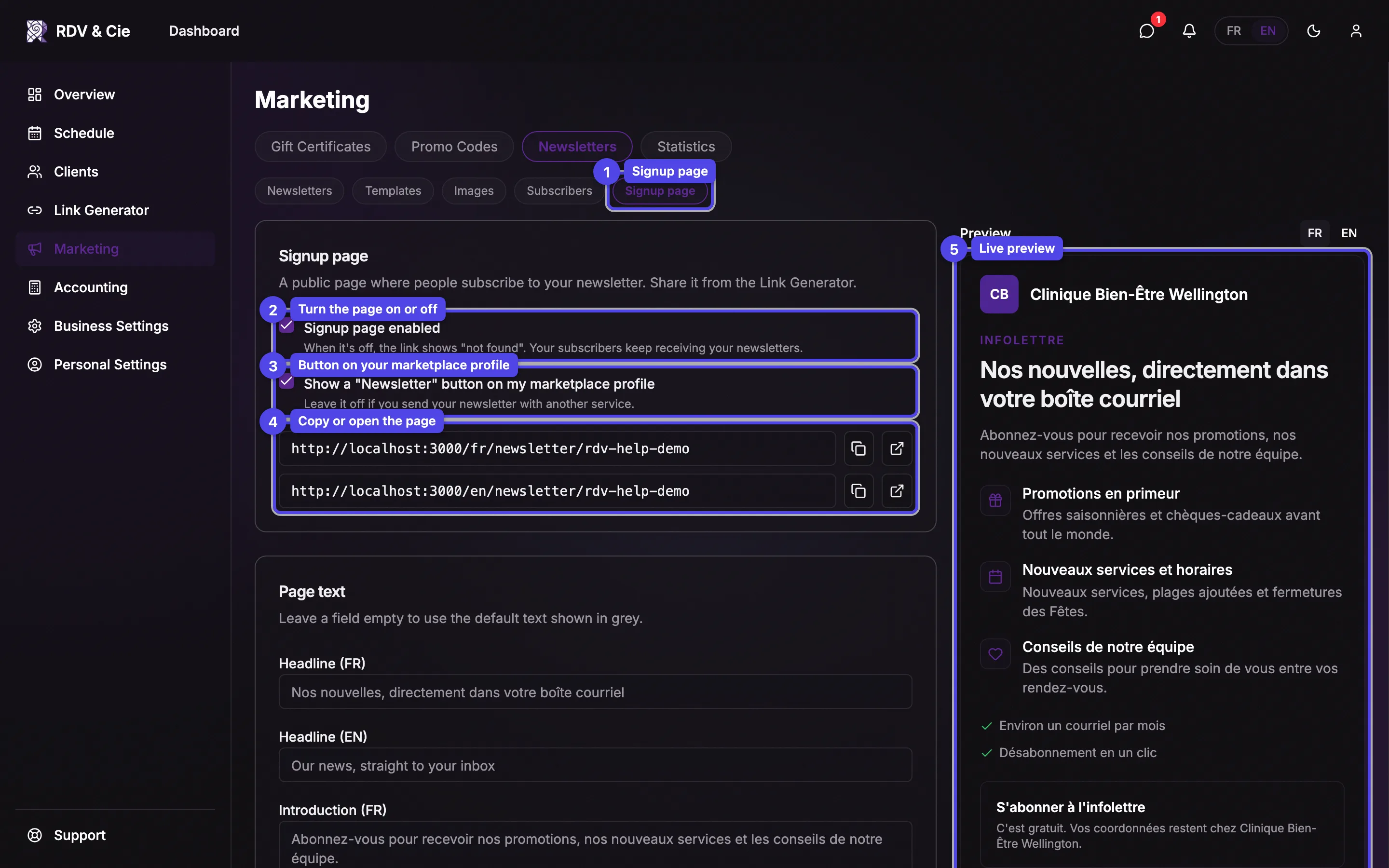
The Signup page pill in the Newsletters sub-nav.
Signup page enabled
On by default. When it's off, the link shows "not found" — your subscribers keep receiving your newsletters.
Marketplace button
Show a "Newsletter" button on my marketplace profile adds a Newsletter button to your public marketplace profile that opens the signup page. It's off by default: leave it off if you send your newsletter with another service. The button only shows while the signup page is on and once your marketplace profile is public — a note under the checkbox tells you if it isn't.
Page links
The French and English addresses of your page, each with a button to copy the link and one to open the page in a new tab.
Preview
A live preview of the top of your page, next to the settings on a computer (below them on a phone).
Write the page
Page text
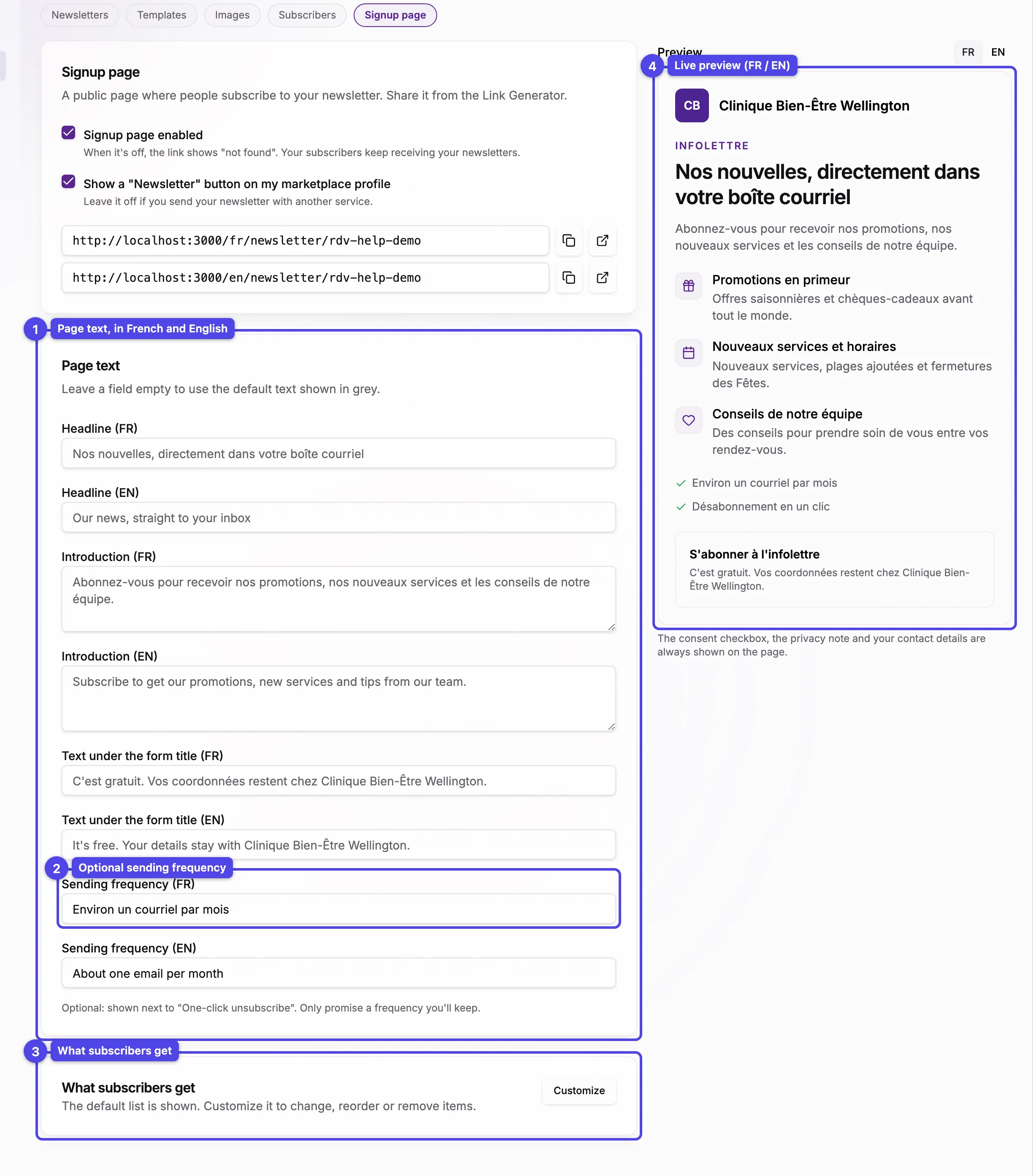
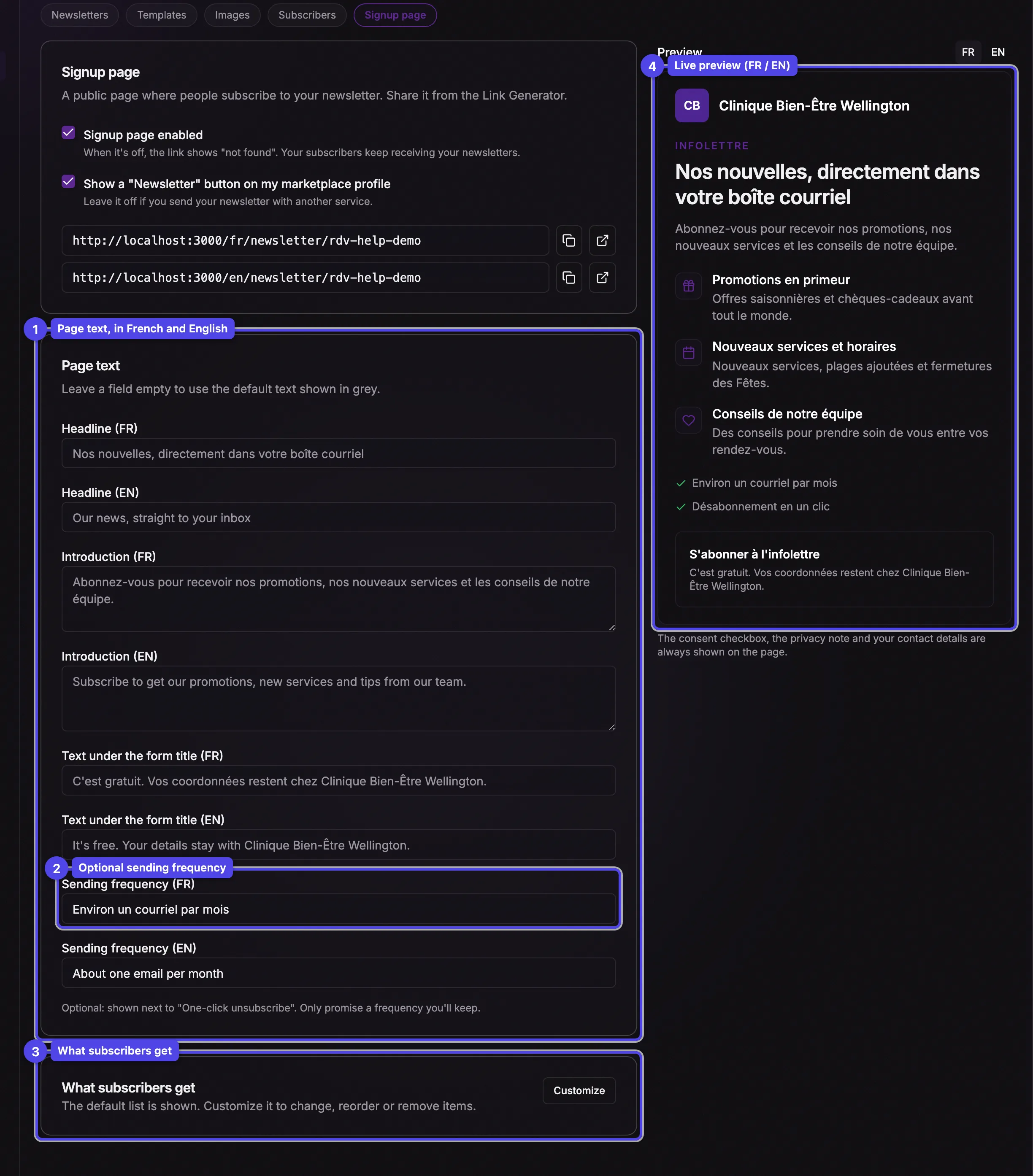
The Headline, the Introduction and the Text under the form title — in French and in English when your business uses both languages. Leave a field empty to use the default text shown in grey.
Sending frequency
Optional, for example About one email per month. It shows next to "One-click unsubscribe" and stays hidden while the field is empty. Only promise a frequency you'll keep.
What subscribers get
The default list has three items: early promotions, new services and hours, and tips from your team. Click Customize to change it — up to 4 items, each with an icon, a Title and a Description in each language. Reorder them with Move up / Move down, delete one with Remove, or use Add an item. Remove them all to hide the list; Back to defaults restores the default one.
Preview
Updates as you type. Switch between FR and EN to check each language.
Some text is fixed: the "Newsletter" label above the headline, the form title (Subscribe to the newsletter), the consent sentence, the "One-click unsubscribe" line and the privacy note. The consent checkbox, the privacy note and your contact details always appear on the page — anti-spam law requires them.
What visitors see
Your text sits on the left and the form on the right (one above the other on a phone). The form asks for a Name and an Email, and the person must tick the consent box before pressing Subscribe. They then see Thanks! with a Book an appointment button — plus View our profile when your marketplace profile is public. Whether they're subscribed right away or first receive a confirmation link is explained in Newsletter subscribers.
Share the link
Open the Newsletter link tab of the Link Generator to copy or share the link, download a QR code for your front desk or flyers, or create a tracked short link that counts clicks.
If the page is turned off, the Link Generator's Newsletter link tab says so and offers a Turn it on button that brings you back here.