
Mark a bill as paid
Use the Collect Payment wizard to record how a bill was settled, add a tip, and email a receipt.
Updated 2026-09-28
When a bill has been settled, marking it paid records how it was paid and moves it to Paid. Open the Bills tab (the default tab in Accounting), find the bill, and click the Mark as Paid action — the dollar-sign icon in the row's Actions column. It's available on Open and Sent bills.
This opens the Collect Payment wizard. The header shows the client and the bill total, and a progress bar tracks how many steps the chosen method needs.
Step 1 — Payment method
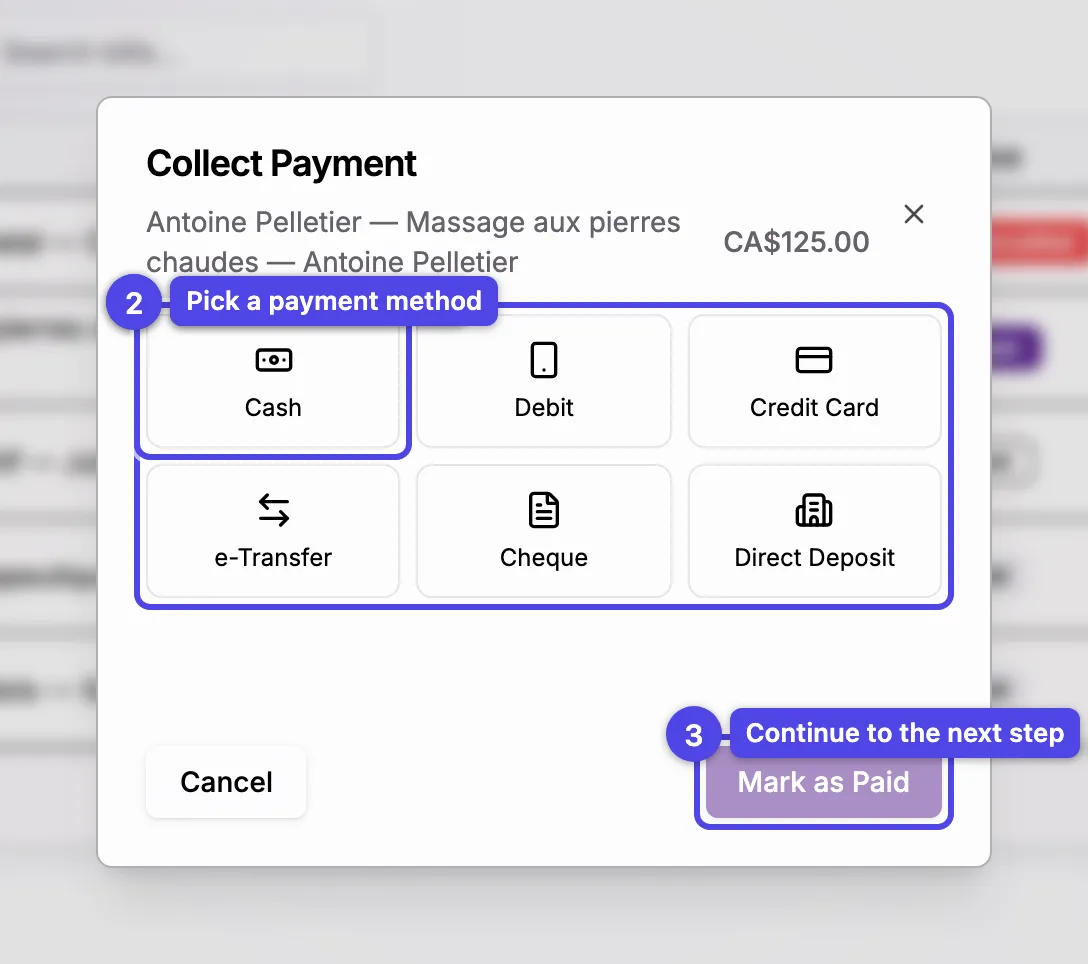
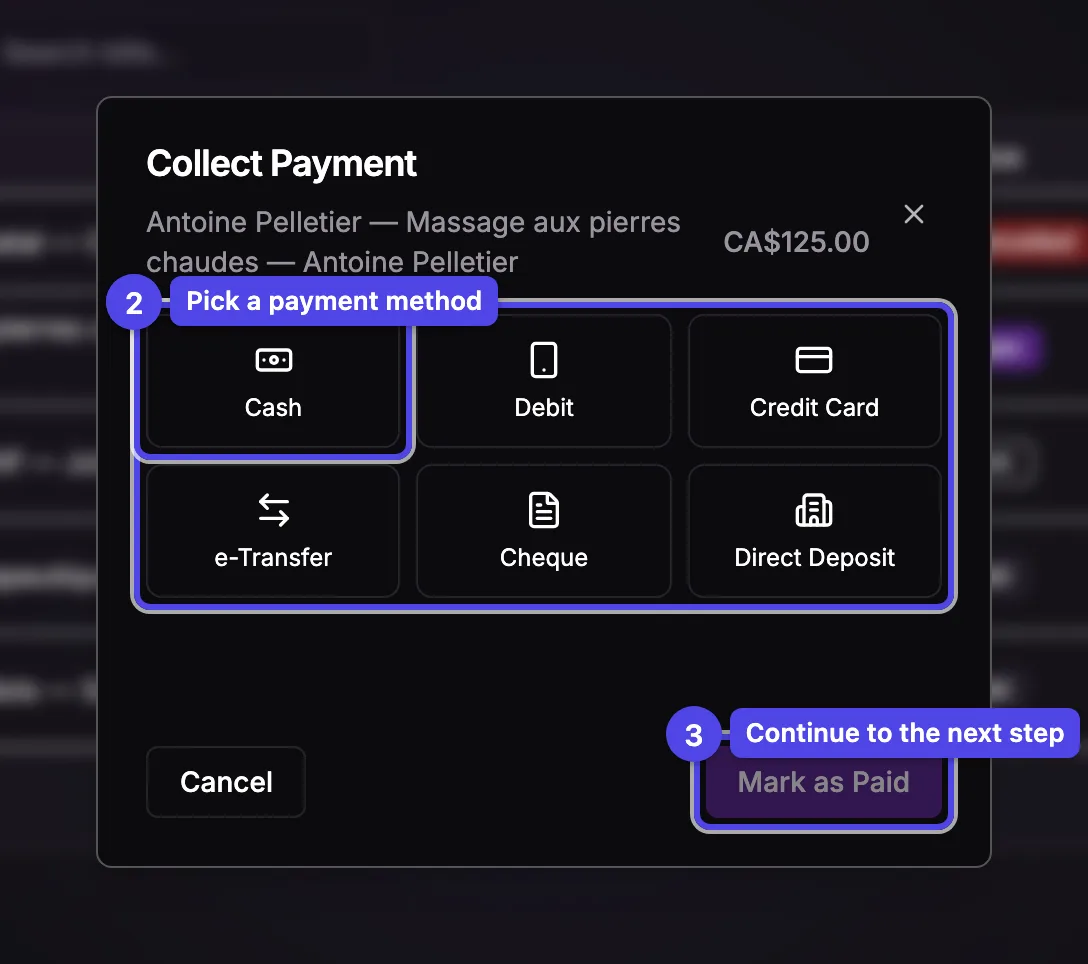
Pick how the bill was paid.
Manual methods
Cash, Debit, Credit Card, e-Transfer, Cheque, or Direct Deposit — the money was already collected outside the app; you're just recording it.
Square / Stripe methods
When you've connected Square or Stripe, extra tiles appear under a Square or Stripe divider — Card on File, Payment Link, Terminal, and (on the mobile app) Tap to Pay. These run the charge inside the wizard.
Continue
Press Next to move on. The number of remaining steps depends on the method you picked.
Step 2 — Tip & details
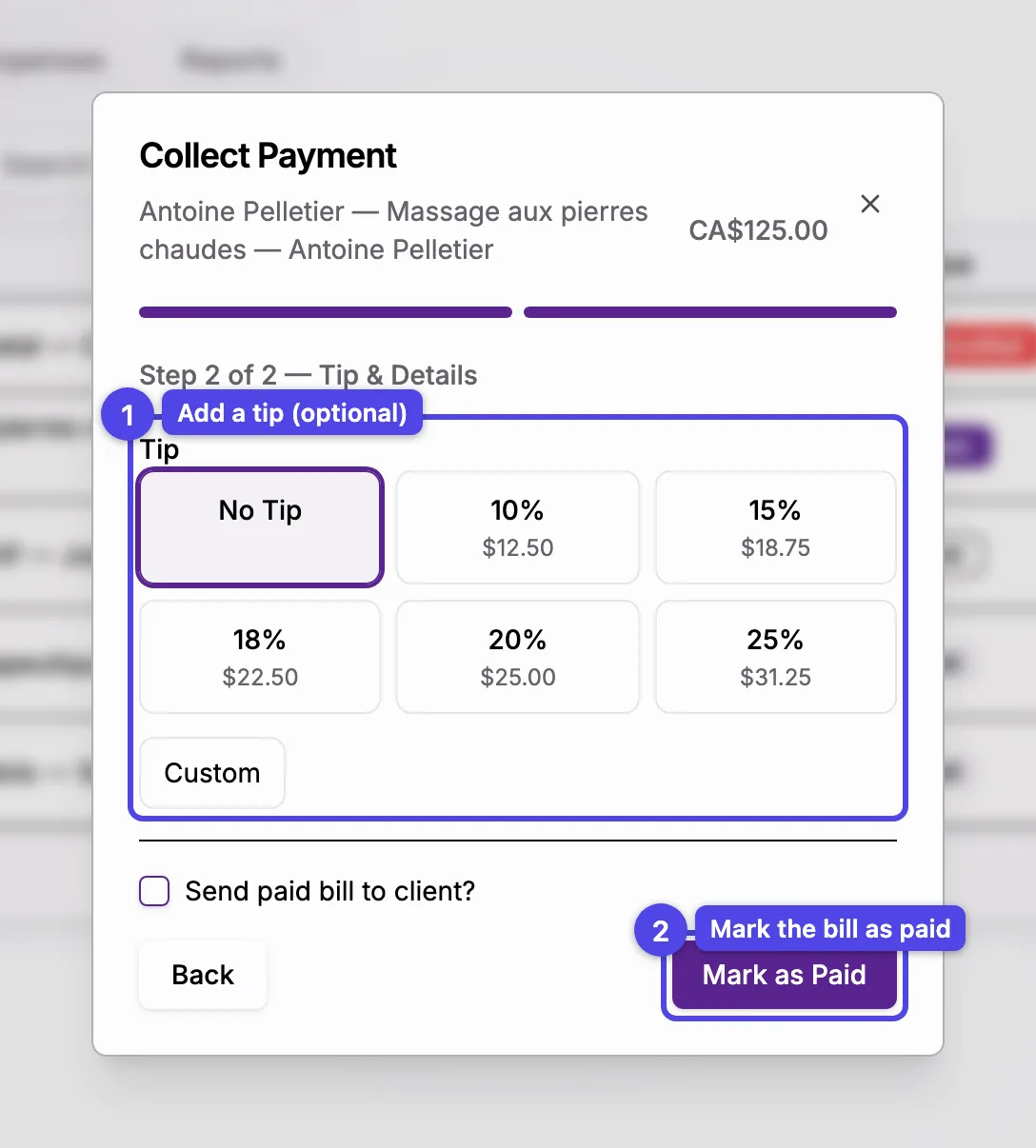
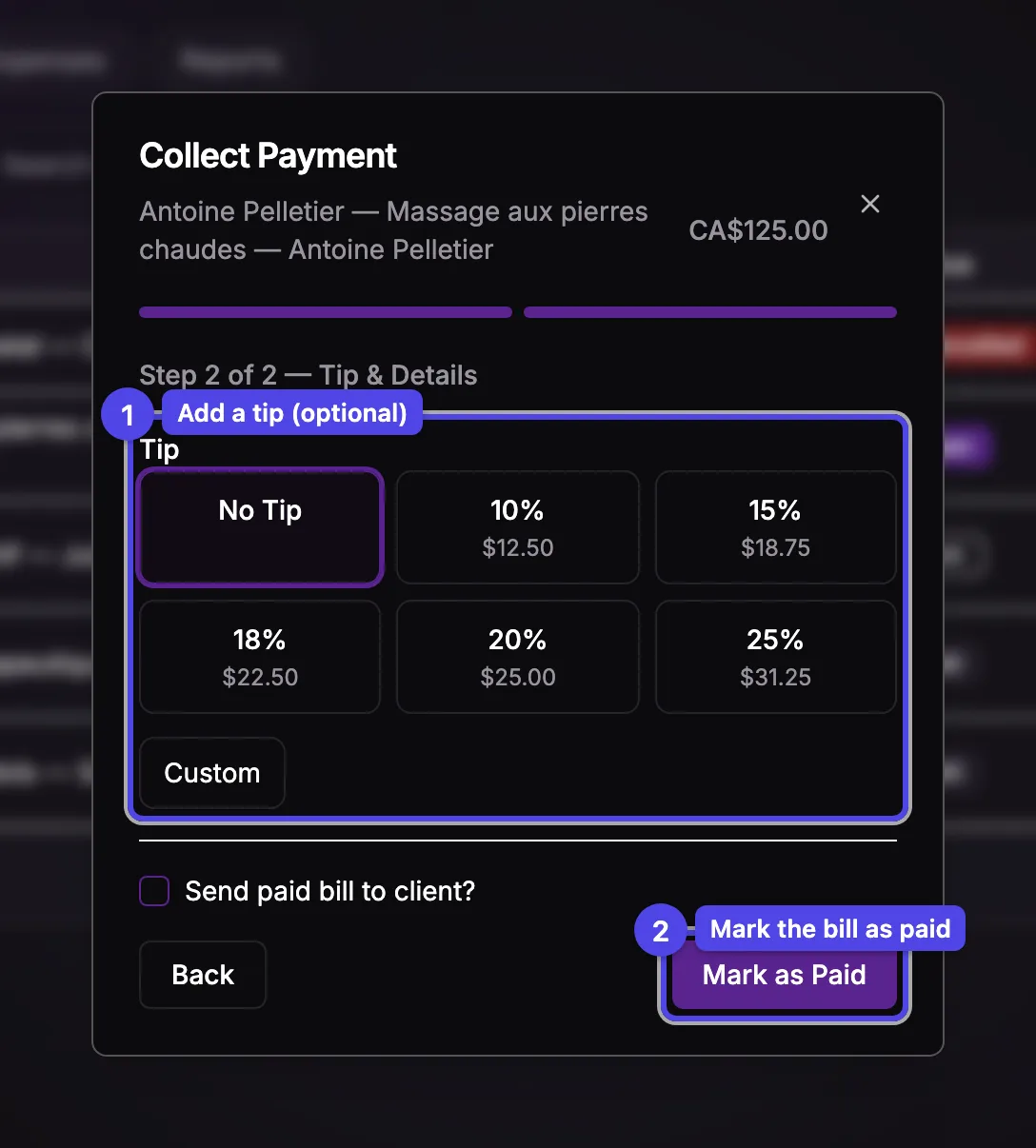
For methods that support it, add an optional Tip. Choose a percentage preset (No Tip, 10, 15, 18, 20, 25 %) or pick Custom to enter an exact amount. The tip is tracked separately so it stays out of your taxable income.
When you chose Card on File, this step is also where you pick which saved card to charge.
Step 3 — Payment processing
Card-on-file, payment-link, and terminal methods run the charge on a final Payment Processing step. Manual methods skip it and go straight to the end.
With a card, payment-link, or terminal method the bill is only marked Paid once the payment is confirmed. If you skip the charge, the bill stays as it was. Marking a bill paid by hand, cancelling or deleting it stops any payment link or terminal checkout sent for it.
Send a receipt (optional)
On the last step a Send paid bill to client? checkbox lets you email the paid bill as a receipt. Tick it to edit the To address, Subject, and Message before finishing.
Finish
Press Mark as Paid to complete the wizard. The bill moves to Paid with the payment method and any tip recorded against it.
No payment processor connected? Every manual method still works — the wizard just records how the bill was settled, in two quick steps.