
Forfaits (multi-service packages)
Bundle several services into one visit: per-service prices, adjustable time between services, and a single booking for your client.
Updated 2026-09-28
A forfait combines several of your services into a single visit — for example a Swedish massage followed by a hot stone massage. Your client books it in one step, pays once, and each service still produces its own insurance receipt (issued by the therapist who performed it, in the name of the person who received it).
Forfaits are different from the boutique's Session packs: a session pack is a set of separate future visits sold as prepaid certificates, while a forfait is one continuous visit with several services back to back.
Create a forfait
Open the Services tab
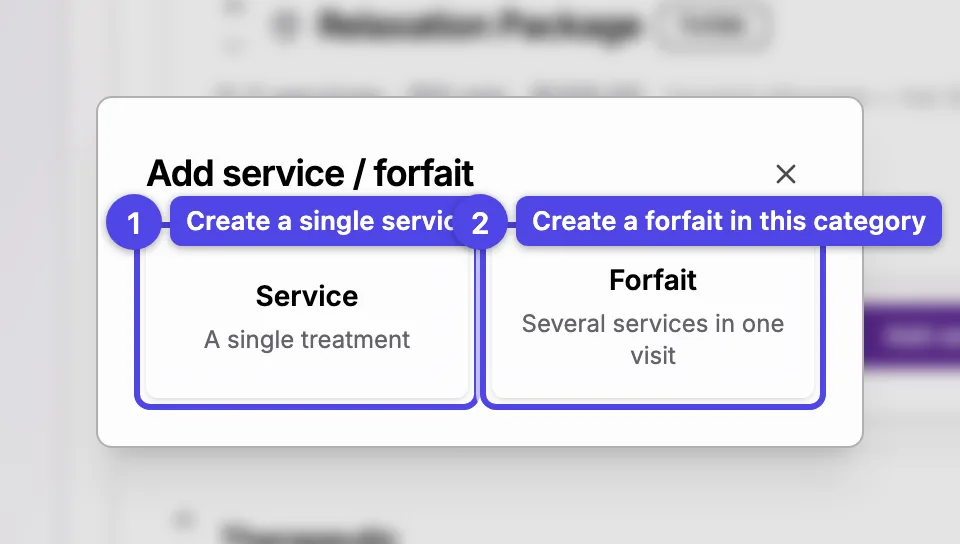
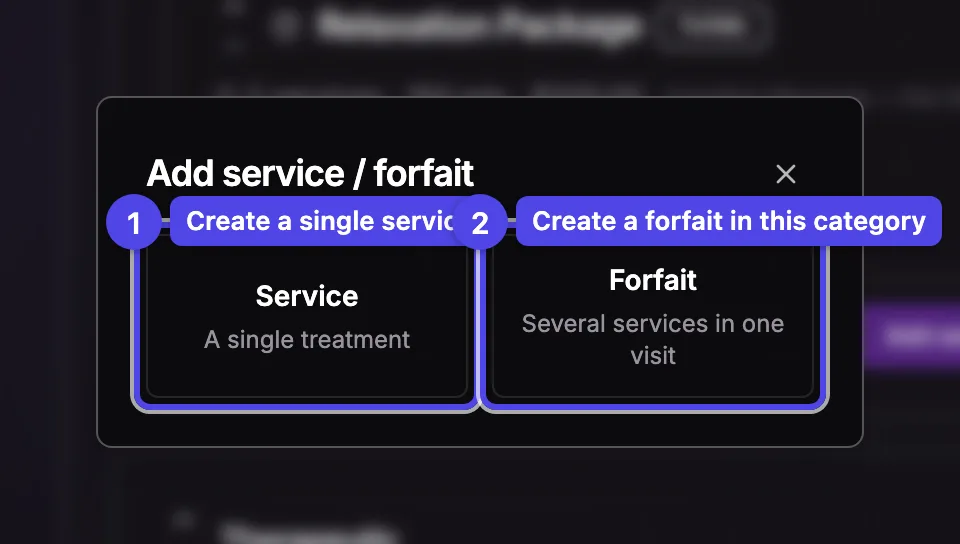
Go to Settings → Services. Each service category has an Add service / forfait button — click it and choose Forfait. The new forfait is created in that category; you can change (or clear) the category later in the forfait's own Category field.
Name it
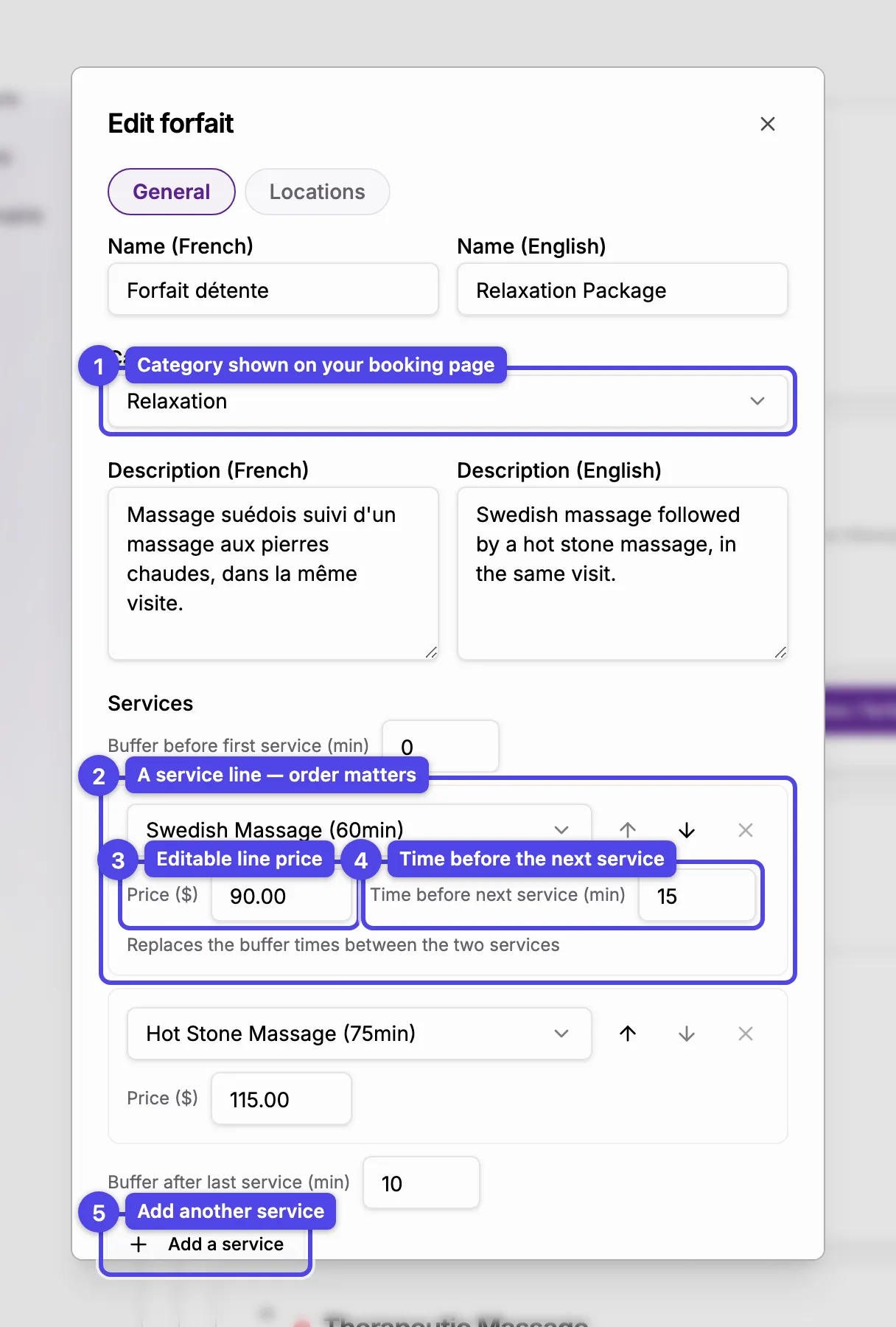
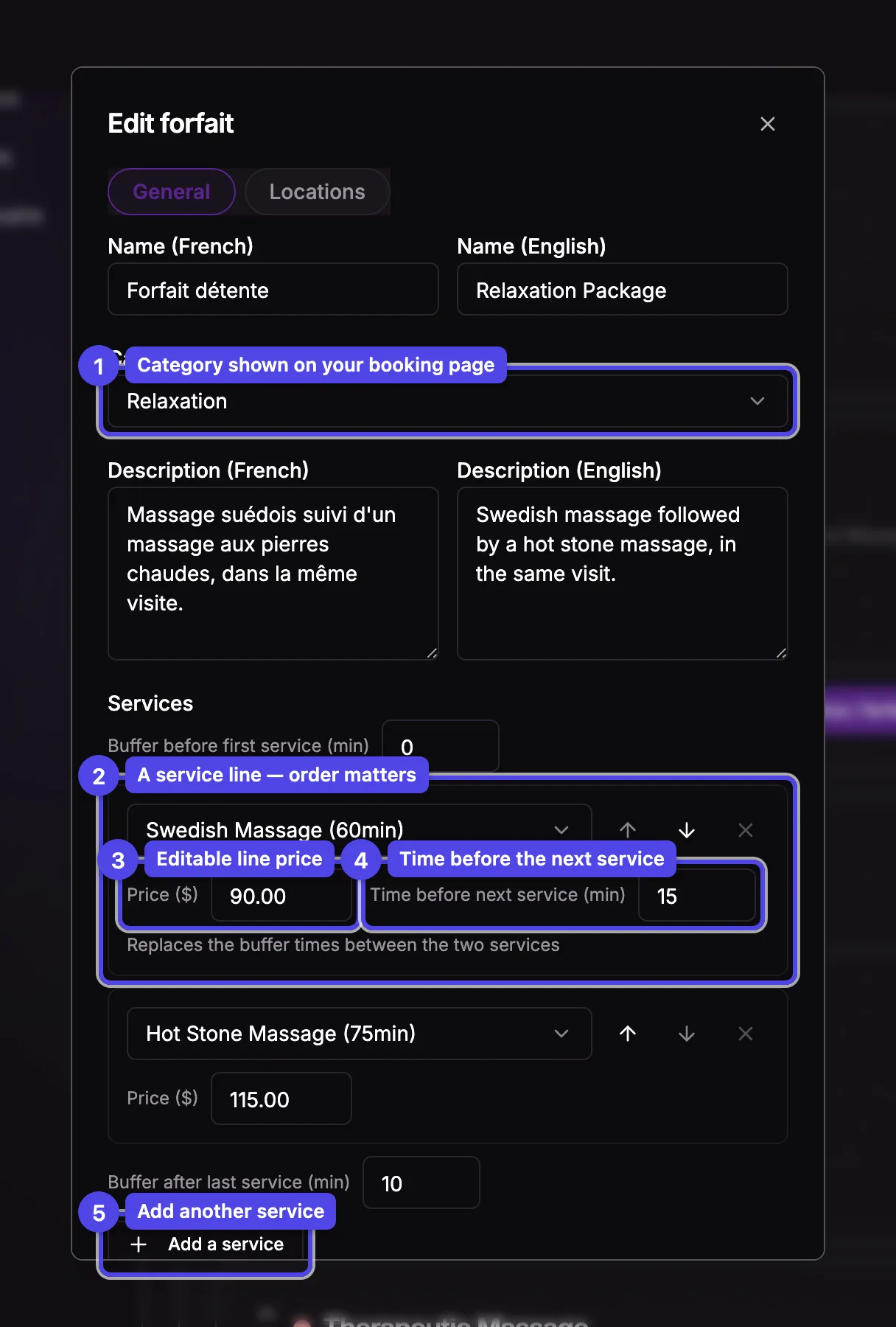
Give it a name (and description) in each language your booking page supports — e.g. Forfait détente.
Pick the services, in order
Add at least two services. The order here is the order the services happen during the visit. A forfait is not limited to its own category — it can mix services from any category.
Adjust each price
Each service starts at its regular price — adjust it to build your package price (for example, discount the second service). The forfait total is the sum of the line prices, and each insurance receipt uses its own line's amount.
Set the buffer times
The Time before next service replaces the buffer times of the two adjoining services — use it for a changeover, shower, or rest period. The visit's edges are configurable too: Buffer before first service and Buffer after last service start from the services' own settings and can be adjusted per forfait.
Choose where it's offered
On the Locations tab, check the locations that offer this forfait — just like a service. Leaving them all checked means it's offered everywhere.
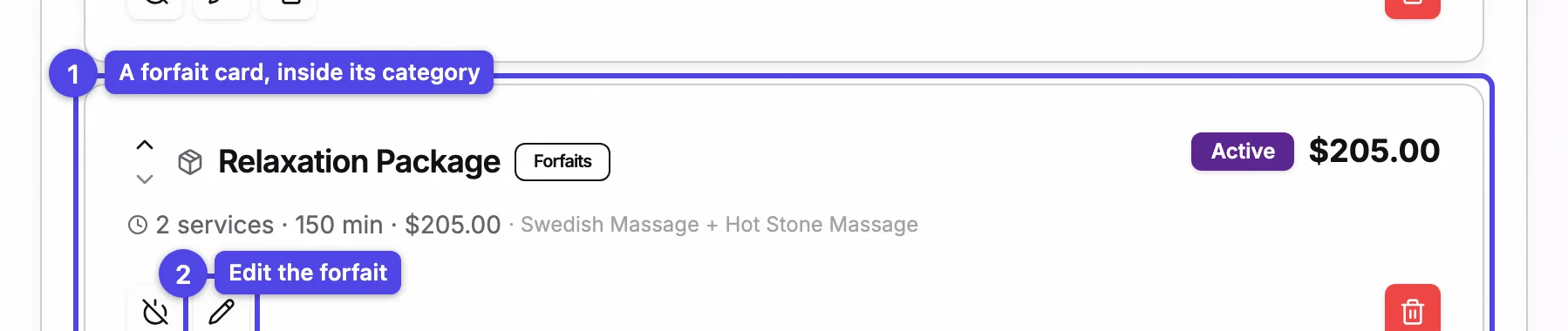
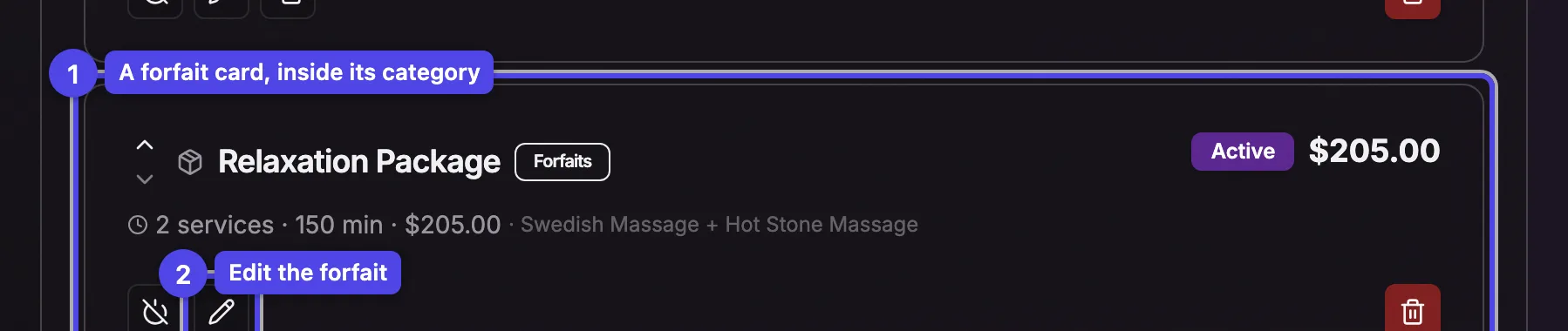
Each forfait appears as a card inside its category, alongside the regular
services and sortable with the same up/down arrows — so you choose the exact
order clients see, whether it's a service or a forfait. A forfait without a
category is listed in a separate Forfaits section at the bottom. The card
shows a taxable (+tx) marker when any of its services is taxable, and a
visibility toggle like a service.
How clients book it
Forfaits appear on your public booking page — inside their category if you assigned one, otherwise in a Forfaits section at the top. The client picks a therapist for each service (or "Any available"), chooses who receives each service (themselves or a family member), and sees only start times where the whole chain fits. The visit is cancelled, rescheduled, and paid as one unit.
Book a forfait from the schedule
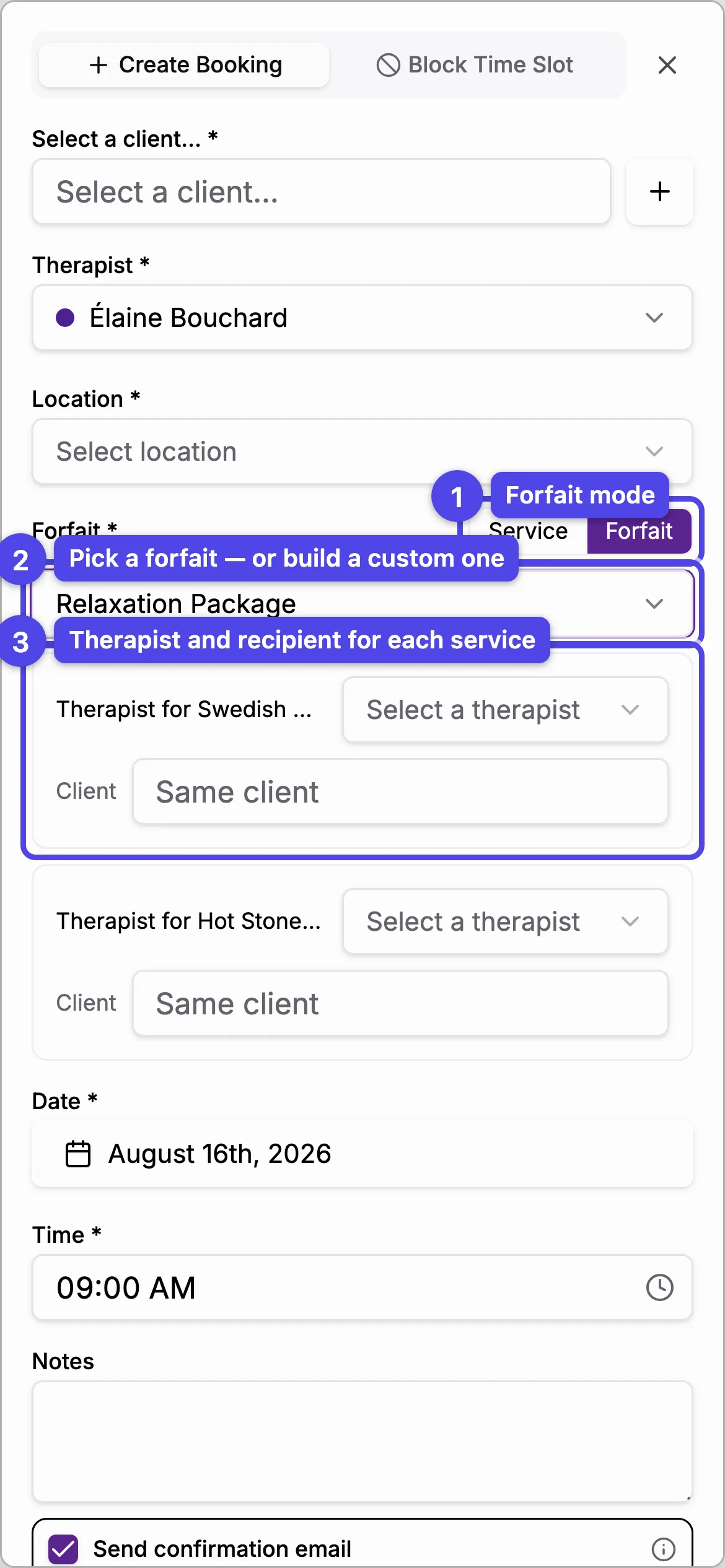
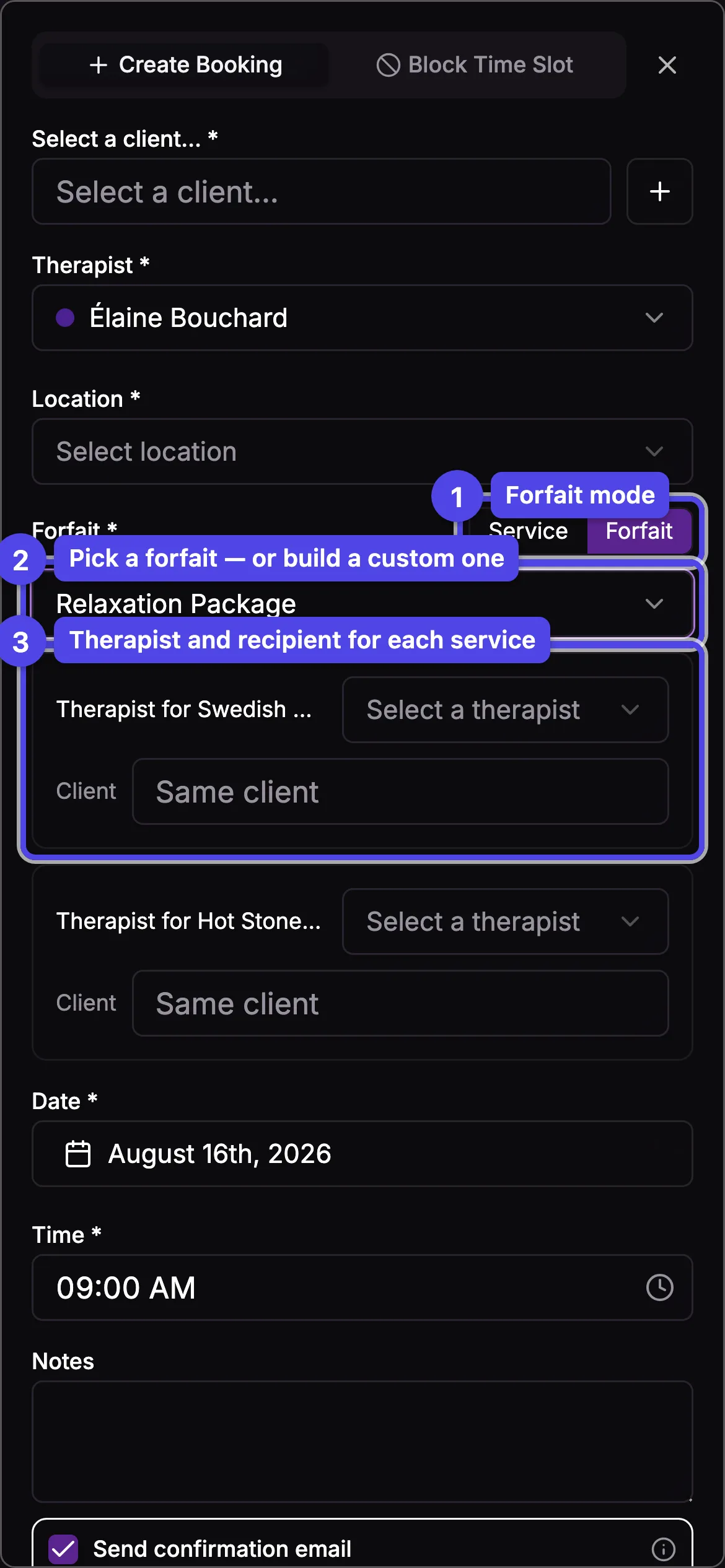
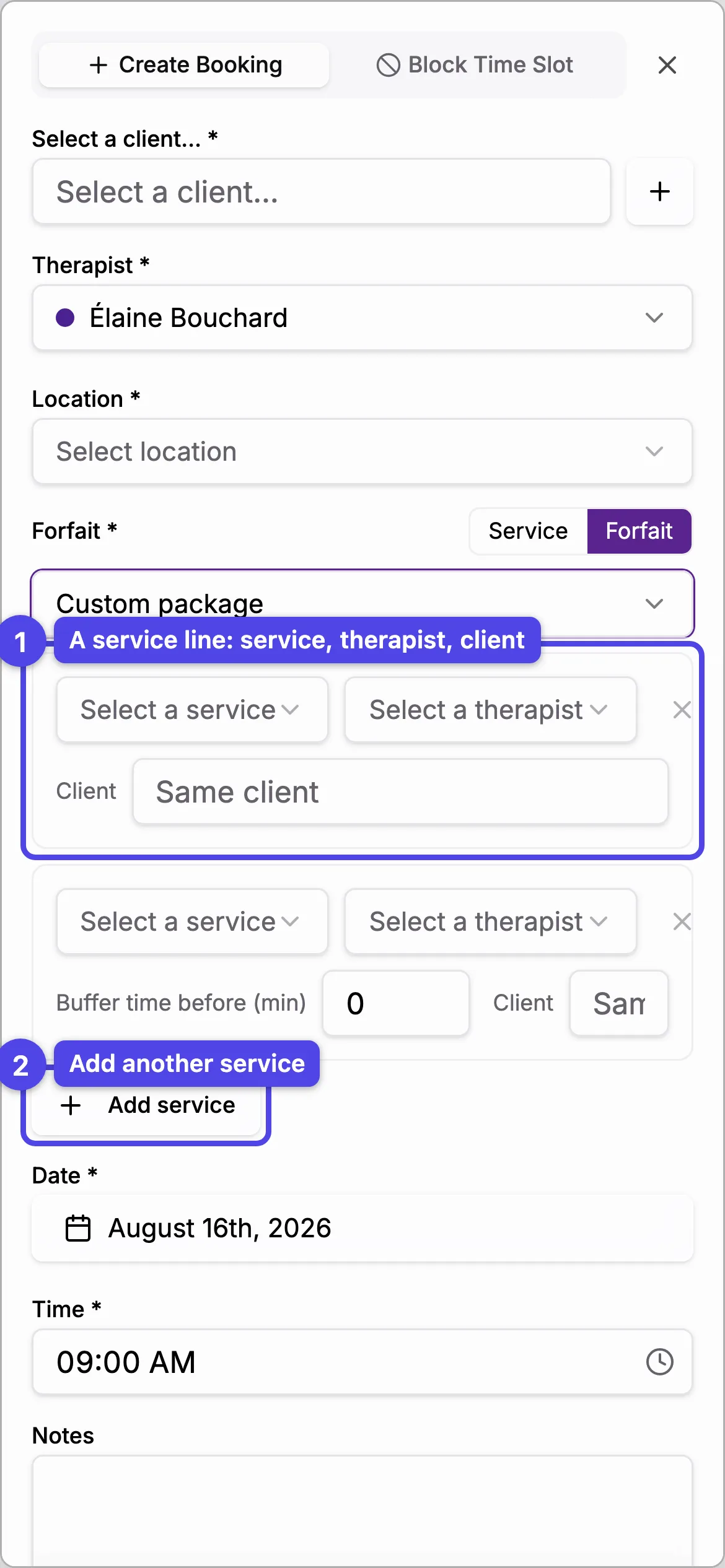
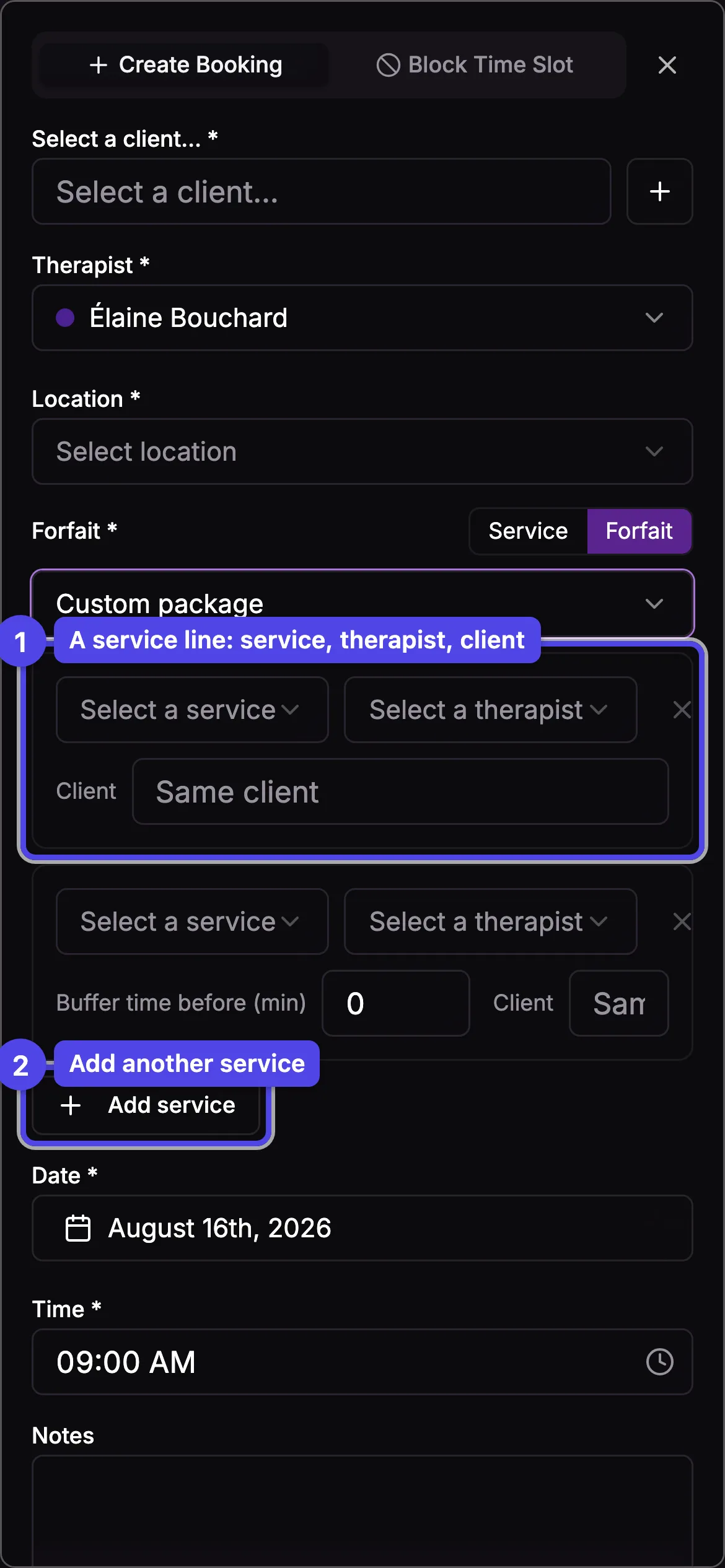
Your team can book forfaits too. In the create-booking dialog, switch the Service / Forfait toggle to Forfait, then either pick a predefined forfait or choose Custom package to build the visit on the fly — service by service, with the therapist, the buffer time and, if needed, a different client for each line (each service defaults to the booking's client).
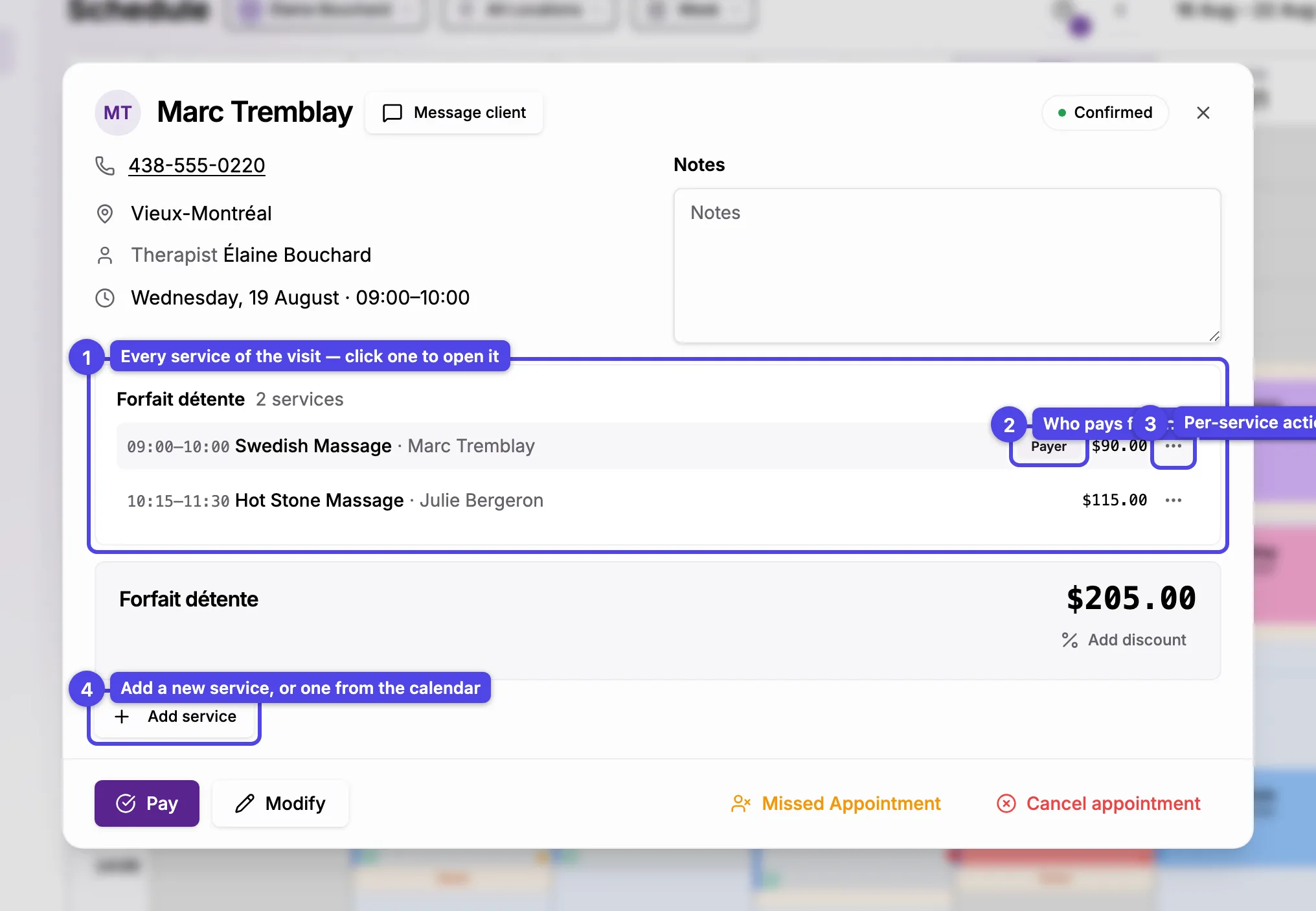
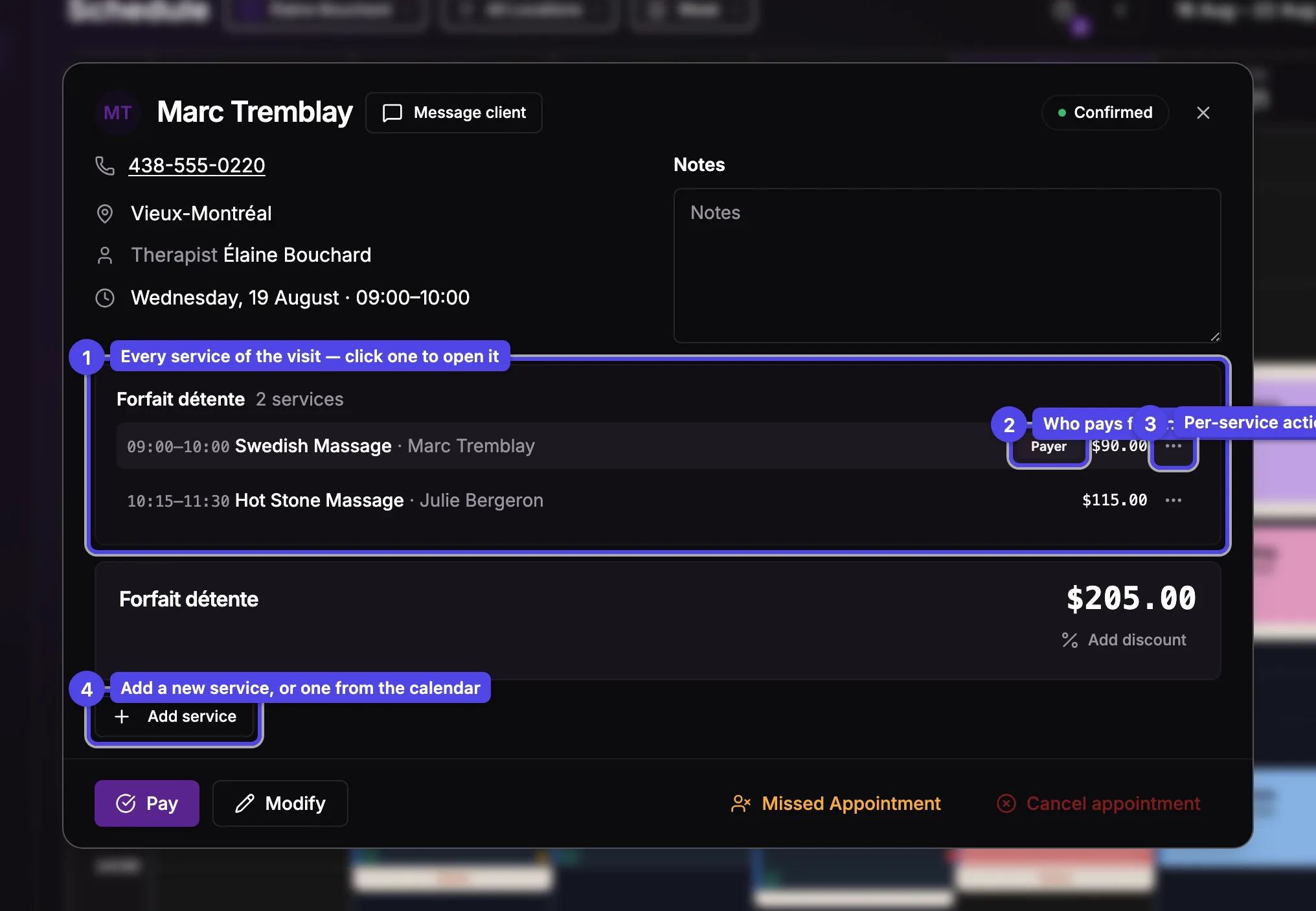
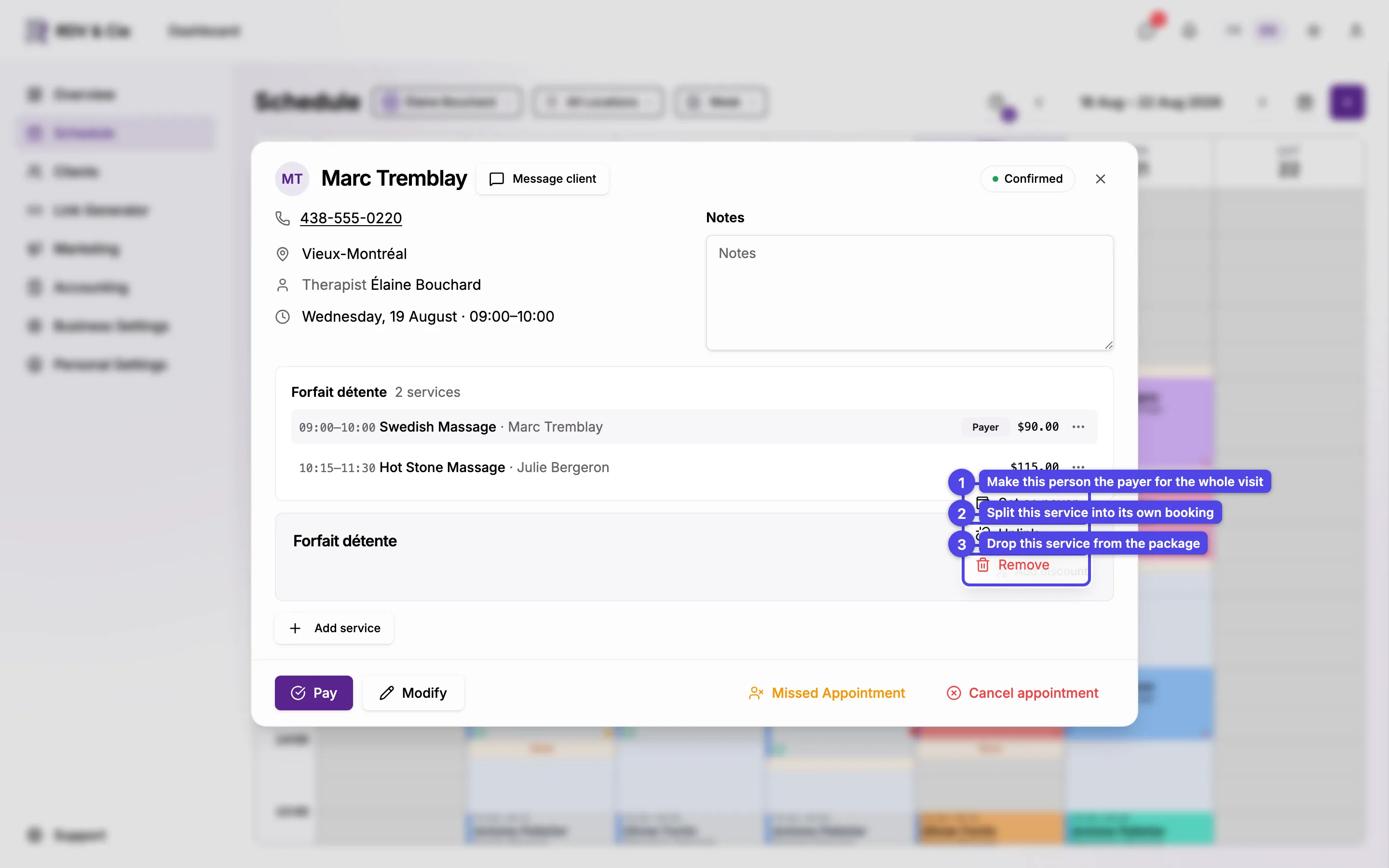
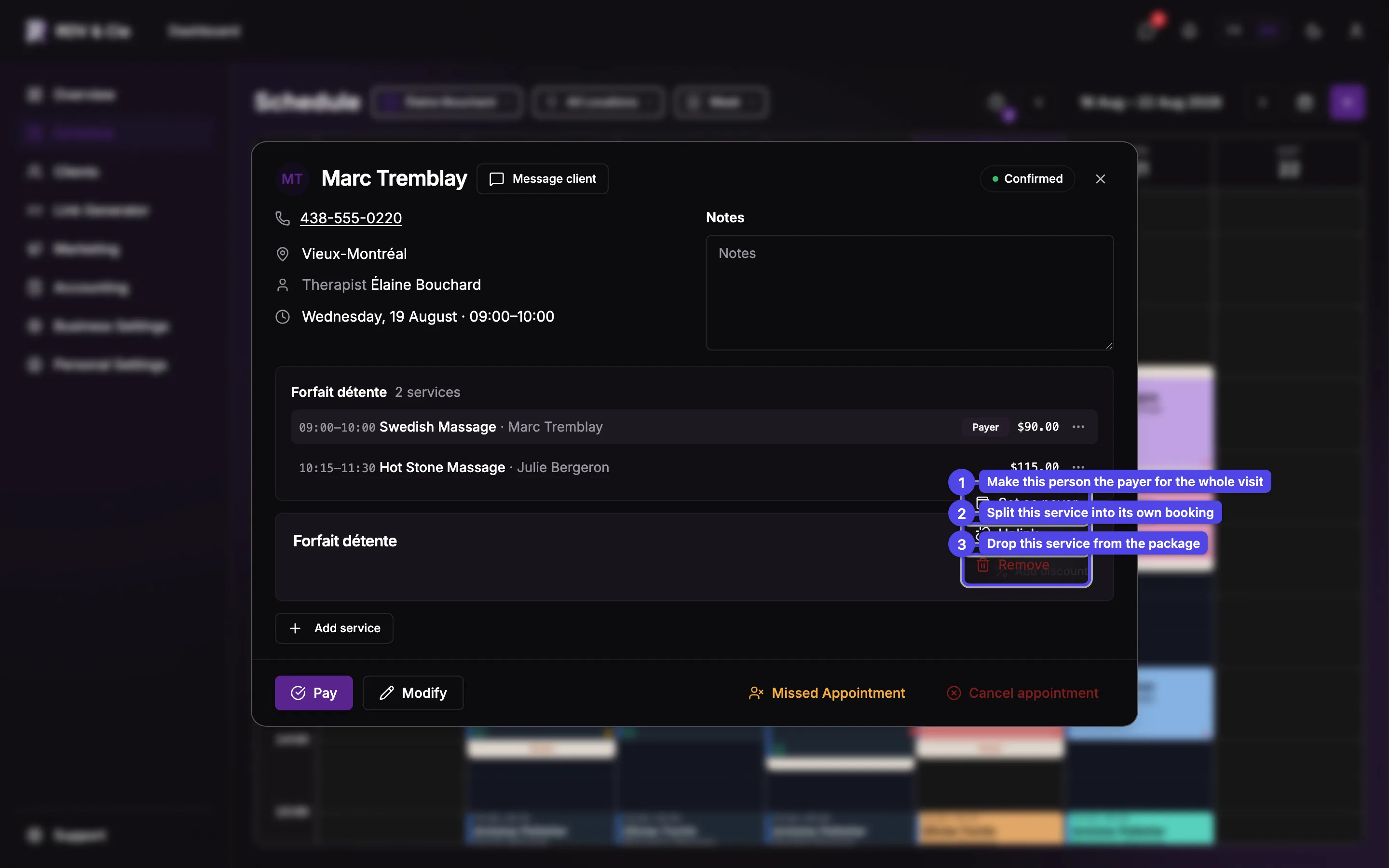
Opening any service of a booked forfait shows the whole visit: every service is listed in time order, with a Payer badge on the person who pays for and is invoiced for the visit.
Add a service
Below the price summary, Add service offers two ways to grow the visit:
New service
Adds a brand-new service to the visit — it defaults to the same therapist, and you pick the service, time between services and (if needed) a different client for the line.
Add from calendar
Combines a booking you already have into this package — no need to cancel and rebook it. The dialog closes and the schedule enters a pick mode: click a same-day, single booking to fold it in. Bookings that can't be added (other days, bookings already in a package, cancelled or completed) are greyed out; clicking anywhere else cancels and reopens this dialog.
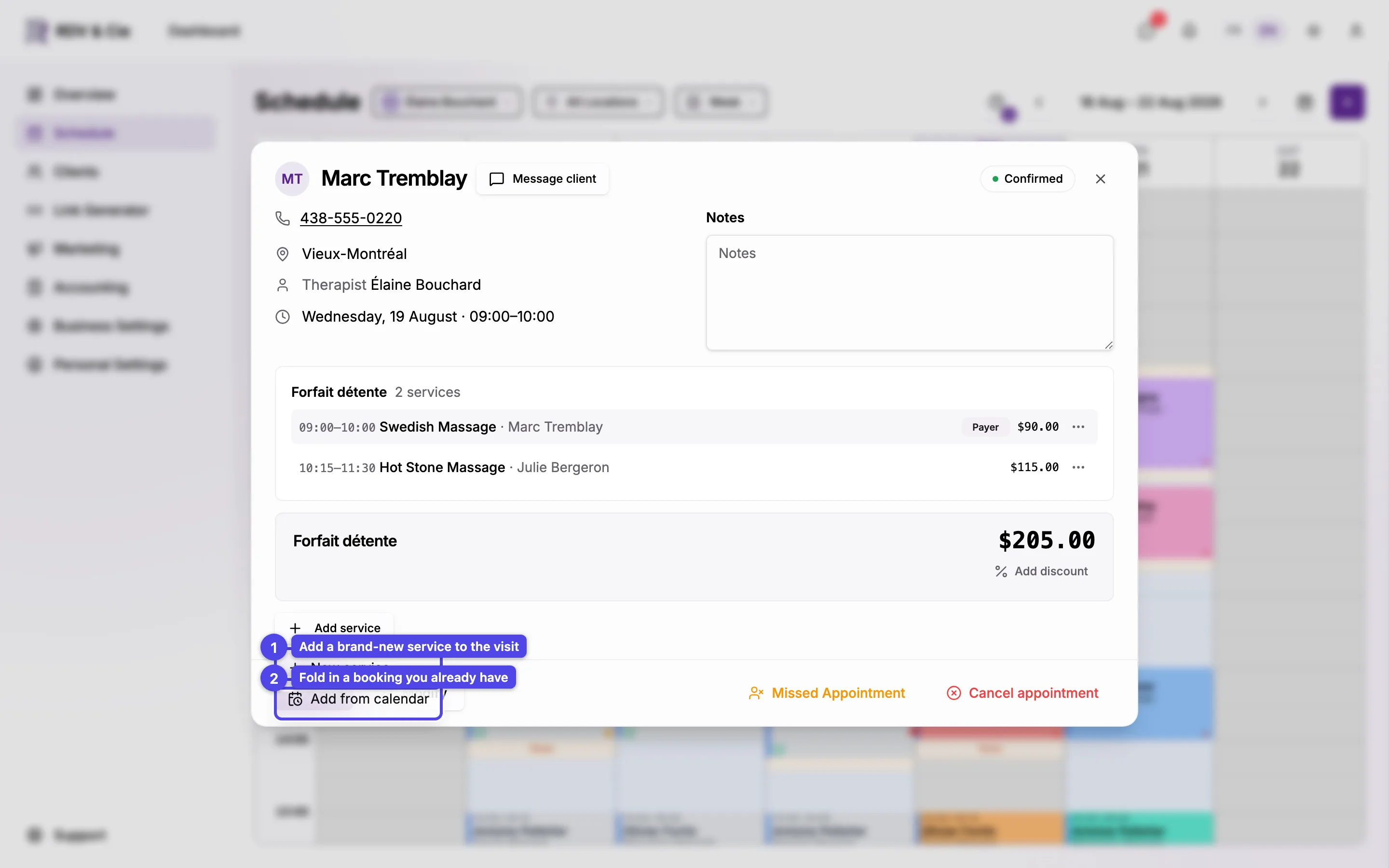
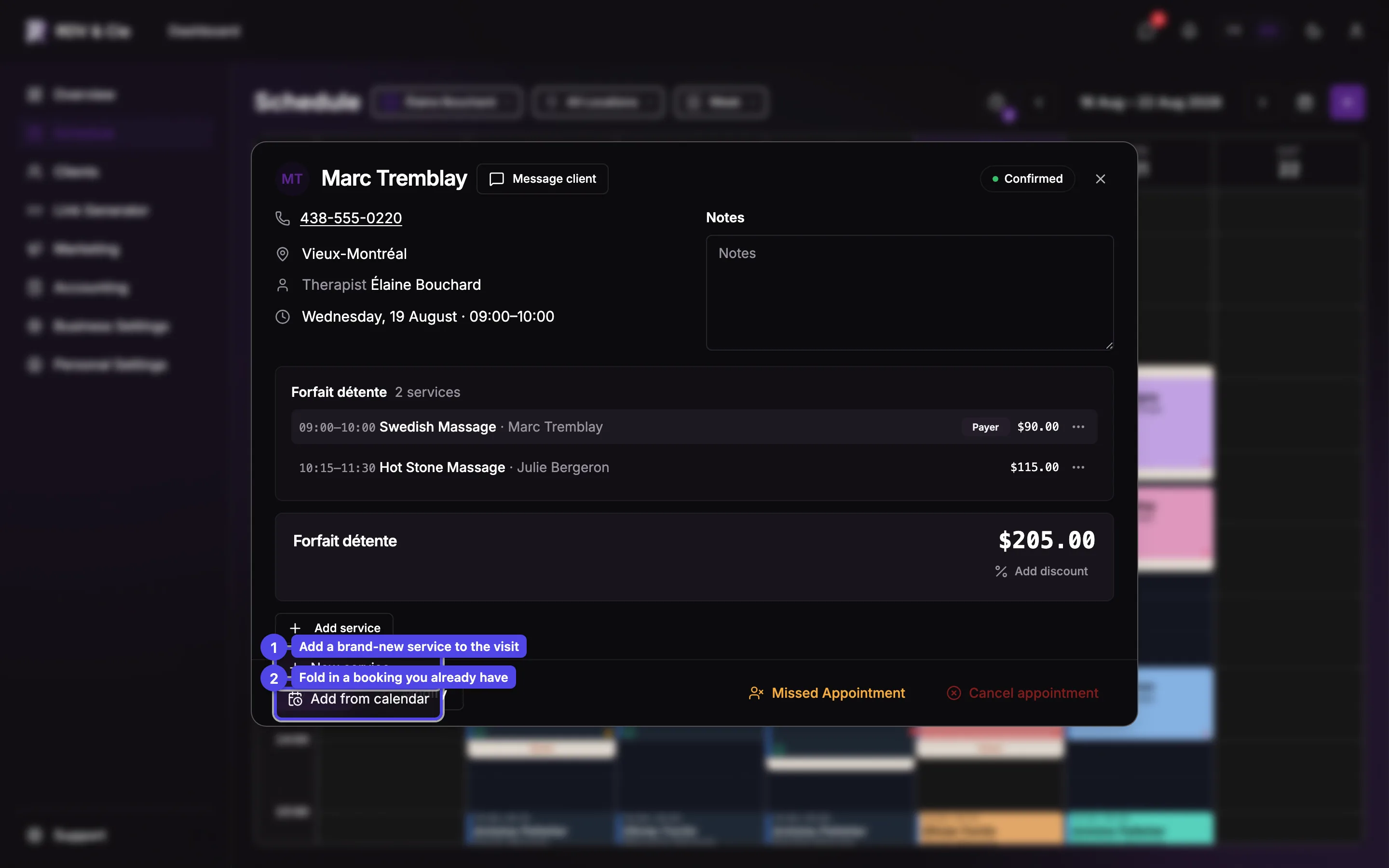
When you choose Add from calendar, the schedule enters pick mode — a banner appears and every booking that can't be added is greyed out.
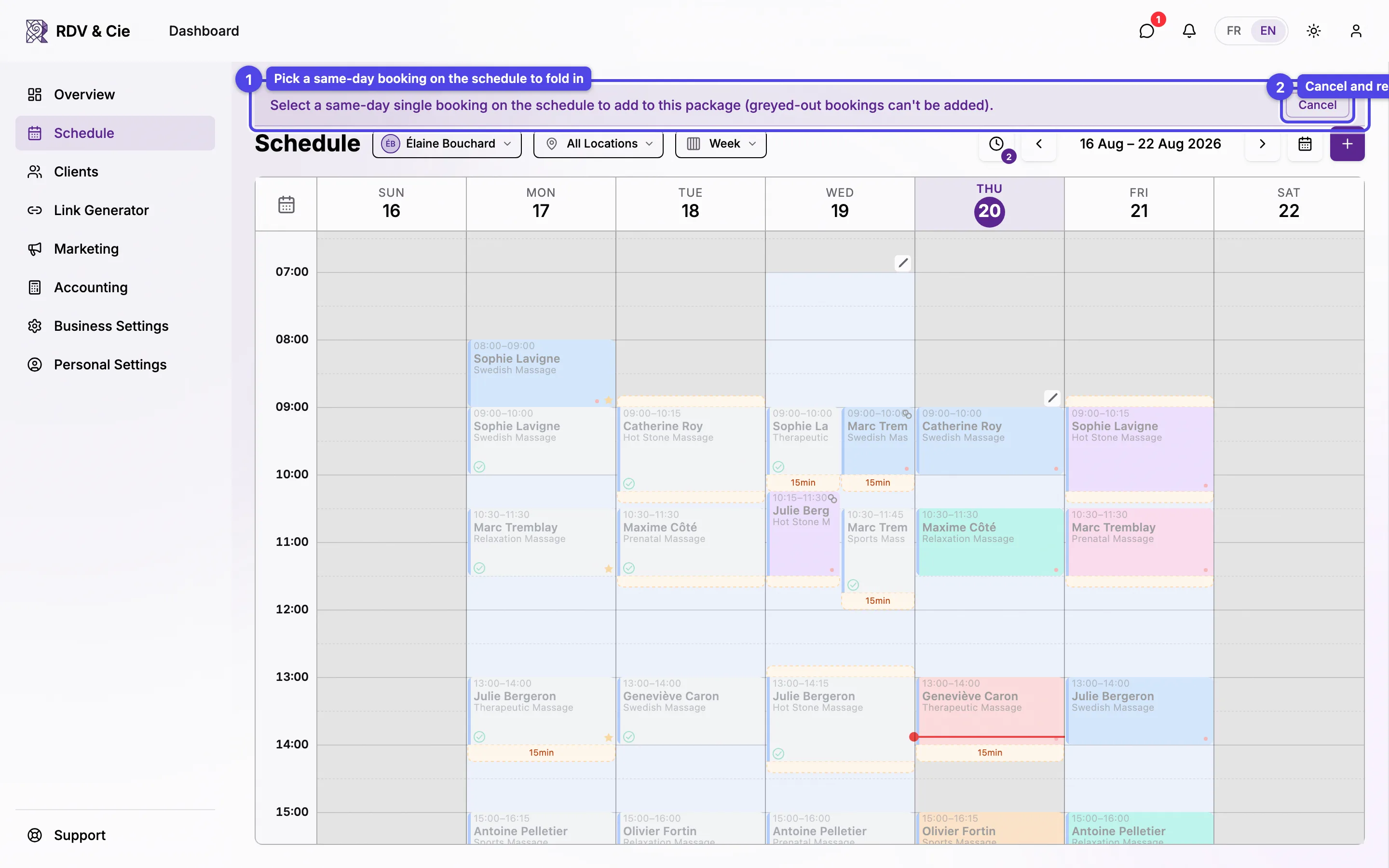
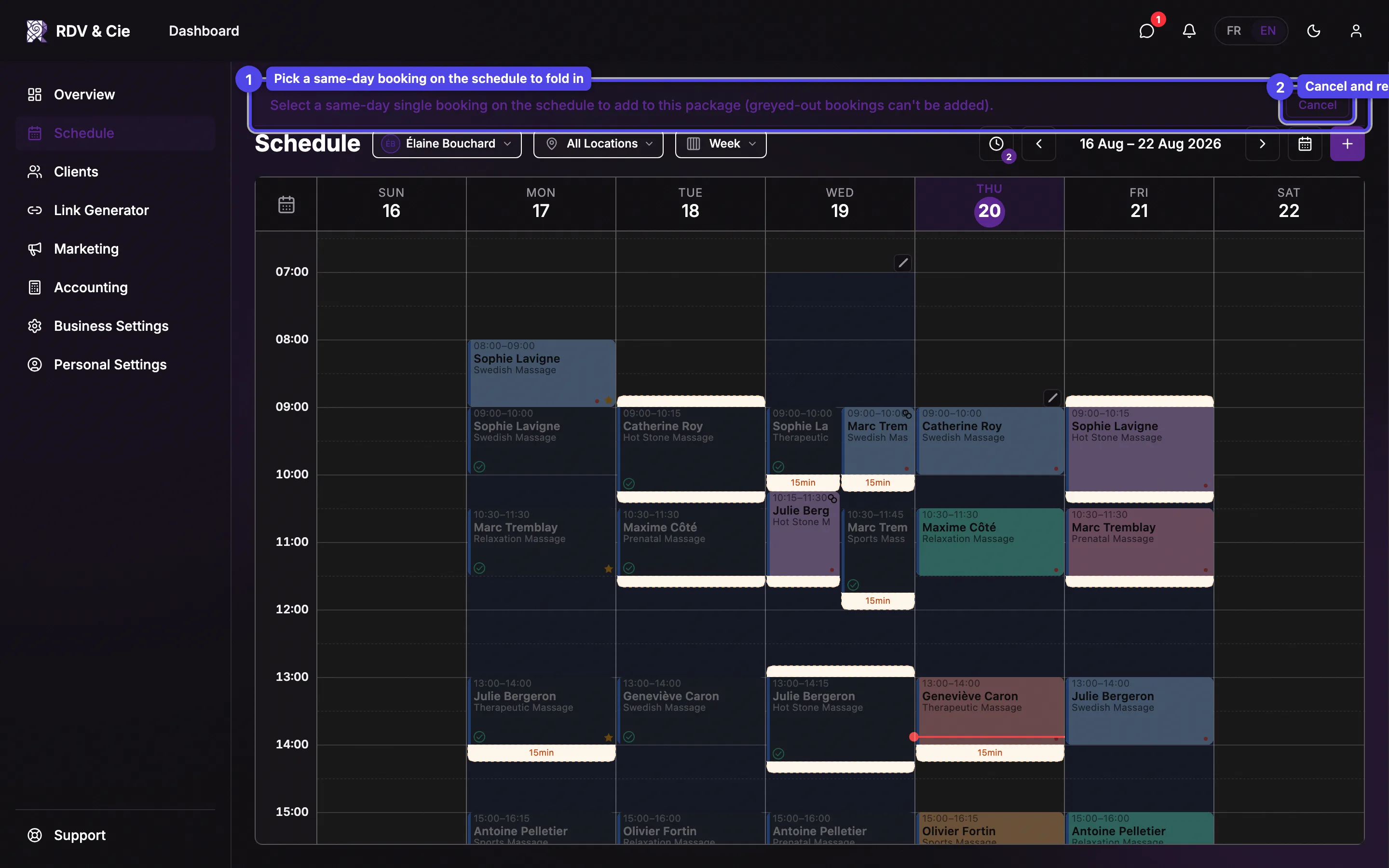
The per-service ⋯ menu
Each service row has a ⋯ menu:
- Set as payer — makes that person the payer: they're invoiced for and pay the whole visit, and their service becomes the main one of the package.
- Unlink — splits a service out into its own separate booking (keeping its time) so its client can pay on their own; the rest of the package stays together.
- Remove — drops the service from the package. At least two services must remain — to end the whole visit, use Cancel appointment instead.
Add from calendar, Set as payer and Unlink aren't available once the package has a promo code, gift certificate or discount applied — the shared total can't be re-split. Cancel and rebook to change those. Remove and Add from calendar are also refused once the visit has a bill or a payment (refund the payment or delete the bill first).
Reschedule one service or the whole visit
Changing one service's time from the dialog moves only that service and emails that client their new time. Dragging the visit on the grid moves every service together (offsets preserved) and emails each client their own service's new time — one email per person.
Visibility
The Visible to clients toggle works like a service's active toggle. A forfait also hides automatically from clients when any of its services is deactivated — your staff can still book it from the schedule as long as no service is deleted.