
Editing availability from the schedule
From the calendar, add extra hours for a date or change a single day's hours — without leaving the schedule.
Updated 2026-09-28
Most availability is set as a recurring weekly schedule. But right from the calendar you can also adjust a single date — either to add extra bookable hours, or to change that day's hours. Both start the same way: click an empty spot on the grid.
The grid-click menu
Click an empty time on the schedule (outside the person's working hours). A small menu asks you to Choose an action:
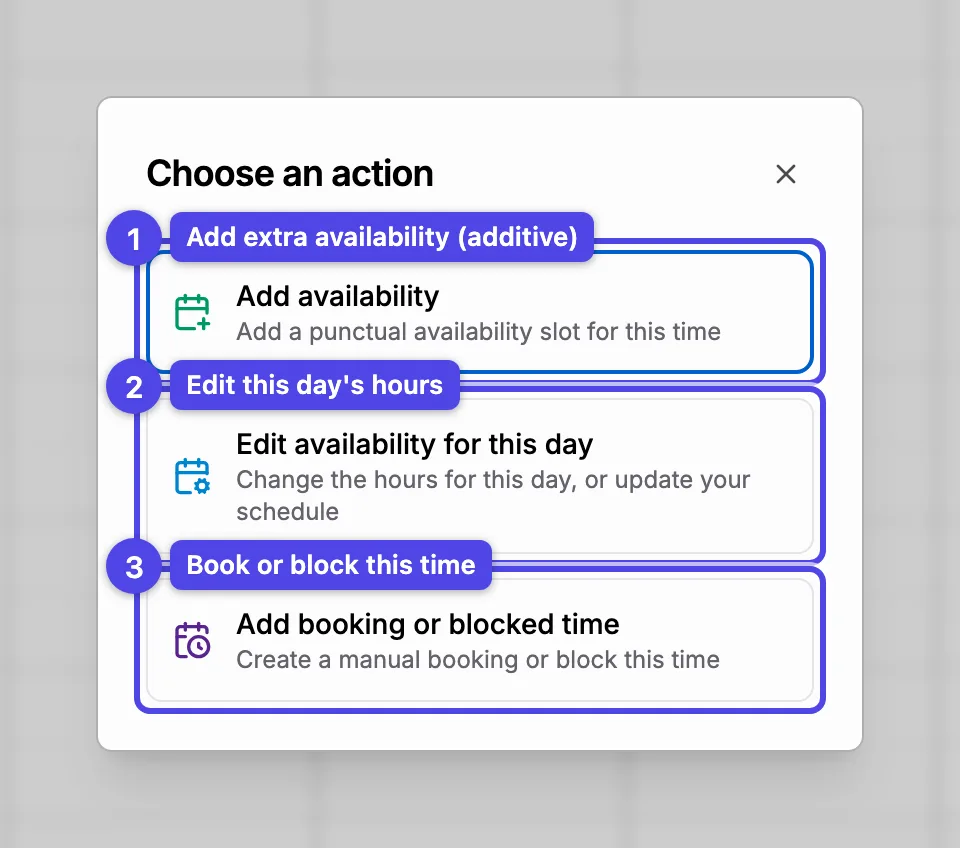
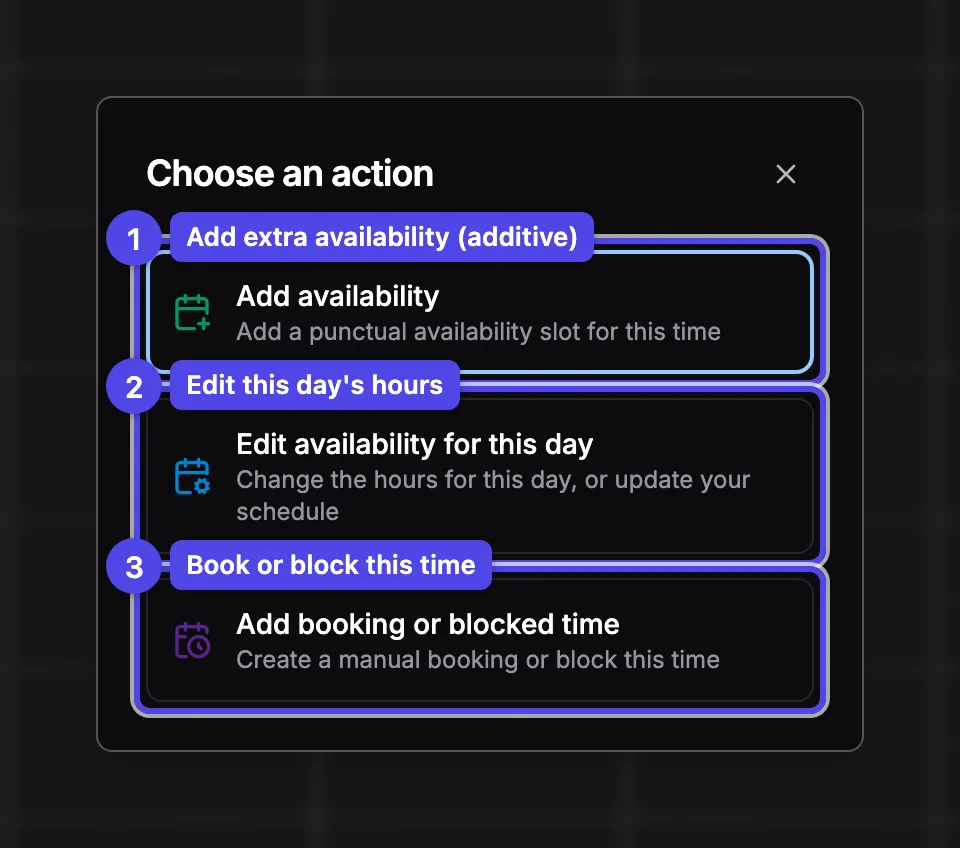
- Add availability — open extra bookable time for this date, on top of the weekly schedule (additive). See below.
- Edit availability for this day — change this day's hours: replace just this date, or push the change into the weekly schedule. See below.
- Add booking or blocked time — create a manual booking or block this time instead (covered in Create a booking and Blocked time).
Add extra availability
Choose Add availability to open a one-off (or recurring) slot outside the regular hours — handy for an occasional evening or a guest day. It's additive: it opens extra time without touching the weekly schedule.
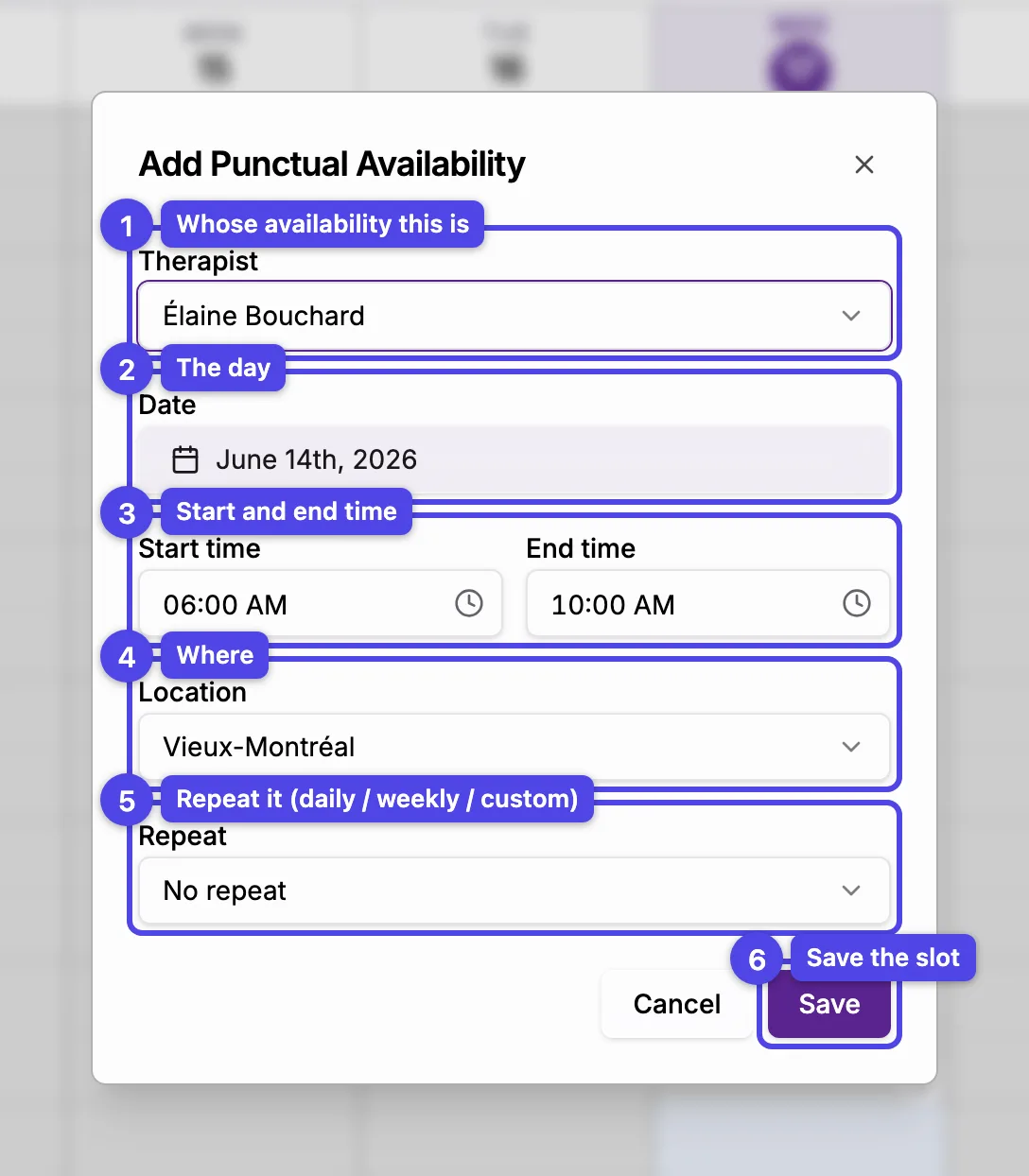
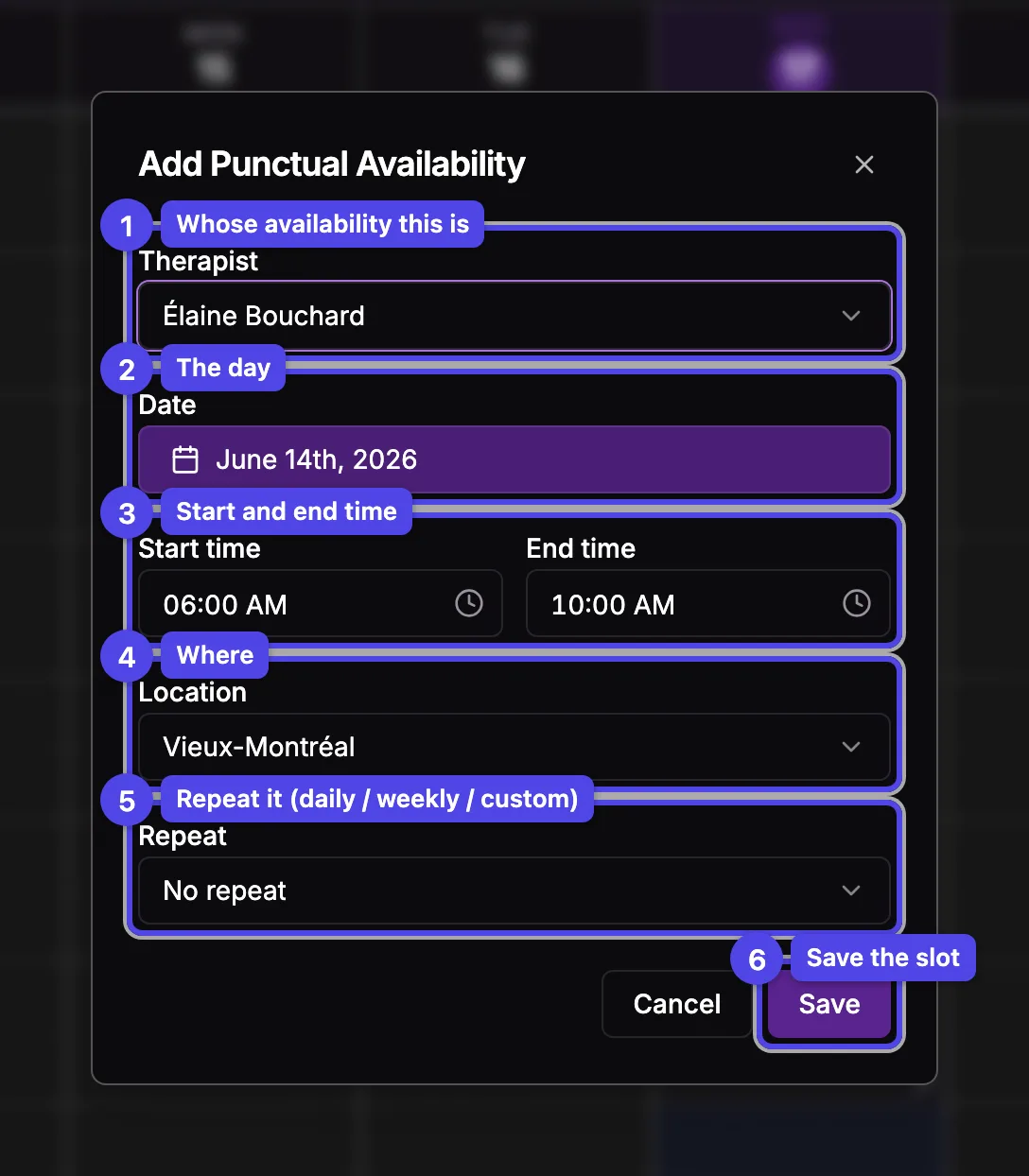
Fill in the slot. The numbers match the screenshot:
- Therapist — whose availability this is (shown only when you manage more than one team member).
- Date — the day to open up.
- Start time and End time — the slot's range.
- Location — where you'll be available.
- Repeat — keep it a single day (No repeat) or repeat it Daily, Weekly, Monthly, or Custom. The repeat options let you set how many times, or an Until date for custom intervals.
- Save — create the slot (or all the recurring slots).
The date, start, and end time are pre-filled from the spot you clicked, so you usually only adjust the location or repeat.
Edit a single day's hours
Choose Edit availability for this day when you want to change a day's hours rather than add to them. The dialog opens pre-filled with all of that day's time slots, so a lunch break or a two-location day is shown in full — nothing is lost.
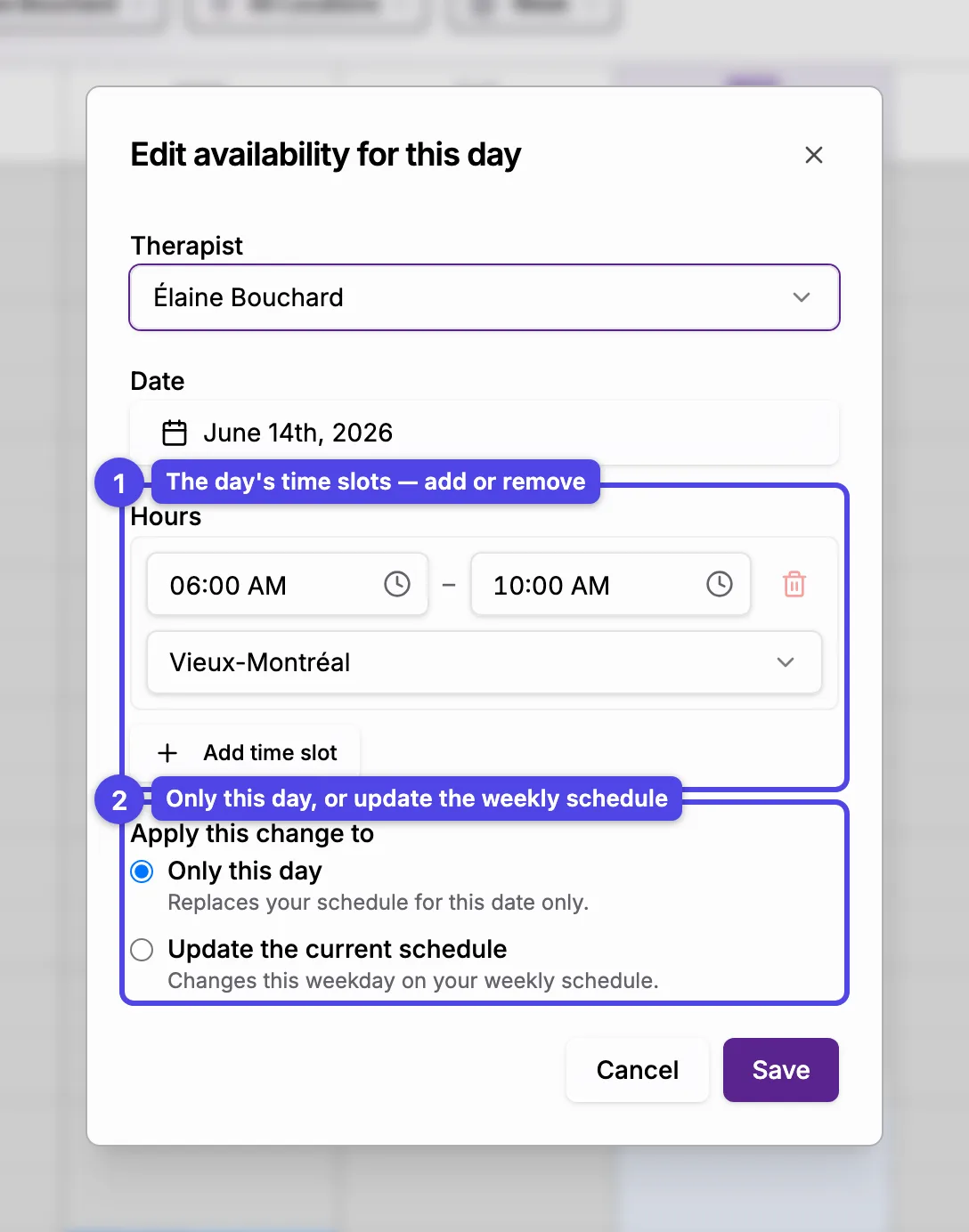
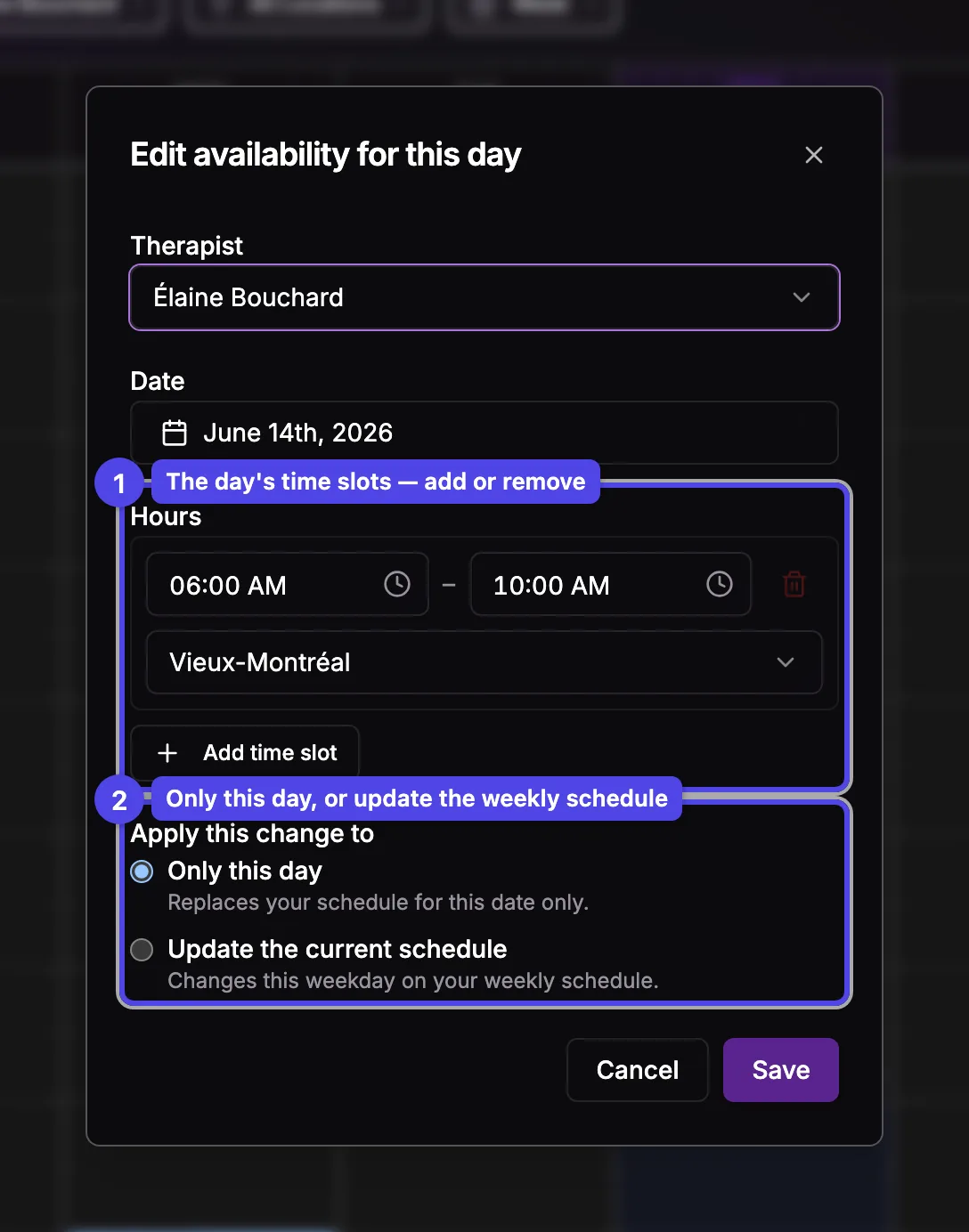
- Hours — the day's time slots. Each row has a start time, an end time, and (with more than one location) a location. Use Add time slot to split the day; the trash icon removes a slot.
- Apply this change to — the important choice:
Only this day
Replaces your schedule for that date only. The weekly schedule is untouched — just this one date uses the slots you entered, at every location: a location without a slot in the list is closed that day. Use this for a one-off change like "today I finish at noon."
Update the current schedule
Changes the weekly schedule itself for that weekday, going forward. If a future (scheduled) version covers the date, the label says which one you're editing (e.g. "Update your schedule starting Jul 1"). It's disabled for dates governed by a past, read-only version.
A day you've replaced with Only this day shows a Replaces your schedule note in its detail dialog, so you can tell it apart from ordinary added availability. On the grid it looks like normal availability — same tint as your regular hours. (Editing the day's hours here never changes your Max booking hours cap — that's a separate, business-wide setting in Working Hours.)
View, edit, or delete a slot
Availability you've added or replaced shows on the grid with a small pencil button. Click it to open the slot's detail dialog.
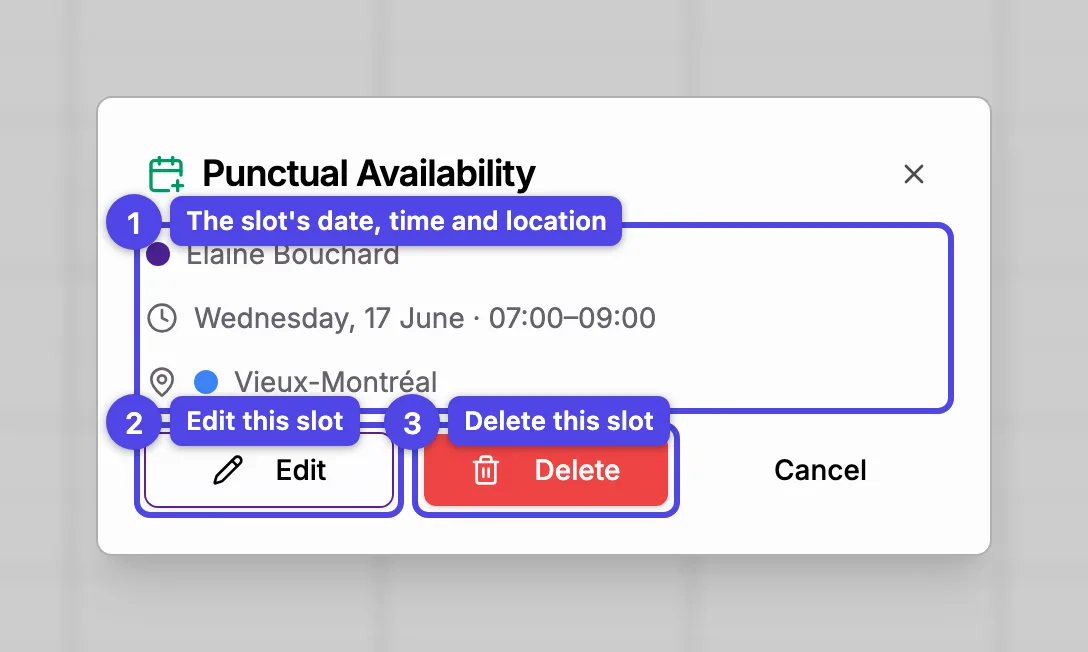
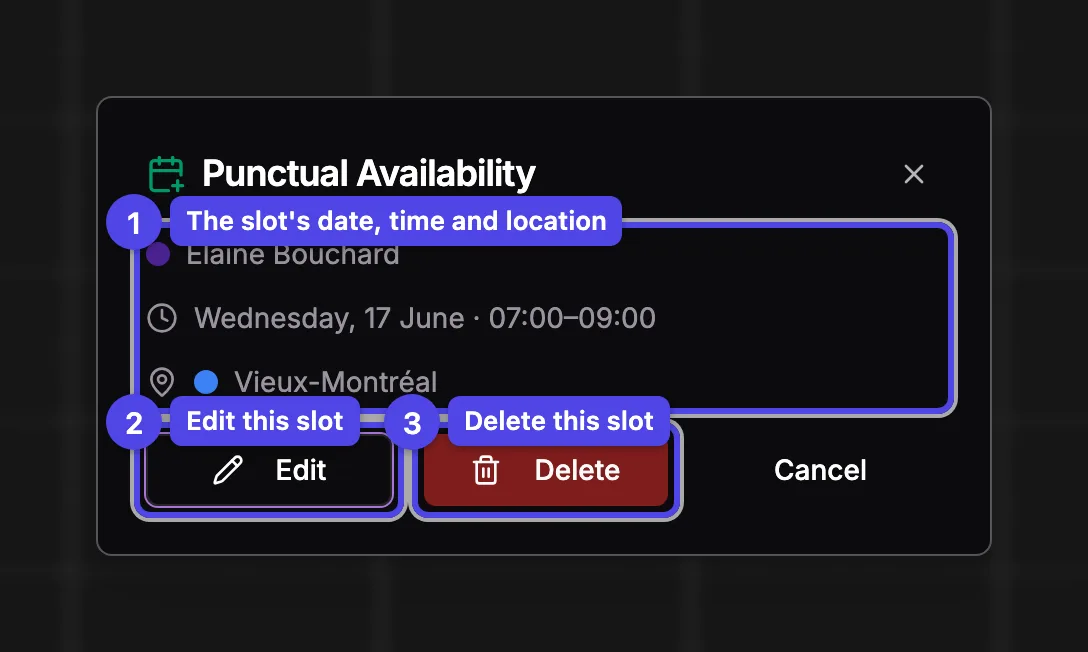
- Details — the slot's date, time, and location (and therapist when you manage several). A Recurring note appears for a repeating series, and a Replaces your schedule note for a day you replaced.
- Edit — switch the dialog into edit mode (below).
- Delete — remove the slot. For a recurring series you're asked whether to delete just this one or this and all future entries.
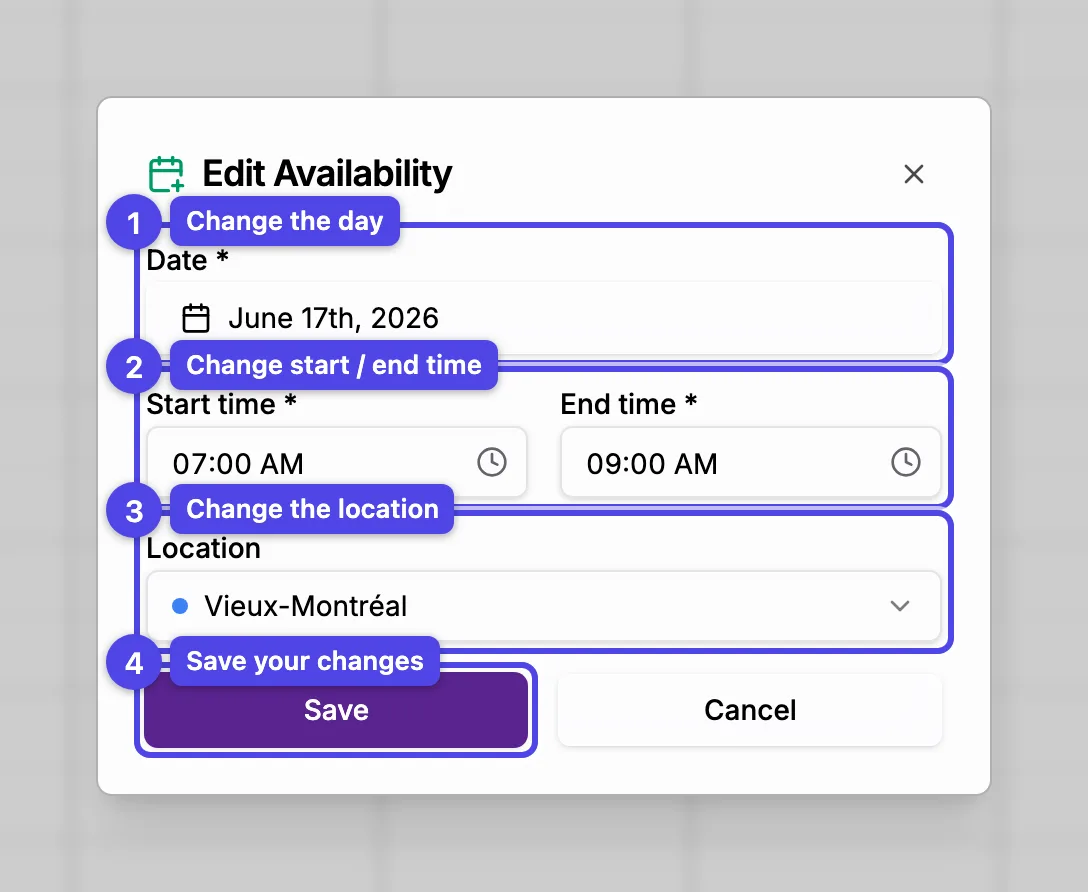
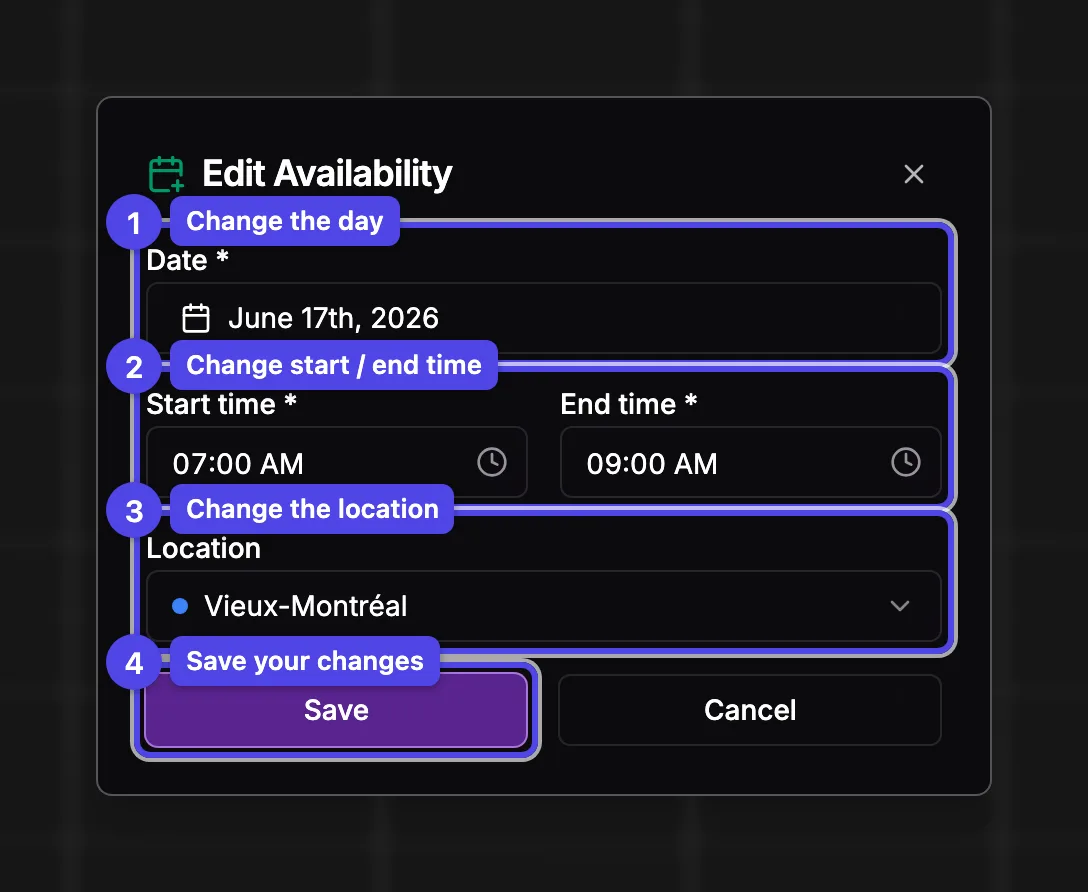
Click Edit to change the slot inline — its date, start/end time, and location — then Save. For a recurring slot you're asked whether to save just this one or this and all future entries.
Deleting a slot frees that time on the schedule. For a recurring series, choose carefully between "this one only" and "this and all future entries" — the second can't be undone.
What's next
- Setting working hours — the recurring weekly schedule and schedule versions.
- The schedule — how the calendar grid works.
- Create a booking — book a client into a slot.