
Newsletter subscribers
Grow your newsletter list with people who aren't clients yet: how they subscribe, the subscriber list and its statuses, and adding, importing, exporting or deleting subscribers.
Updated 2026-10-02
Newsletter subscribers are people who want your newsletter but aren't clients yet. They sign up on your public signup page, you add them yourself, or you import a list you already have. Your newsletters then reach them by email, alongside your clients who gave marketing consent.
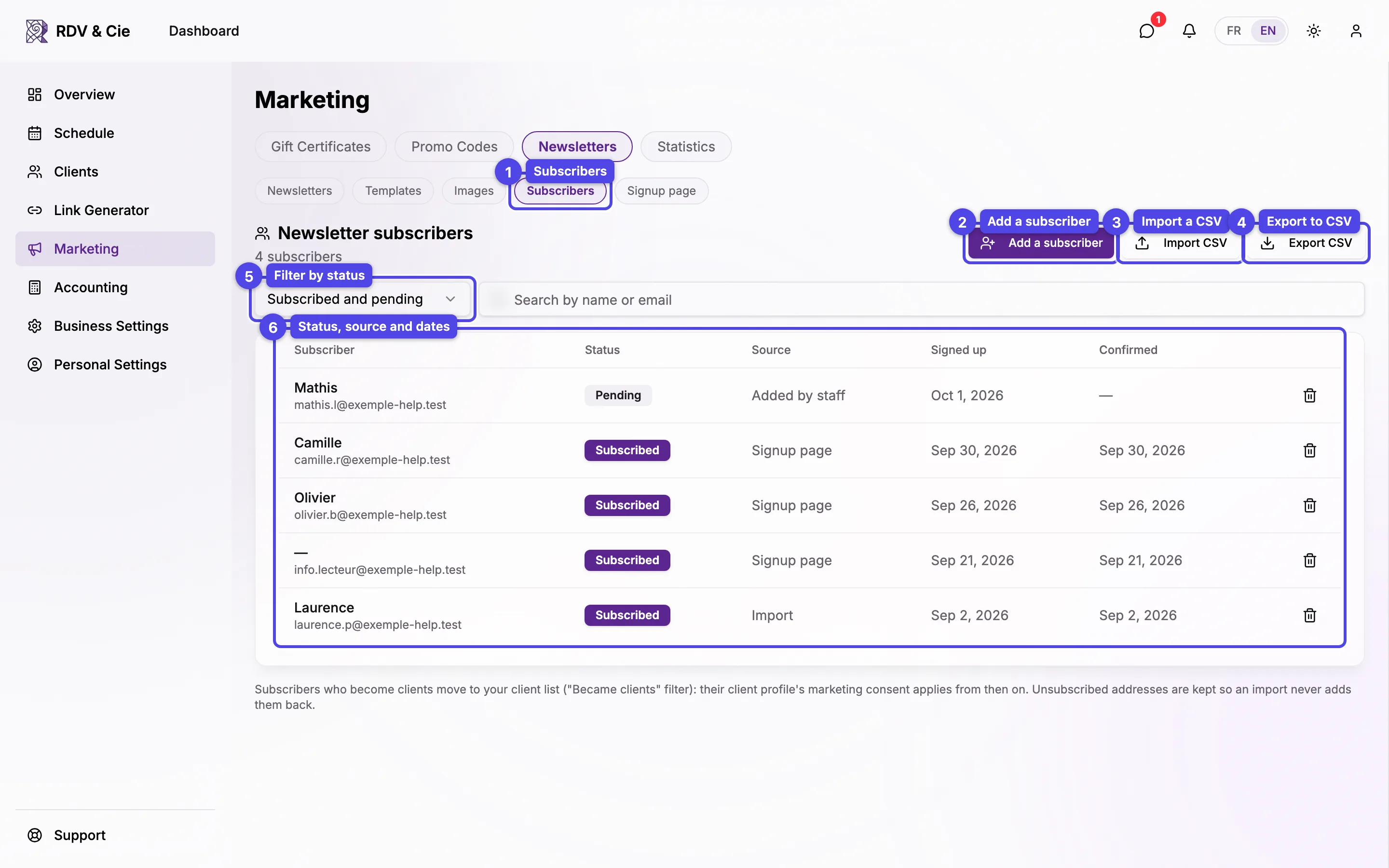
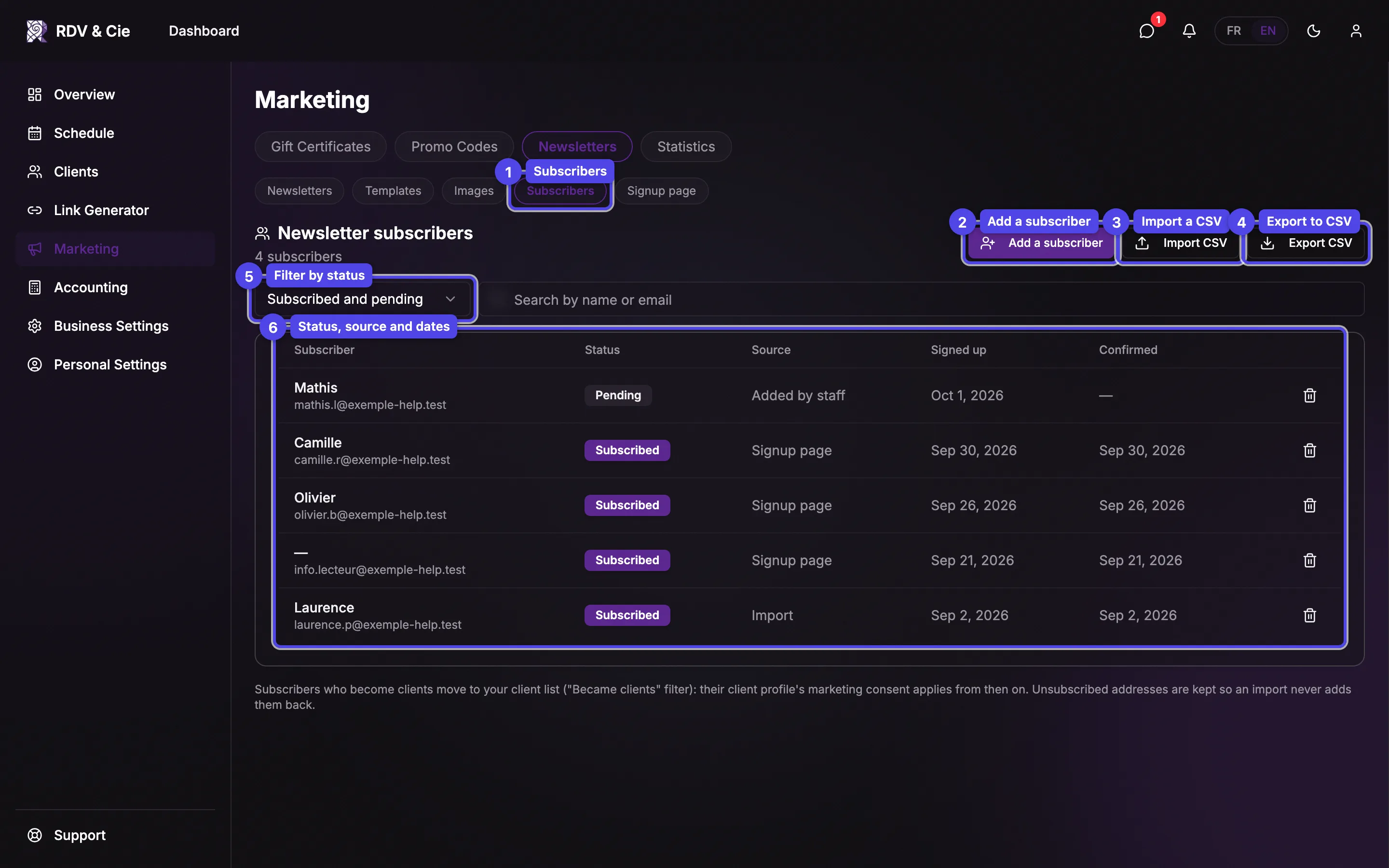
Open Marketing → Newsletters → Subscribers.
Subscribers
The Subscribers pill in the Newsletters sub-nav. The counter under the title shows how many people are subscribed right now.
Export CSV
Downloads the rows of the current filter (email, name, status, source and dates).
Filter and search
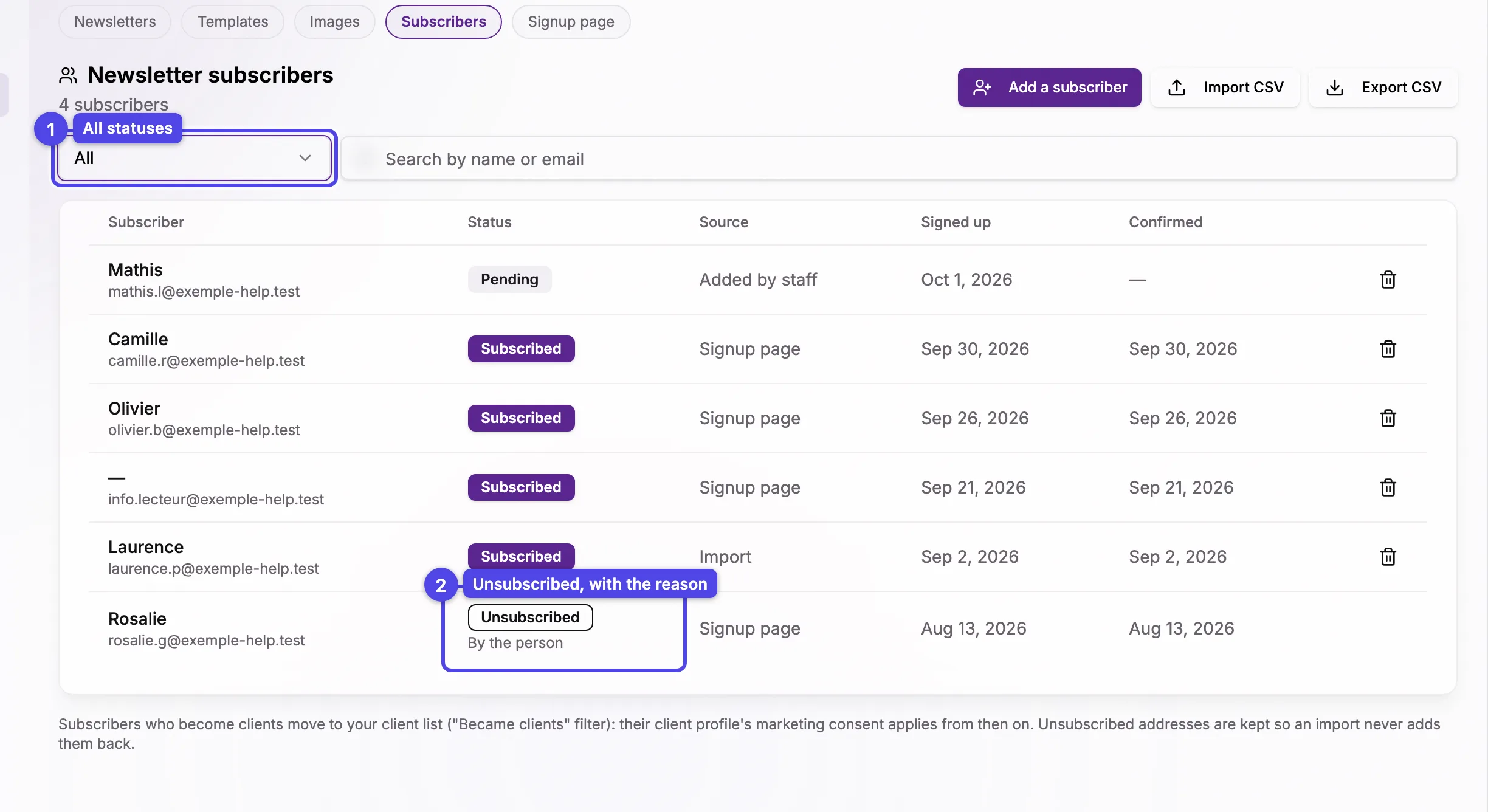
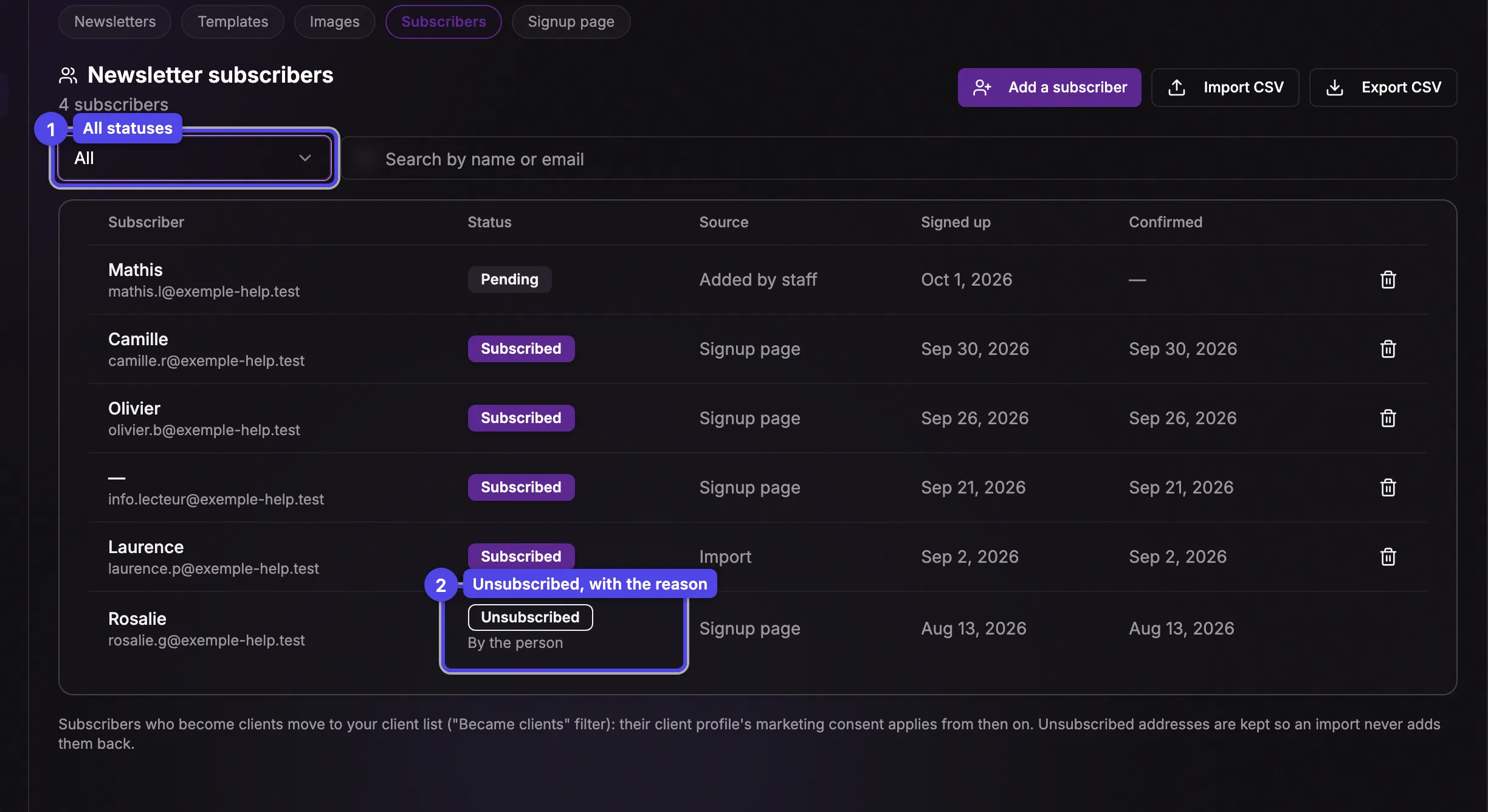
The list opens on Subscribed and pending. Switch to Subscribed, Pending confirmation, Unsubscribed, Became clients or All, and search by name or email.
The list
Each row shows the subscriber (name and email), their Status, the Source — Signup page, Added by staff or Import — and the Signed up and Confirmed dates.
How people subscribe
On your signup page, a person enters their name and email, ticks the consent box and presses Subscribe. What happens next depends on the address:
- A new address is subscribed right away. The person receives a welcome email with a one-click unsubscribe link.
- An address that needs a confirmation receives a confirmation link instead, and is subscribed only once the person clicks Confirm my subscription. This happens when the address belongs to one of your clients who hasn't given marketing consent, or when it unsubscribed or bounced before — so a form anyone can fill in never overrides a "no" already on file.
- An address already subscribed, or a client who already gave consent, simply gets the welcome email again.
The page shows the same "You'll get an email shortly" message in every case, so it never reveals whether an address belongs to one of your clients.
If a welcome email or a newsletter bounces, or the person marks it as spam, the subscriber is unsubscribed automatically. An address that marked your newsletter as spam can't subscribe again through the form, and you can't add it back.
Statuses
| Status | What it means |
|---|---|
| Subscribed | Receives your newsletters. |
| Pending | Waiting for the person to click the confirmation link. Doesn't receive newsletters yet. |
| Unsubscribed | Left the list. The reason shows under the badge: By the person, Email bounced or Marked as spam. |
| Client | Became one of your clients — see When a subscriber becomes a client. Shown with the Became clients filter. |
Add a subscriber
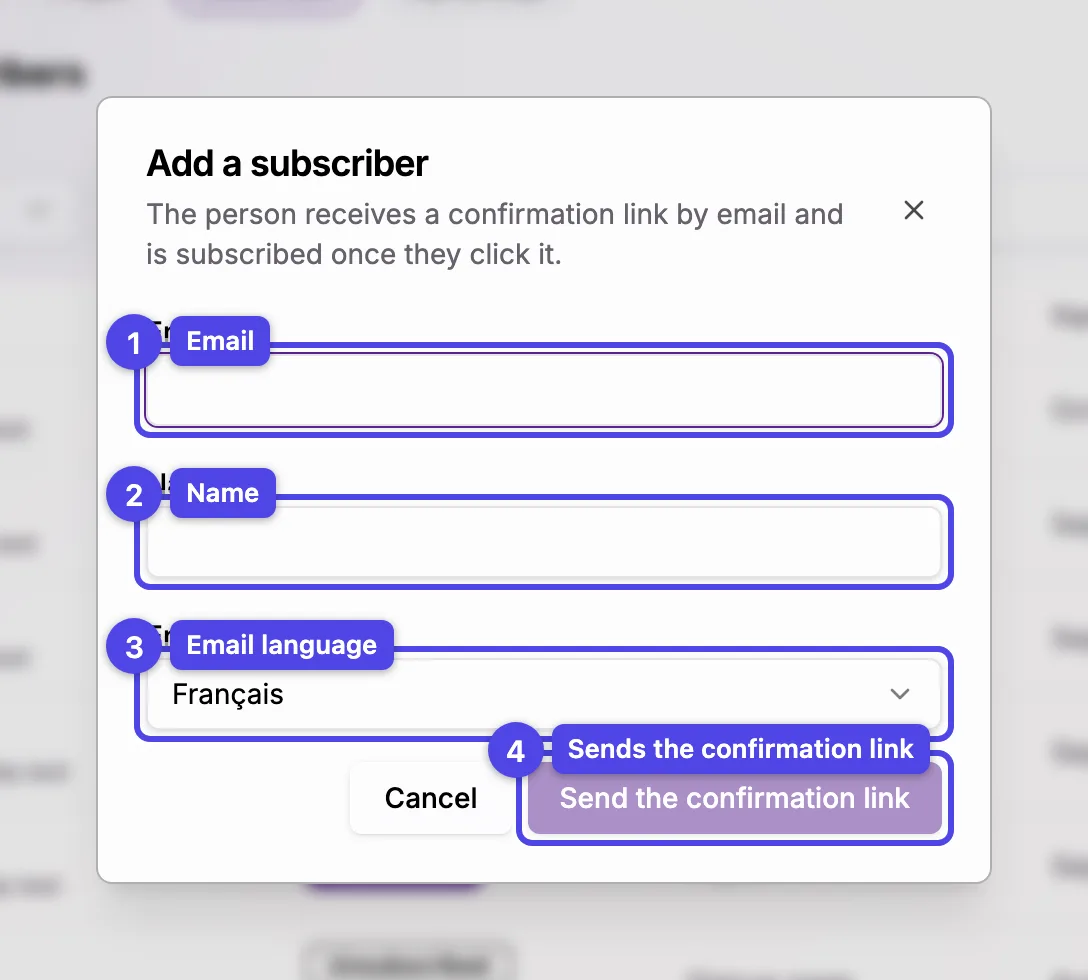
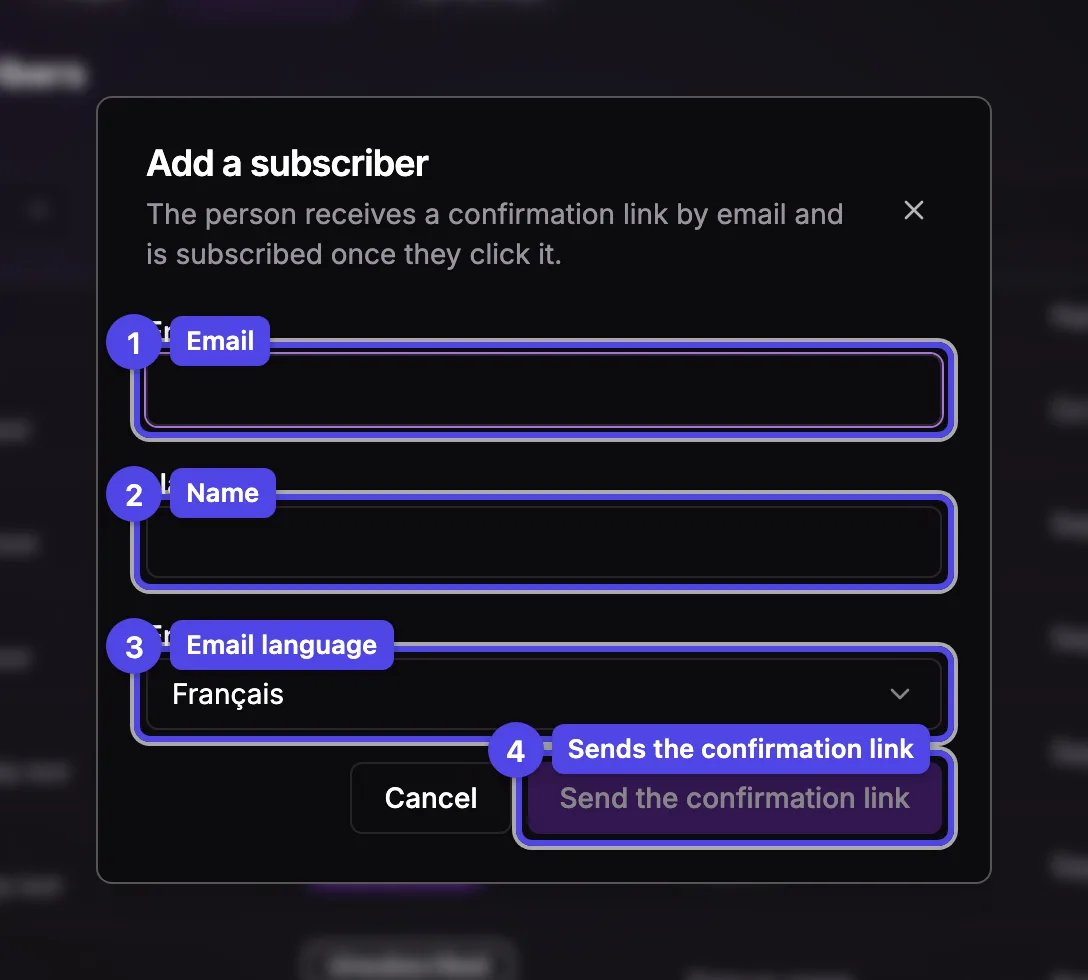
The person's email address.
Name
Used to greet them in your newsletters.
Email language
The language of the confirmation email they receive.
Send the confirmation link
The person receives a confirmation link by email and is subscribed once they click it. Until then they show as Pending.
Adding someone yourself always goes through the confirmation link, even for a new address: the person's click is the proof that they agreed. If the address already receives your newsletter, you're told so and nothing is sent. You can add up to 50 people a day this way — to bring in a whole list, import it instead.
Import a list
Bring in a list you already have, for example from Mailchimp. No email is sent: everyone imported is added as Subscribed, with the source Import.
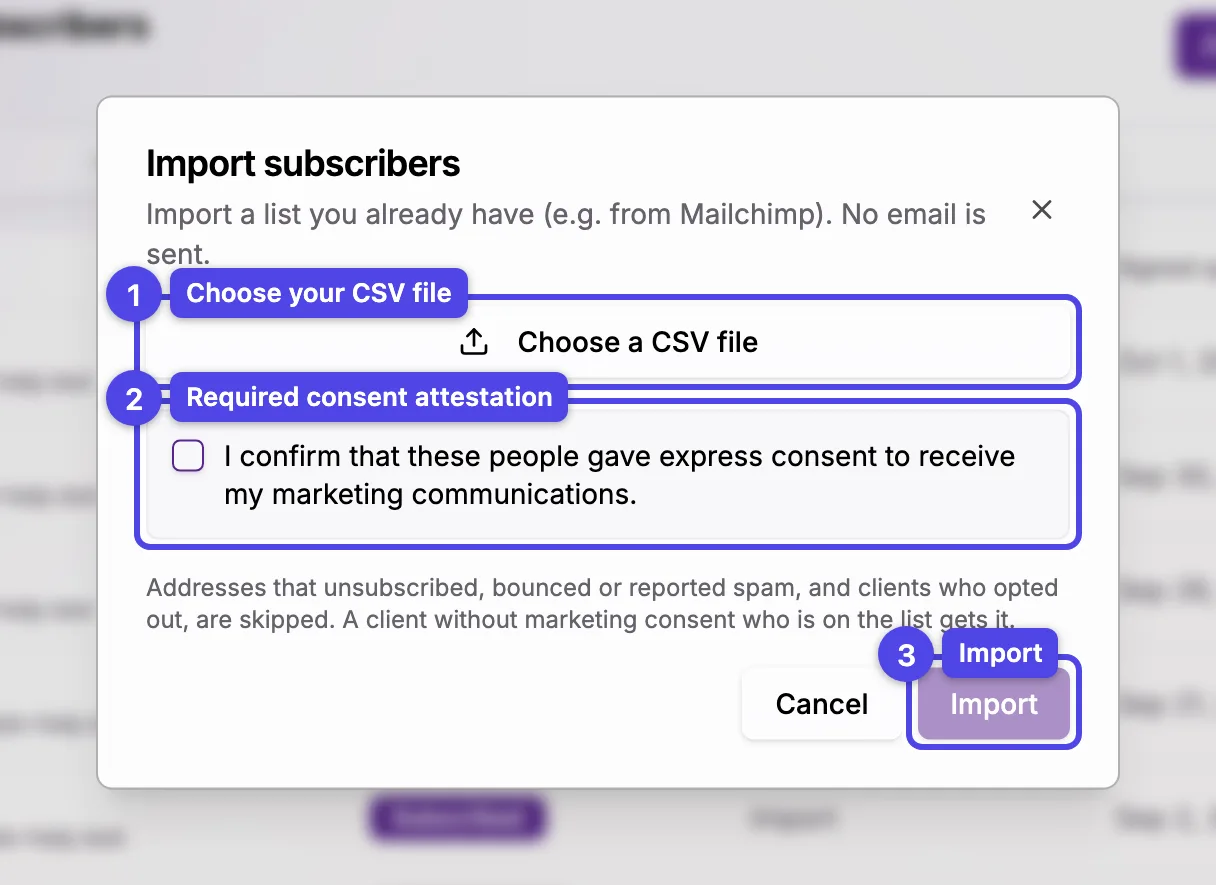
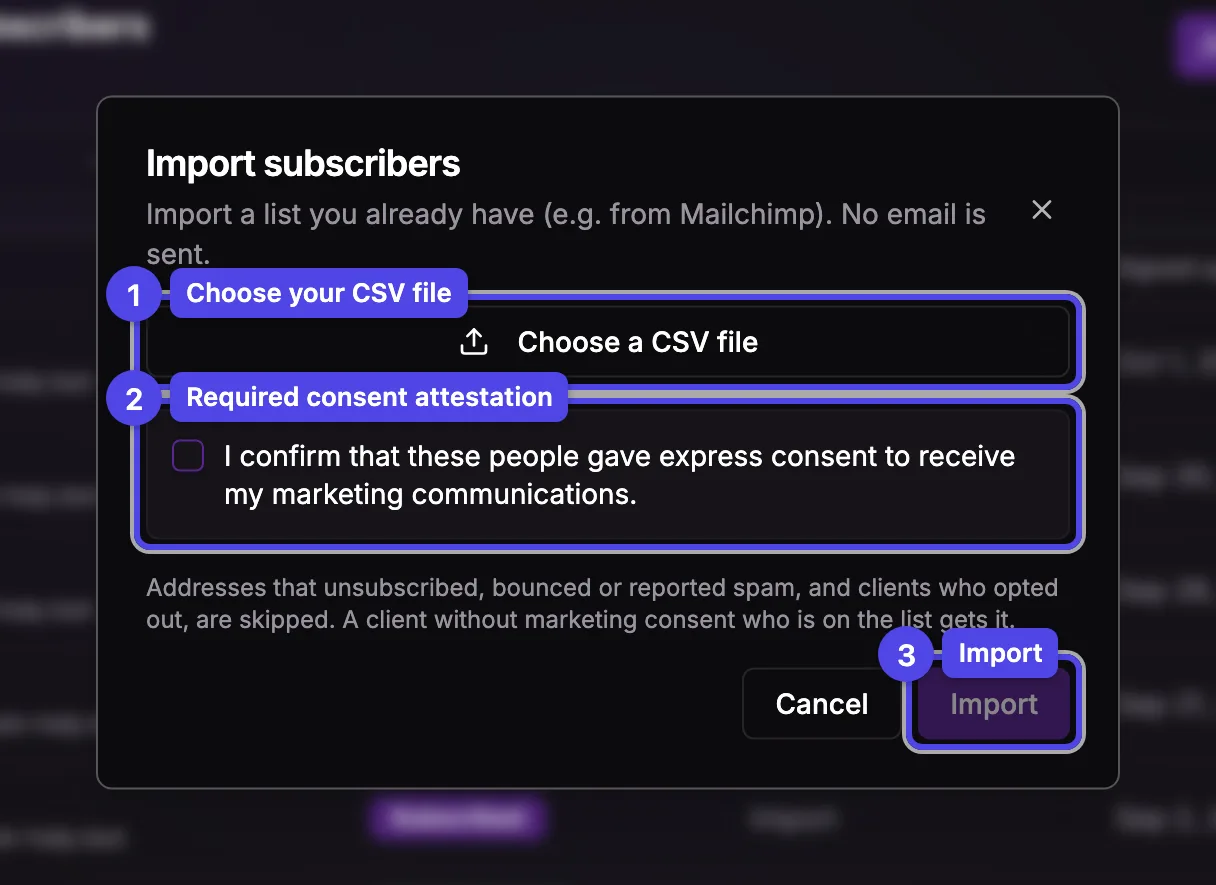
Choose a CSV file
Pick your file (up to 5,000 rows per import), then choose the Email column and, if your file has them, the Name column and the Consent date column (when each person originally agreed — today's date is used otherwise).
Confirm the consent
Tick I confirm that these people gave express consent to receive my marketing communications. The import can't start without it.
Import
A summary lists the subscribers added, the clients who now receive the newsletter, the people already subscribed, and the rows skipped.
Only import people who gave you their express consent. An import never brings back someone who said no: addresses that unsubscribed, bounced or reported spam, and clients who refused marketing communications, are skipped. A client on your list who hadn't given marketing consent gets it.
Export
Export CSV downloads the rows of the current filter. It's shown only to people who can see client contact details (the View client contact info permission); an employee without it sees Email hidden instead of addresses.
Delete a subscriber
Click the trash icon on a Subscribed or Pending row, then confirm. The person stops receiving your newsletter, and newsletters already queued for them are cancelled.
Unsubscribed rows can't be deleted. They're kept as a record of the person's choice, so a later import can never add them back.
When a subscriber becomes a client
When a subscriber books an appointment, joins your waiting list, or you add them as a client with the same email, they move to your client list: their status becomes Client, and the Became clients filter shows them (click the name to open their client overview). Their consent comes with them — their client profile's Marketing communications consent is turned on, unless they had refused it more recently.
From then on, the client profile is what counts: they keep receiving your newsletters as a client, and unsubscribing (or turning the consent off in their profile) goes through the client. A subscriber whose email belongs to one of your clients is never added to a newsletter as a subscriber, so nobody gets the same newsletter twice.
Subscribers and Signup page are available to the owner and to employees with the Manage business settings permission.