
Bills
Create, send, and track invoices — and what every column and row action does.
Updated 2026-09-29
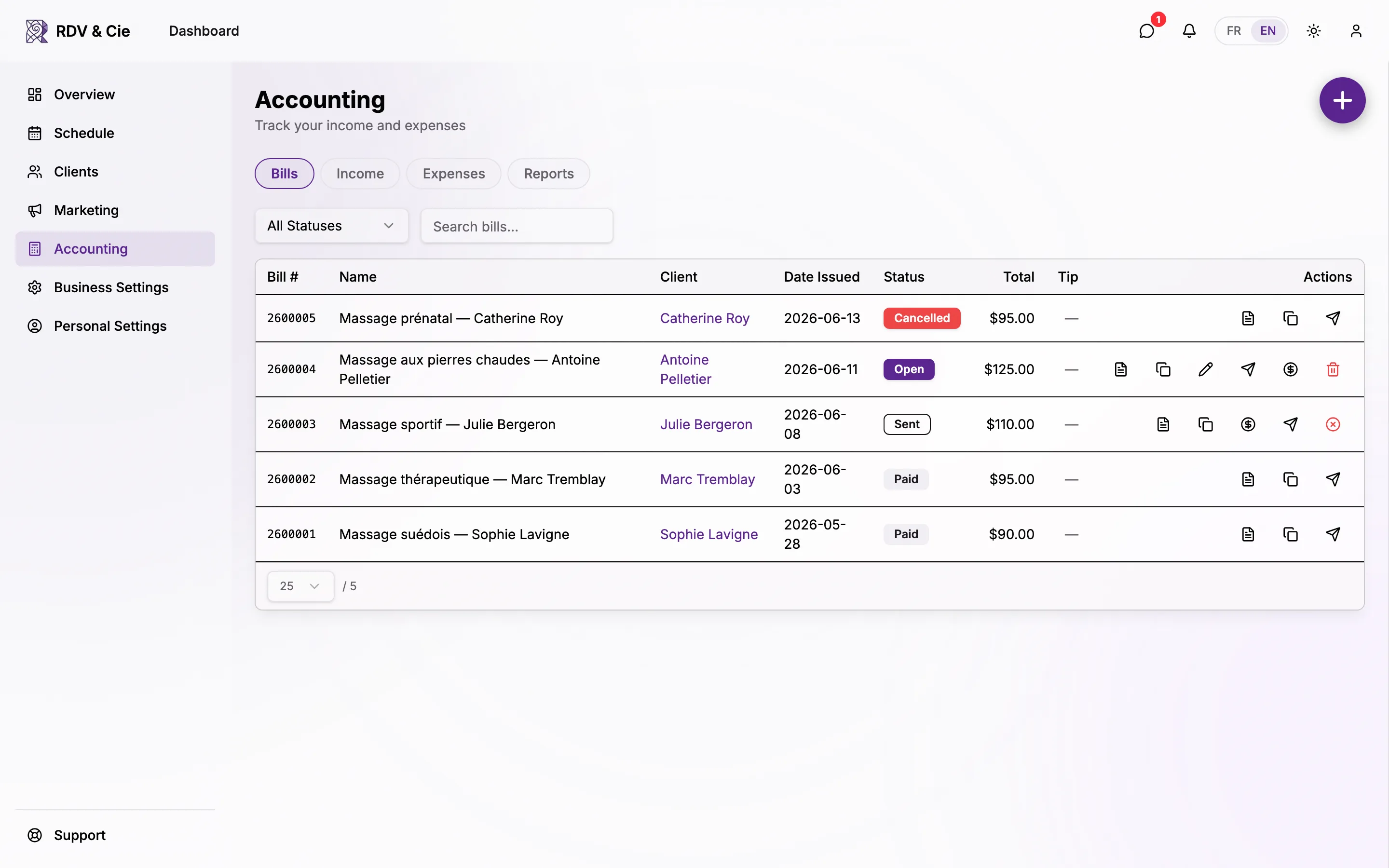
The Bills tab is your invoice ledger. Every bill has a number, a client, a date, a status, a total, and an optional tip. This is the tab Accounting opens on.
Find a bill
At the top of the tab:
Status filter
Narrow the list to All, Open, Sent, Paid, or Cancelled.
Search
Type a bill number, name, or client to filter as you type.
The columns
| Column | What it shows |
|---|---|
| Bill # | The unique, sequential bill number. |
| Name | The bill's title (e.g. the service or package). |
| Client | The linked client — click to open their overview. "—" if none. |
| Date issued | When the bill was created. |
| Status | Open, Sent, Paid, or Cancelled (colour-coded). |
| Total | The grand total, taxes included. |
| Tip | The tip portion, or "—" when there's none. |
| Actions | The icon buttons described below. |
Row actions
The action icons change with the bill's status, so you only ever see what applies:
Download (always)
Opens the bill PDF in a new tab — ready to print or save.
Duplicate (always)
Creates a new Open bill copied from this one, so you can re-bill a repeat client without retyping.
Edit (Open bills)
Opens the bill editor. Only Open bills can be edited — once a bill is sent or paid its contents are locked.
Mark as sent (Open)
Marks the bill Sent and optionally emails it to the client. You can edit the recipient, subject, and body before sending.
Mark as paid (Open / Sent)
Opens the payment wizard to record how the bill was settled (cash, card, Stripe, and so on) and move it to Paid.
Resend (Sent / Paid / Cancelled)
Emails the bill again — handy for reminders or receipts.
Delete (Open) / Cancel (Sent)
Open bills can be deleted outright. Sent bills are cancelled instead (with an optional notice to the client) so the numbering stays intact.
Deleting an Open bill is permanent. A Sent bill is cancelled, not deleted — it stays in the ledger marked Cancelled so your invoice numbers never have gaps.
Create a bill
Use the round + button (bottom-centre on mobile, top-right on desktop) to start a new bill. It opens the full bill editor where you add line items, a client, taxes, and an optional tip.
Most bills are created for you when a booking is completed, so you rarely start from scratch. Reach for + for ad-hoc invoices — a package sale, a no-show charge, or a walk-in.
Need to give a client a price before the work is agreed on? Send a quote instead — it has its own number, never counts as income, and becomes a bill in one click once the client accepts. See Quotes.
Sending bills by email and recording payments are covered by your subscription; employees need the "write bills" permission to create, edit, or duplicate. The list and PDF download stay available to anyone with bills access.