
Locations
Add clinic addresses and at-home service areas, set hours, assign services, and add photos.
Updated 2026-07-28
The Locations tab lists the places you work — a clinic address, several clinics, or an at-home service area. Each location can offer a different set of services and has its own booking link.
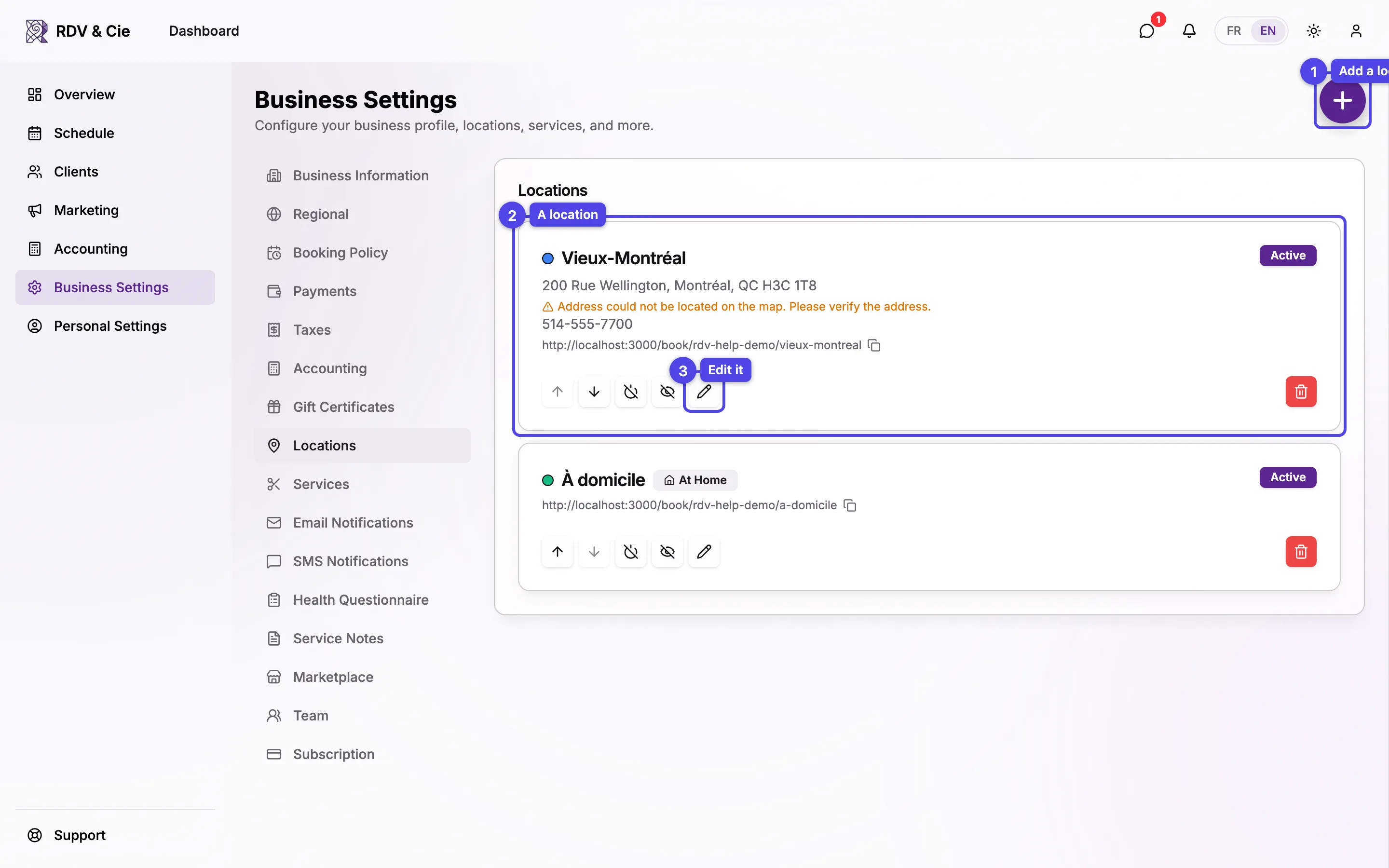
Add a location
Click the + button (bottom of the screen) to open the location dialog. It has four tabs: Location, Services, Hours, and Photos.
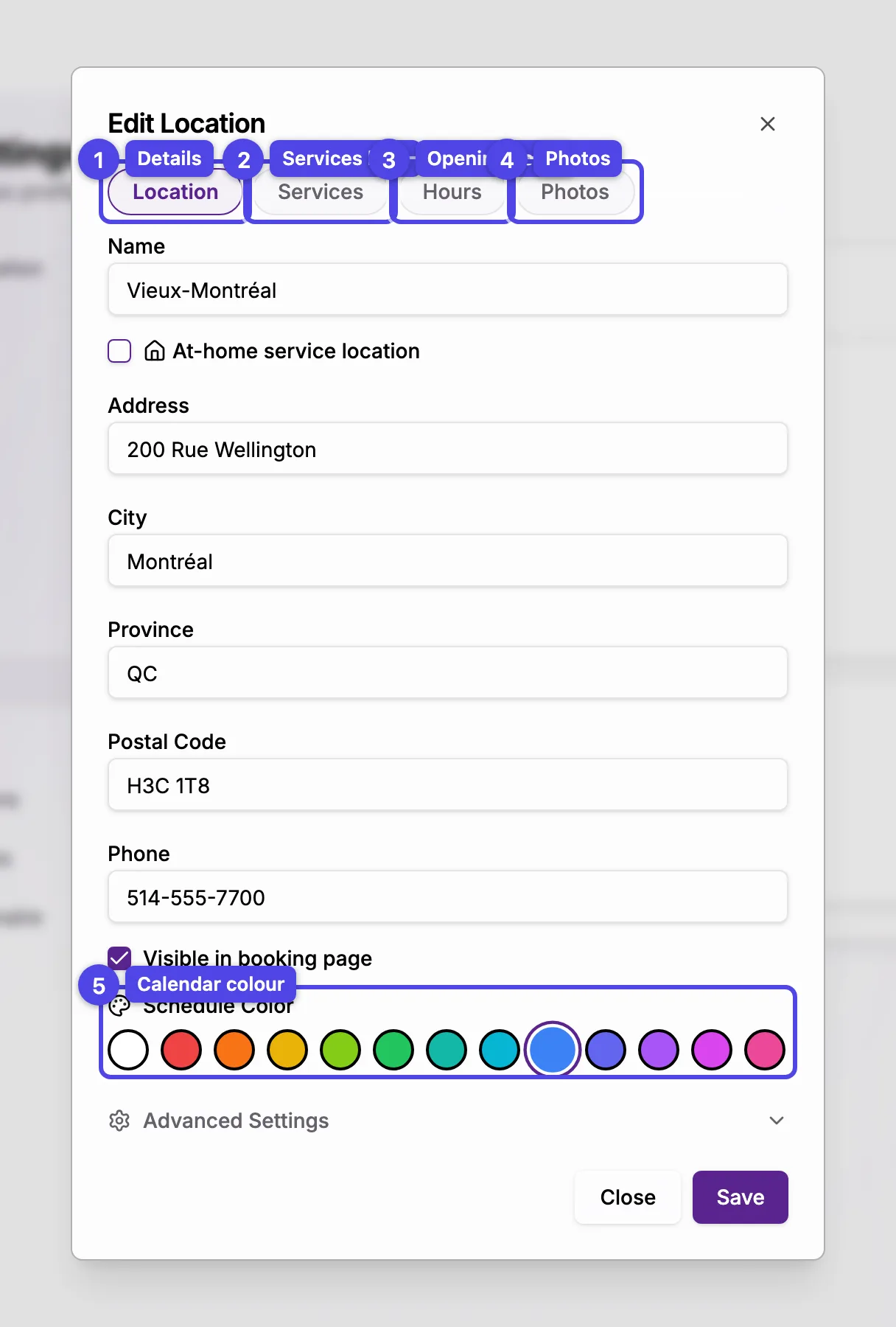

Location tab
Name
A label your clients see, like Old Montréal or At home.
At-home service location
Check this for a mobile service area — the address fields collapse to just city and province, since there's no fixed address. The city is required: it determines where your business appears in marketplace searches and on the map (pinned at the city center — your address is never shown).
Address
For a fixed location, fill in the city (required) plus the address, postal code, and an optional phone. The full address is geocoded for map-based search. The street address is optional — if you prefer not to publish it, enter just the city and your location is shown at the city center on the map instead.
Visible in booking page
Uncheck to keep the location but hide it from the public booking page.
Status message
An optional note shown to clients on the booking page and on your public profile page's location cards — for example Closed for renovations, back August 18. Bilingual businesses get separate French and English fields. Leave it empty to show nothing.
Schedule color
Pick a color from the palette to tell locations apart on your schedule.
Advanced — Google Place ID
Optional. Paste your Google Place ID so post-appointment emails can include a direct link for clients to leave a Google review.
If an address can't be placed on the map, you'll see a geocoding warning and the location won't appear in map-based search. Double-check the address and save again.
Services, Hours, and Photos
- Services — check which services are offered here. You can also manage this from each service's Locations tab.
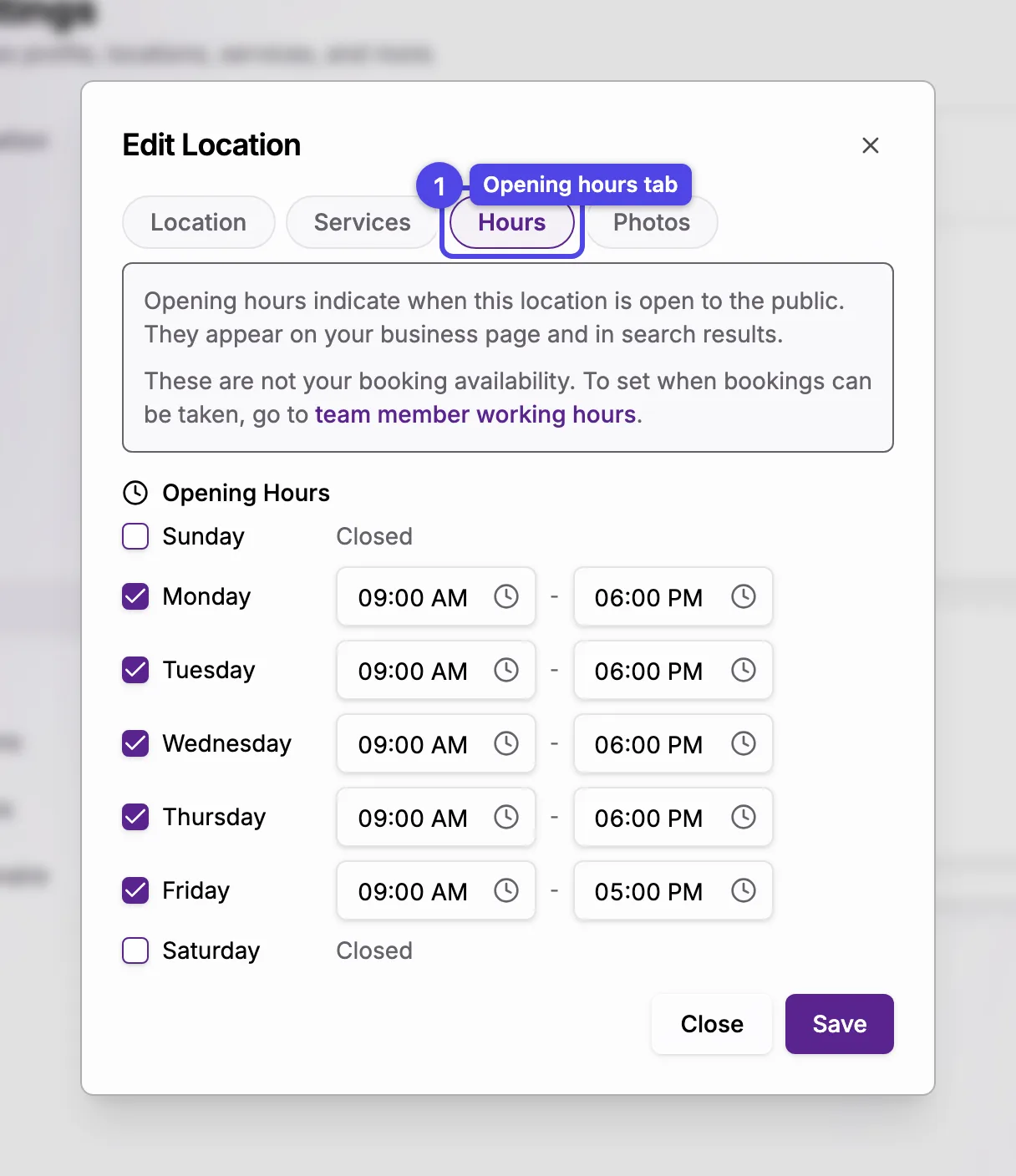
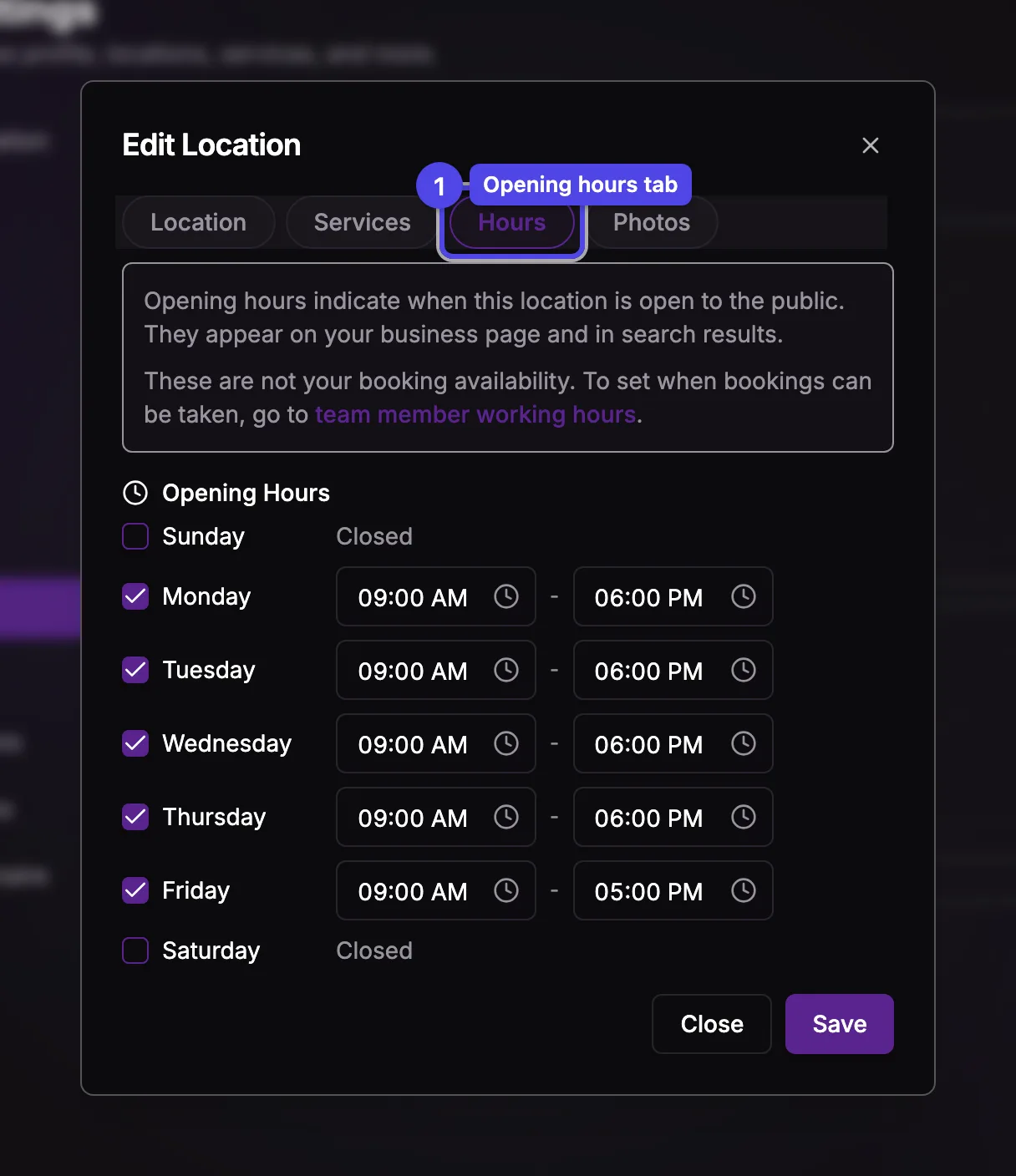
- Hours — set public opening hours per day. These show on your business page; they are not your booking availability (that's set in each team member's working hours).
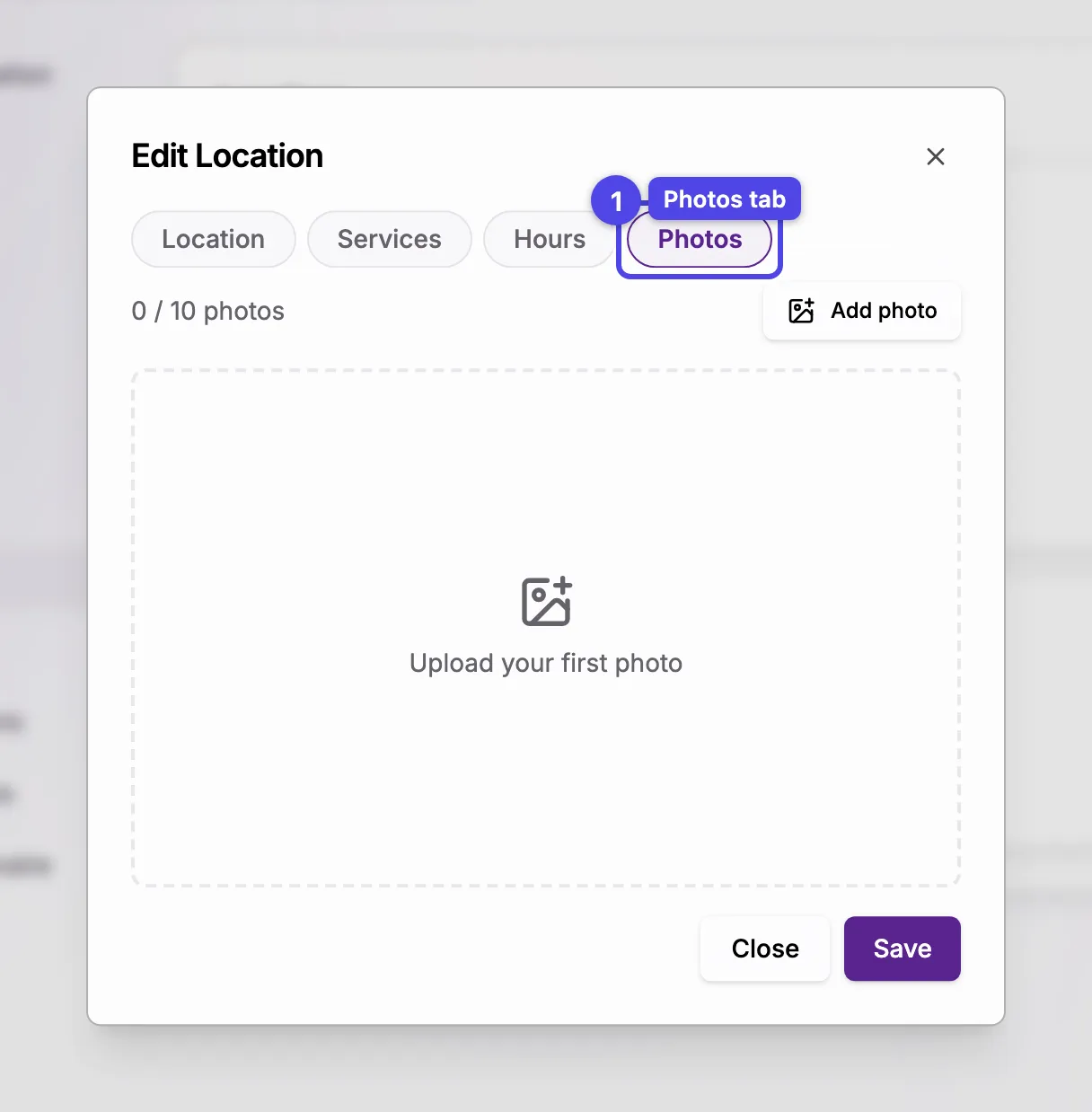
- Photos — upload up to 10 photos. You must save the location first; the Photos tab unlocks once it exists.
Managing locations
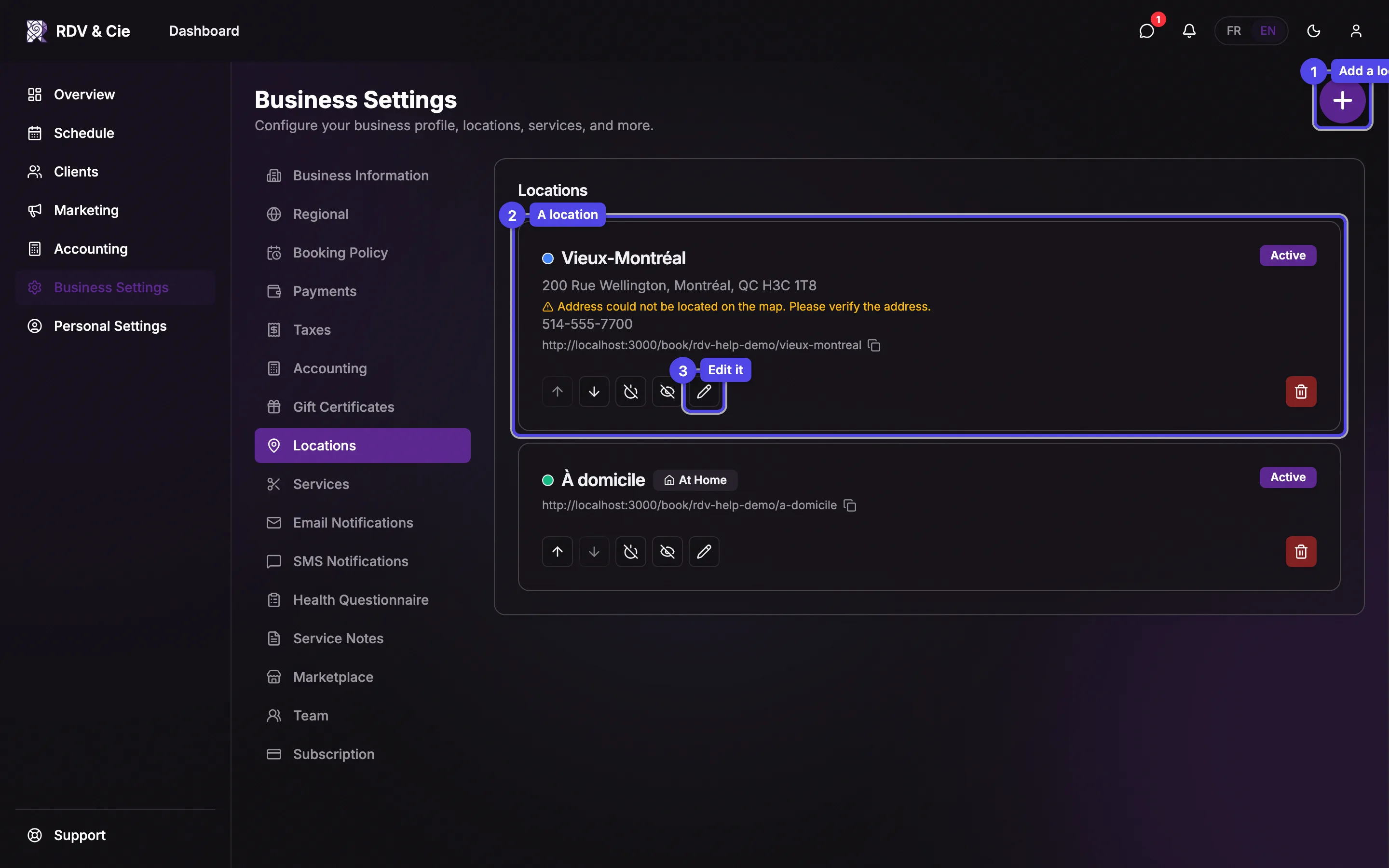
Each location card shows its color, address, status, and a copyable booking link
(/book/your-business/location). The buttons let you reorder, activate/
deactivate, hide/show on the booking page, edit, or delete.
Like the rest of settings, the action buttons save instantly. The dialog itself has a Save / Create button — changes there apply when you click it.
If upcoming bookings use a location, editing its address will offer to update those bookings with the new details, or skip and leave them as booked.