
Issue a gift certificate
Create a gift certificate by hand — dollar amount or specific service — and email it to the buyer.
Updated 2026-09-14
You can issue a gift certificate yourself — for a walk-in buyer, a phone order, or a promotion — without going through the public boutique. Open the Gift certificates tab in Marketing and click the + button (Create Gift Certificate) to open the creation dialog.
A live preview of the certificate sits beside the form (above it on mobile) and updates as you fill things in — names, service or amount, message, title, and background image.
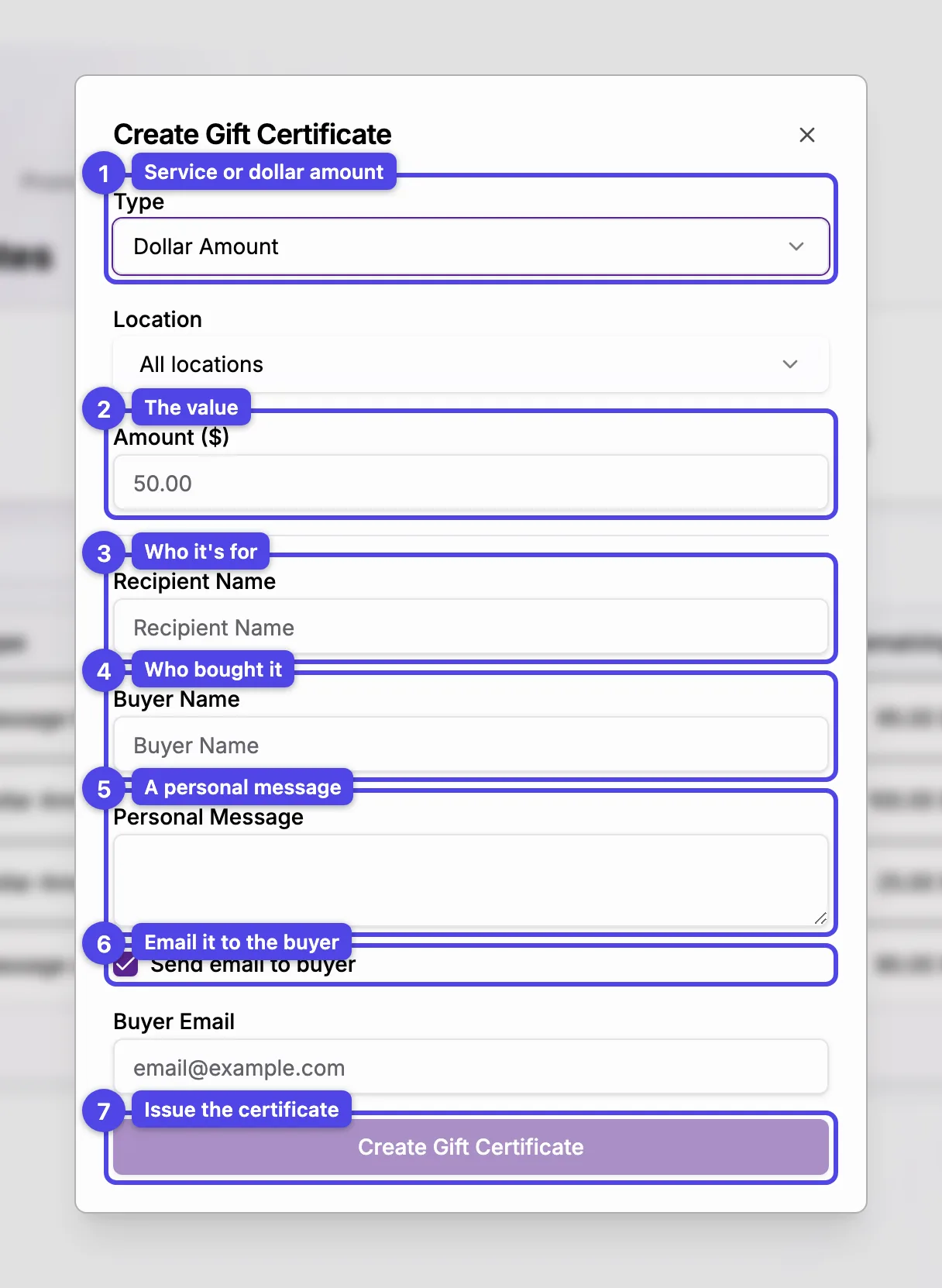
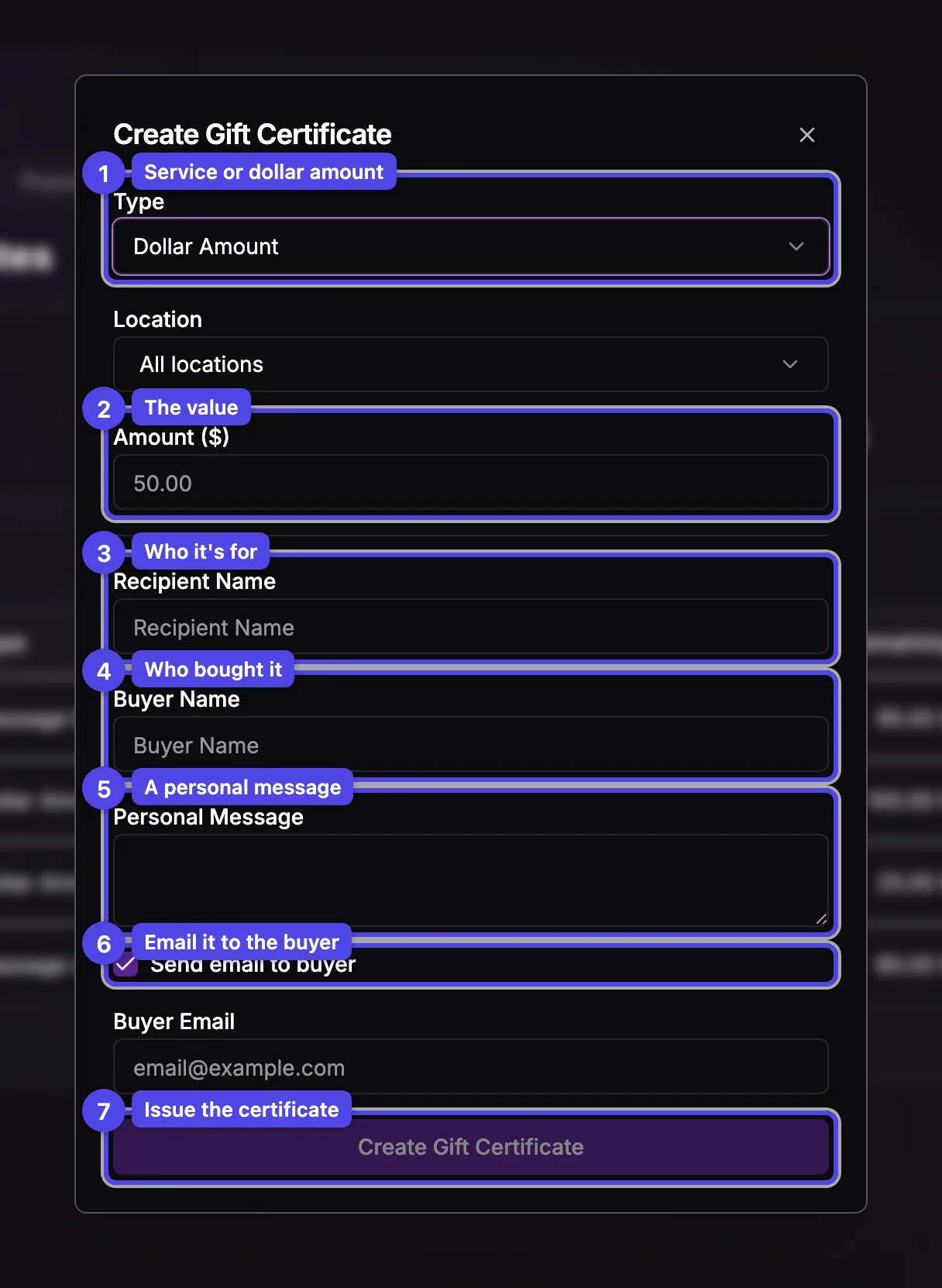
Type
Choose Dollar Amount for an open-value card the recipient can spend on anything, or Service to tie the certificate to one specific service.
Amount / Service
For a Dollar Amount card, enter the value in dollars. For a Service card, pick the Therapist (or Any therapist) and then the Service — the price shown reflects that therapist's rate, taxes included where applicable. An Expires in (months) field then appears so you can adjust how long this certificate stays valid. Dollar Amount cards never expire (Quebec law), so the field is not shown for them.
Recipient Name
Who the certificate is for. Start typing to link an existing client, or just type a name for someone who isn't in your client list.
Buyer Name
Who bought it. Linking a client here also fills in their email for the delivery step.
Personal Message
An optional note printed on the certificate and included in the email.
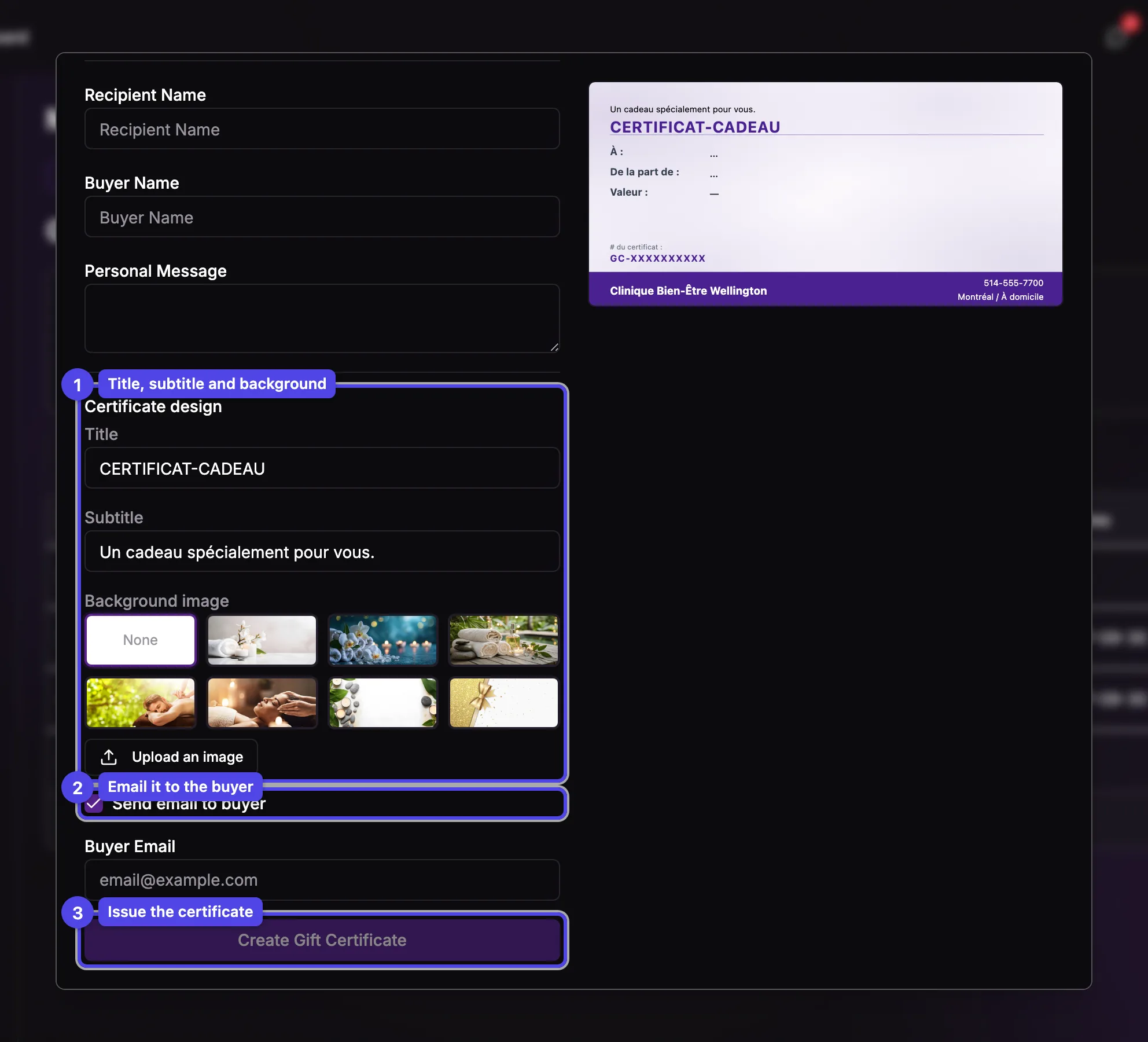
Certificate design
Customize the Title and Subtitle printed on the PDF, then choose a Background image — one of the built-in backgrounds, no background, or your own picture via Upload an image (you crop it to the certificate shape). Every image you upload stays in your library so you can reuse it later; hover one and press the small × to remove it (already-issued certificates keep their design). The last background you used is preselected for the next certificate.
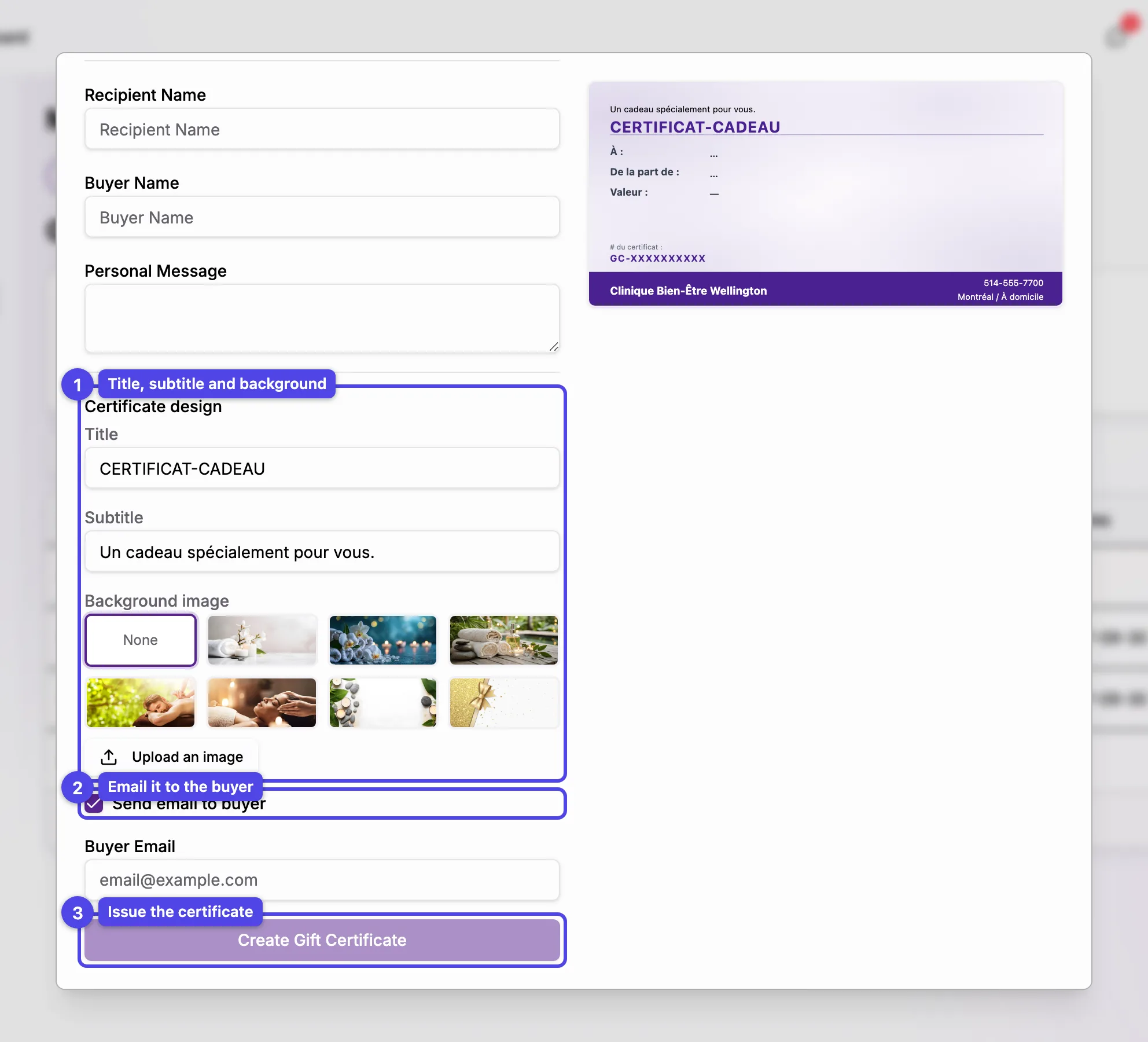
Send email to buyer
Leave this checked to email the certificate (and its PDF) right away. When checked, a Buyer Email field appears so you can confirm or set the address.
When everything looks right, press Create Gift Certificate. The certificate gets a unique code, appears in the list, and — if you left the email box checked — is sent to the buyer.
If your business has more than one location, a Location picker appears at the top so you can limit where the certificate can be redeemed. With a single location it's left out.
A Service certificate that the recipient redeems against a different service, therapist, or location simply falls back to its dollar value — it's never refused outright.