
Manage a bill
Send, mark paid, download, duplicate, and cancel a bill — every row action explained.
Updated 2026-06-14
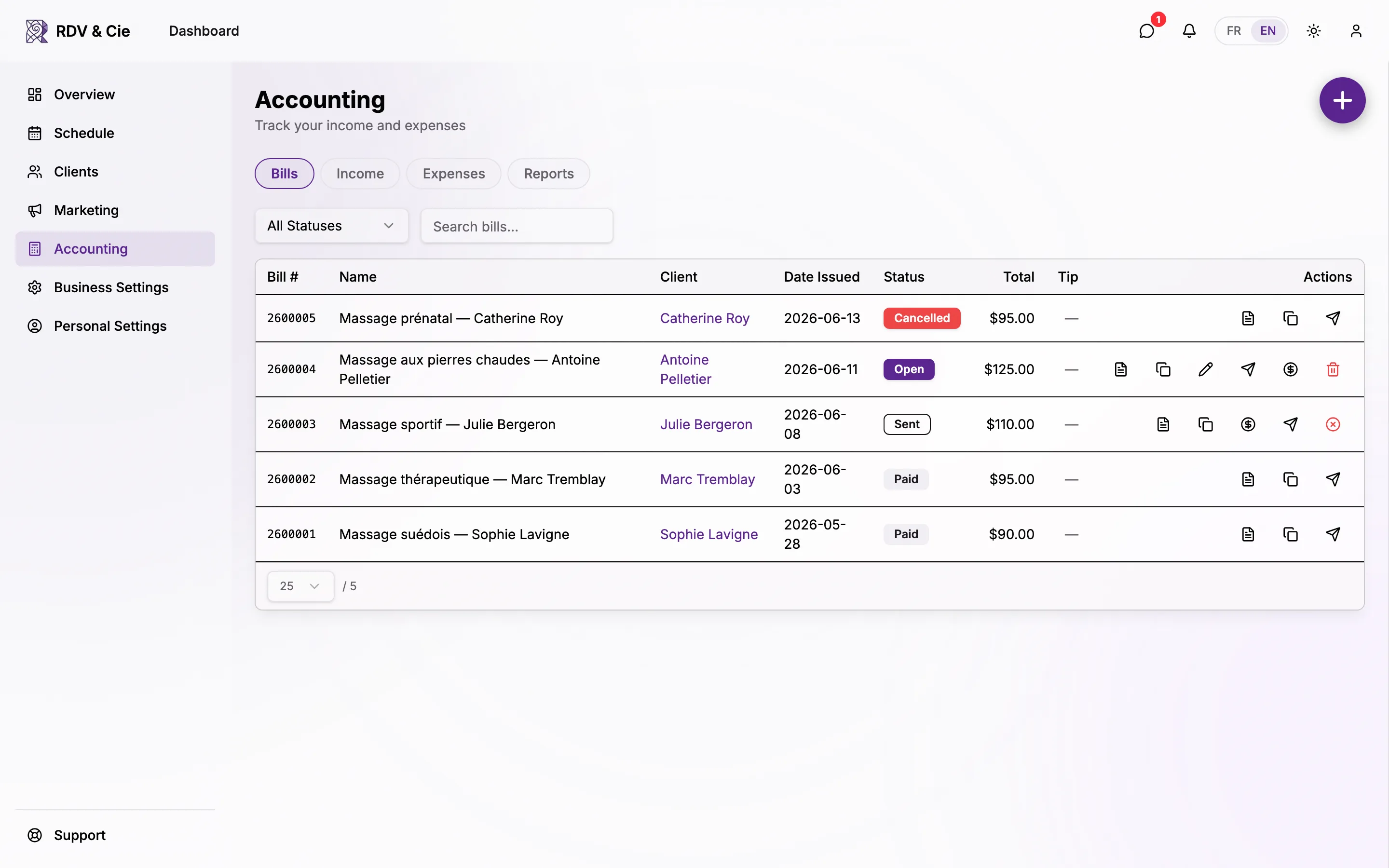
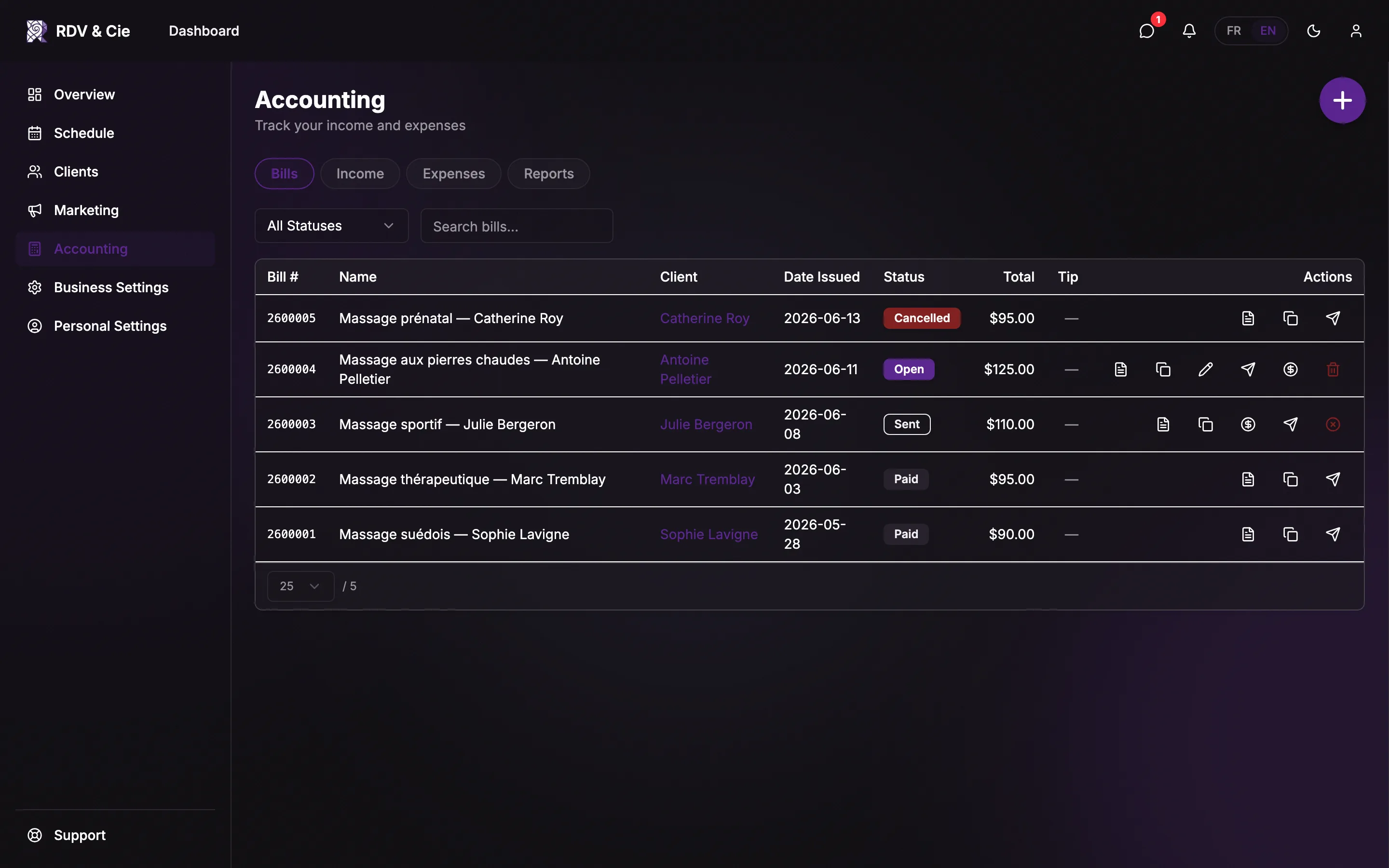
Once a bill exists, you work with it from its row on the Bills tab. The icon buttons in the Actions column change with the bill's status, so you only ever see what applies.
A bill's life cycle
A bill moves through four statuses, shown as a colour-coded badge:
| Status | Meaning |
|---|---|
| Open | A draft — fully editable and deletable. |
| Sent | Issued to the client; contents are locked. |
| Paid | Settled; a payment method is recorded. |
| Cancelled | Voided, but kept in the ledger so numbering has no gaps. |
The row actions
Download PDF (always)
Opens the bill as a PDF in a new tab — ready to print or save.
Duplicate (always)
Creates a new Open bill copied from this one, so you can re-bill a repeat client without retyping. Requires the "write bills" permission.
Edit (Open only)
Opens the bill editor. Only Open bills can be edited — once a bill is sent or paid its contents are locked.
Mark as Sent (Open)
Moves the bill to Sent. A dialog asks whether to email it to the client; when checked, you can edit the recipient, subject, and message before sending.
Mark as Paid (Open / Sent)
Opens the payment wizard to record how the bill was settled and move it to Paid.
Resend (Sent / Paid / Cancelled)
Re-opens the send dialog so you can email the bill again — a reminder, a receipt, or a cancellation notice, depending on the status.
Delete (Open) / Cancel Bill (Sent)
Open bills can be deleted outright. Sent bills are cancelled instead, with an optional notice to the client, so the numbering stays intact.
Send a bill
When you mark a bill as sent — or resend it — the Send Bill dialog opens with three fields, pre-filled from your bill email templates:
- To — the recipient address (the client's email, editable).
- Subject — the email subject line.
- Message — the email body.
Adjust any of them, then press Send. The bill's status becomes Sent and the email goes out.
Mark a bill as paid
Marking a bill paid opens the Collect Payment wizard. It walks through, in as few steps as the method needs:
Payment method
Choose how the bill was settled — cash, debit, credit card, e-transfer, cheque, direct deposit, or a connected card/terminal (Square or Stripe) when available.
Tip
For methods that support it, add an optional tip. It's tracked separately so it stays out of your taxable income.
Processing
Card-on-file, payment-link, and terminal methods run the charge here; manual methods skip straight to the end.
Send paid bill (optional)
On the last step you can email the paid bill to the client as a receipt.
Press Mark as Paid to finish. The bill moves to Paid with the method and tip recorded.
With a card, payment-link, or terminal method, the bill is only marked Paid once the payment is confirmed. If you skip the charge, the bill stays as it was.
Cancel or delete a bill
Delete an Open bill
Removes the draft entirely after a confirmation.
Cancel a Sent bill
Voids the bill and marks it Cancelled. You can optionally email the cancelled bill to the client — tick the box to edit the recipient, subject, and message first.
Deleting an Open bill is permanent. A Sent bill is cancelled, not deleted — it stays in the ledger marked Cancelled so your invoice numbers never have gaps.