
The schedule
Day, week, and month views of your bookings and availability.
Updated 2026-06-14
The schedule is the home of your day. It shows your bookings, blocked time, and availability across day, week, and month views.
Opening the schedule
Open Schedule
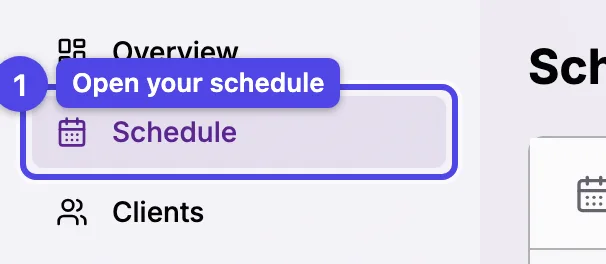
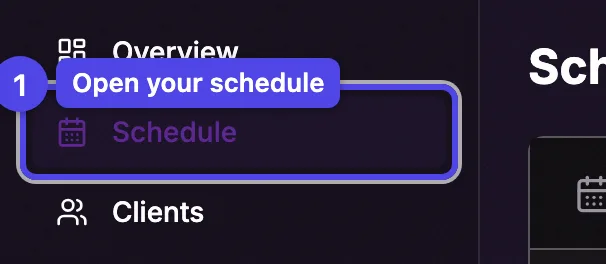
From the sidebar (or the bottom bar on mobile), select Schedule.
Pick a view
Switch between Day, Week, and Month to see more or less at once.
Reading the schedule


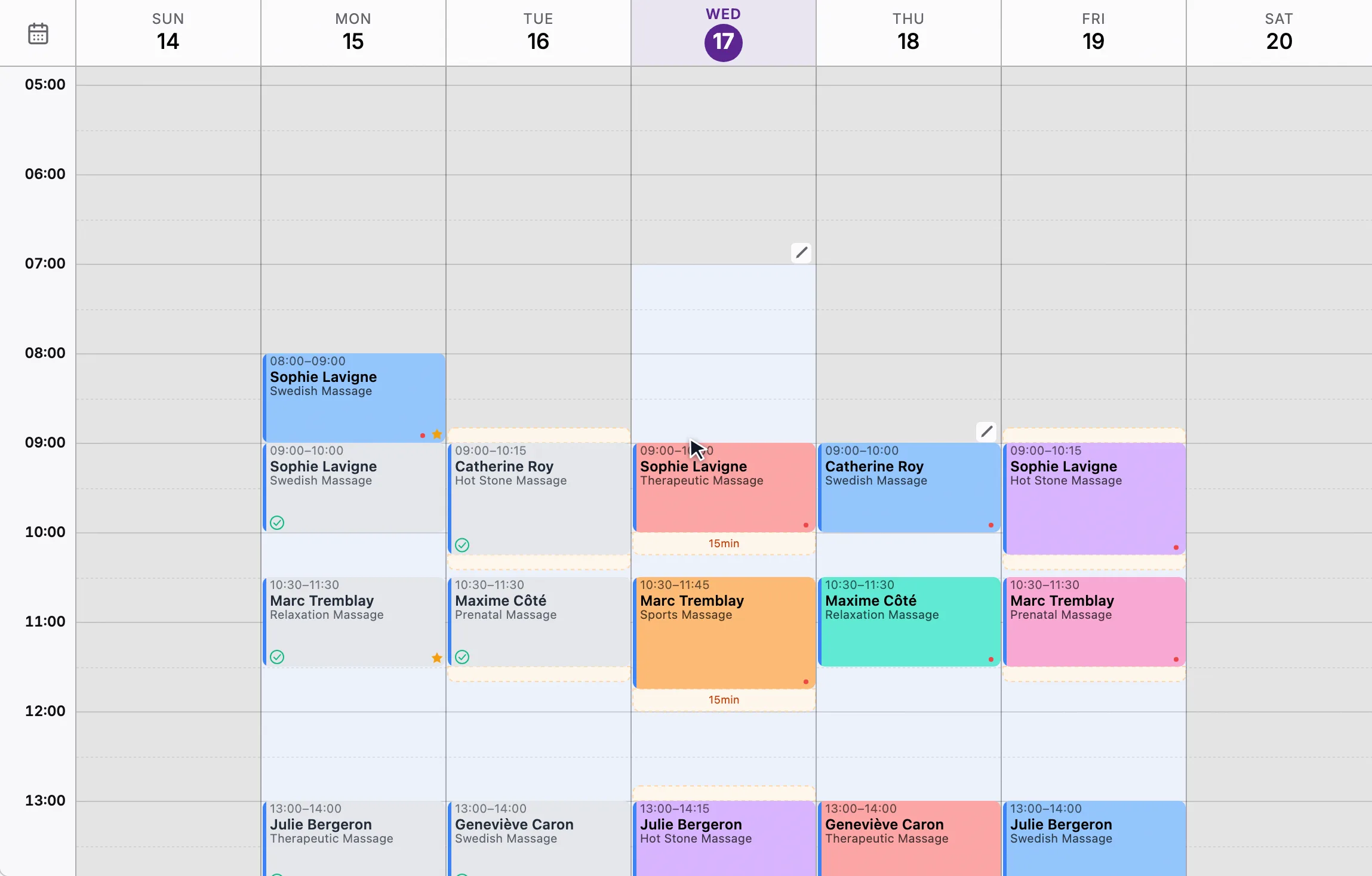
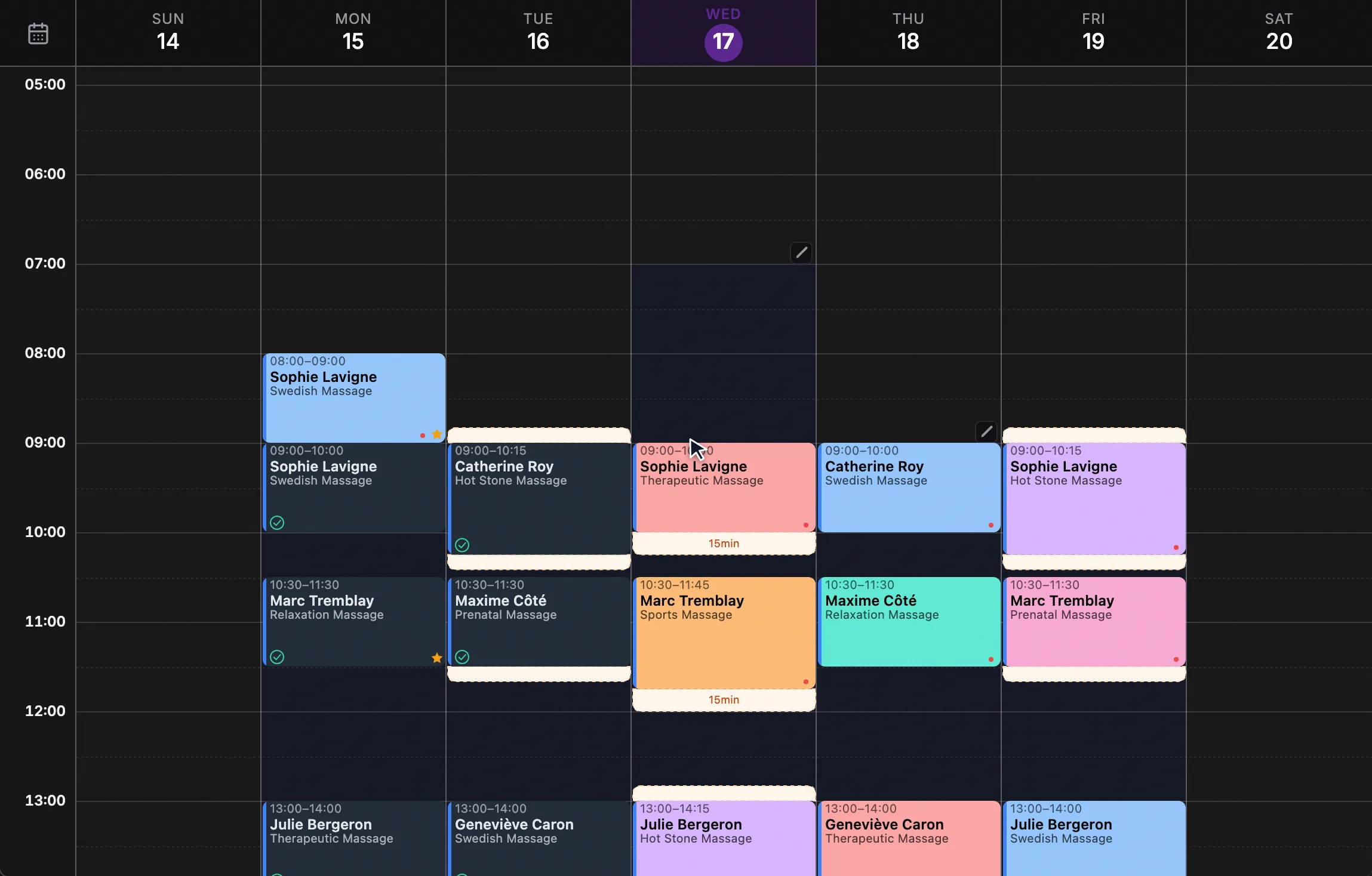
Each booking shows the client, service, and time. Colors and buffers help you see what is booked, what is held, and what is free.
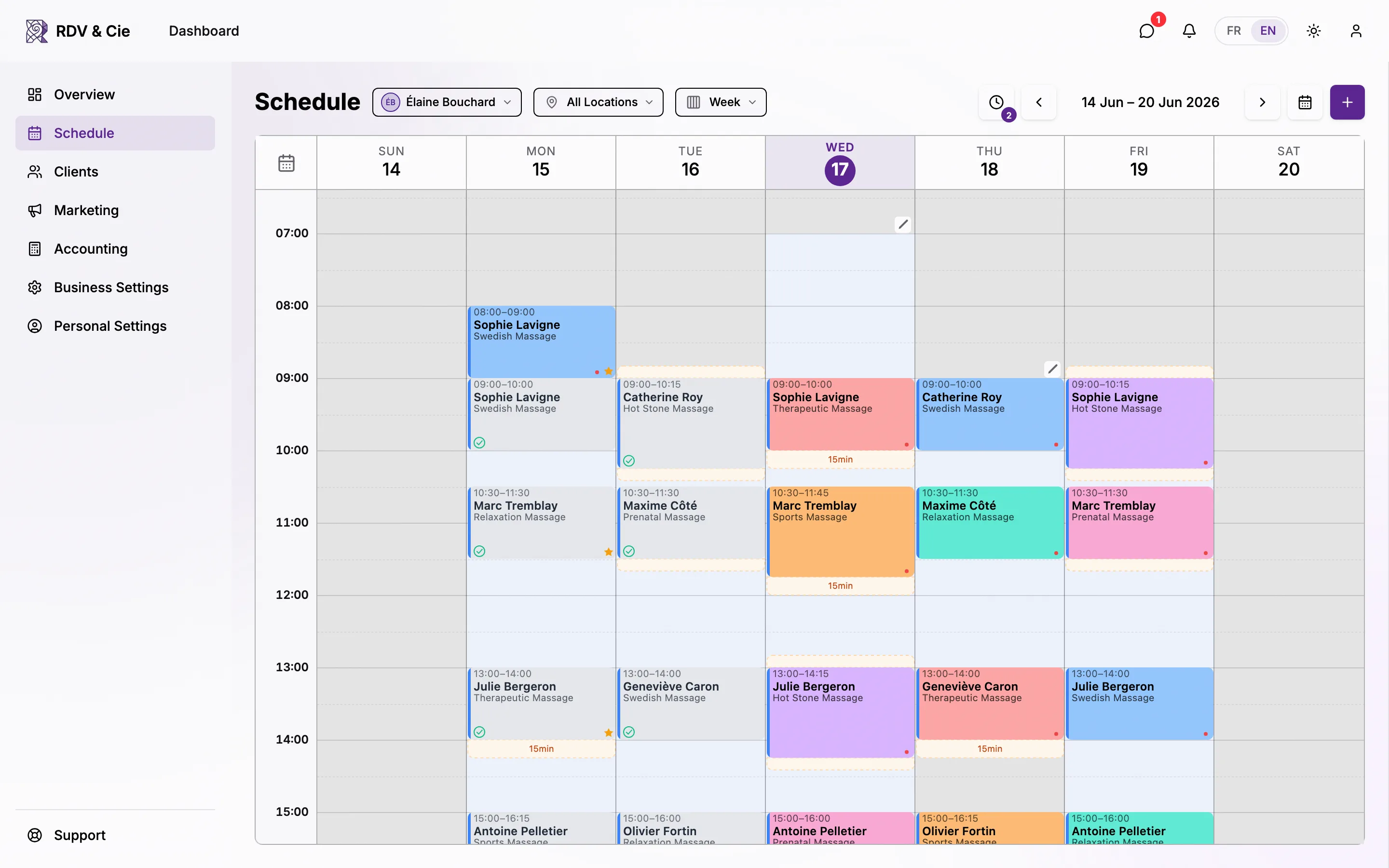
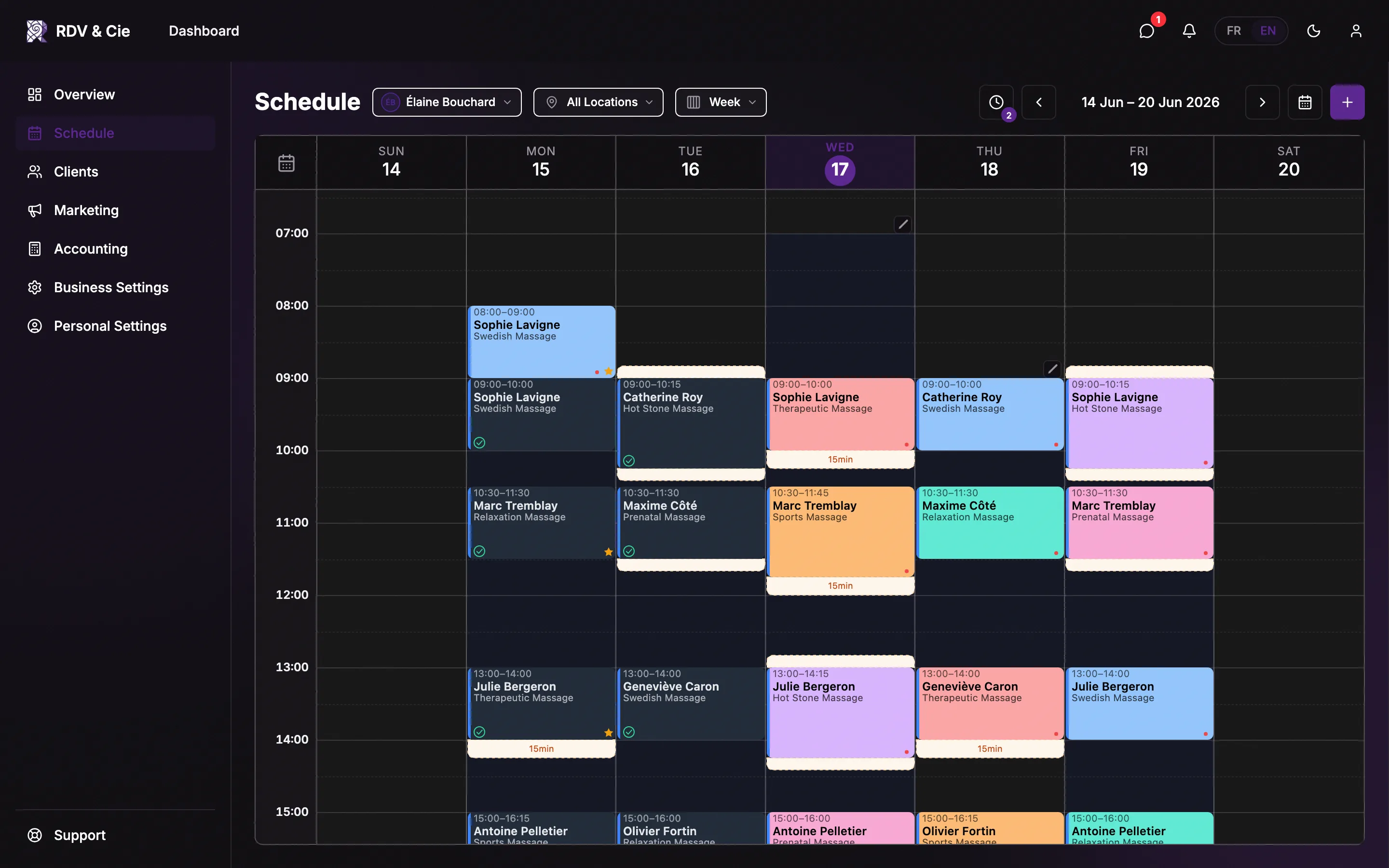
On a wider screen the week view gives the best overview of your day-to-day. On a phone, the day view keeps each booking easy to tap.
Switch weeks and days
On any device, swipe left or right across the grid to jump to the next or previous day or week — the schedule slides over instantly, with no waiting.
What's next
- Create a booking — add a client to your schedule by hand.