
Accept payments
Connect Stripe or Square to charge clients, pair card readers, and protect against no-shows.
Updated 2026-09-28
The Payments tab (Business Settings → Payments, owner only) is where you connect a payment processor so you can charge clients online and in person.
You need an active paid subscription to set up payments. Until then the tab shows a prompt to choose a plan.
Connect with Stripe
Stripe onboarding is hosted by Stripe — you never enter bank or identity details inside the app.
Start onboarding
Click Connect with Stripe. You're sent to Stripe's secure setup to provide your identity and bank information.
Finish if interrupted
If you return before finishing, a Continue onboarding banner appears — pick up where you left off. If Stripe later needs more, a Complete verification banner takes you back.
Manage payments in Stripe
Once connected, Open Stripe opens your Stripe Express dashboard to update your bank account, view payouts, and get tax forms.
payments/overview/stripe
Disconnecting Stripe means you'll have to redo Stripe's hosted setup (identity, bank account) to reconnect. There's no cost to keep payments enabled — you're only charged Stripe's standard fees when you actually process a transaction.
Card readers
When your Stripe account is active you can register Stripe Terminal readers with a registration code, rename them, and remove them. The mobile app also supports a Bluetooth reader and Tap to Pay on your phone. Optionally, auto-create expense entries for Stripe fees.
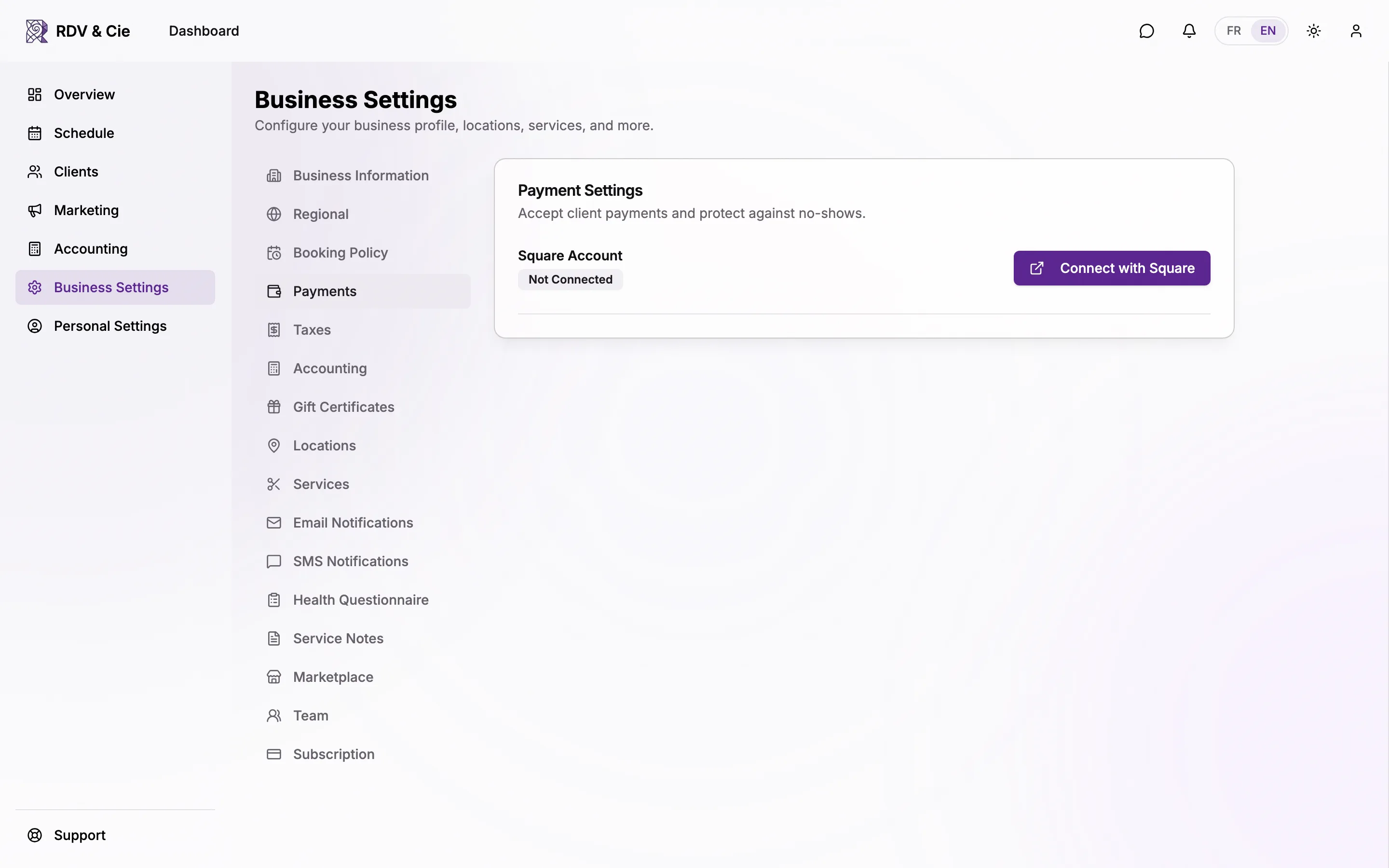
Connect with Square
If you use Square instead, click Connect with Square to authorize your account.

Map locations
Match each of your locations to a Square location so payments are recorded correctly.
Pair a terminal
Click Pair Device to get a code, enter it on your Square Terminal, and the device appears once paired.
Connecting Stripe or Square must be done from a web browser, not the installed app. The app can still take payments once a processor is connected.
Disconnecting Square cancels the Square payment links and terminal checkouts that haven't been paid yet — send a new link after reconnecting a processor.
No-show protection
Requiring a card on file and the default no-show charge percentage are set on the Booking Policy tab. With a connected processor and a card on file, you can charge a no-show fee from the booking.