
Personal settings
Your professional profile, receipt types, working hours, calendar sync, and notifications.
Updated 2026-10-02
Personal Settings are yours, not the business's. They follow you even if you work at more than one business. Everything here saves automatically as you edit.
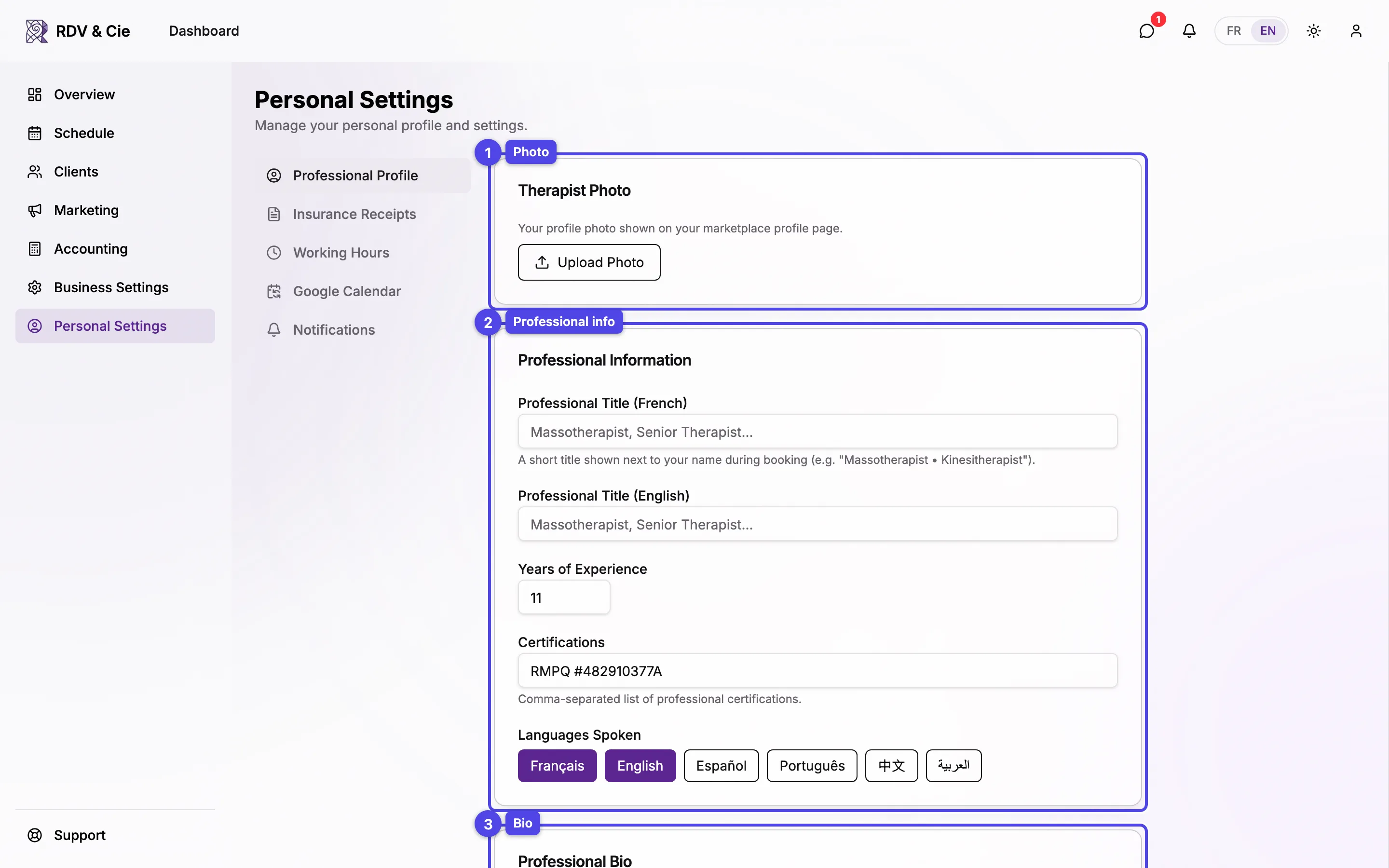
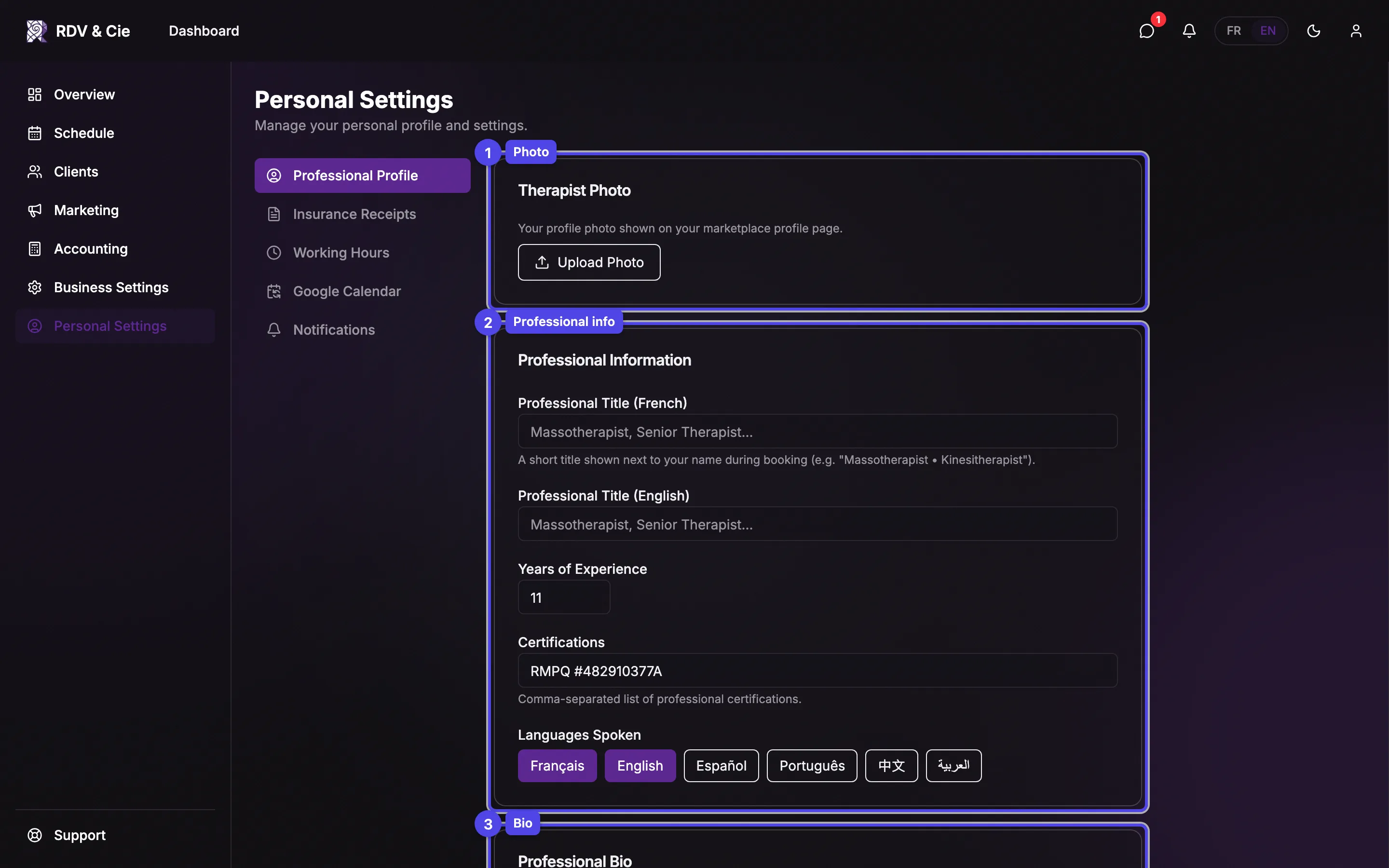
Professional profile
Photo
Upload a headshot. You crop it to a circle before it's saved. It appears on your public profile and on the schedule.
Professional title
Your title (e.g. Massage therapist), per supported language.
Status message
An optional note shown to clients on the therapist selection step of the booking flow and on your public profile page, above your next availability — for example On vacation, back August 18. Clear it when you're back; empty means nothing is shown.
Years of experience and certifications
Add your experience and a comma-separated list of certifications.
Languages spoken
Toggle the languages you speak with clients.
Bio
A short description (up to 1000 characters) shown on your public profile.
Receipt types
Set up the insurance receipt headers you issue — association name, member number, phone, and website. These populate the receipts you generate for clients.
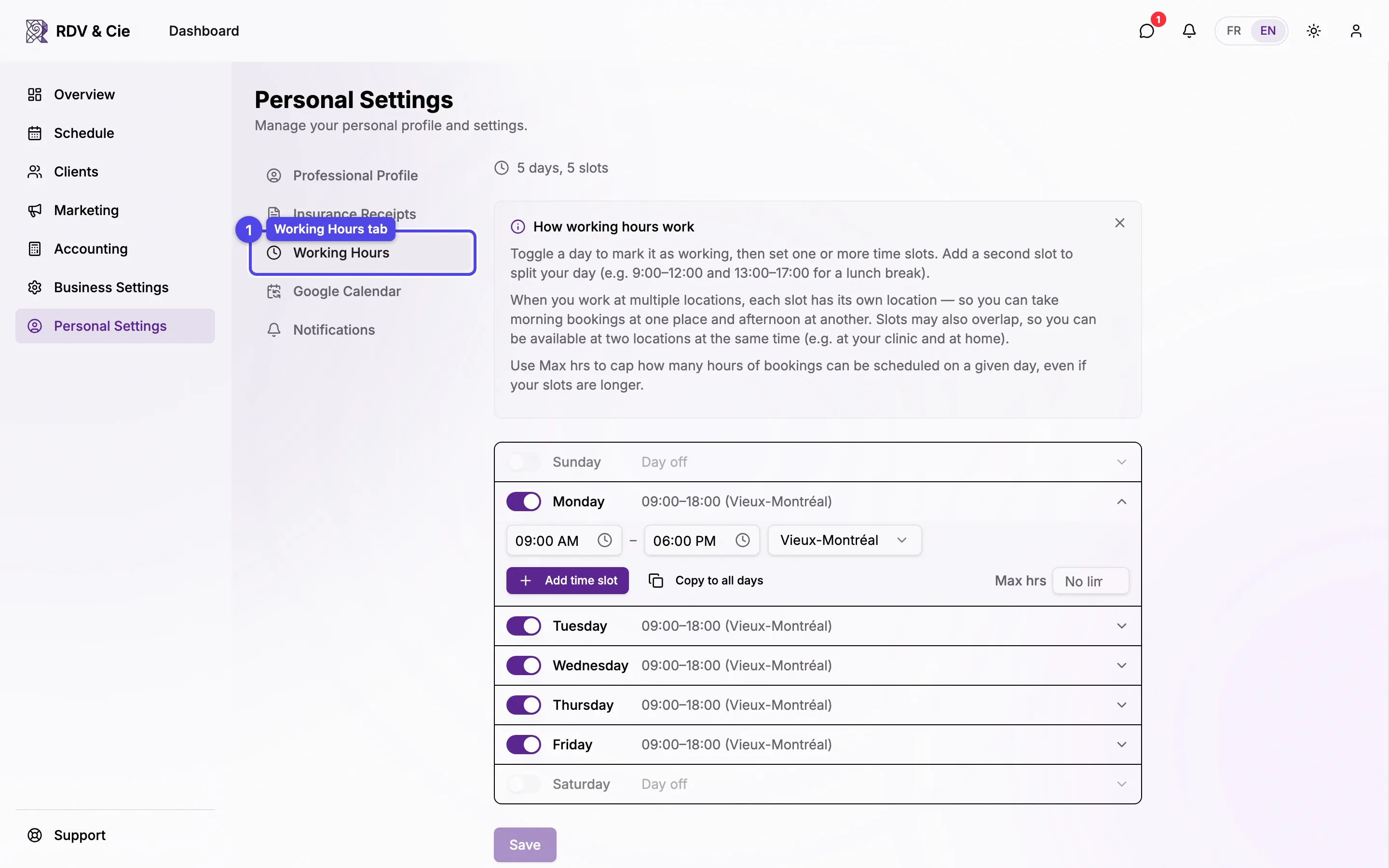
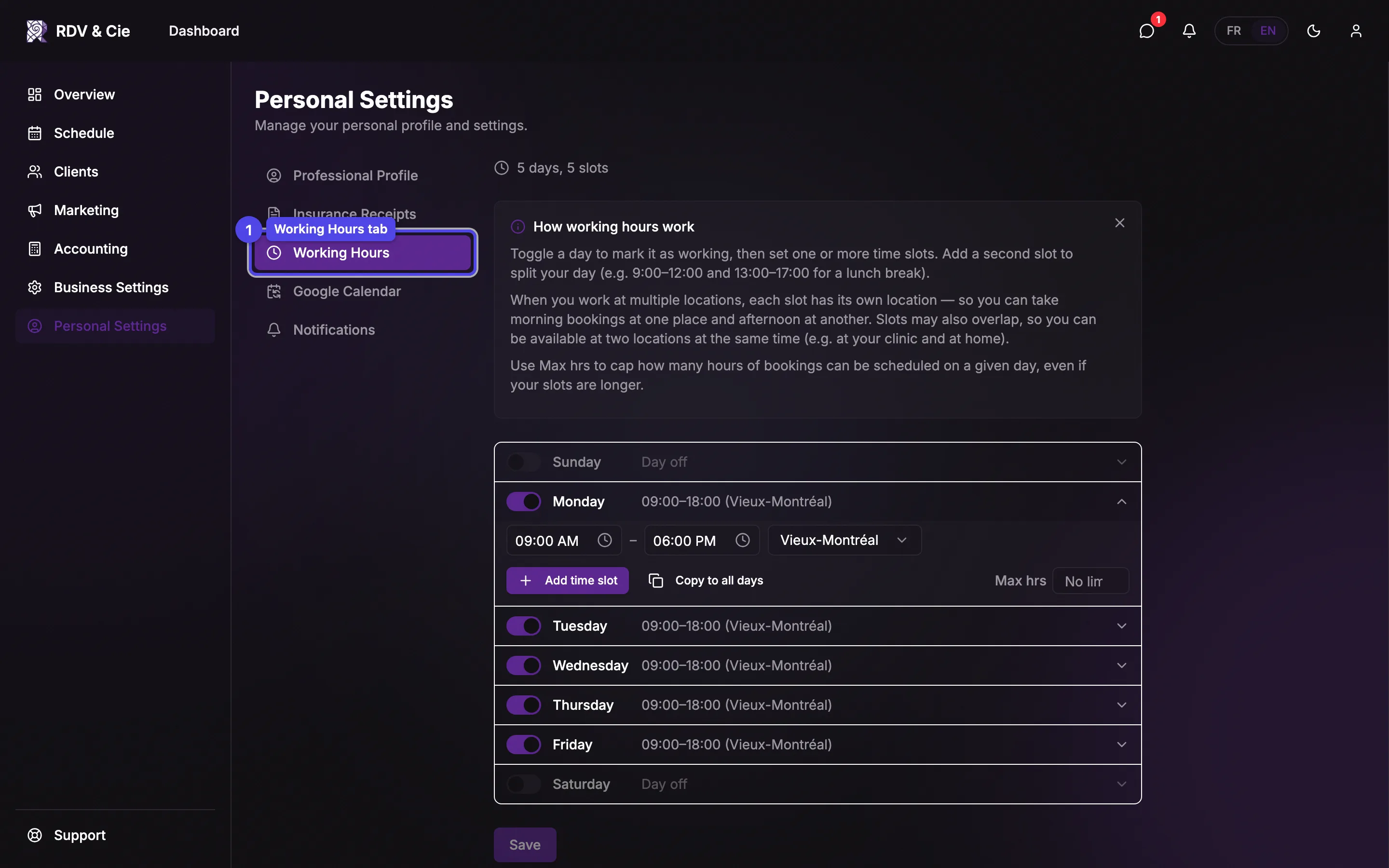
Working hours
If you're the owner (or an employee with the right permission), set the days and times you accept bookings, plus a daily maximum. This is your real booking availability — distinct from a location's public opening hours.
This tab uses the same editor as the team dialog, including the schedule versions timeline — you can schedule new hours to start on a future date while your current hours stay in place. See Setting working hours for the full walkthrough.
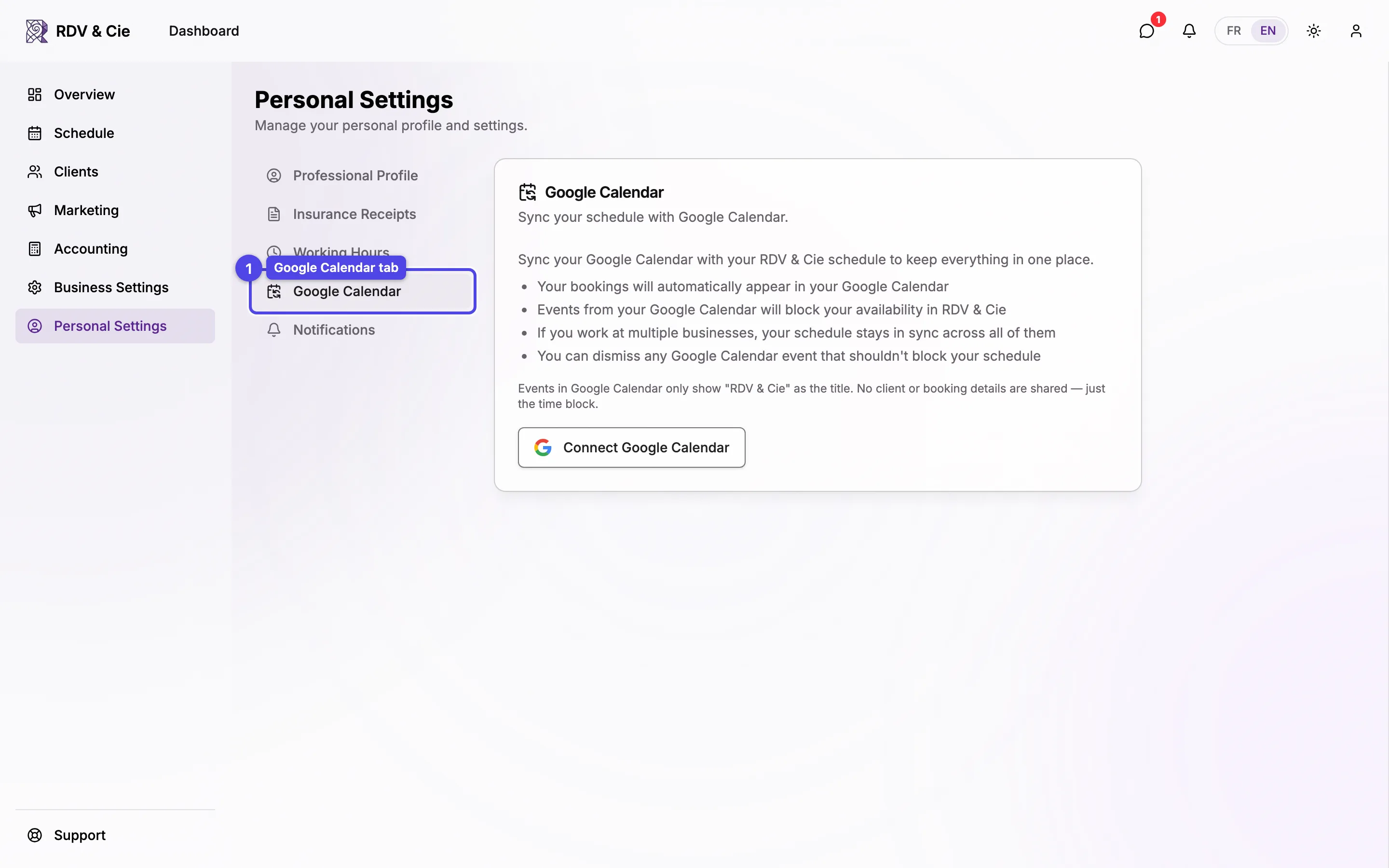
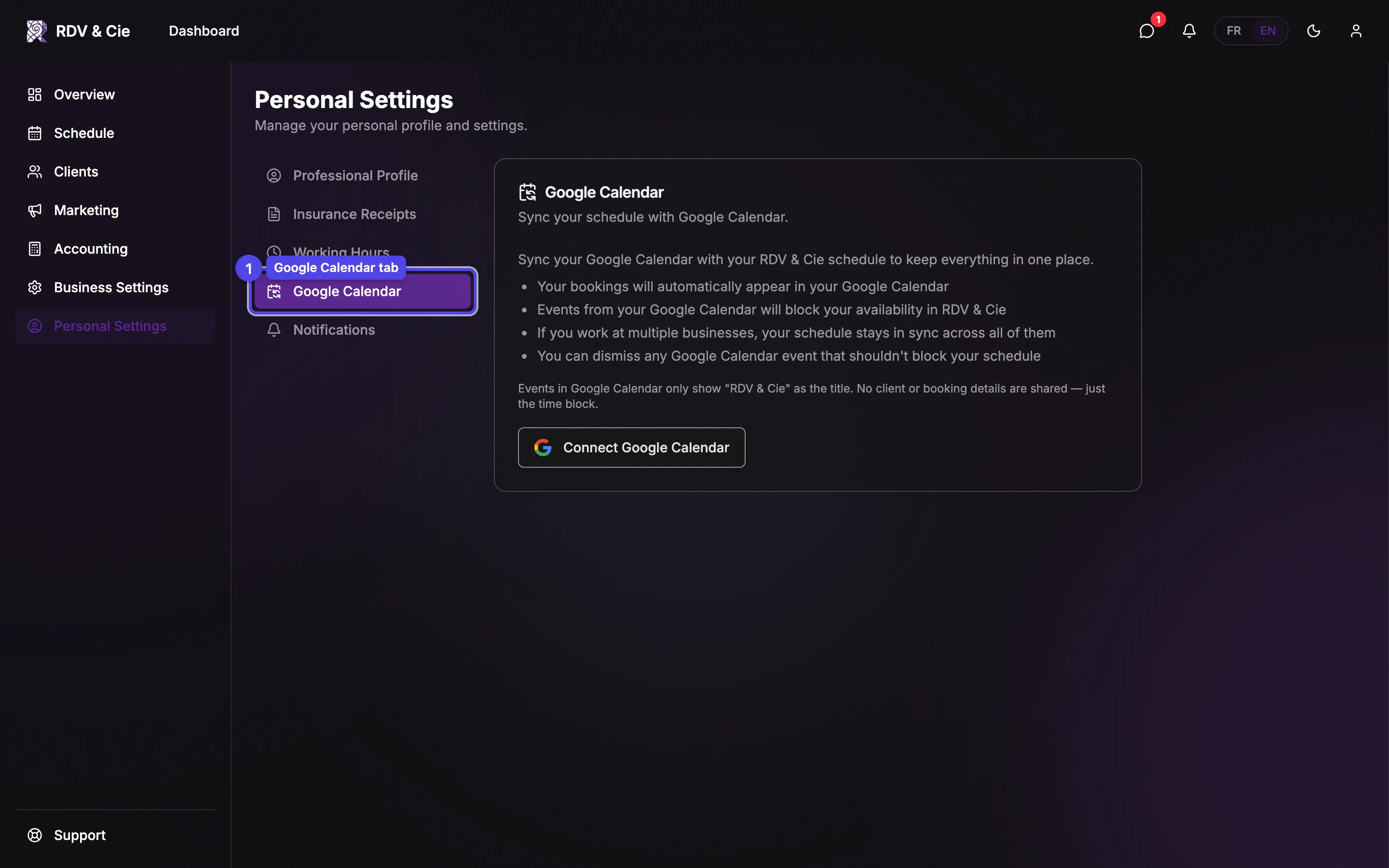
Google Calendar
Connect a Google account for two-way sync, so your bookings and blocked times appear in Google Calendar and your busy times block availability here. The Options section lets you choose whether your blocked times sync to Google (Sync my blocked times to Google Calendar, on by default) — turning it off also removes the already-synced events from your calendar.
Video calls
Shown when online sessions are available for your business. Choose where the link of your online sessions comes from: Google Meet (uses the Google account of the Google Calendar tab), My own link (a personal Zoom room, Teams, Doxy.me…) or None. See Online sessions.
Notifications
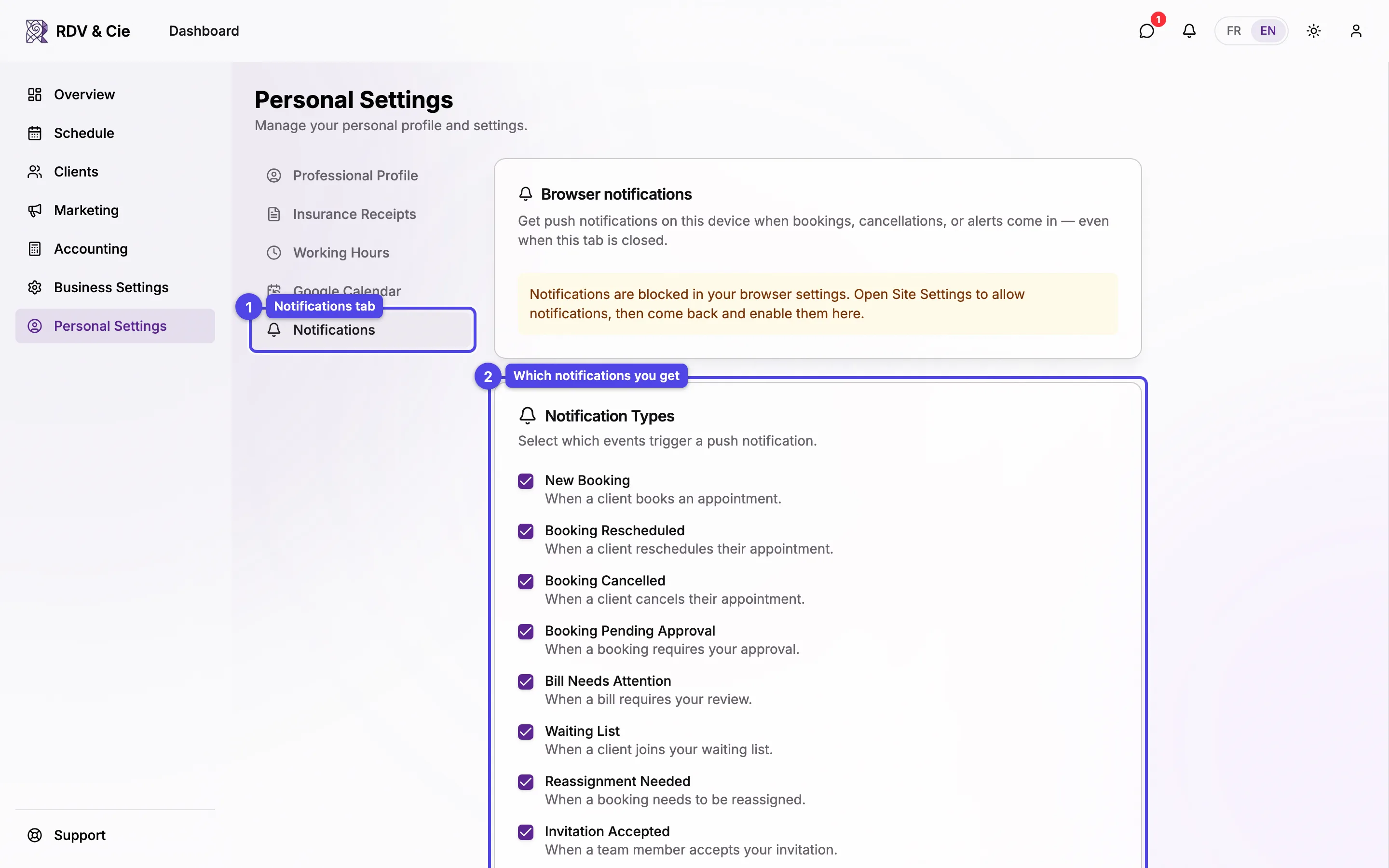
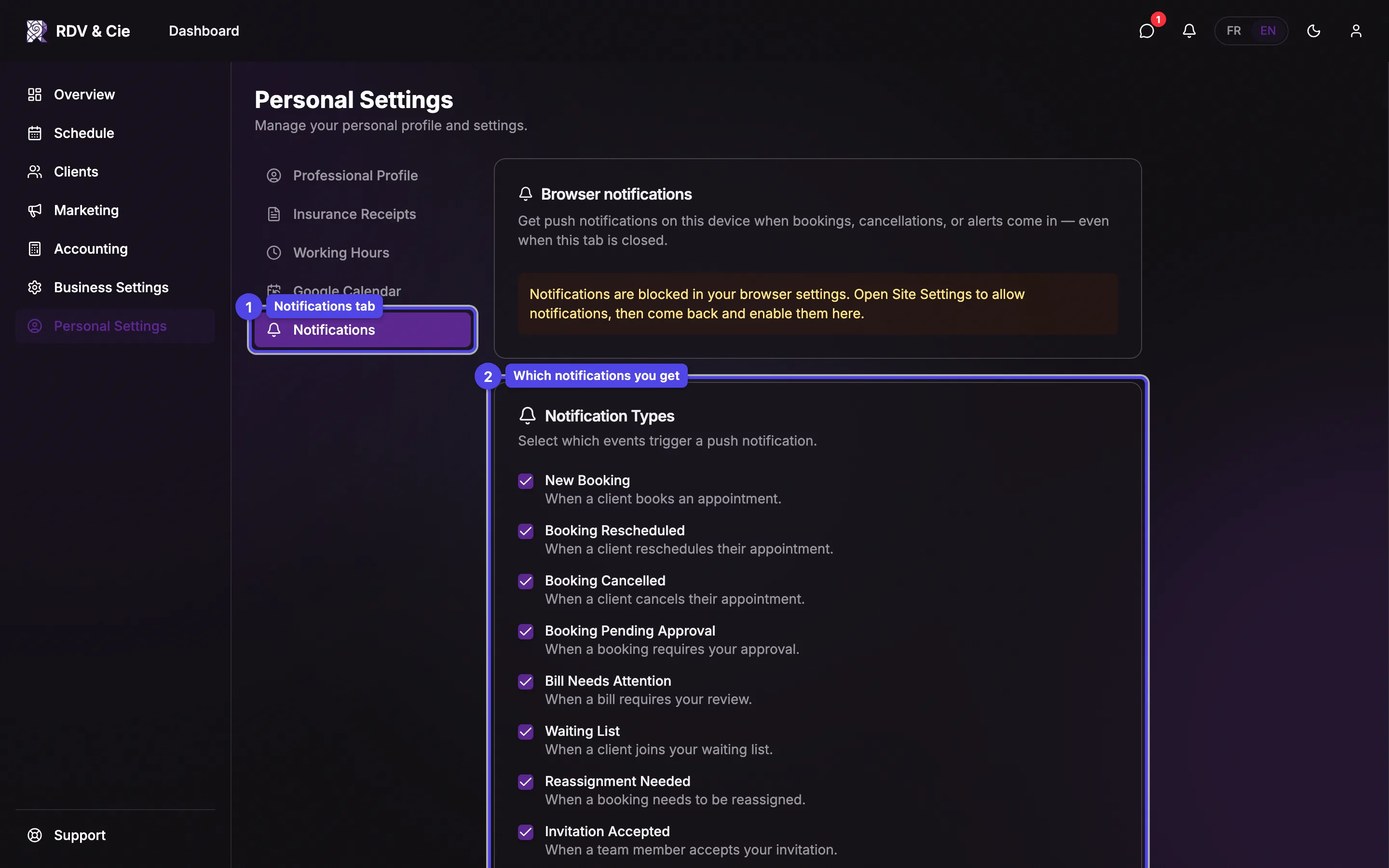
Browser / app push
Enable push notifications on this device or installed app.
Notification types
For each alert — new bookings, reschedules, cancellations, pending approvals, bills needing attention, waiting-list joins, reassignment needs, accepted invitations, new reviews, completed questionnaires, and chat messages — choose how you receive it: Off, Push, Email, or Push & email. Every notification also appears in the bell in the app, whatever you choose.
Booking reminders
Add up to three reminders before each appointment (from 5 minutes to 3 days). Remove one with its ×. Once a reminder is set, pick how reminders are sent under Send reminders by: Push, Email, or Push & email.
Product updates
Email me the RDV & Cie product updates — the occasional email summarizing new features, improvements and fixes. On by default; uncheck it to stop those emails. The What's new page in the menu keeps listing every update.
Emails go to the address you sign in with (shown above the list as soon as one notification uses email). For chat messages, the email is sent only if the message is still unread after about a minute.
Push notifications need to be allowed on the device first. If you don't see the prompt, enable notifications for this site (or the installed app) in your device settings.