
Setting working hours
Set each team member's weekly schedule and one-off date overrides — this is what clients can book.
Updated 2026-09-28
A team member's working hours decide which times clients can book with them. You set them per person, from the Working Hours tab of their dialog — there's no separate working-hours page.
Four ways to manage availability — and when to use each:
- Weekly schedule (this page) — the recurring hours that repeat every week. This is your baseline.
- Schedule versions (this page) — schedule a change to the weekly hours starting on a future date, without losing the old hours.
- Add punctual availability (from the schedule) — open extra bookable time on a specific date, on top of the weekly hours.
- Edit a single day (from the schedule) — replace one day's hours, or push the change into the weekly schedule. See Punctual availability.
Open the person's card in Business settings → Team, then choose the Working Hours tab. (This tab only appears for active therapists who have accepted their invitation.)
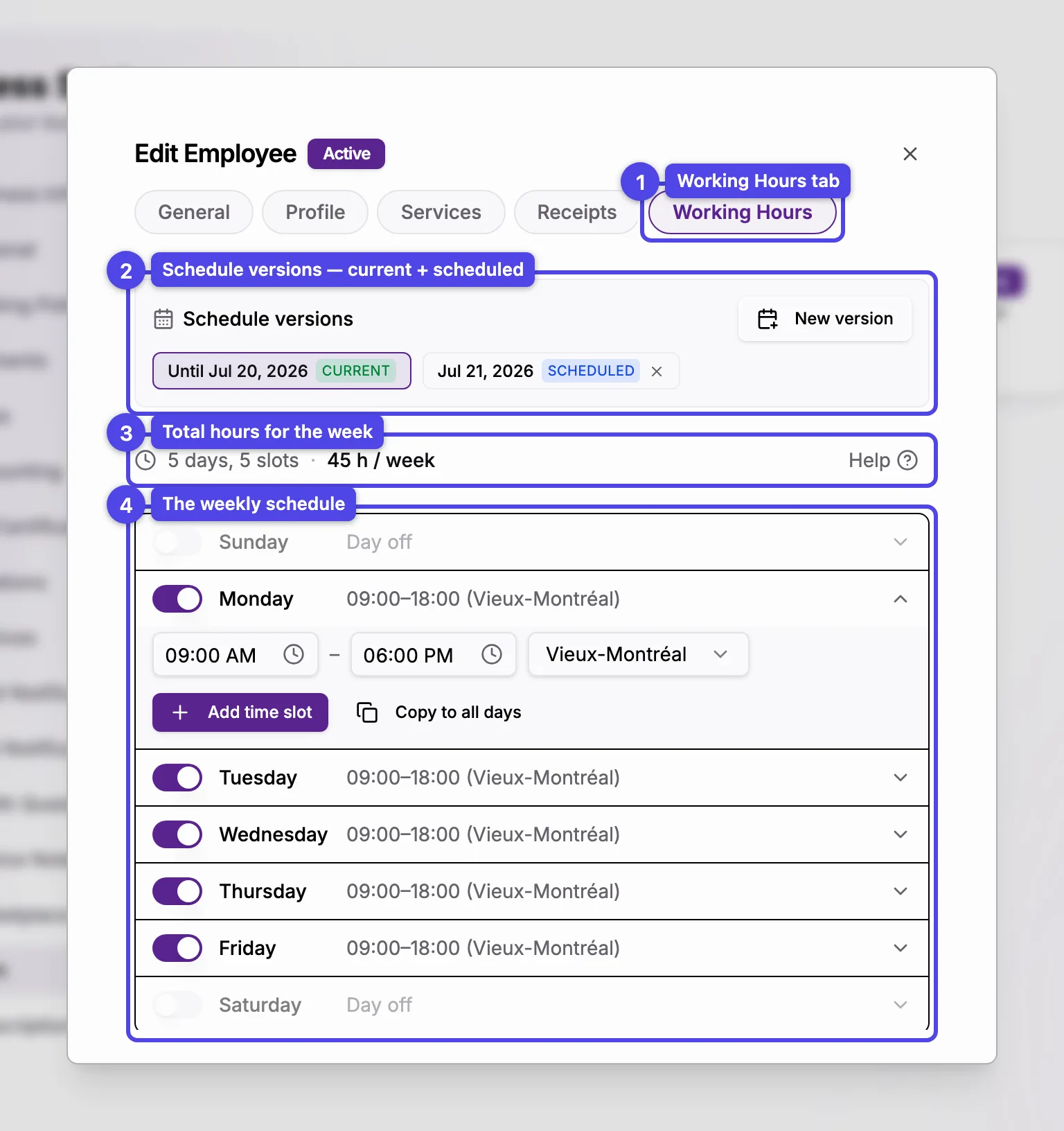
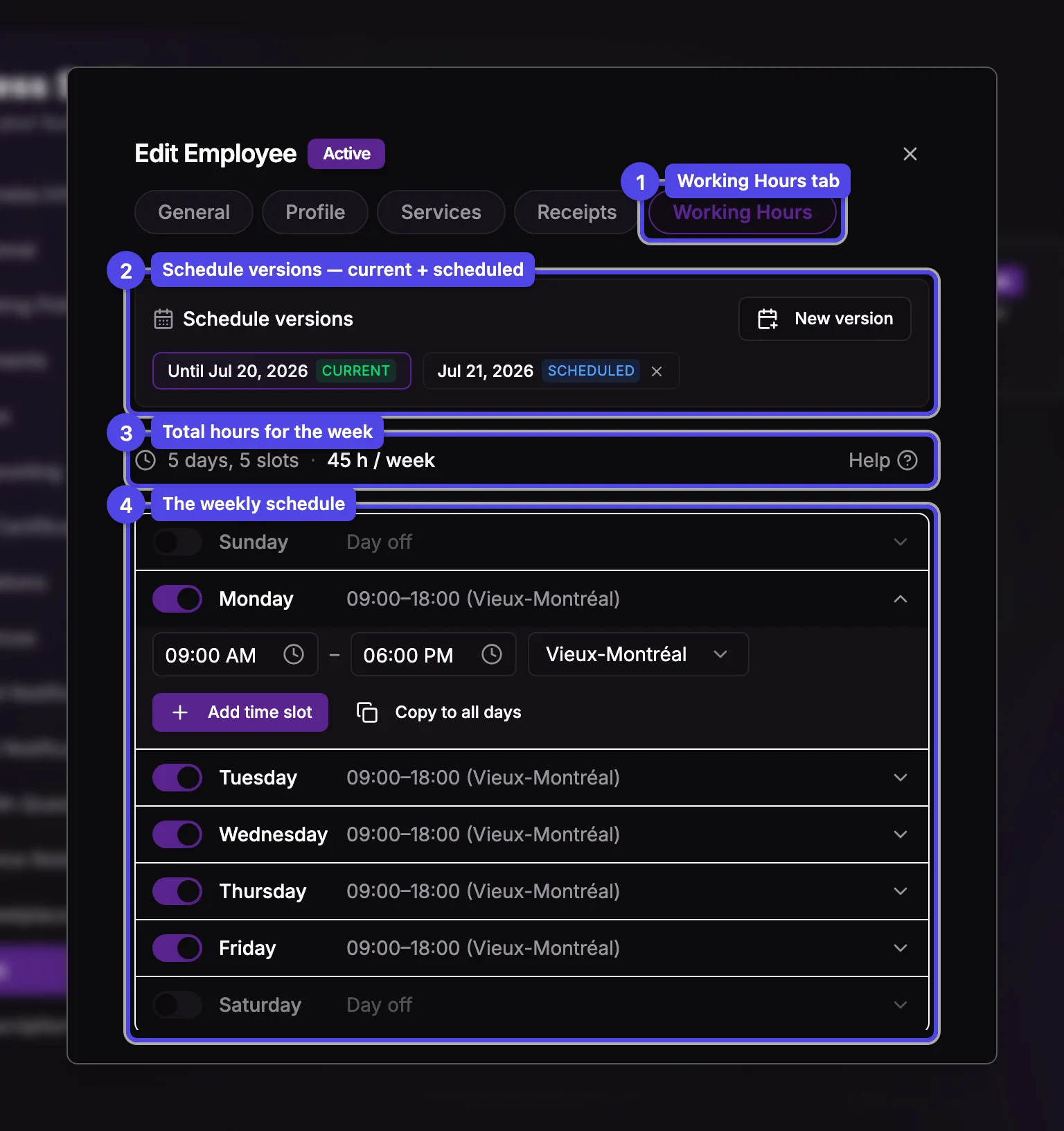
The weekly schedule
The week is a list of seven day rows. Each row has a toggle, a summary of that day's hours, and a chevron to expand it.
A summary line at the top shows the active-day and slot counts alongside the total hours for the week. Time the person is available at two locations at once is counted only once, so the total reflects real working hours — not the sum of every slot. (Punctual availability, below, isn't part of this weekly total.)
Turn a day on or off
Use the toggle on the left of each row. A day that's off shows Day off; turning it on gives it a default 9:00–17:00 slot you can adjust.
Set the time slots
Expand a day and set its start and end times. Use Add time slot to split the day — for example 9:00–12:00 and 13:00–17:00 for a lunch break.
Pick a location per slot
When the business has more than one location, each slot has its own location selector, so you can take morning bookings at one place and afternoon at another. Slots may overlap, so the person can be available at two places at once (e.g. clinic and home). With a single location the selector is hidden.
Copy to all days
Copy to all days applies the expanded day's slots to every other day — a fast way to build a uniform week.
Save
The Save button is disabled until you change something. Saving updates the bookable times immediately.
A small Help button at the top of the tab reopens the inline explainer if you've dismissed it. Working hours need at least one location — if none exist yet, add a location in business settings first.
Max booking hours
Below the weekly grid, Max booking hours per day sets an optional cap on how many hours of bookings can be scheduled each weekday — even when the working window is longer (e.g. available 9:00–17:00 but accept at most 4 hours of bookings). Leave a day blank for No limit.
Unlike the weekly hours, this cap is not versioned — it's a single setting that applies to every schedule version (current, past, and scheduled). That's why it lives in its own section here rather than inside each version's grid. Changing the hours of a single day from the schedule never touches this cap.
Minimum lead time
For team members (not the owner), a Minimum lead time for new bookings select sits below the max-hours section. It controls how far in advance clients must book with this person — their own value instead of the business-wide one.
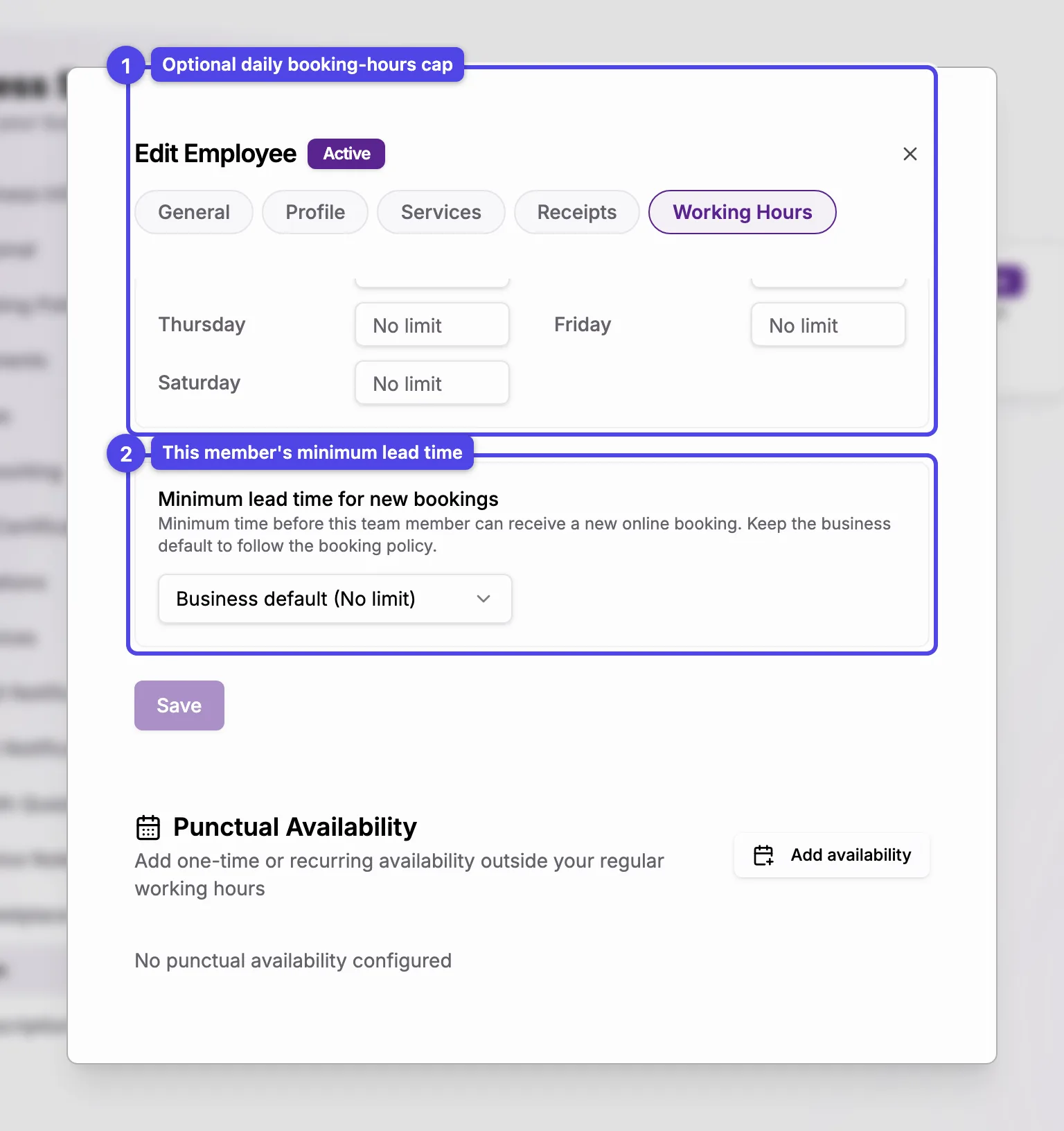
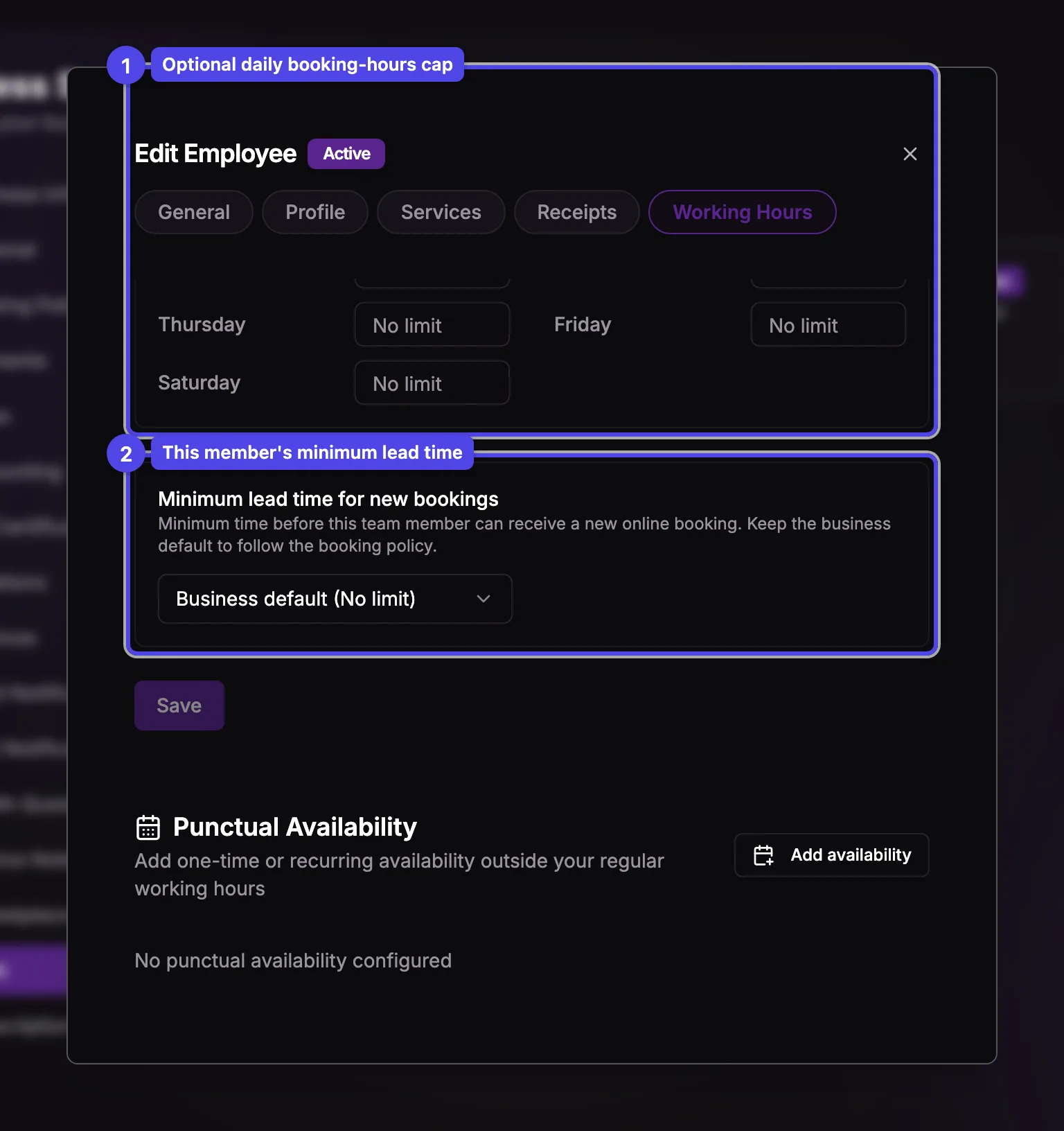
Business default
The default option follows the business booking policy (shown in parentheses). Set the business-wide value under Business settings → Booking Policy — see Booking Policy.
Pick a personal value
Choose anything from No limit (last-minute bookings allowed) up to 1 week. It replaces the business default for this member's bookings only — online booking, rescheduling, and waiting-list notifications all follow it.
The owner's minimum lead time is the business default from the Booking Policy page, so this select only appears in team members' dialogs. Like the max-hours cap, it is not versioned.
Schedule versions
Your weekly schedule is time-ranged. When your hours change, you don't have to overwrite the old ones — you can schedule the new hours to start on a future date while the current schedule stays in place until then. Past bookings keep the hours that applied when they were made, which keeps reporting accurate.
A Schedule versions bar sits above the weekly grid whenever you have more than one version. Each version shows its start date and a status:
Current
The schedule in effect now. It has no end date — it stays live until a newer version's start date is reached.
Scheduled
A future-dated version that takes over automatically on its start date. You can still edit or delete it freely — no bookings depend on it yet.
Past
A version that a newer one has replaced. Past versions are read-only — you can view them but not change them.
Use New version to schedule a change: pick the date it should take effect, and the grid is pre-filled from your current hours so you only adjust what's different.
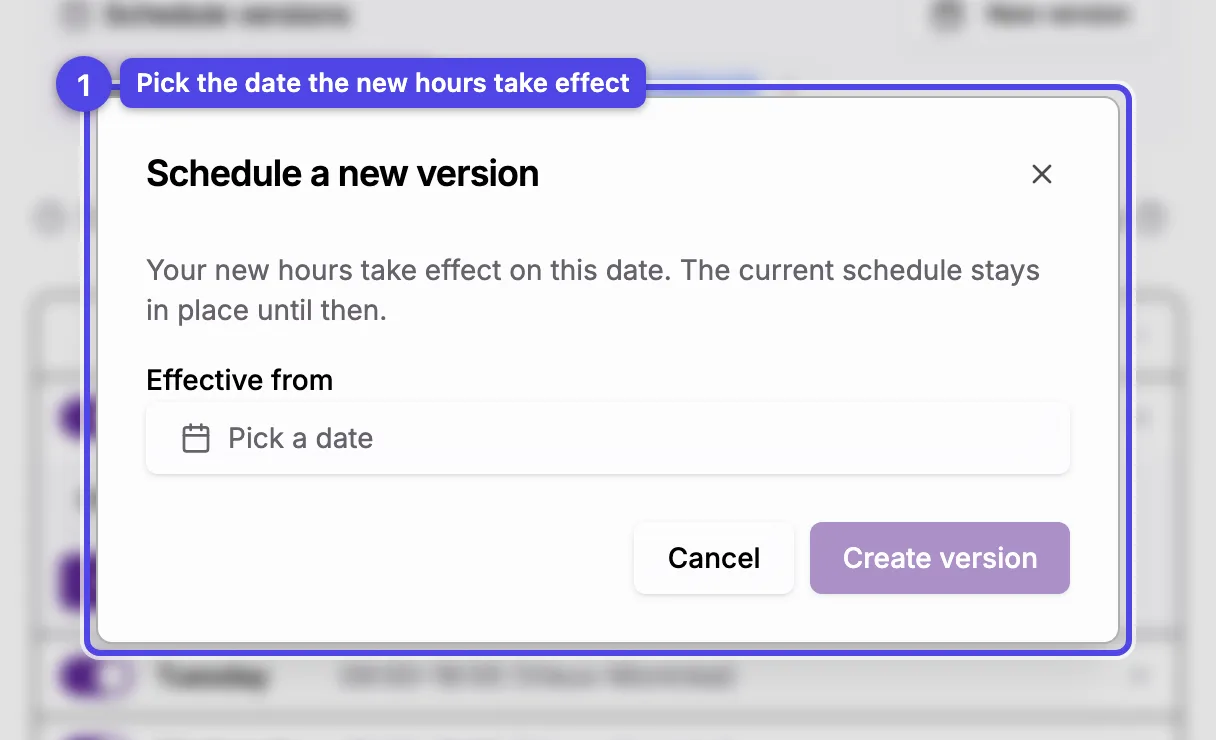
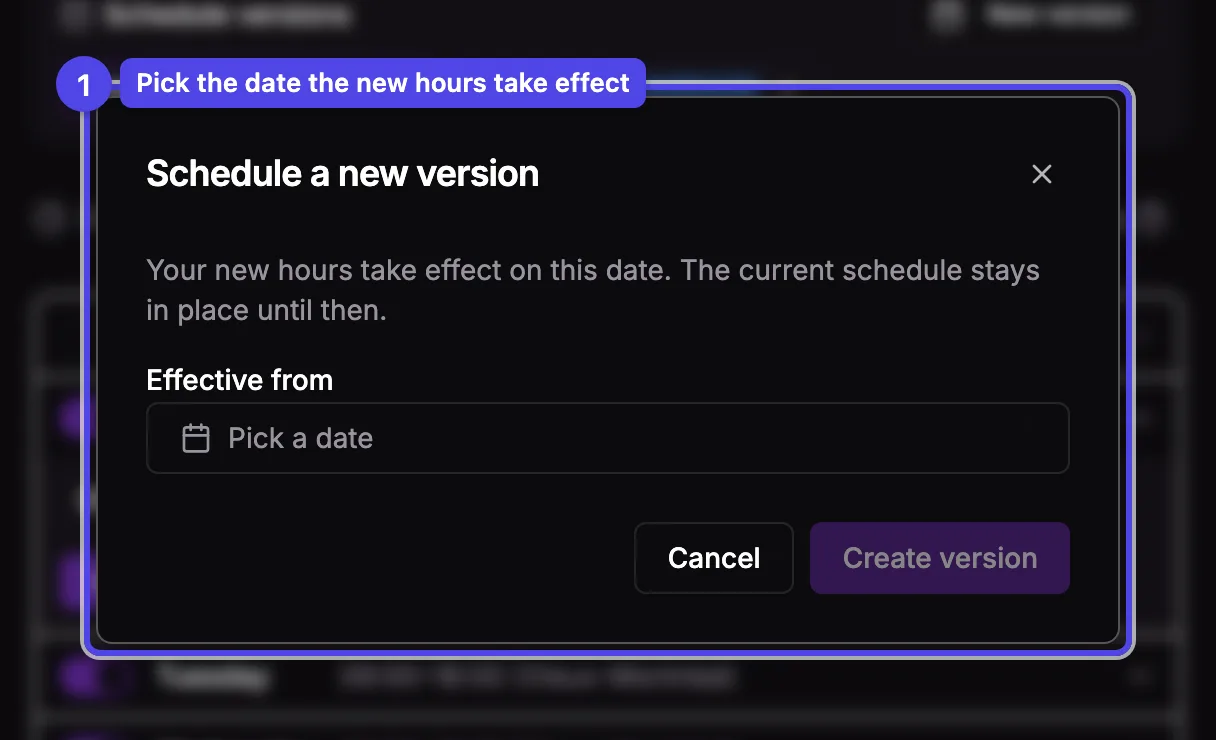
Selecting a version in the bar loads its grid; Save writes to the version you're viewing. The small × on a Scheduled version deletes it.
A version chip reads Always when it's open-ended, or Until <date> when a later version follows it. (The per-day Max booking hours cap is not versioned — it's set in its own section below, and applies to every version.)
A version can have every day off: it then means "not working from that date on" — nobody can book those hours, and the older version never comes back on its own. To work again, turn days back on in that version or schedule a new one.
Punctual availability
Below the weekly grid, Punctual availability lets you add one-off or recurring availability outside the regular weekly schedule — handy for an occasional evening or a guest week at another location.
Add availability
Add availability opens a small dialog. Pick the date, start and end times, and the location.
Repeat
Choose No repeat, Daily, Weekly, or Custom. Daily and Weekly ask how many times to repeat; Custom repeats every N days or weeks until a date you choose.
Manage entries
Each entry lists its date, time, and location, with a Recurring tag when it's part of a series. Use the pencil to edit or the trash icon to delete. For a series you're asked whether to apply the change (or deletion) to just that one entry or to it and all future entries.
Punctual availability is additive by default — it opens extra bookable time without changing the weekly schedule. To block time you'd normally work, use a blocked time on the schedule instead. To replace a single day's hours (and optionally cap that day's bookable hours), edit the day directly from the schedule — see Punctual availability.