
SMS Notifications
Turn on automated text messages — booking reminders, completion follow-ups, and waiting-list alerts.
Updated 2026-10-01
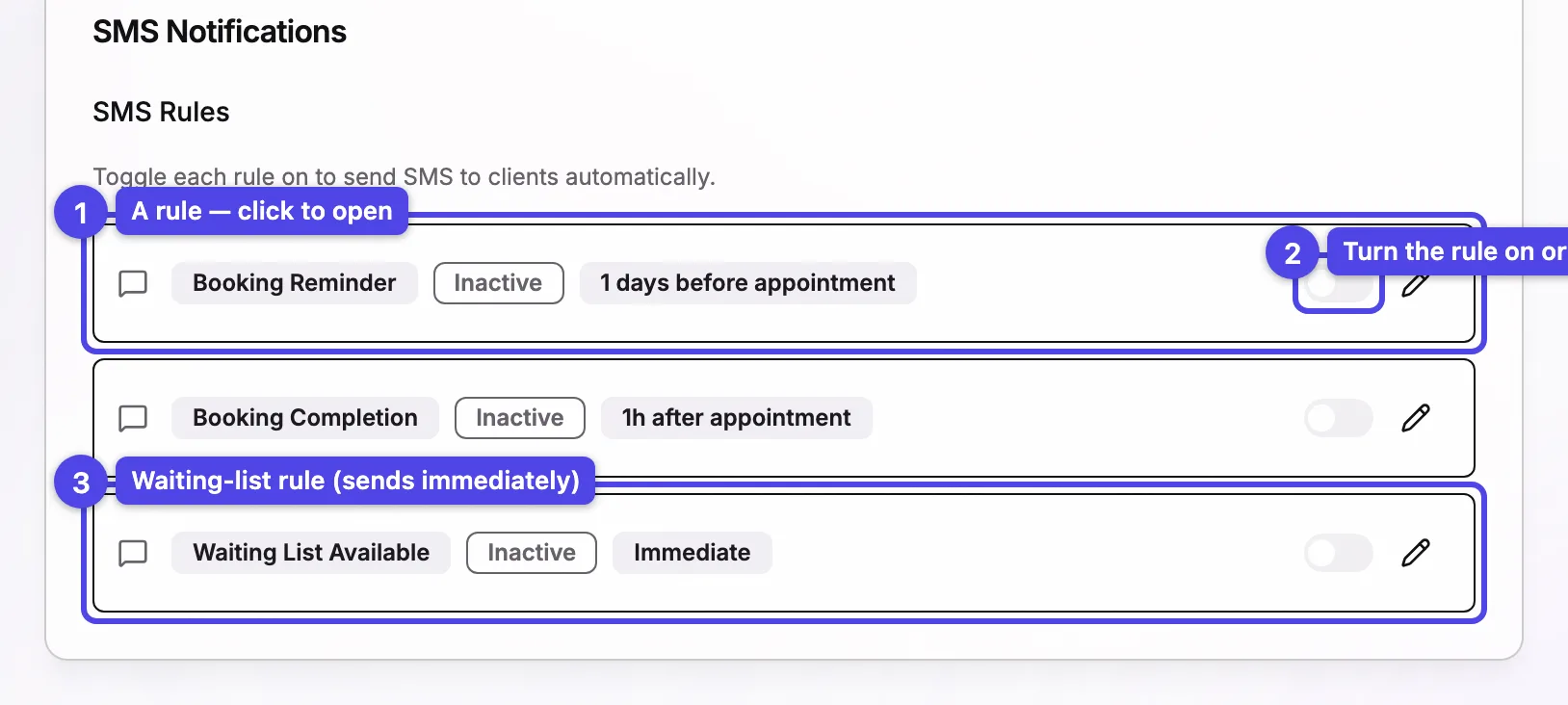
The SMS Notifications tab lets you send automatic text messages to clients. Open it from Business Settings → SMS. There are three rules — turn each one on to send its message automatically.
The three rules
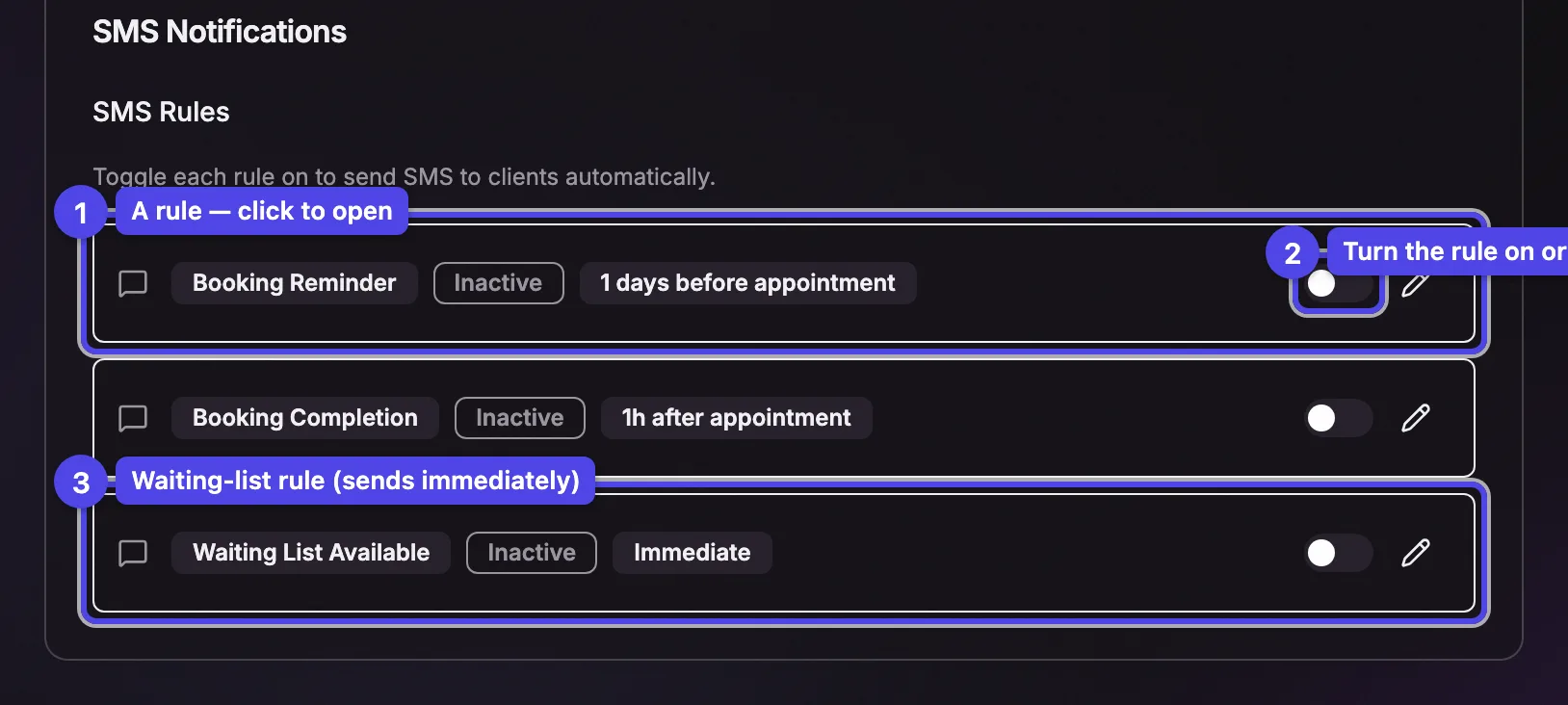
- Booking Reminder — a reminder before the appointment.
- Booking Completion — sent after the appointment (for example to thank the client or invite a review).
- Waiting List Available — alerts a waiting-list client that a spot opened up. This one always sends immediately when a spot frees up, so it has no timing choice.
Each row shows the rule name, its timing, an inactive badge when it's off, and an Active toggle. Flip the toggle right on the list to switch a rule on or off without opening it.
The three rules are created automatically the first time you open the tab.
Editing a rule
Click a rule (or its pencil) to open it.
Active
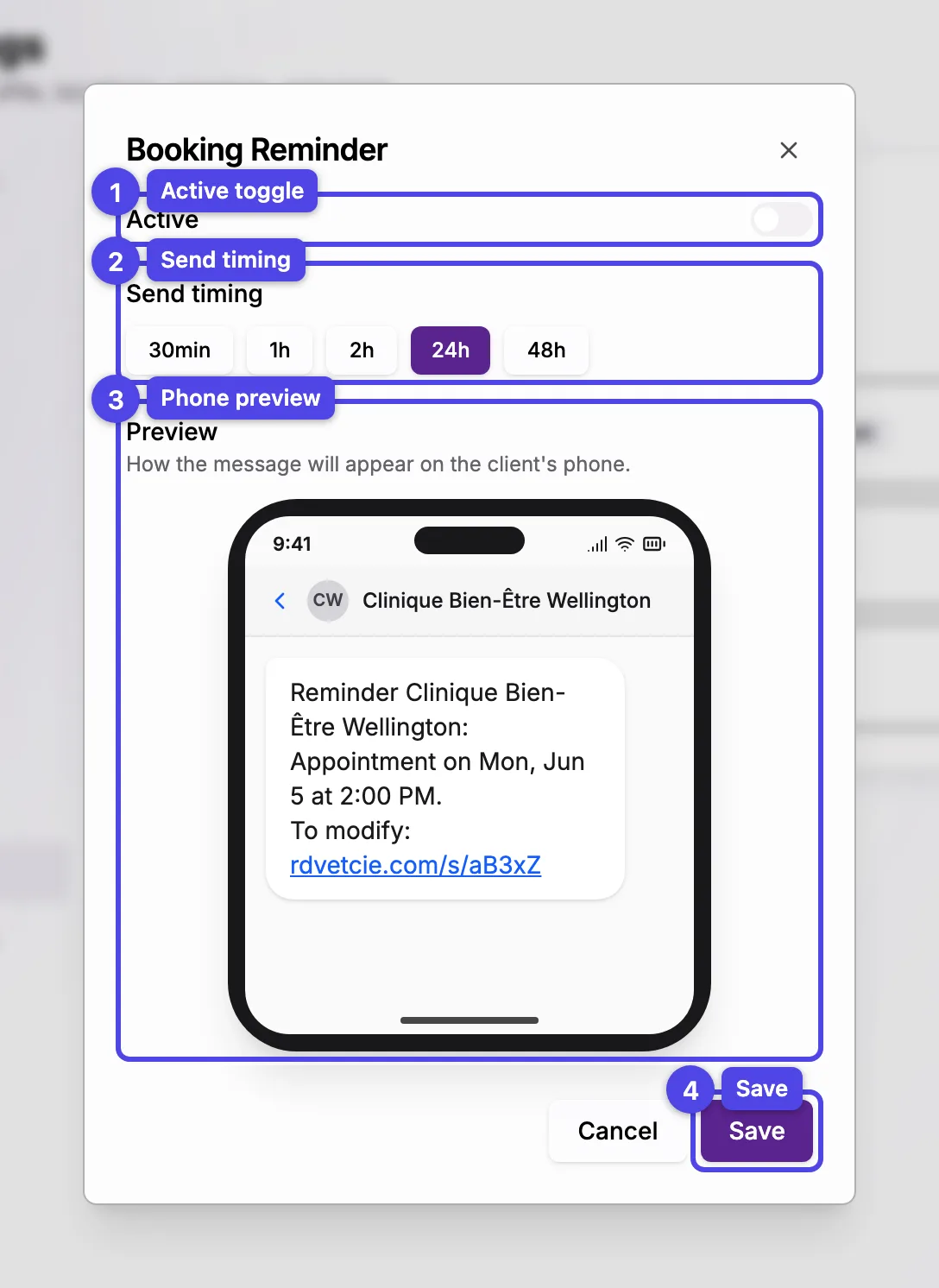
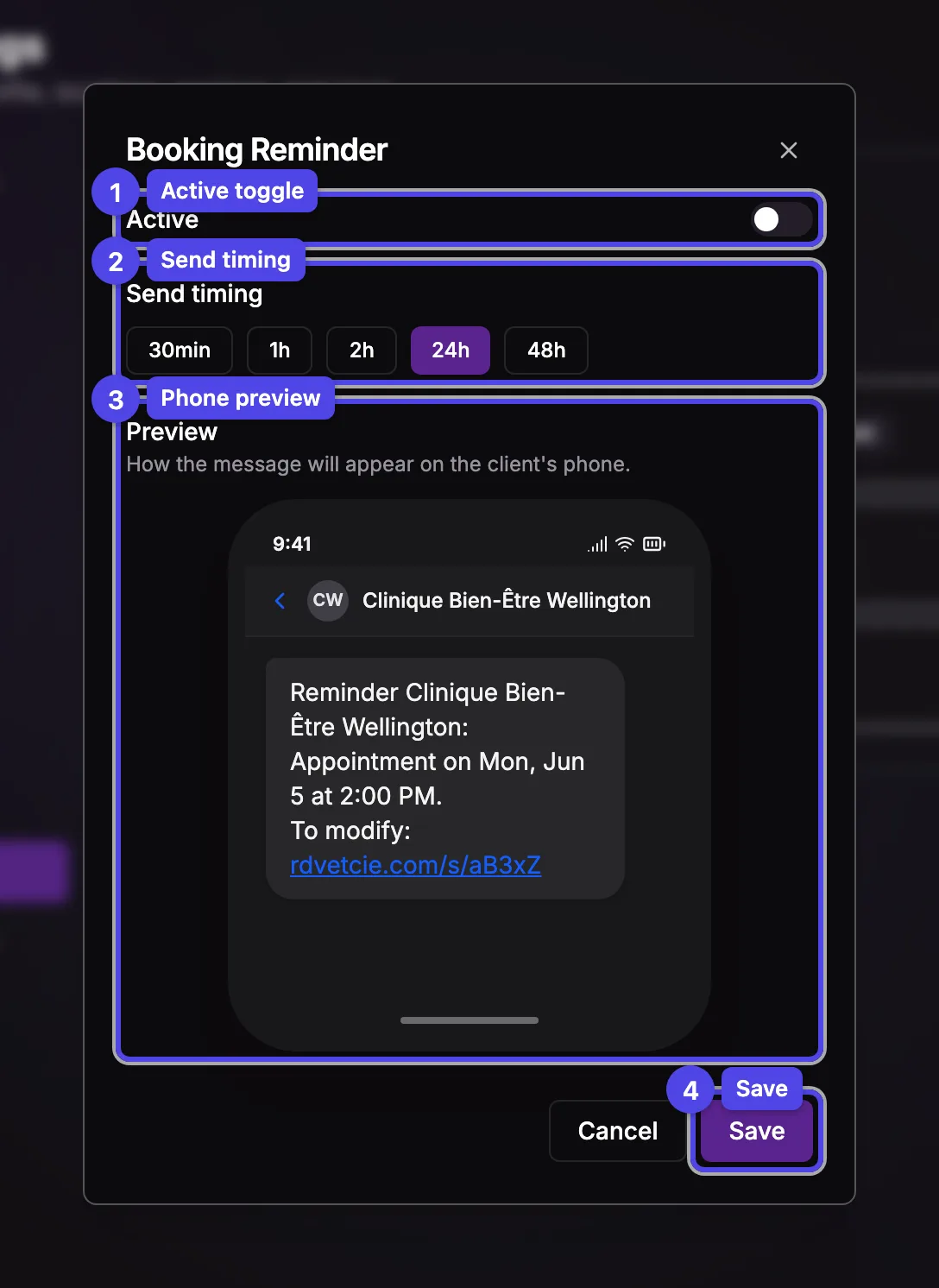
Toggle the rule on or off.
Send timing
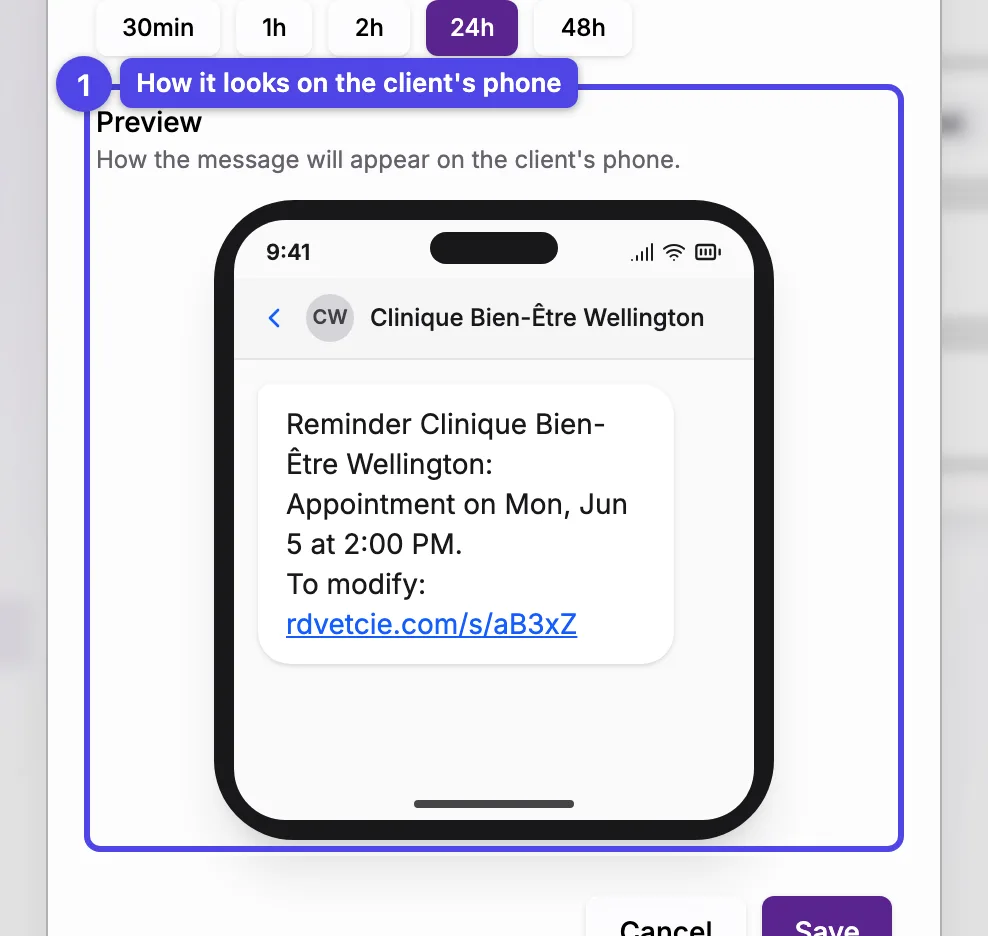
For Booking Reminder and Booking Completion, pick when the text goes out (for example 24h before, or immediately after). Waiting List Available is fixed to Immediate.
Preview
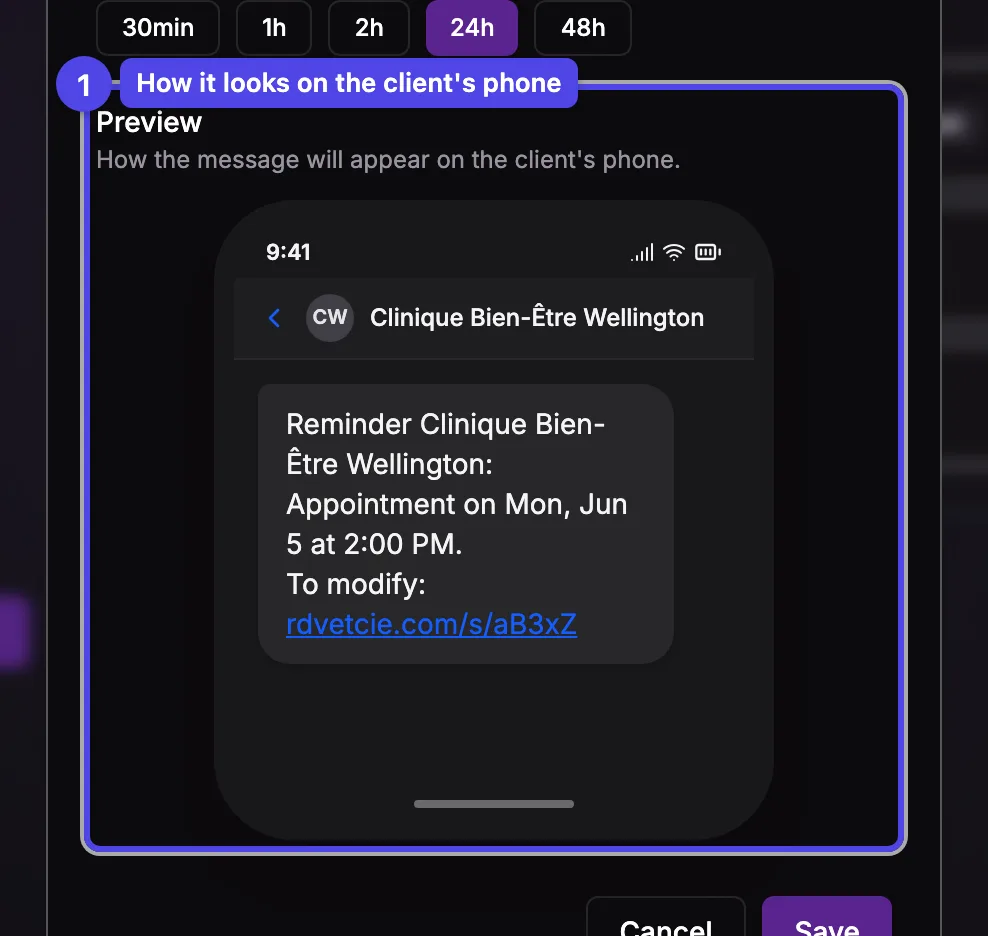
A phone mockup shows exactly how the message will look on the client's phone, using your business name and sample details.
Save
Click Save to apply, or Cancel to discard.
SMS message wording is managed by the platform and can't be edited per business — there's no message box, and no add, delete, or test-send. You control whether each rule is on and (for two of them) when it sends.
The phone preview
Booking-related texts (reminders and completion) are transactional — they're not affected by a client's marketing opt-out. Only newsletter texts respect that setting.