
Health Questionnaire
Build the health questionnaires clients fill out — sections, questions, question types, required fields, therapist-only sections, and a different questionnaire for some services.
Updated 2026-10-02
The Health Questionnaire is the intake form clients complete to share their health information. Most businesses use a single questionnaire; you can also add others for services that need different questions — a prenatal massage, for example — and choose, service by service, which questionnaire clients fill out, or none. Open it from Business settings → Health Questionnaire.
Turning it on
When you have never set it up, the questionnaire is disabled and the tab shows a short message with one button. Click Enable questionnaire to start collecting client health information. Enabling creates a ready-made questionnaire with starter sections you can edit — it becomes your default questionnaire, the one every service asks for. Once it is on, an Enabled / Disabled switch appears at the top right — flip it to turn collection off again without losing your questions. The switch covers all your questionnaires at once.
Your questionnaires
With a single questionnaire, the tab shows its builder right away. As soon as you have two or more, a few controls appear above the builder:
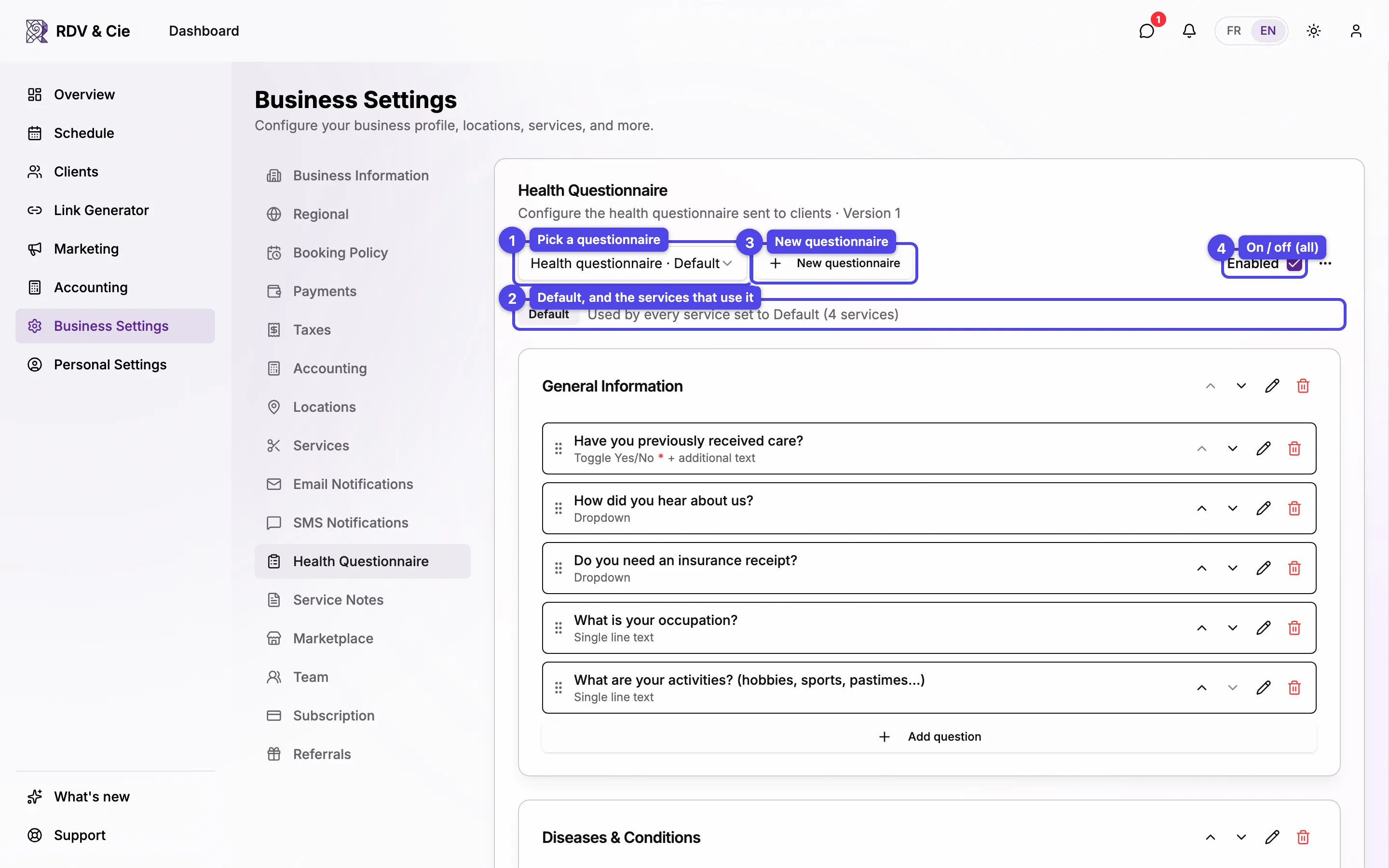
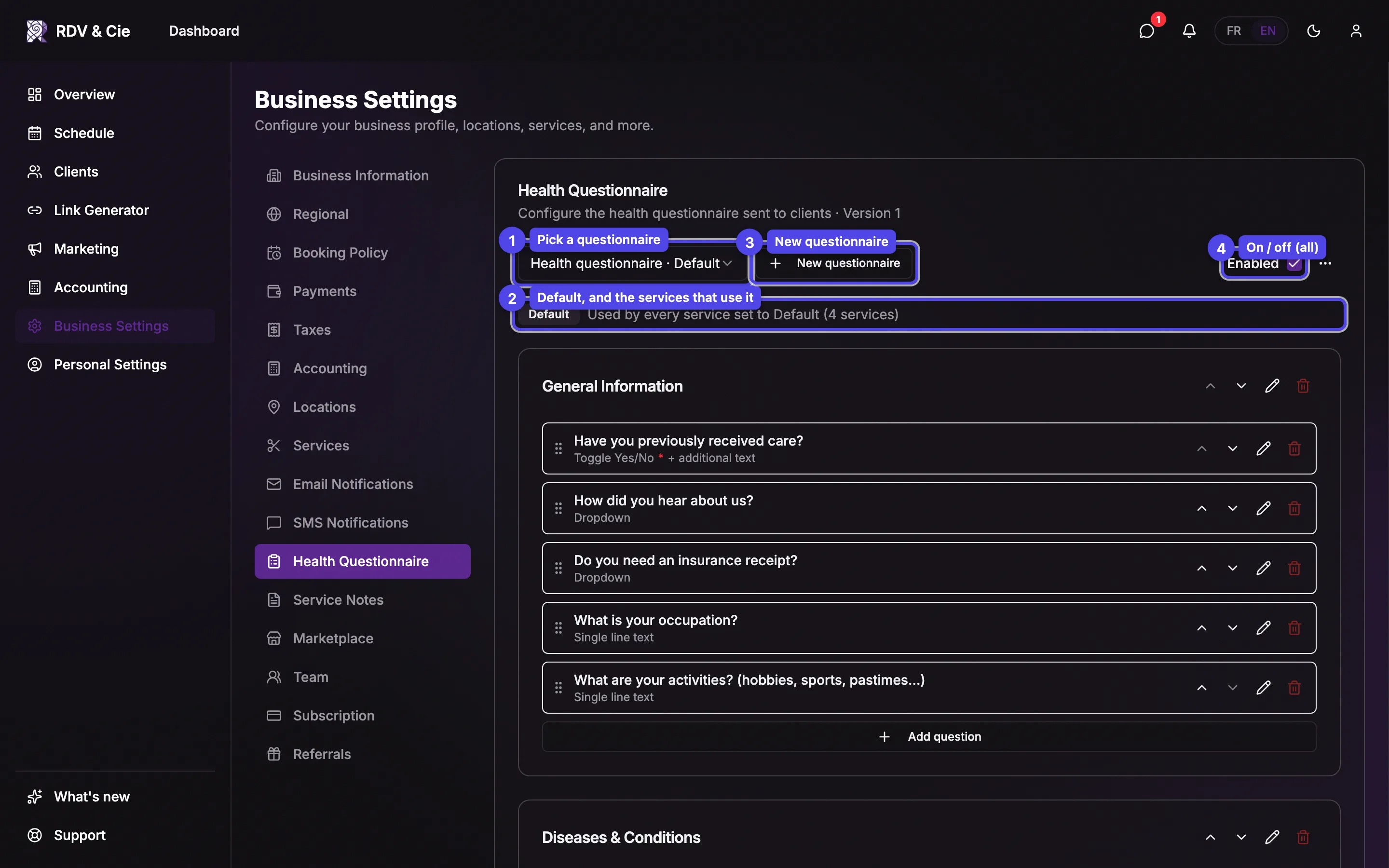
Pick a questionnaire
The picker chooses which questionnaire you are editing; the builder below shows its sections and questions. The default one is marked Default.
Default, and the services that use it
The line under the picker shows who asks for this questionnaire: for the default, every service set to Default; for another one, the services that picked it — or "Not used by any service yet".
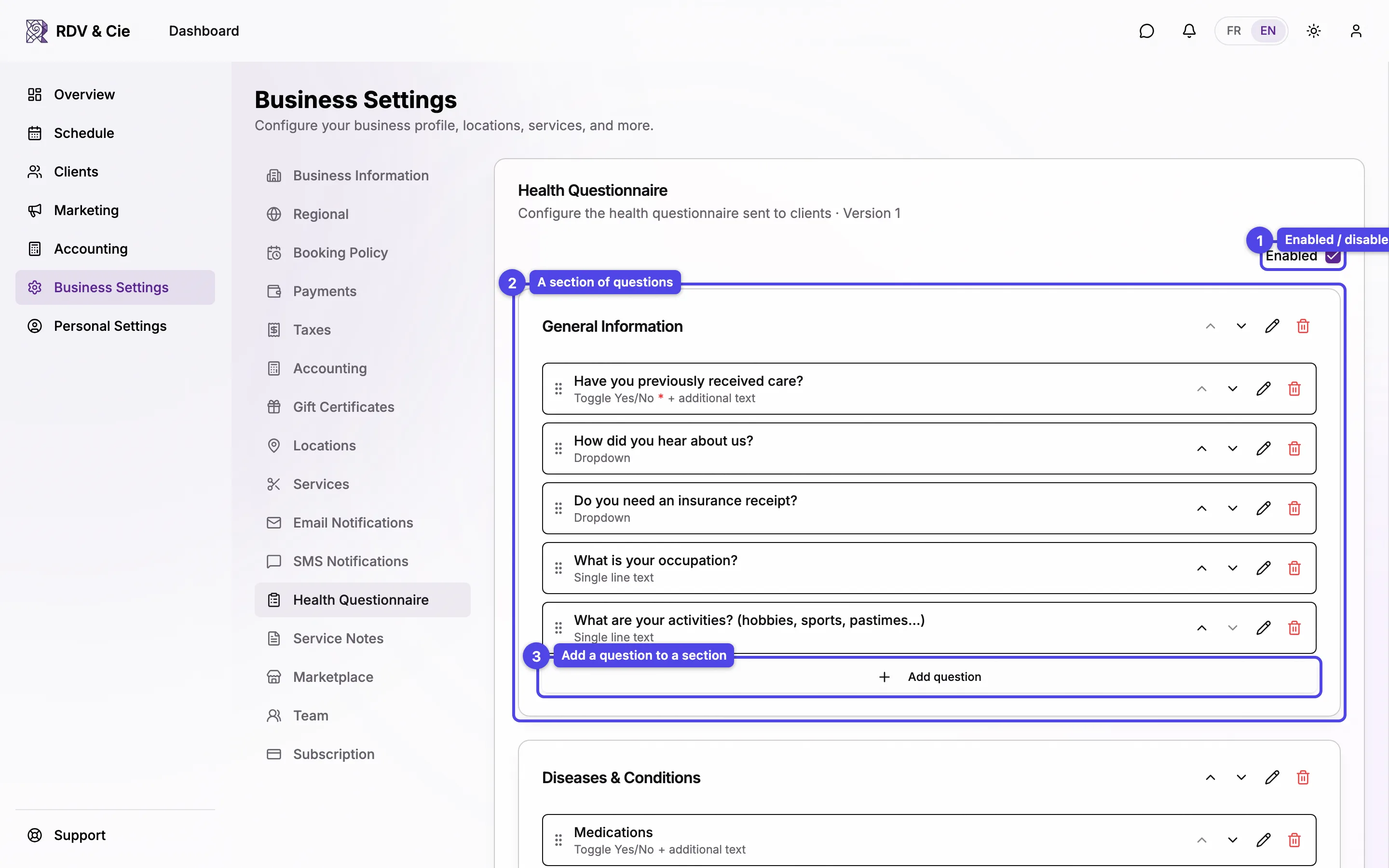
Enabled / Disabled
Turns collection on or off for all your questionnaires.
The builder
Sections
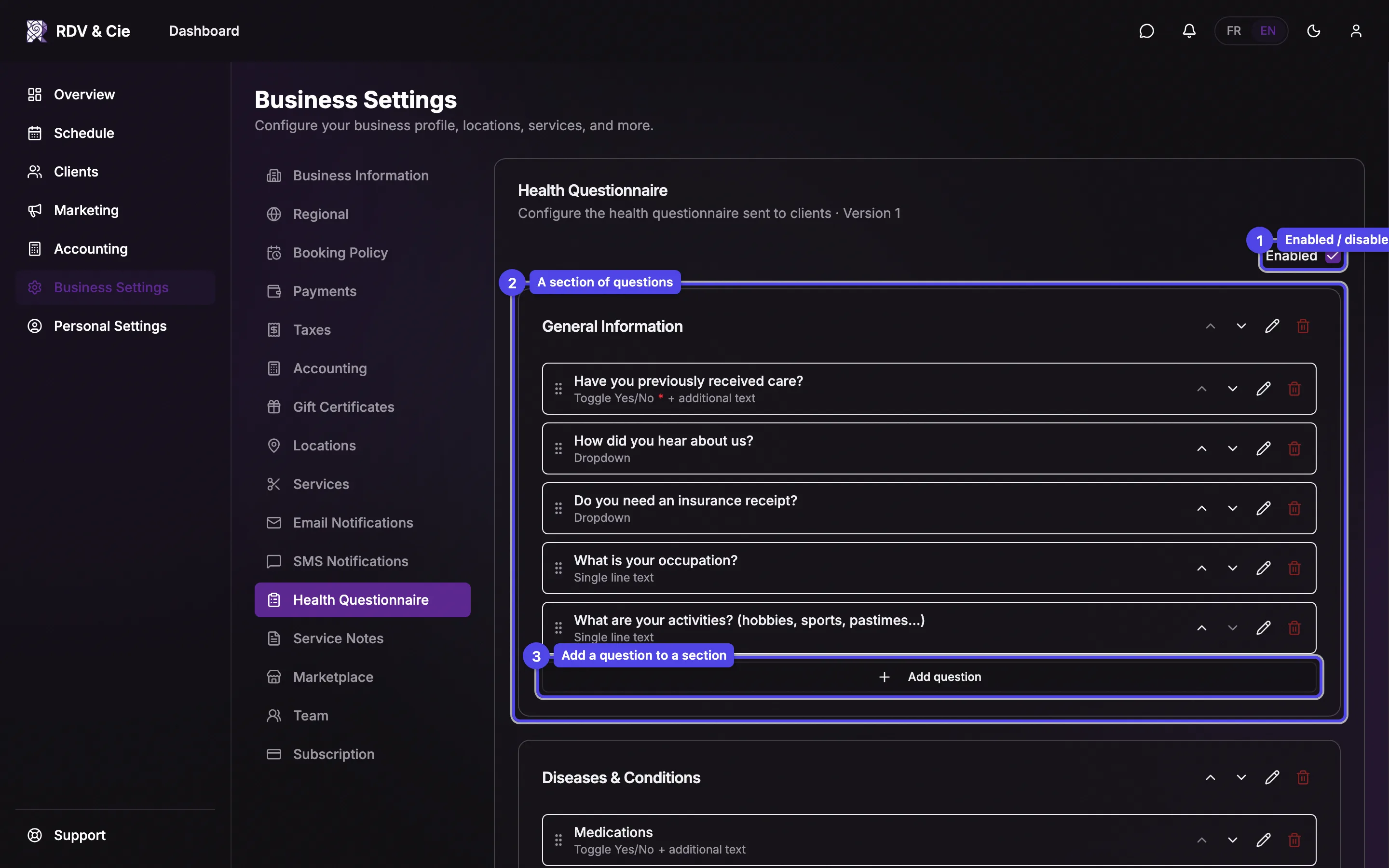
Each card is a section. Use the up/down arrows on a section to reorder it, the pencil to rename it, and the trash icon to delete it. A section can be marked Therapist only, shown with a badge — those sections are hidden from the client and filled in by the therapist.
Questions
Inside a section, each row is a question showing its label and its type. Use the row's arrows to reorder, the pencil to edit, and the trash to delete. Required questions show a red asterisk, and a question with an extra text field is marked + additional text.
Add question
Click Add question at the bottom of a section to open the question dialog.
Add section
Click Add section below the cards to create a new section. The section dialog has a Title (in French and English when your business is bilingual) and a Therapist only checkbox.
The question dialog
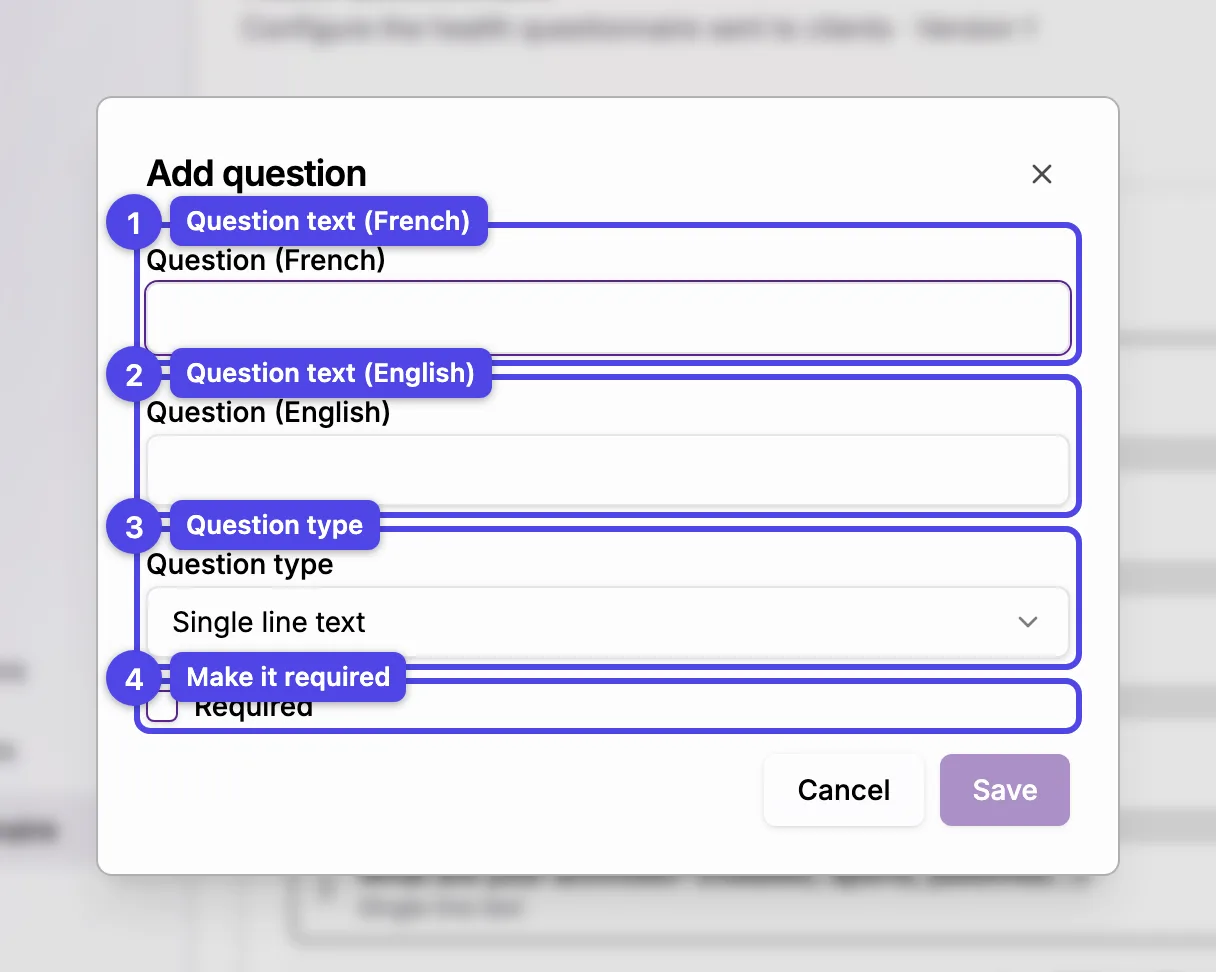
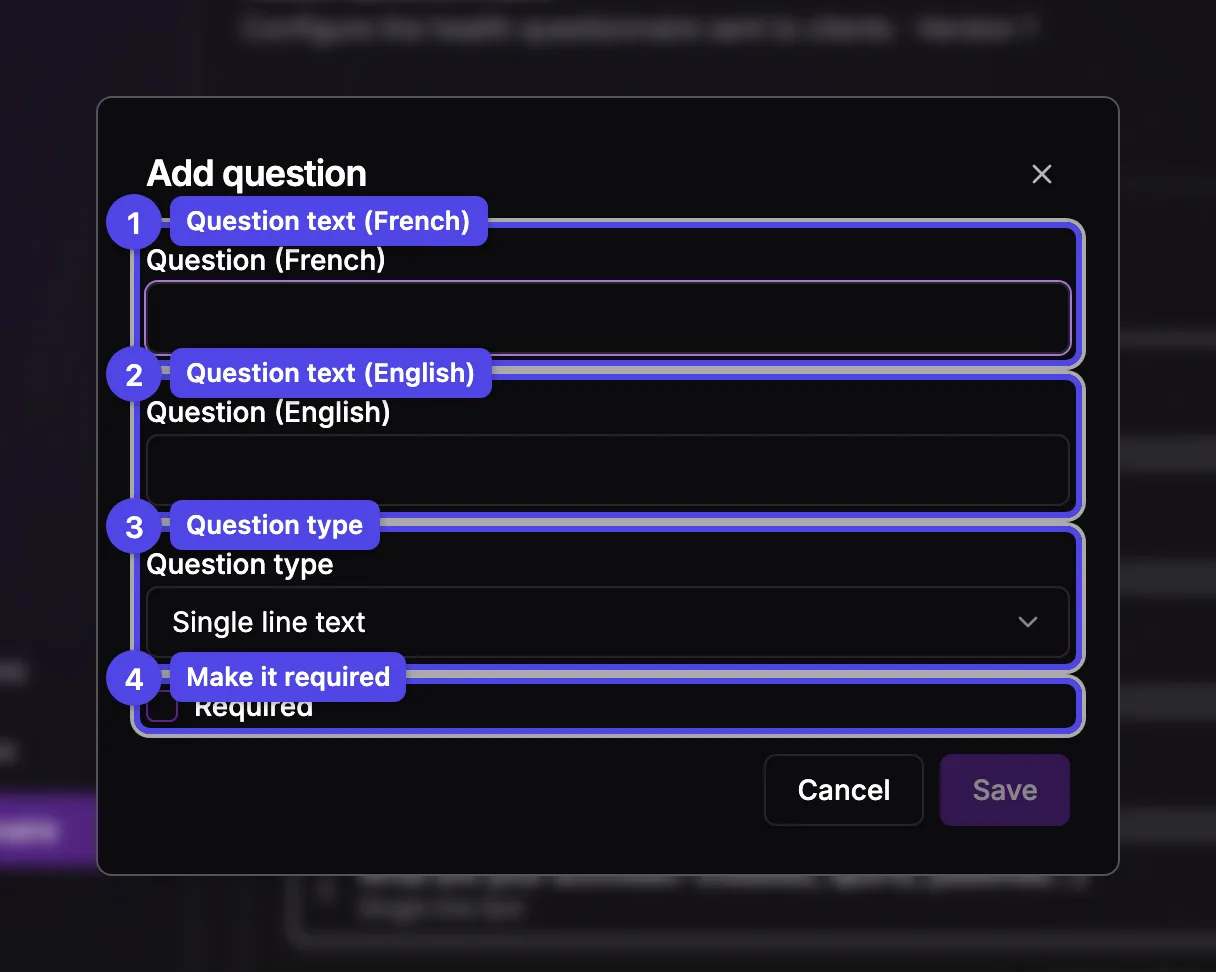
Question text
Enter the Question wording. With a bilingual business you fill in both a French and an English version.
Question type
Choose how the client answers: Single line text, Multi line text, Toggle Yes/No, Checkbox, Dropdown, Multi-select, or Body notes (an interactive body diagram).
Required
Tick Required to force an answer before the client can submit.
Options and additional text
Dropdown and Multi-select reveal an Options list — use Add option to add each choice (at least one is required). Toggle Yes/No, Checkbox, and Multi-select can also turn on Show additional text field, which adds a free-text follow-up with its own label.
The builder saves automatically as you edit, and each save bumps the questionnaire's Version number, shown next to the title. Existing client answers stay tied to the version they were filled out under.
Add a questionnaire
With a single questionnaire, open the ⋯ menu next to the switch and choose Add another questionnaire; with several, click New questionnaire.
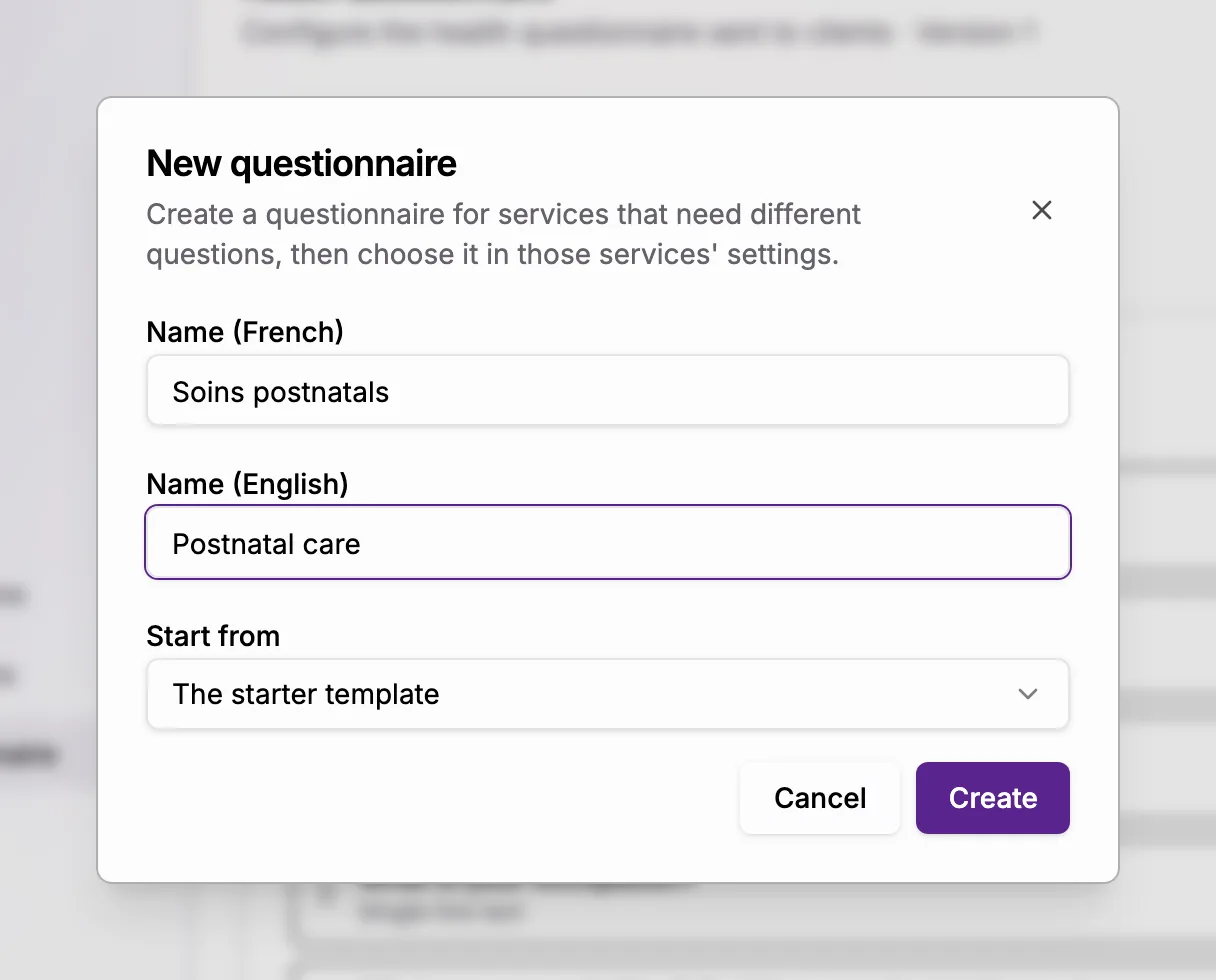
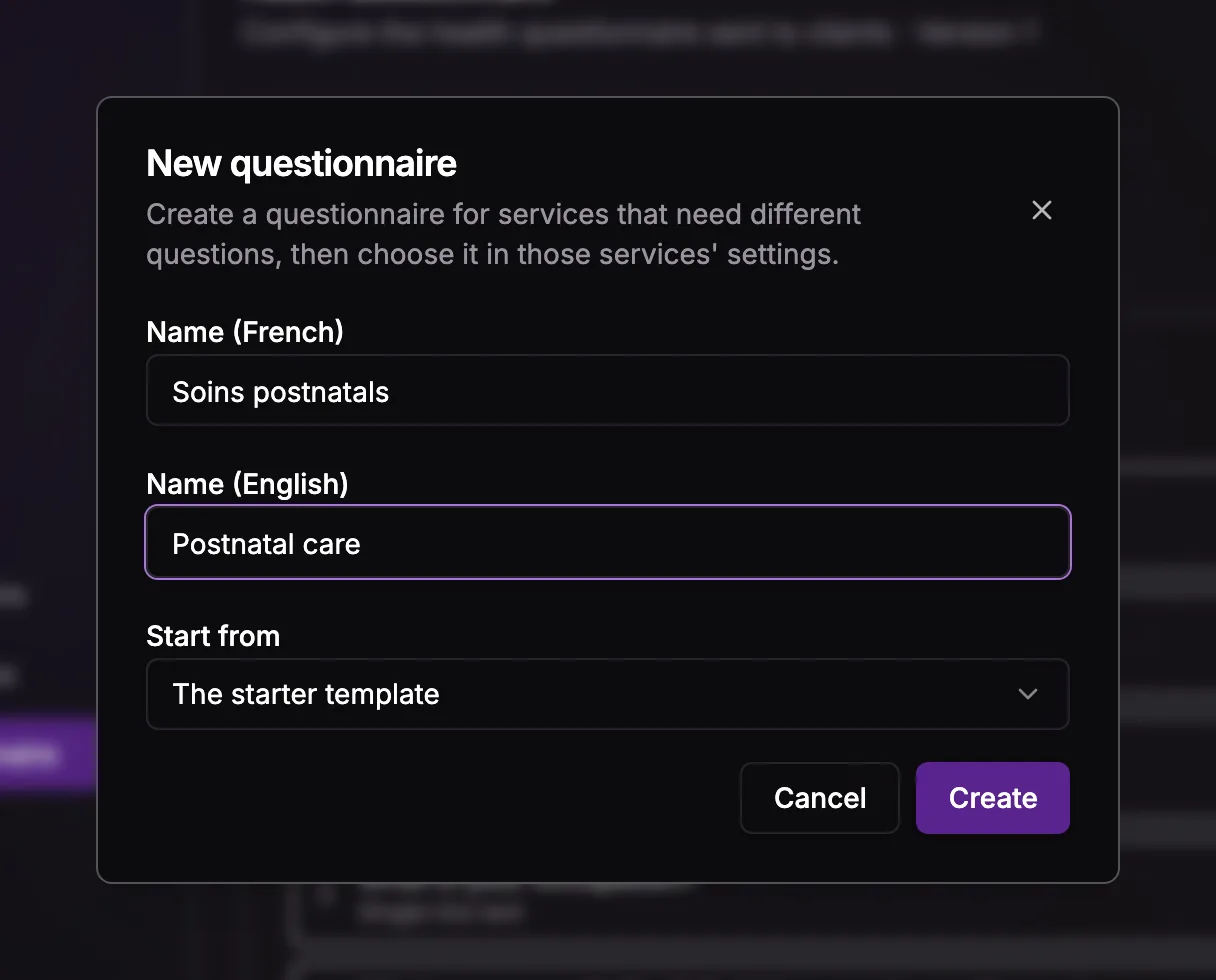
Name
Clients see the name as the title of the form, so make it clear — "Prenatal massage", for example. A bilingual business fills in both a French and an English name.
Start from
The starter template gives you the same ready-made sections as your first questionnaire, A copy of an existing questionnaire copies its sections and questions, and A blank questionnaire starts empty.
Create
The new questionnaire opens in the builder. It isn't asked for by any service yet: choose it in the services that need it (see below).
The builder saves a questionnaire once every section has at least one question. Until then, a note at the top reminds you.
Manage a questionnaire
The ⋯ menu next to the switch acts on the questionnaire you are editing.
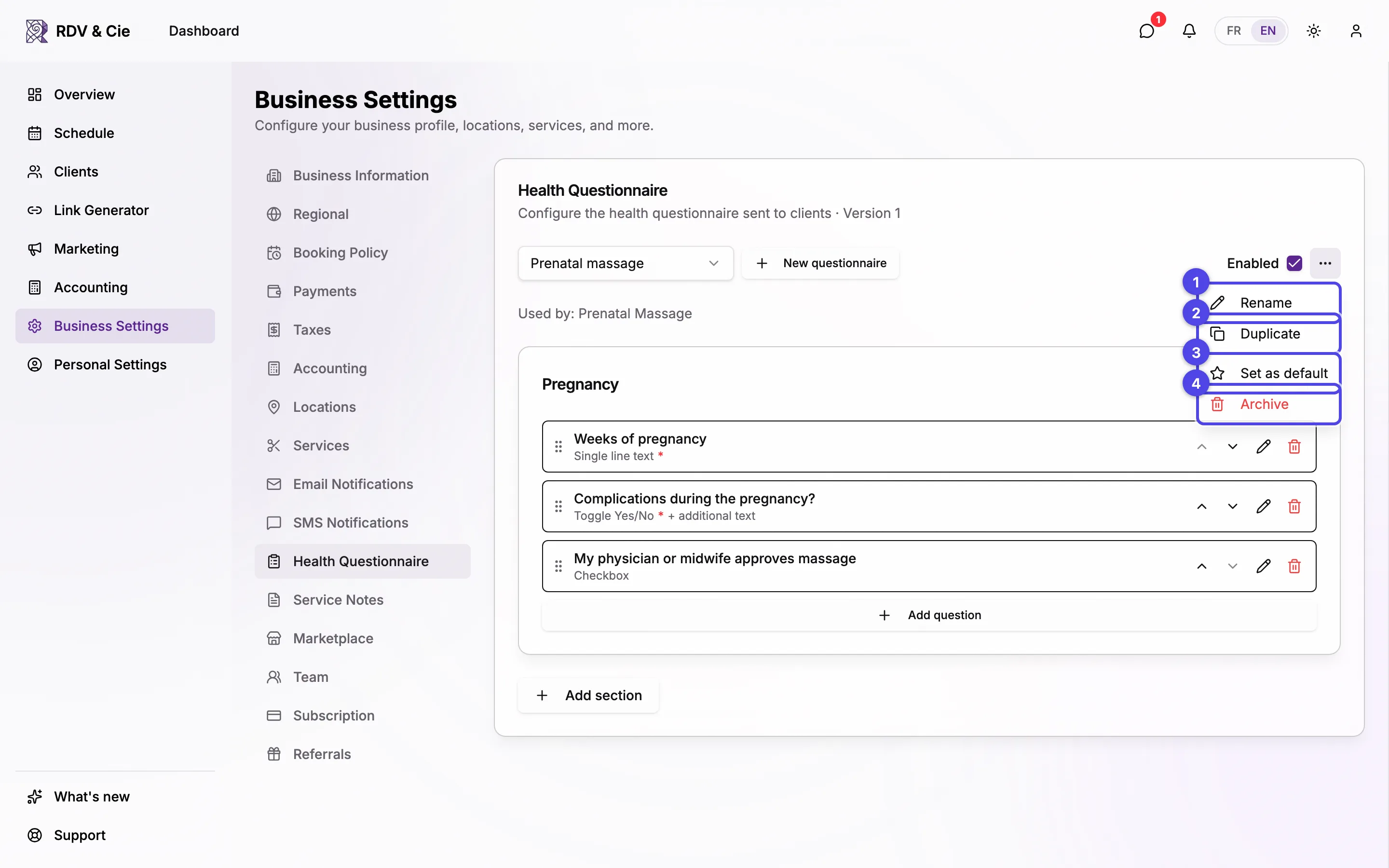
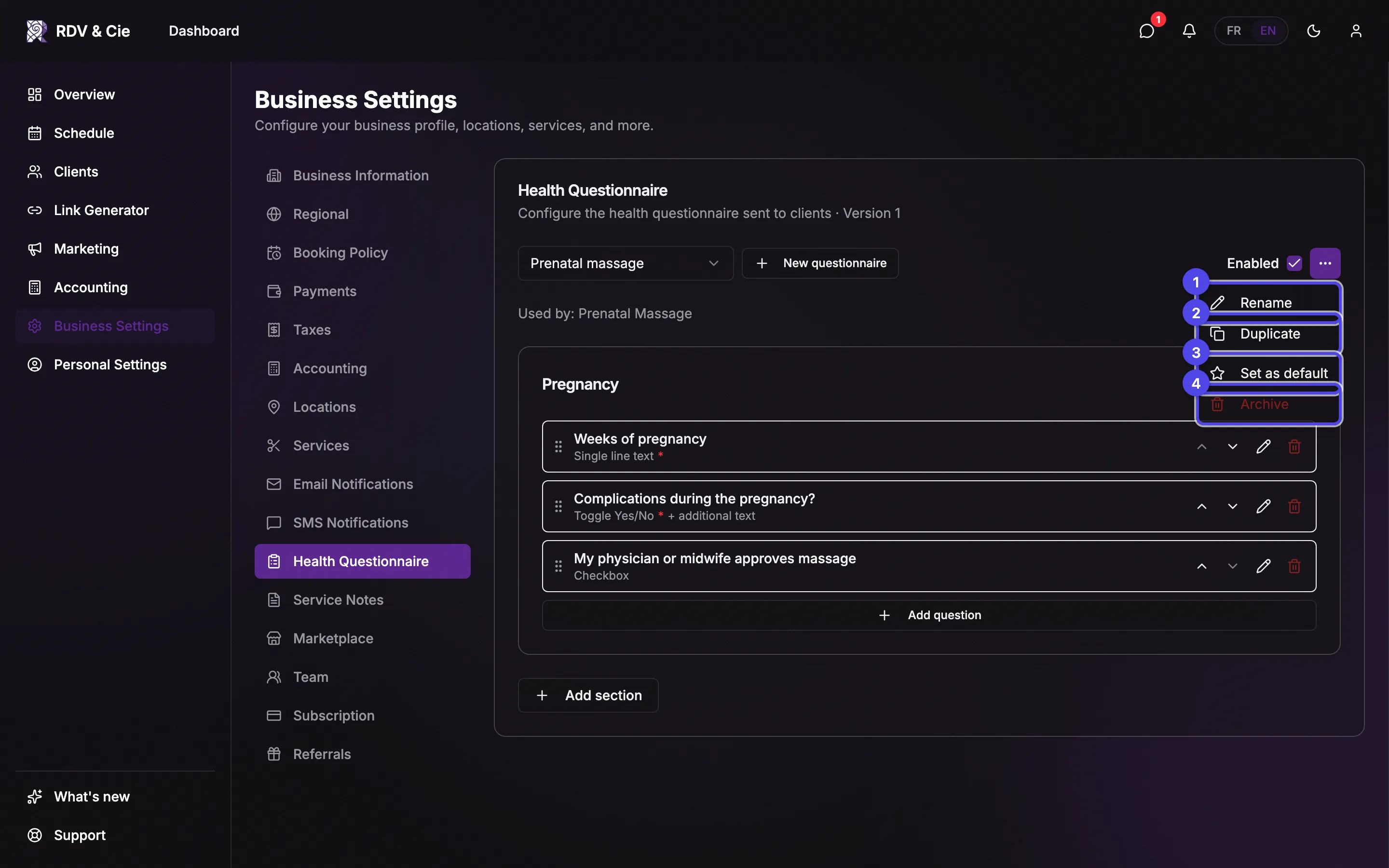
Rename
Changes the name clients see. Their answers aren't affected.
Duplicate
Opens New questionnaire with a copy of this one's sections and questions — handy when a new questionnaire only differs by a few questions.
Set as default
Makes this questionnaire the default: every service set to Default now asks for it.
Delete or Archive
A questionnaire no client has answered is deleted. One that clients already answered (or were sent a link for) is archived instead.
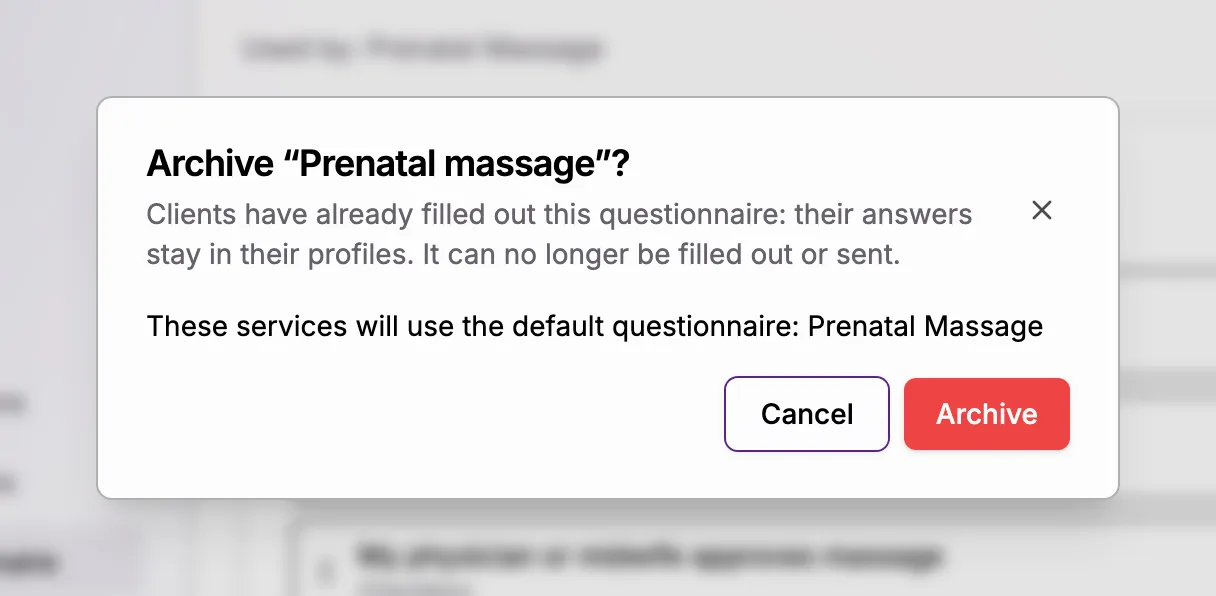
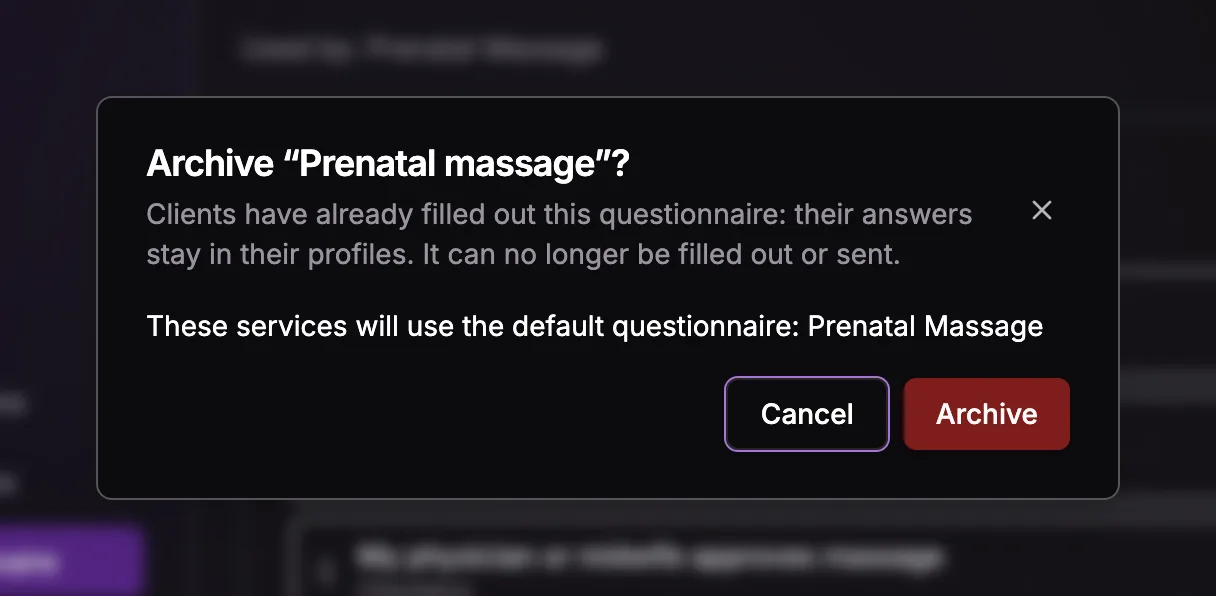
When you archive a questionnaire, clients' answers stay in their profiles, read-only, but it can no longer be filled out or sent; a link already sent still works. The services that used it go back to the default questionnaire — the confirmation names them. The default questionnaire can't be deleted or archived: set another one as the default first. To stop collecting questionnaires altogether, use the Enabled / Disabled switch.
Which services ask for it
Each service chooses its questionnaire in its own settings, under Health questionnaire: Default, another questionnaire, or No questionnaire — see Services.
A client fills out each questionnaire once. When they book, the confirmation email and page show a button for each questionnaire their services ask for that they haven't filled out yet. On a client's profile, the Questionnaire tab lists every questionnaire with its status — see Fill a questionnaire for a client.