
Business information
Set your name, logo, brand color, booking address, payment methods, contact, and billing.
Updated 2026-10-01
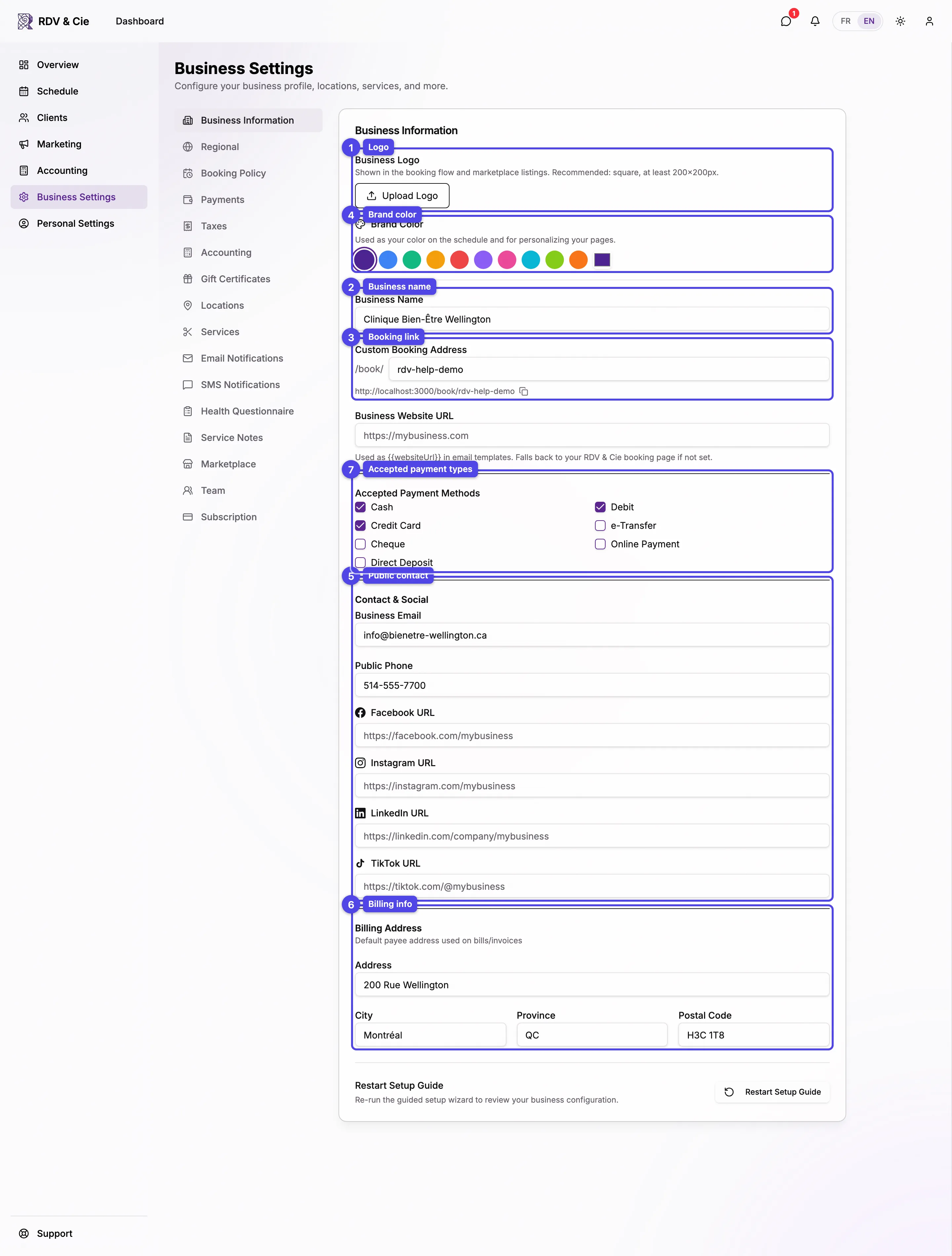
The Business Info tab holds your identity and contact details. Everything here saves automatically — type a change and a toast confirms it.
Branding
Business logo
Click Upload logo to add a JPG, PNG, WebP, or GIF. It appears on your booking page, emails, and receipts. The trash icon removes it.
Brand color
Pick one of the preset swatches, or use the color box at the end for any custom hex value. This color accents your public booking page.
Identity
Business name
The name shown to clients everywhere. Required.
Booking address
The slug after /book/. As you type it's cleaned to lowercase letters,
numbers, and dashes. The full URL is shown below with a copy button — share
it with clients to take online bookings.
Website
An optional link to your own website.
Changing the booking address changes your booking URL. Any link you've already shared with the old address will stop working — update it everywhere you've posted it.
Payment methods
Check every method you accept (cash, debit, credit card, e-transfer, cheque, online payment, direct deposit). These appear as options when you record a payment on a booking.
Contact and social
Add a public email and public phone, plus your Facebook, Instagram, LinkedIn, and TikTok handles. These show on your public business profile so clients can reach you, and the email or phone appears at the bottom of your newsletters. The public email must be your own mailbox: an address on the RDV & Cie domain is refused.
Billing address
Your business's mailing address (street, city, province, postal code). It's used on invoices and tax documents, and at the bottom of your newsletters, where anti-spam law requires a mailing address (without one, your first location's address or city is used). It isn't shown anywhere else to clients.
If you dismissed the setup wizard, a Reset setup wizard button appears at the bottom of this tab so you can run the guided setup again.