
Online sessions (video calls)
Offer a service by video call: each booking gets its own Google Meet link, or your own meeting link, and your client gets a Join button.
Updated 2026-10-05
An online session is a service you give by video call. Each booking of it gets a meeting link. Your client receives a Join your session button in their emails and on their appointment page, instead of your address.
Online sessions are set up in two places: the service (which services are online) and each practitioner's video calls (where the link comes from).
1. Make a service an online session
Open the service
Go to Business Settings → Services and edit the service (or add a new one, for example "Teleconsultation").
Tick Online session (video call)
In the General tab, tick Online session (video call) and save. In the services list, the service shows an Online badge.
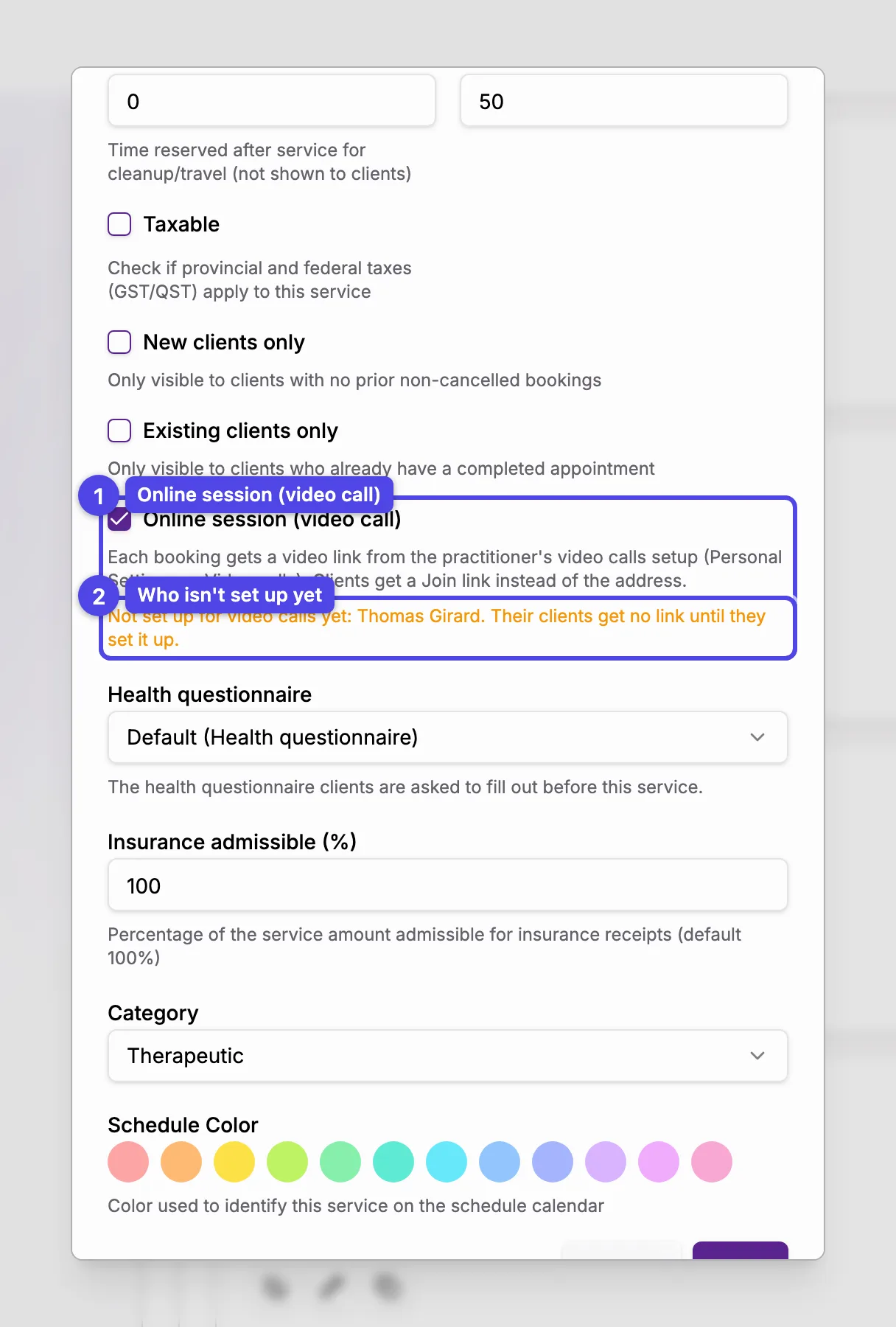
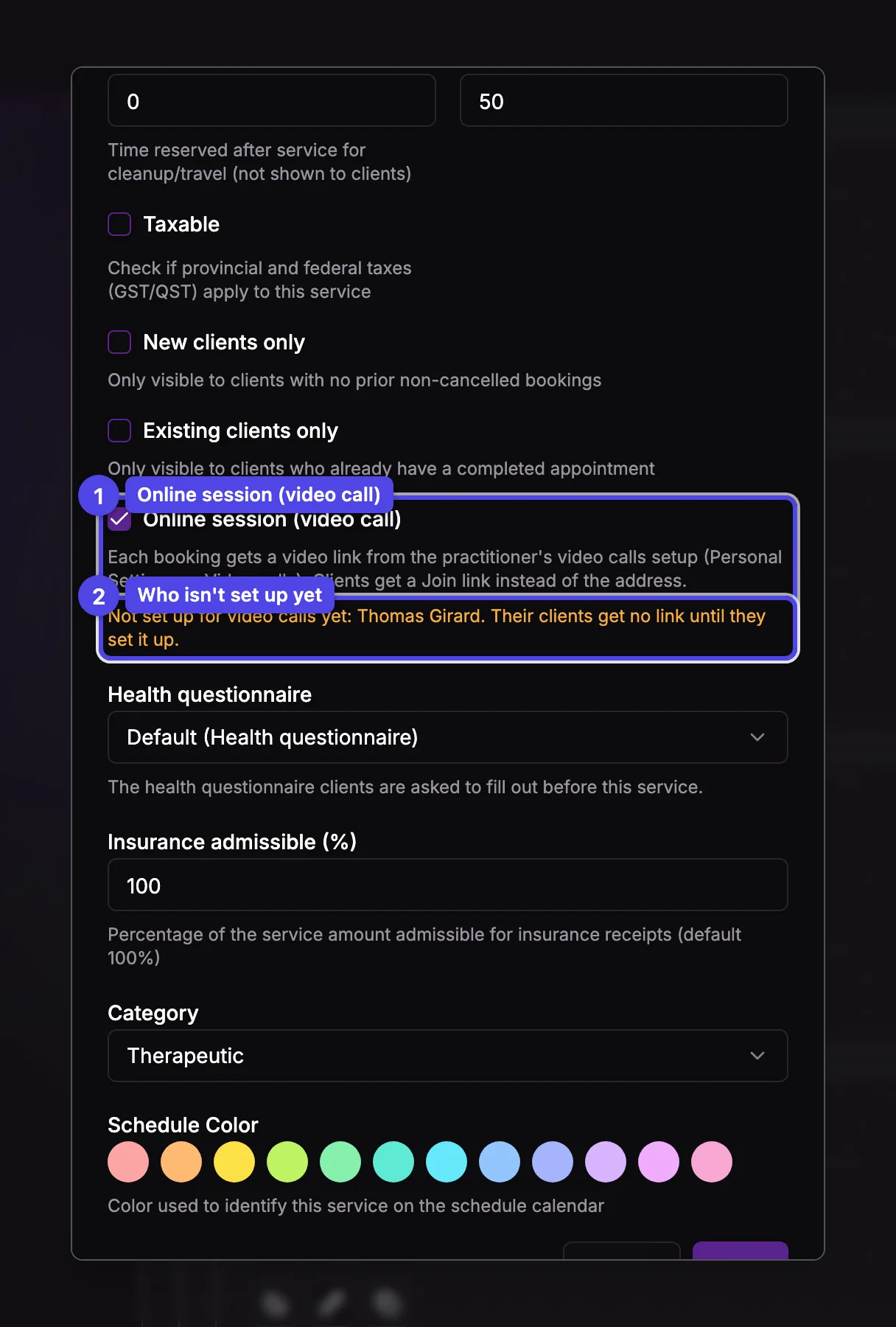
The service is booked like any other: at its locations, during the practitioner's working hours. If some of the service's practitioners haven't set up their video calls yet, the dialog names them: their clients get no link until they do.
Want to offer the same care in person and by video? Create two services, for example "Consultation" and "Online consultation". An online service can't be part of a forfait.
Bookings made before you ticked the box stay in person. You can switch any single booking from your schedule (see below).
2. Set up your video calls
Each practitioner chooses where their link comes from, in Personal Settings → Video calls.
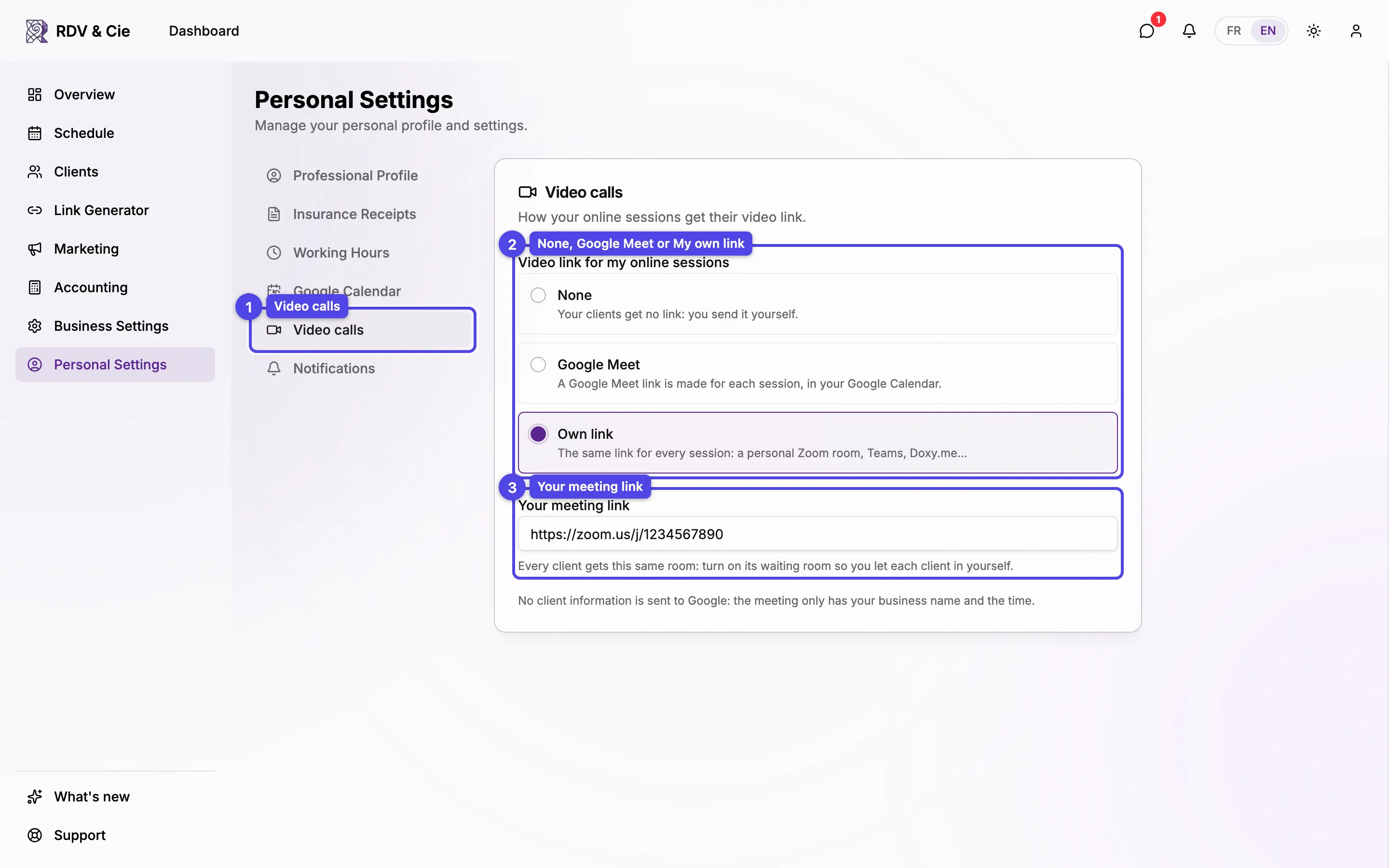
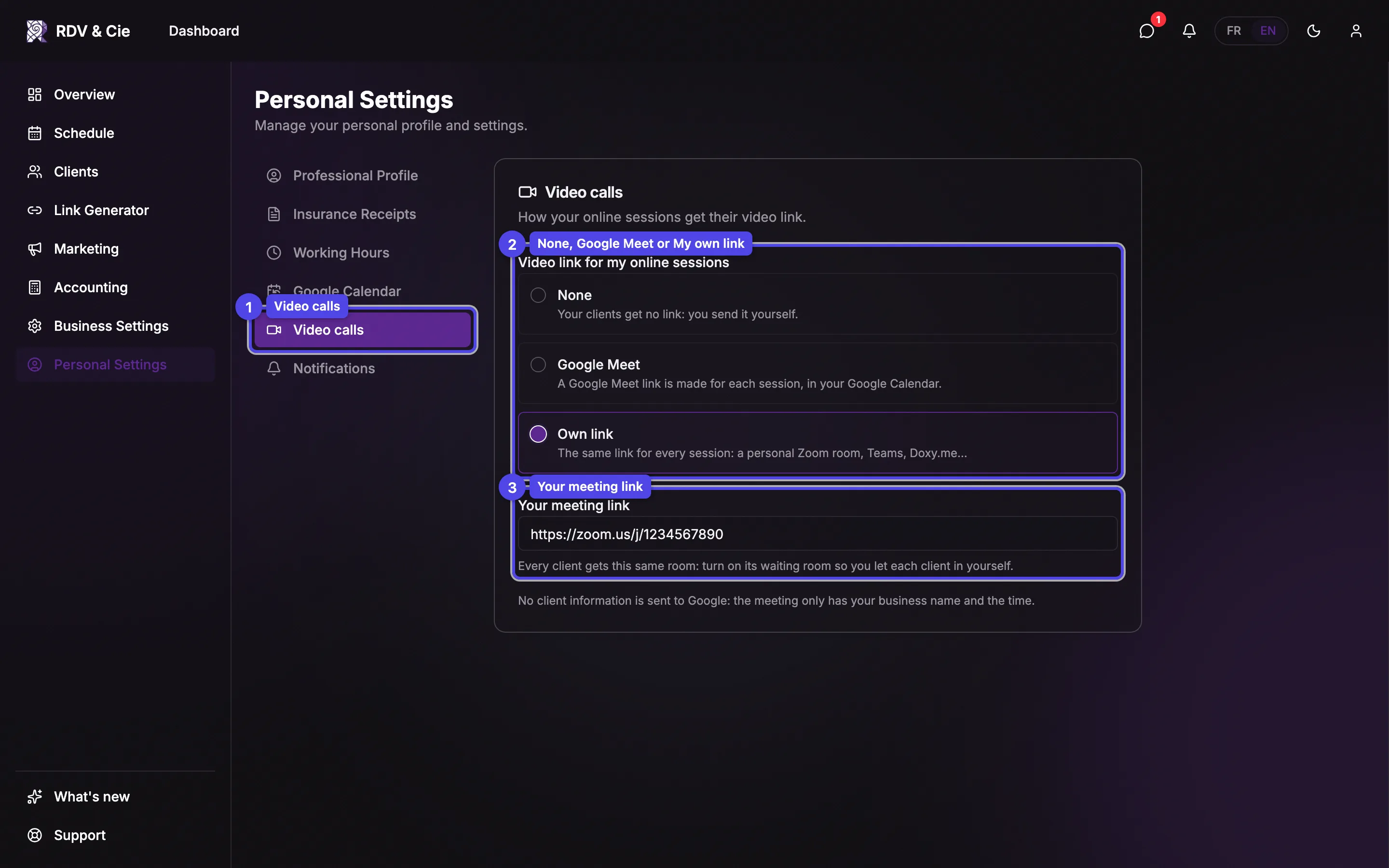
- Google Meet — a Google Meet link is made for each session, in your Google Calendar. It uses the Google account of your Google Calendar tab: if none is connected, click Connect Google. Connecting doesn't turn on calendar sync.
- My own link — the same link for every session: a personal Zoom meeting room, Teams, Doxy.me… Paste it in Your meeting link.
- None — your clients get no link: you send it yourself.
With My own link, every client gets the same room. Turn on its waiting room so you let each client in yourself. A free Zoom account also ends every meeting after 40 minutes, even a call between two people.
When you change your choice, your upcoming online sessions follow it within a few minutes. With Google Meet, each session's meeting is also its event in your Google Calendar: it moves when you reschedule and is deleted when you cancel.
No client information is sent to Google: the meeting only has your business name and the time. When the client opens their link, Google Meet asks them to wait until you let them in.
3. In your schedule
Online bookings show a small video icon. Open one to see its Online session panel.
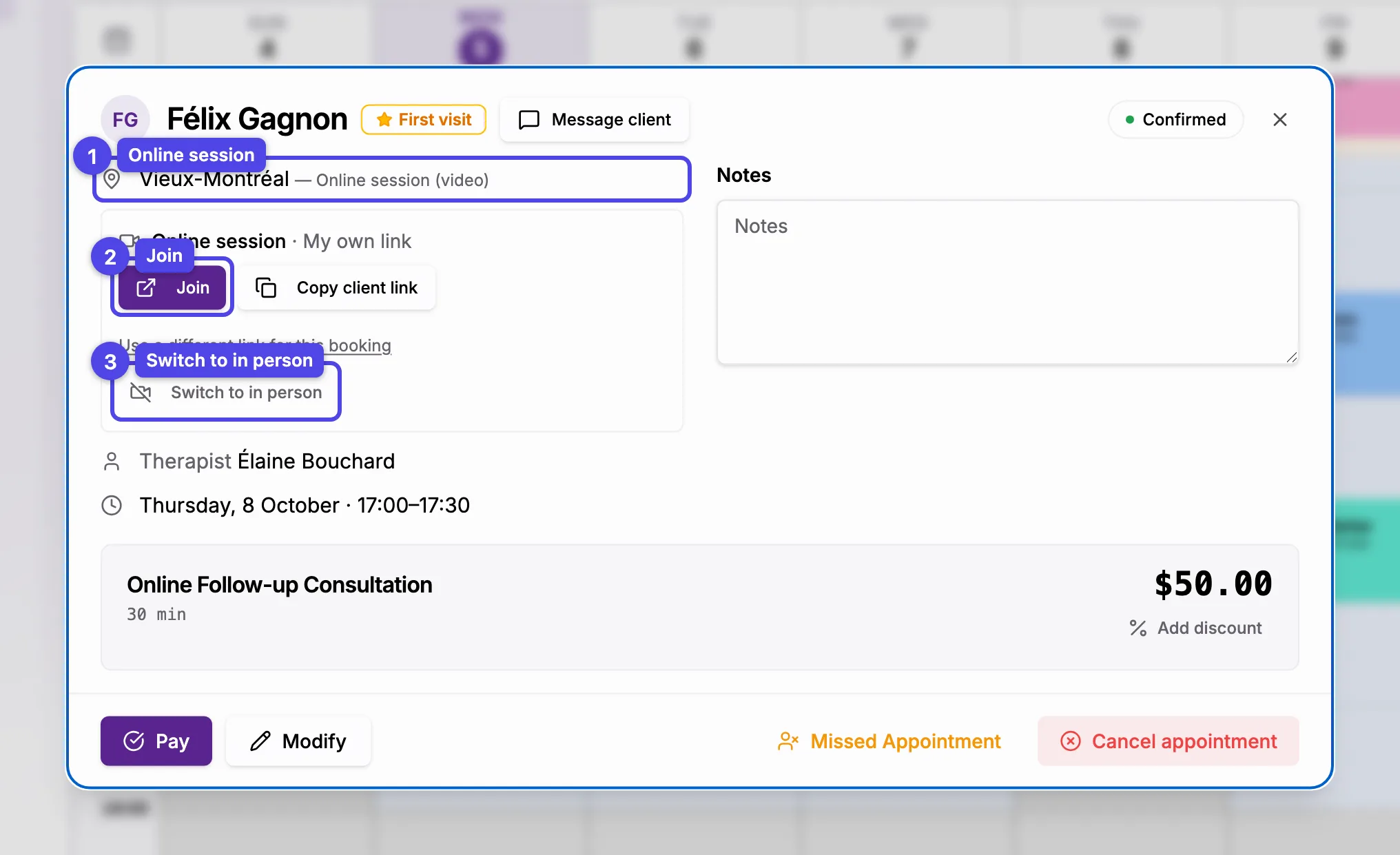
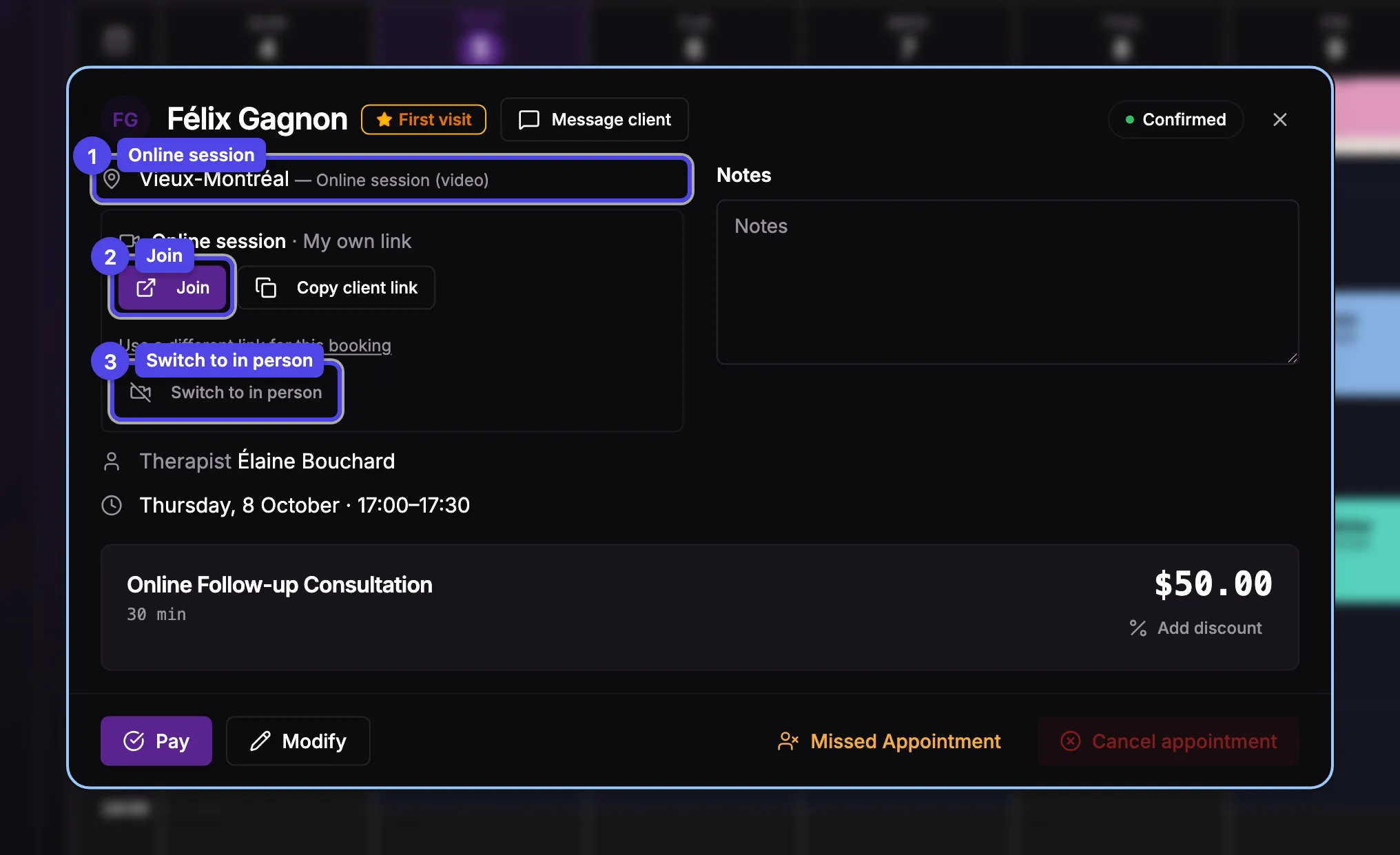
- Online session — shown next to the location, with where the link comes from.
- Join — opens the meeting. Copy client link copies the link your client was sent, to paste into a message.
- Switch to in person — turns the booking into an in-person visit. On an in-person booking, Switch to online does the reverse. At a home-visit location, Switch to in person appears once the booking has the client's address.
When you switch a booking, its reminders are scheduled again for the new mode. Keep Email the client the updated details ticked to send them the confirmation again with the new details.
Need another link for one booking only? Click Use a different link for this booking, paste it and click Save. Use the practitioner's setup goes back to the usual link.
While a link is being prepared, the panel looks again for a few seconds; if it's still waiting, click Check again. If the link couldn't be made (Google not connected, for example), the panel says why, with a Try again button.
What your client receives
- Their confirmation and reminder emails show Online session (video) instead of your address, with a Join your session button. Reminder texts include the link.
- The button opens their Your online session page: the time, the practitioner and a Join with Google Meet (or Join the session) button. This link never changes, even if you reschedule or switch from your own link to Google Meet.
- Their My Appointments page shows the same Join button.
In your email rules, the Online session link variable inserts the client's link wherever you want it. Your customized emails always carry it anyway.