
Managing your team
Add team members, set their permissions, and manage each person's hours, profile, and services.
Updated 2026-09-28
The Team area is where you add the people who work with you and control what each one can do. You'll find it under Business settings → Team. Every person shows as a card; the owner card is always first.
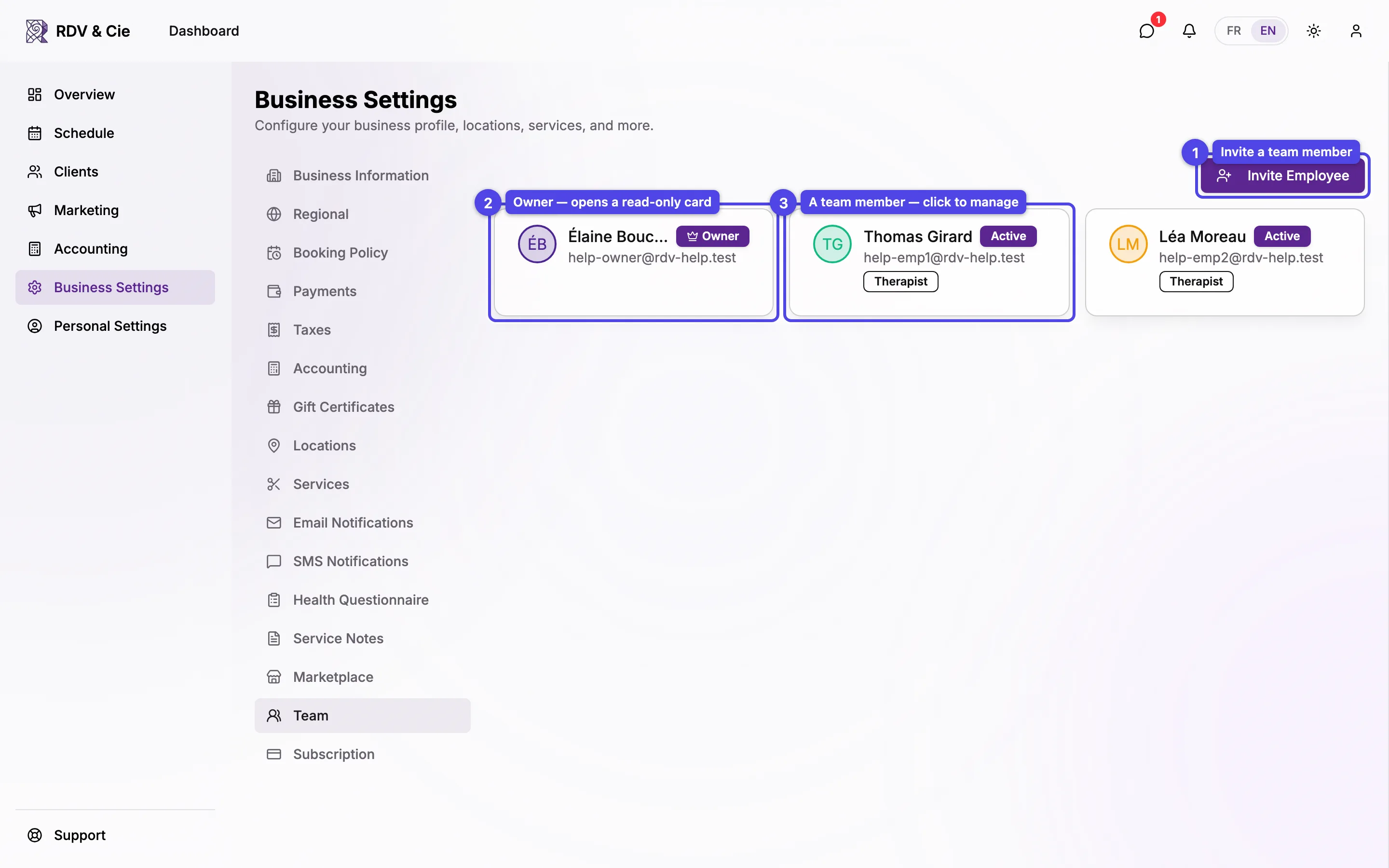
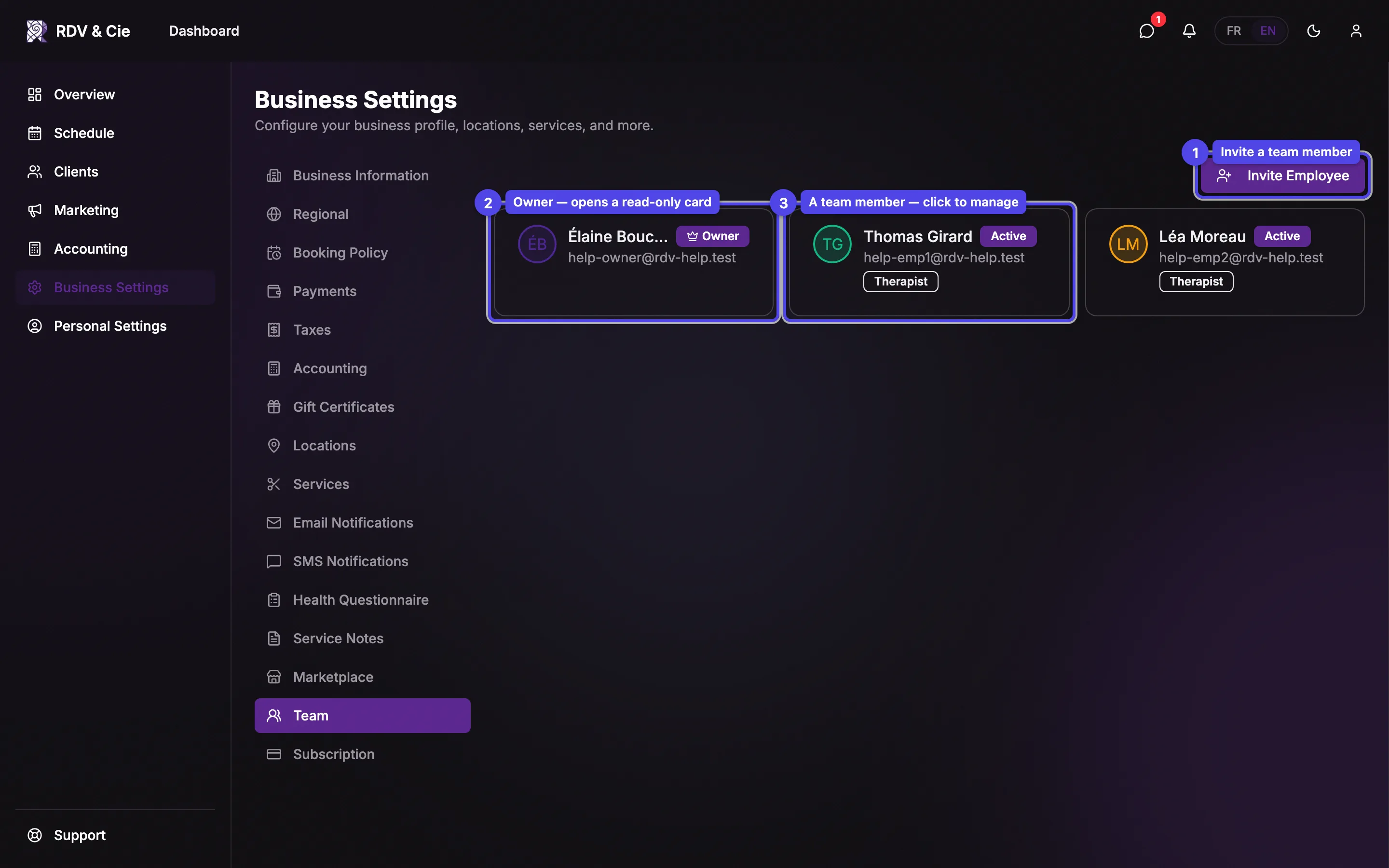
Invite a team member
The Invite Employee button (top right) opens the invitation form. It only appears when your plan has employee seats available.
Owner card
Your own card sits first, marked with the Owner crown. Opening it shows a read-only summary of your (full) permissions — owners always have every permission.
Team-member card
Each member card shows their name, email, status badge (Active, Pending, or Inactive), and a role badge (Therapist or Assistant). A small shield icon means they have full schedule access. Click a card to open their management dialog. While an invitation is Pending, the card only shows the details from the invitation; the person's own name and photo appear once they accept.
Inviting an employee
Click Invite Employee to open the form.
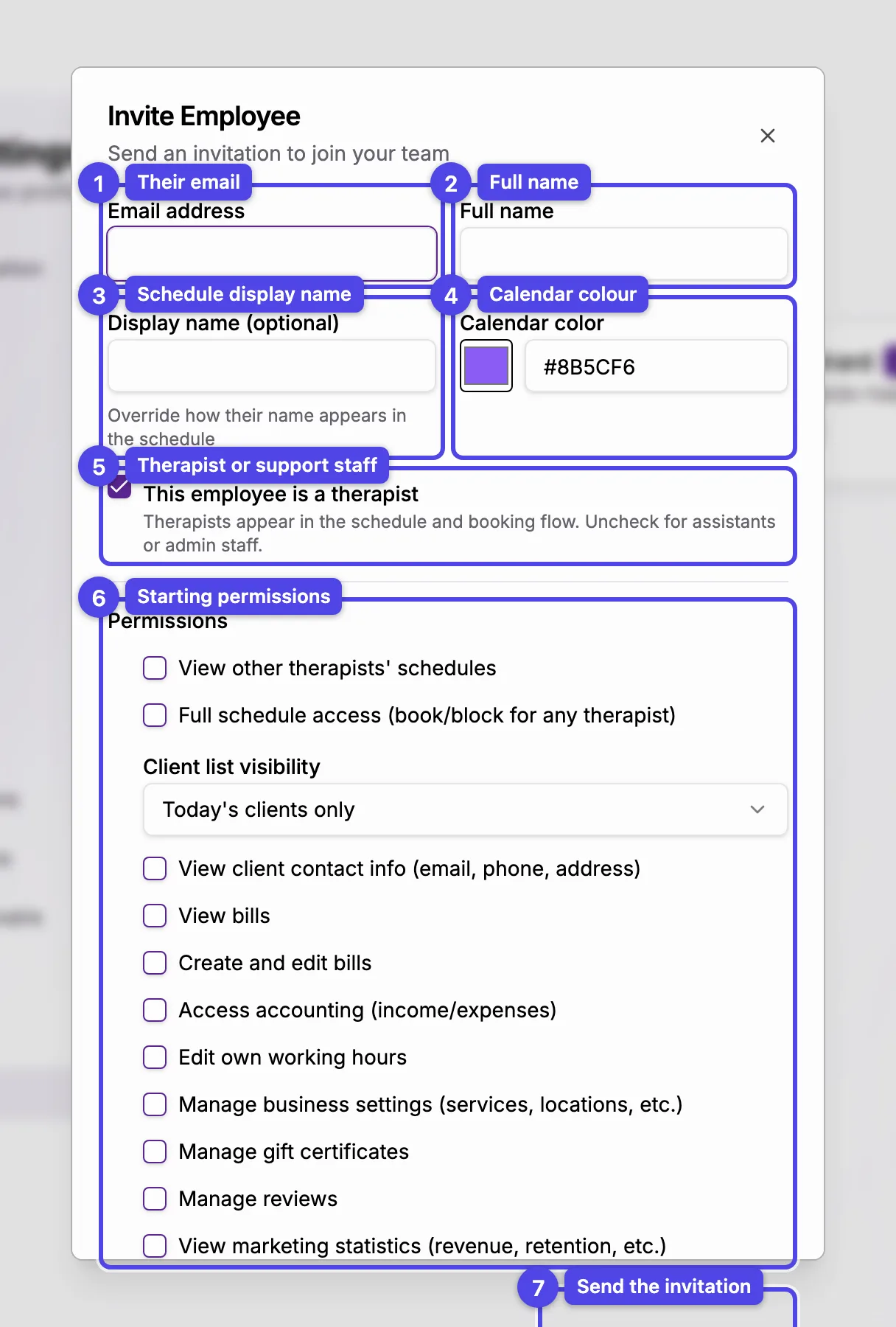
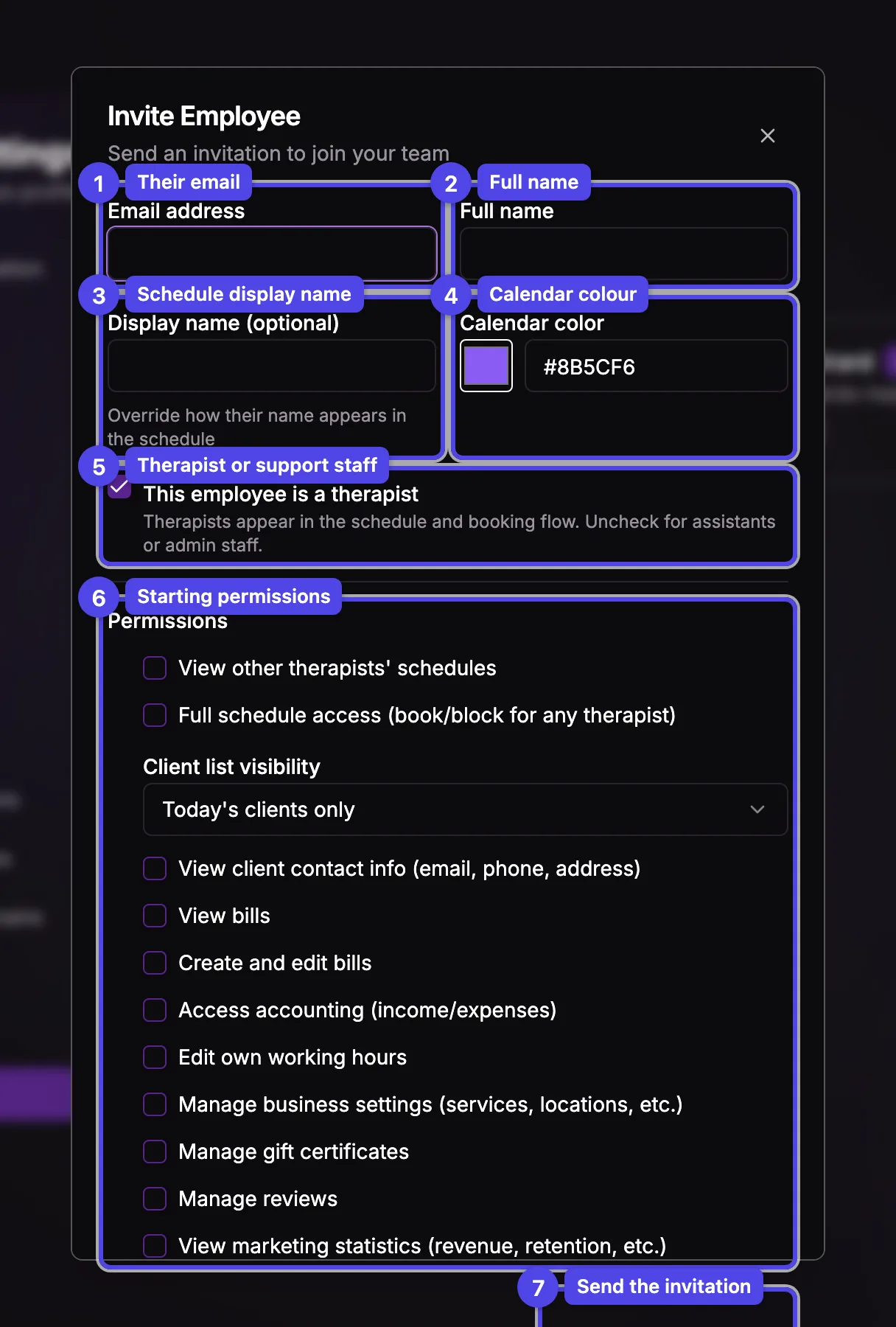
Email address
Where the invitation is sent. The person clicks the link to accept and set up their account.
Full name
Their real name, used on receipts and in their account.
Display name (optional)
Overrides how their name appears in the schedule. Leave it blank to use the full name.
Calendar colour
The colour their bookings use on the schedule. Pick from the swatch or type a hex value.
This employee is a therapist
Leave it checked for people who see clients — therapists appear in the schedule and the public booking flow. Uncheck it for assistants or admin staff, who get the dashboard but no booking presence.
Permissions
Set the starting permissions (described below). You can change them any time from the member's dialog.
Send Invitation
Sends the email and adds the person as Pending until they accept.
Each active team member uses one seat on your plan, pending invitations included. The Invite button is hidden when no seats are available, and reactivating an inactive member also needs a free seat — add seats from your subscription first.
Permissions
Permissions appear both in the invite form and on the member's General tab. Each one is independent except where a stronger permission implies a weaker one.
| Permission | What it allows |
|---|---|
| View other therapists' schedules | See colleagues' bookings (read-only). |
| Full schedule access | Book and block time for any therapist. Turning this on also turns on "view other schedules". |
| Client list visibility | How much of the client list they see: today's clients only, this week's, all of their own clients, or all business clients. |
| View client contact info | Reveal client email, phone, and address. |
| View bills / Create and edit bills | Read or manage billing. Granting "create and edit" also grants "view". |
| Access accounting | Open the income/expenses area. |
| Edit own working hours | Let the person change their own availability. |
| Manage business settings | Edit services, locations, and other settings. |
| Manage gift certificates | Issue and manage gift certificates. |
| Manage reviews | Reply to and report reviews. |
| View marketing statistics | See revenue, retention, and other marketing stats. |
The member dialog
Clicking a team-member card opens a dialog with pill tabs across the top. For an accepted therapist you'll see General, Profile, Services, Receipts, and Working Hours (Working Hours only while the member is active). Assistants (and members who haven't accepted yet) show only General.
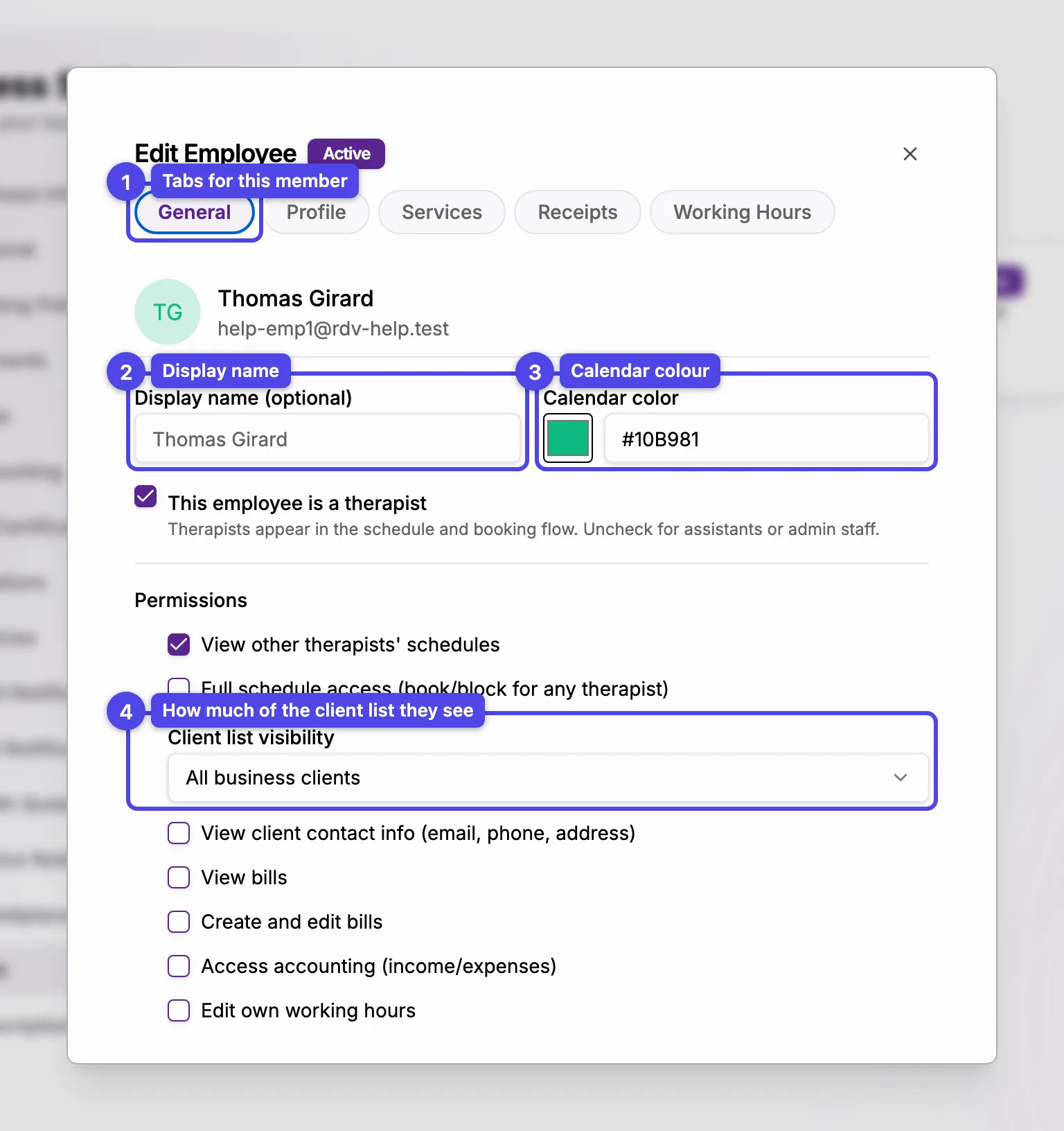
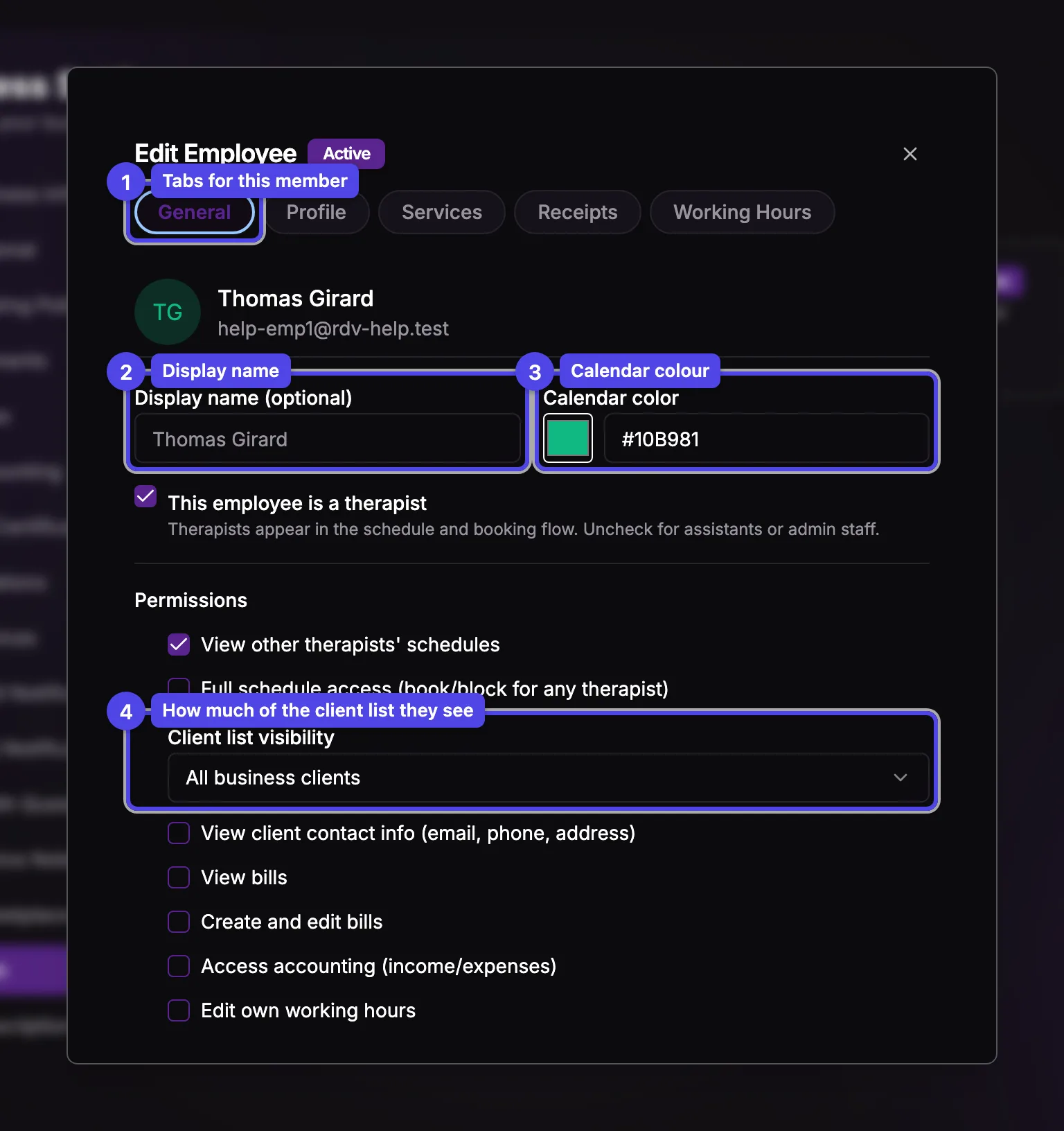
The General tab holds the same fields as the invite form — display name, calendar colour, the therapist toggle, and all permissions — plus three actions at the bottom:
Deactivate / Activate
Deactivating frees the seat and hides the person from the schedule without deleting their history. Reactivate any time.
Remove from Team
Removes the person. Their future bookings are flagged for reassignment, and their working hours end today: they're no longer offered for booking or on the waiting list.
Save Changes
Saves the General-tab edits (display name, colour, role, permissions).
Removing a team member flags their upcoming bookings for reassignment — you'll be told how many need a new therapist. Deactivating is the gentler option if you just need to free a seat.
The other tabs are covered in their own articles:
- Working hours — each person's weekly schedule and one-off date overrides.
- Profile & services — the public profile (photo, bio, languages), the services they offer, and their receipt types.
Working hours and professional profiles are managed per person from these dialogs — there's no separate working-hours page.