
Create a promo code
Set up a percentage or fixed-amount discount code, its validity window, usage limits, and scope.
Updated 2026-06-15
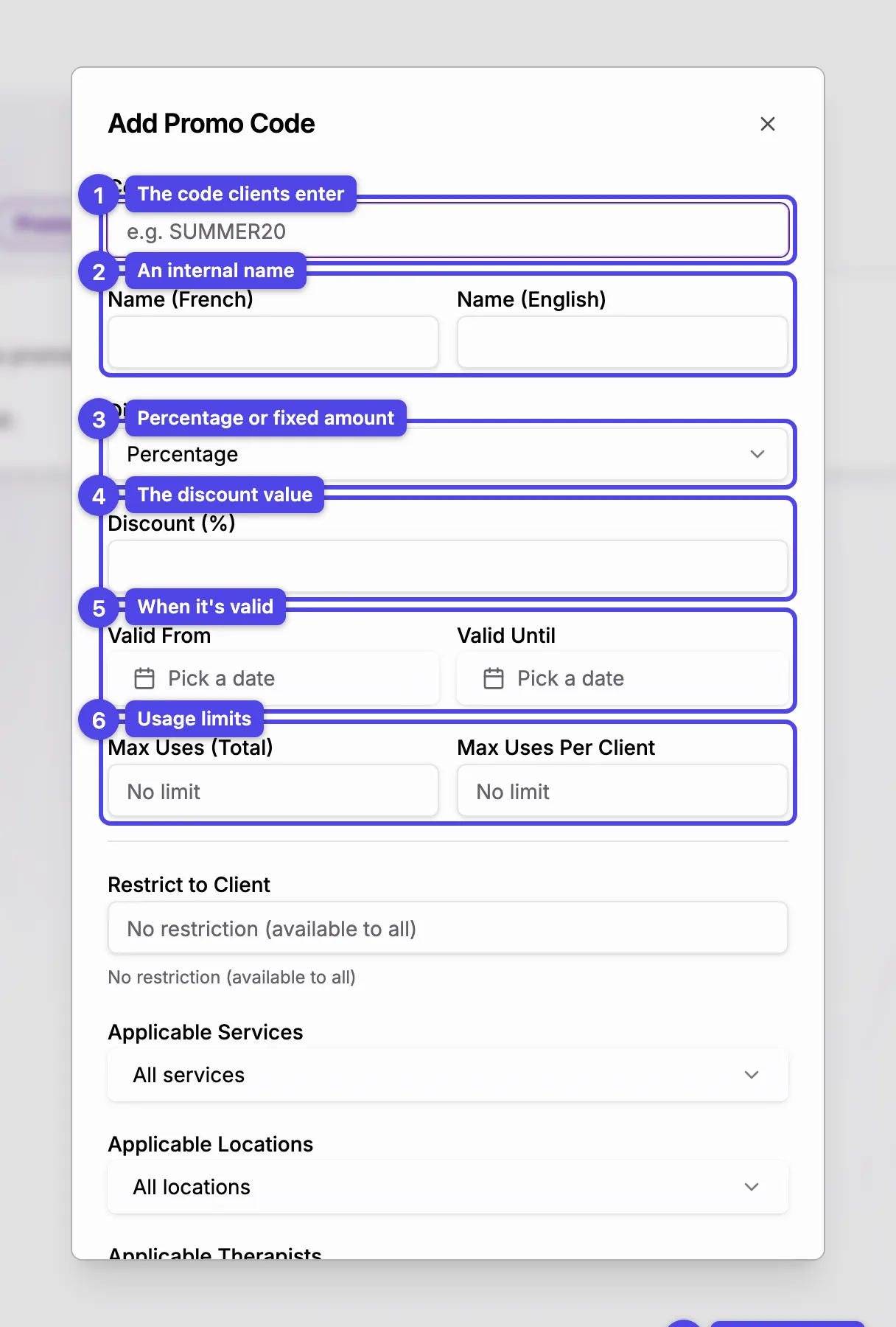
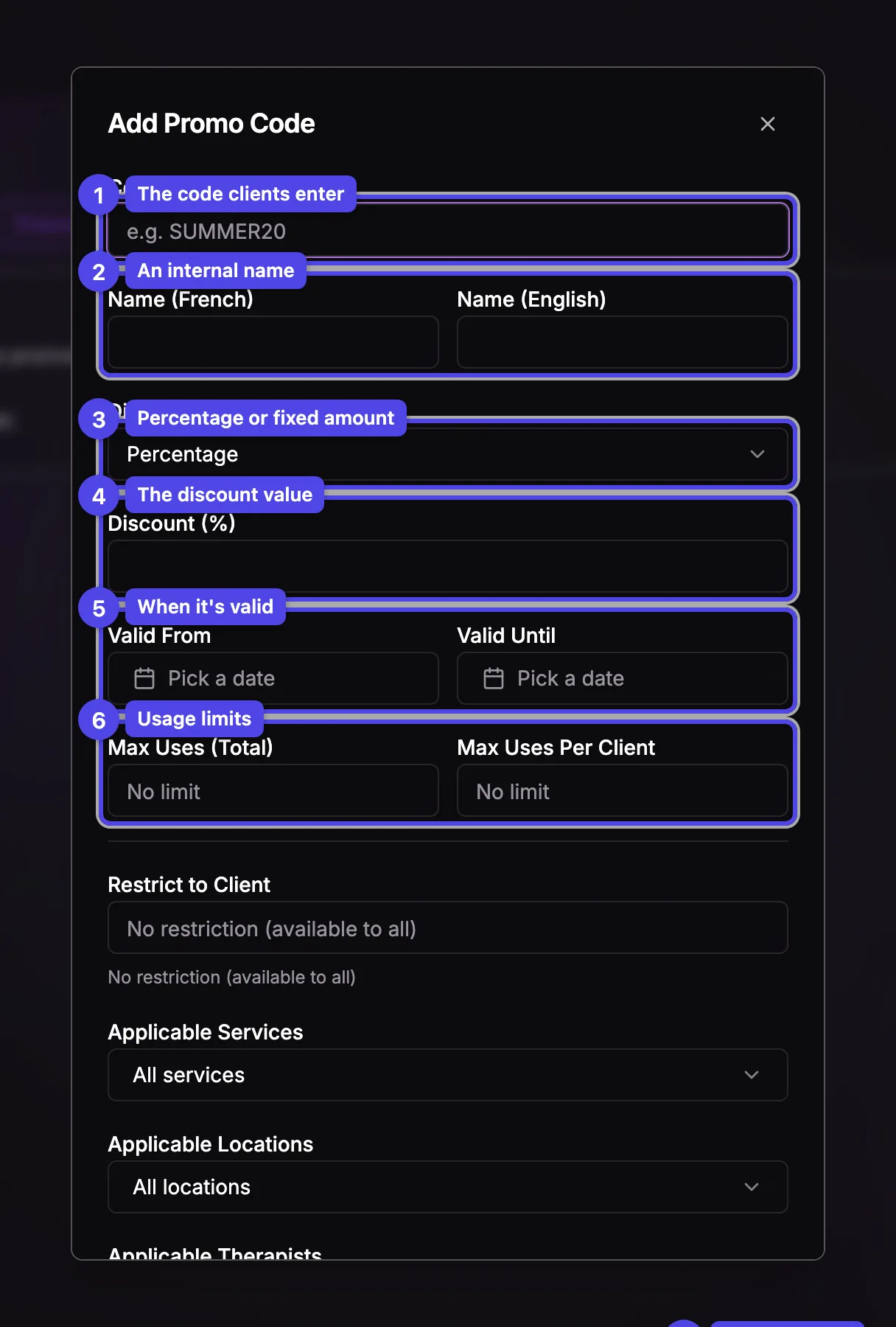
Promo codes give clients a discount at checkout. Open the Promo codes tab in Marketing and click the + button (Add Promo Code) to open the create dialog.
Code
What clients type to redeem it — for example SUMMER20. It's automatically
upper-cased and can't be changed once the code is saved.
Name
An internal label so you recognize the code in the list (shown in French and English when your business supports both).
Discount Type
Percentage takes a share off the total; Fixed Amount takes a set dollar amount off.
Discount value
For a percentage, enter Discount (%). For a fixed amount, enter the Discount Amount ($).
Valid From / Valid Until
The window the code works in. Outside it, the code shows as future or expired and won't apply.
Max Uses (Total) / Max Uses Per Client
Optional caps. Leave either blank for No limit.
Scope (optional)
Below the limits you can narrow where the code applies:
Restrict to Client
Tie the code to one specific client, or leave it as No restriction (available to all).
Applicable Services
Limit the code to chosen services, or leave it on All services.
Applicable Locations / Applicable Therapists
When you have more than one location or therapist, you can also restrict the code to specific ones; otherwise these pickers are hidden.
Press Save to create the code. It appears in the list with a status badge and a usage counter.
A Fixed Amount code carries a balance: once a client's discount uses it up, the code stops applying. A Percentage code has no balance — only its usage caps and validity window limit it.