
Income & expenses
Record income and expenses by hand or from a CSV — every field, category, and import step.
Updated 2026-06-14
The Income and Expenses tabs capture money that flows outside your bills — cash, tips, sales, and everything you buy for the business. Both can be typed in one at a time or imported in bulk from a CSV.
Income tab
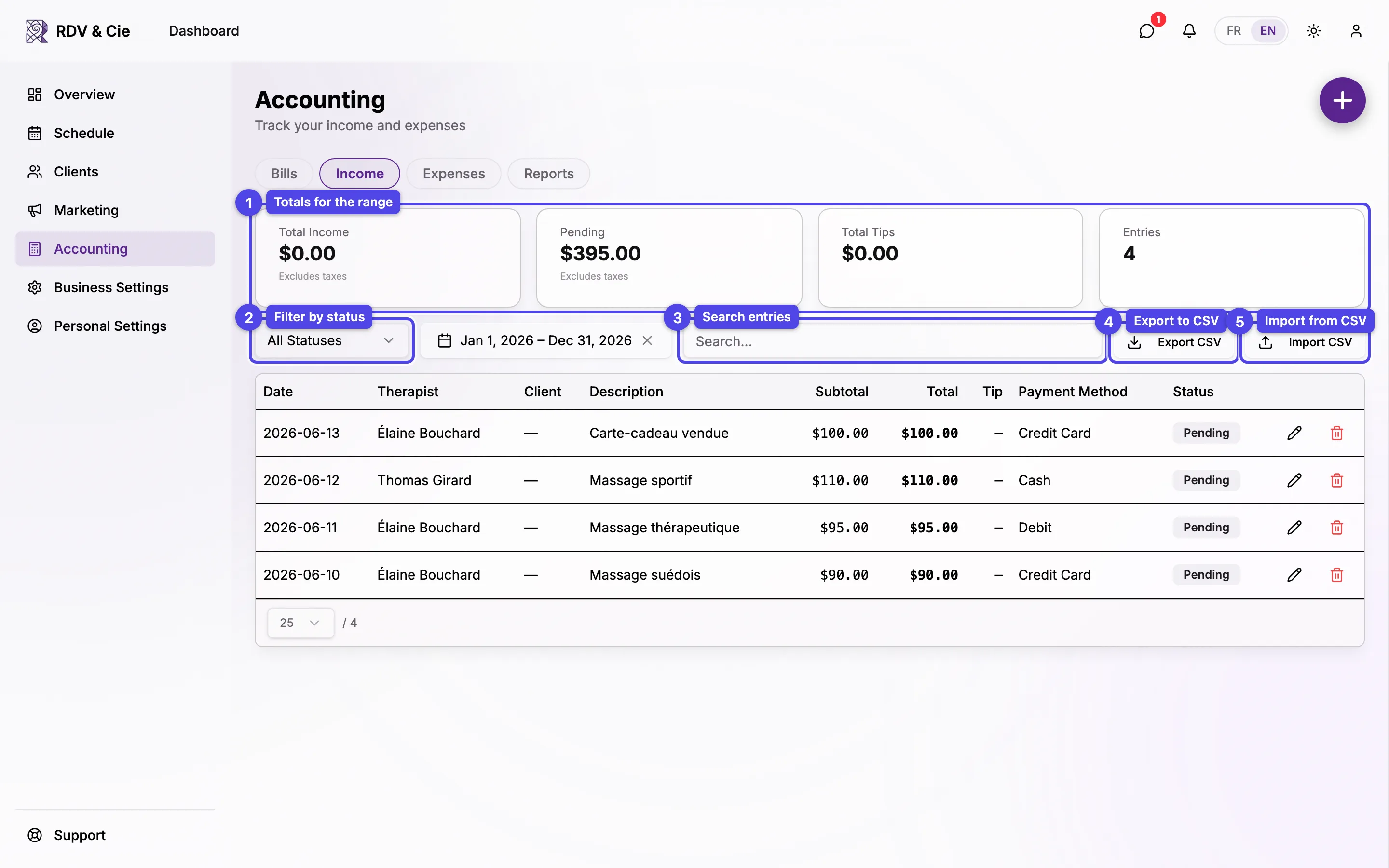
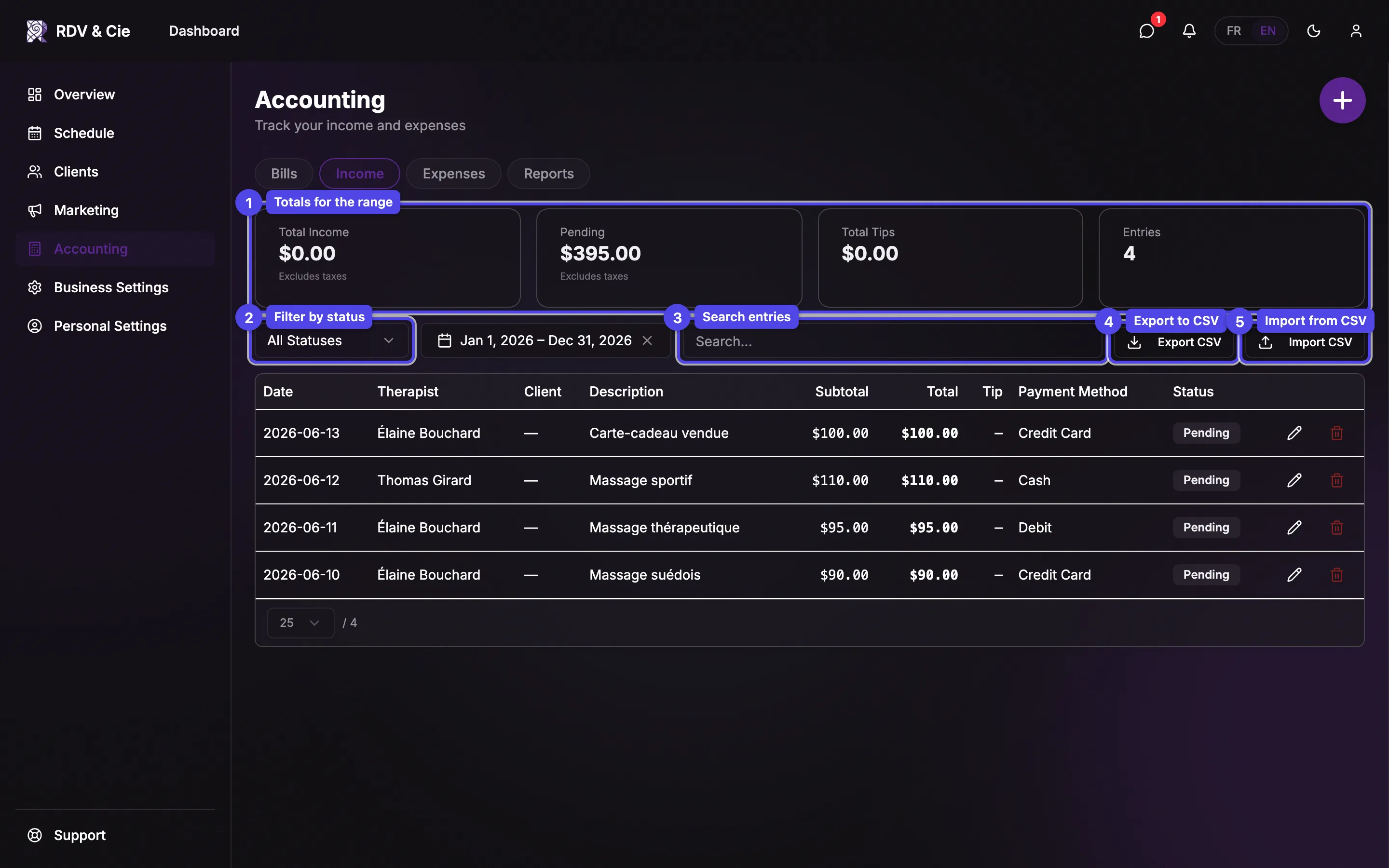
Top of the tab
Summary cards
Total income, Pending, Total tips, and the entries count — computed across the whole filtered range, not just the page you're on. The Total income and Pending amounts are shown before taxes (the tax you collected is excluded); the per-entry Total column in the table below still includes taxes.
Status filter
Show All, Pending, or Paid entries.
Date range
Defaults to the current year and respects your fiscal-year start.
Search
Filters by description, client, or service.
Export CSV
Downloads the current view as a spreadsheet (tax columns included).
Import CSV
Opens the import wizard — owners only.
The entries table
Columns: Date, Therapist, Client, Description, Subtotal, a column per tax (GST/TPS, QST/TVQ), optional Delivery fee and Discount (shown only when used), Total, Tip, Payment method, and Status. Entries that came from a bill link back to that bill's PDF and can't be edited here — edit the bill instead. Each manual row has edit (pencil) and delete (trash) buttons.
Record income by hand
Press the + button to open the income form.
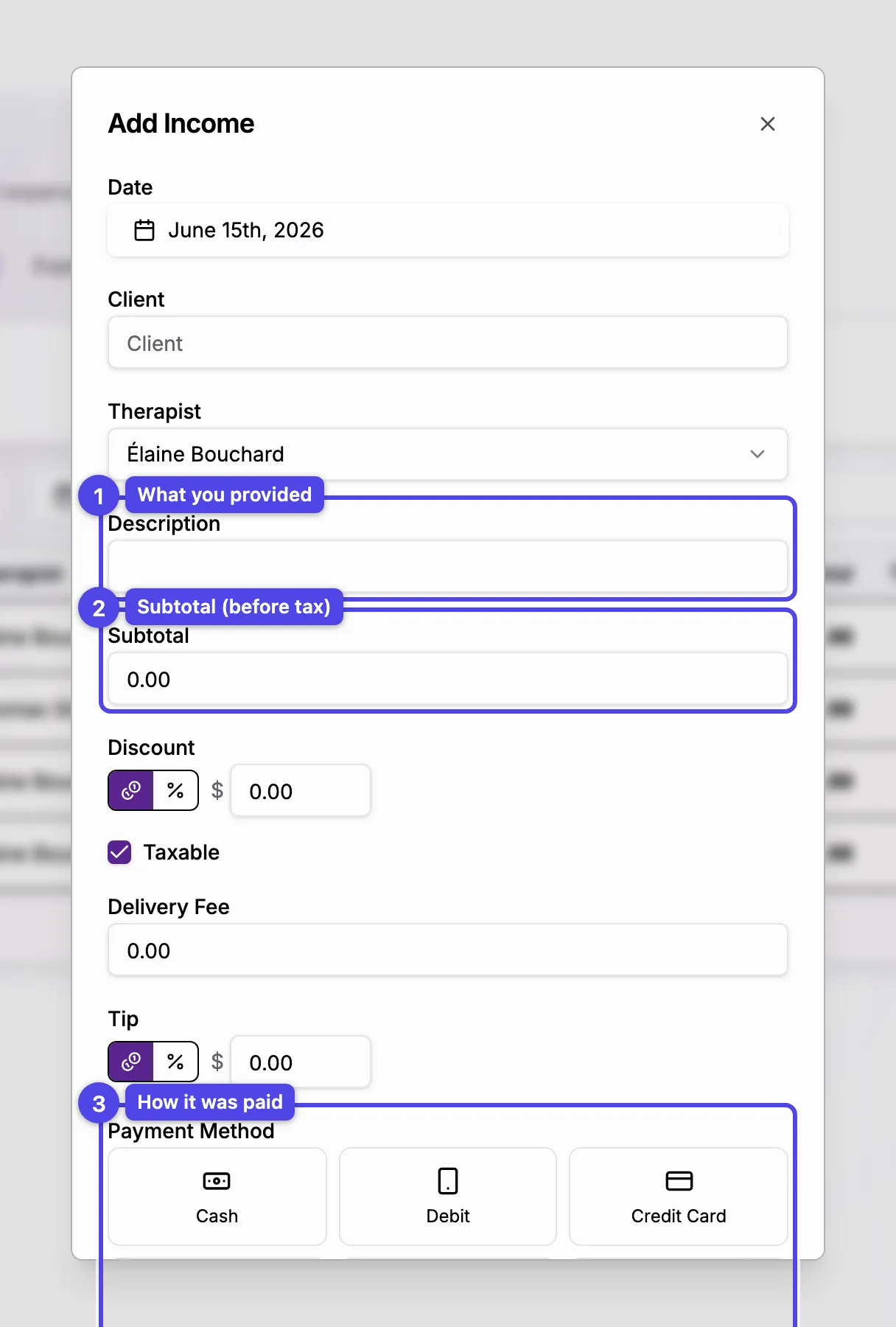
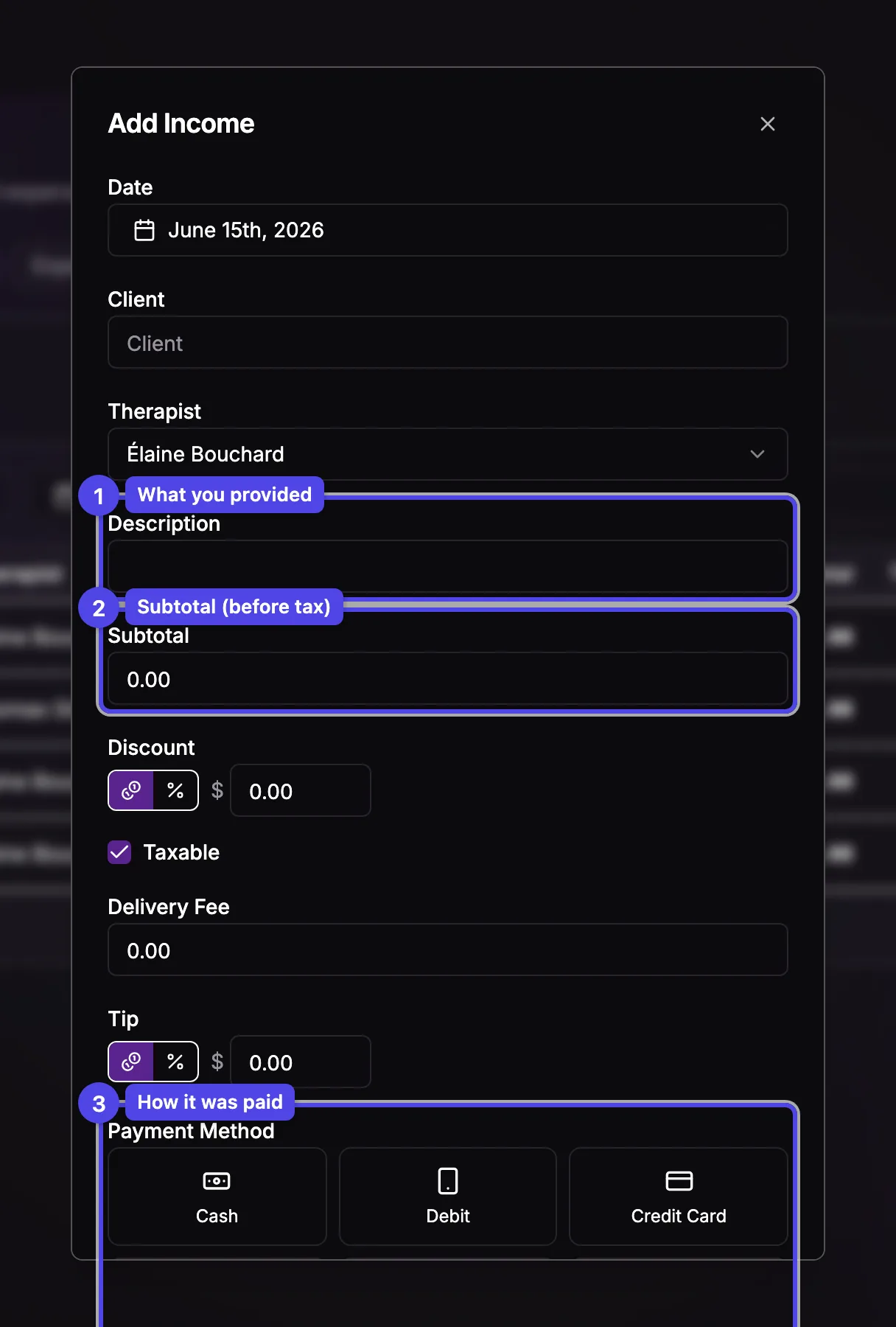
Date, Client, Therapist
When it happened, who it was for (optional), and who delivered it.
Description
What you provided — required.
Subtotal & Discount
The amount before tax, and an optional discount (a dollar amount or a % of the subtotal).
Taxable
When checked, GST/QST are added using your tax rates; uncheck for tax-exempt income.
Delivery fee & Tip
Optional extras. The tip is tracked separately so it stays out of your taxable income.
Payment method & Status
How it was paid, and whether it's Paid or still Pending.
Live total
The bottom panel recomputes the subtotal, discount, each tax line, delivery fee, total, and tip as you type.
Import income from a CSV
The import wizard (owners only) walks through five steps. The Therapists step only appears when your file has a therapist column to map.
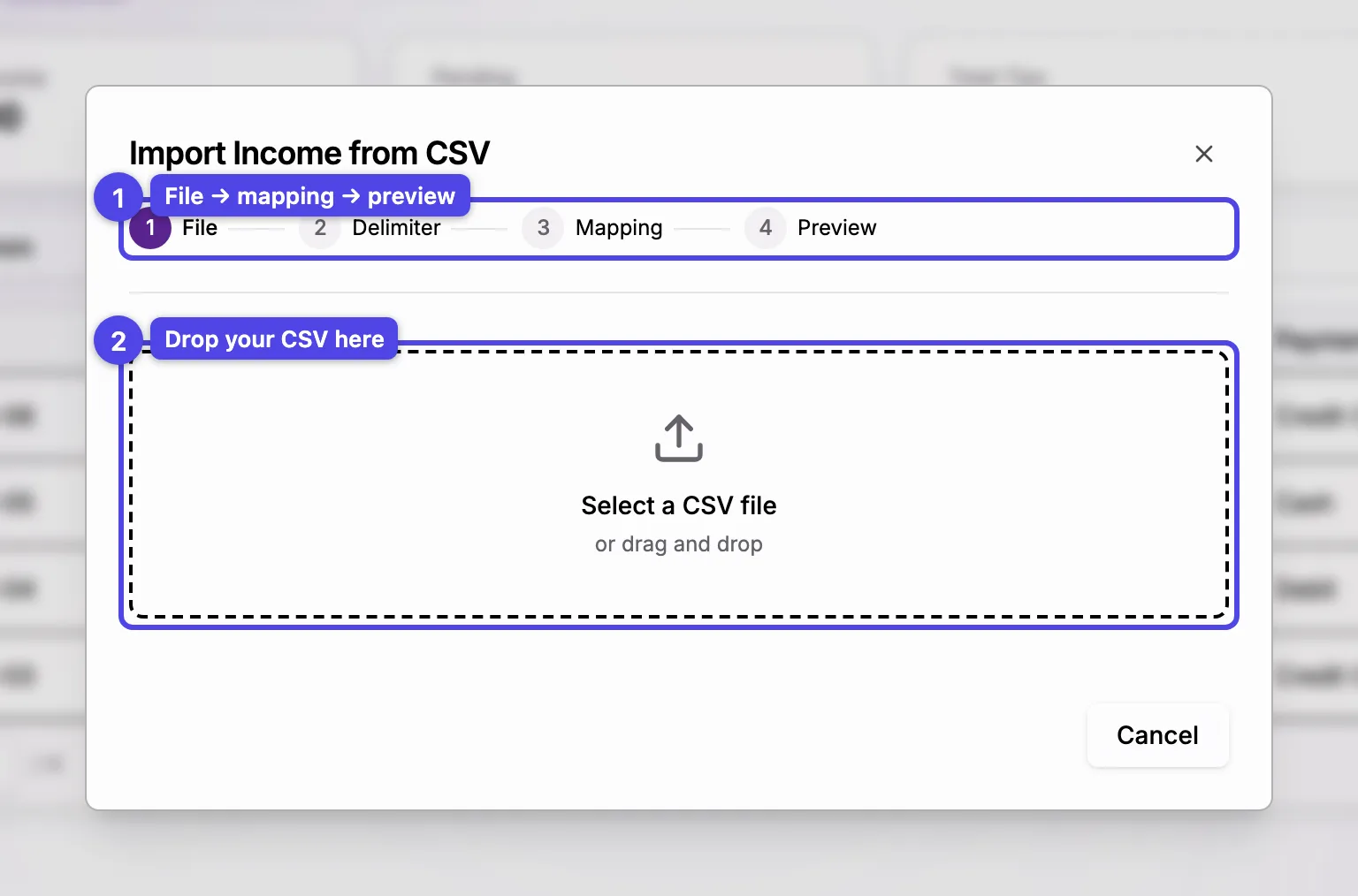
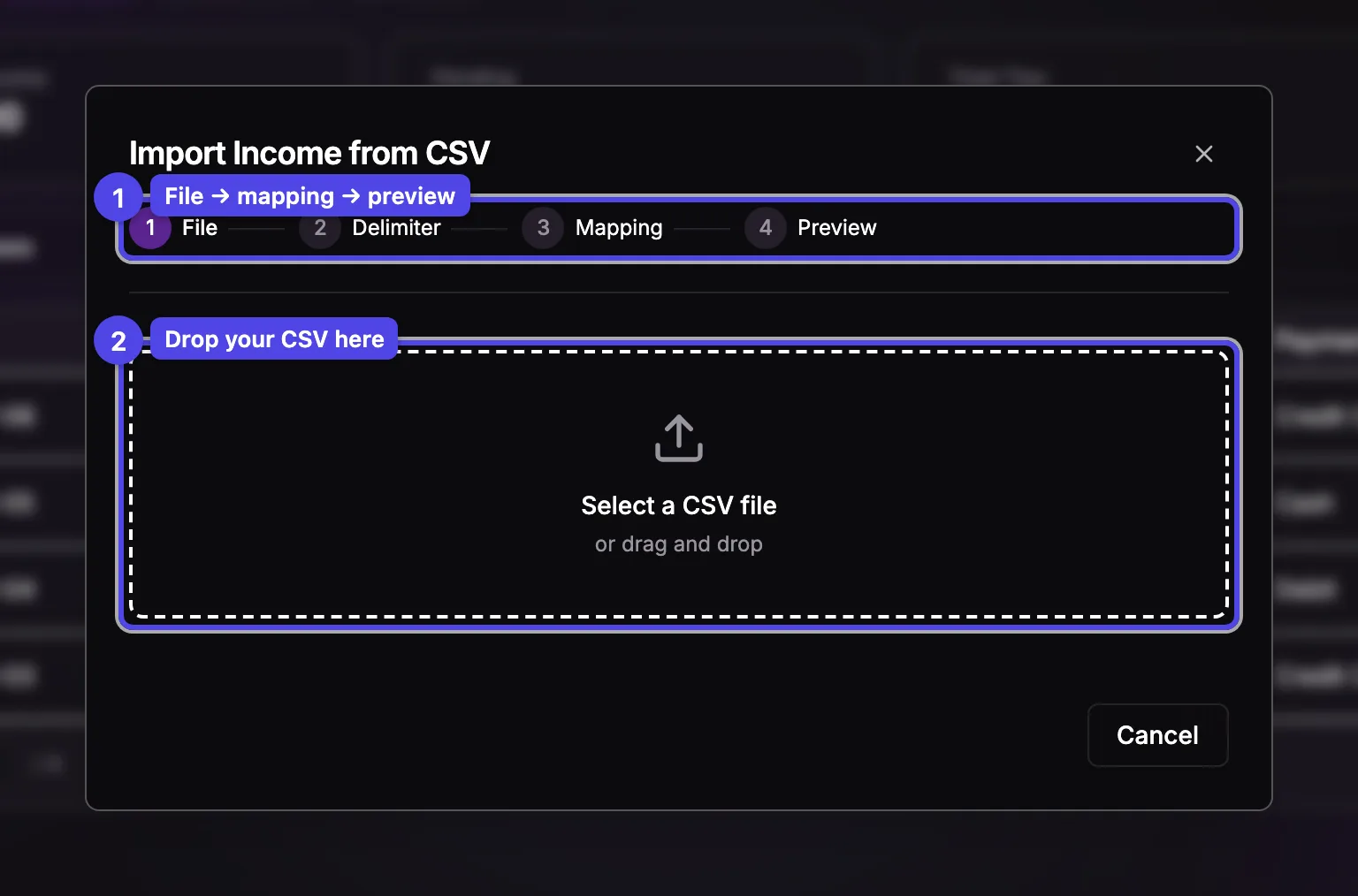
File
Drag in or pick a .csv, .tsv, or .txt file.
Delimiter
The separator is auto-detected; override it (comma, semicolon, tab, pipe) and preview the first rows.
Mapping
Match each CSV column to a field (Date, Description, Amount, GST, QST, Total, Tip, Client, and so on). Date, Description, and Amount-or-Total are required.
Therapists
Match each therapist name in the file to a team member, or choose Don't assign.
Preview
See how many rows will import and which are invalid (with the reason), page through them, then import.
Money and dates are parsed safely: French amounts like 100,50 read as $100.50,
and two-digit years are resolved consistently across the whole column. Imported
client names are kept as plain text until you link a real client.
Expenses tab
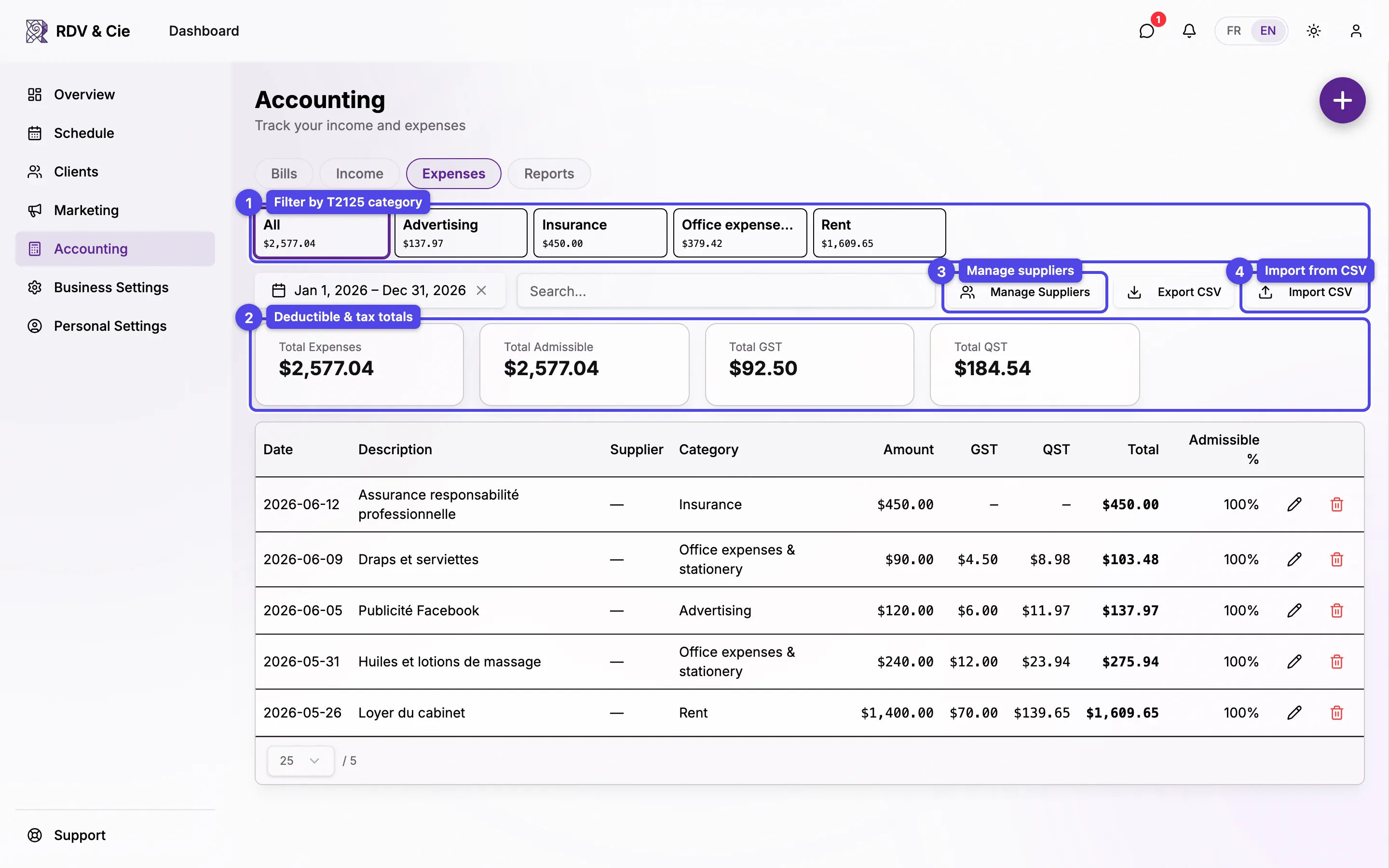
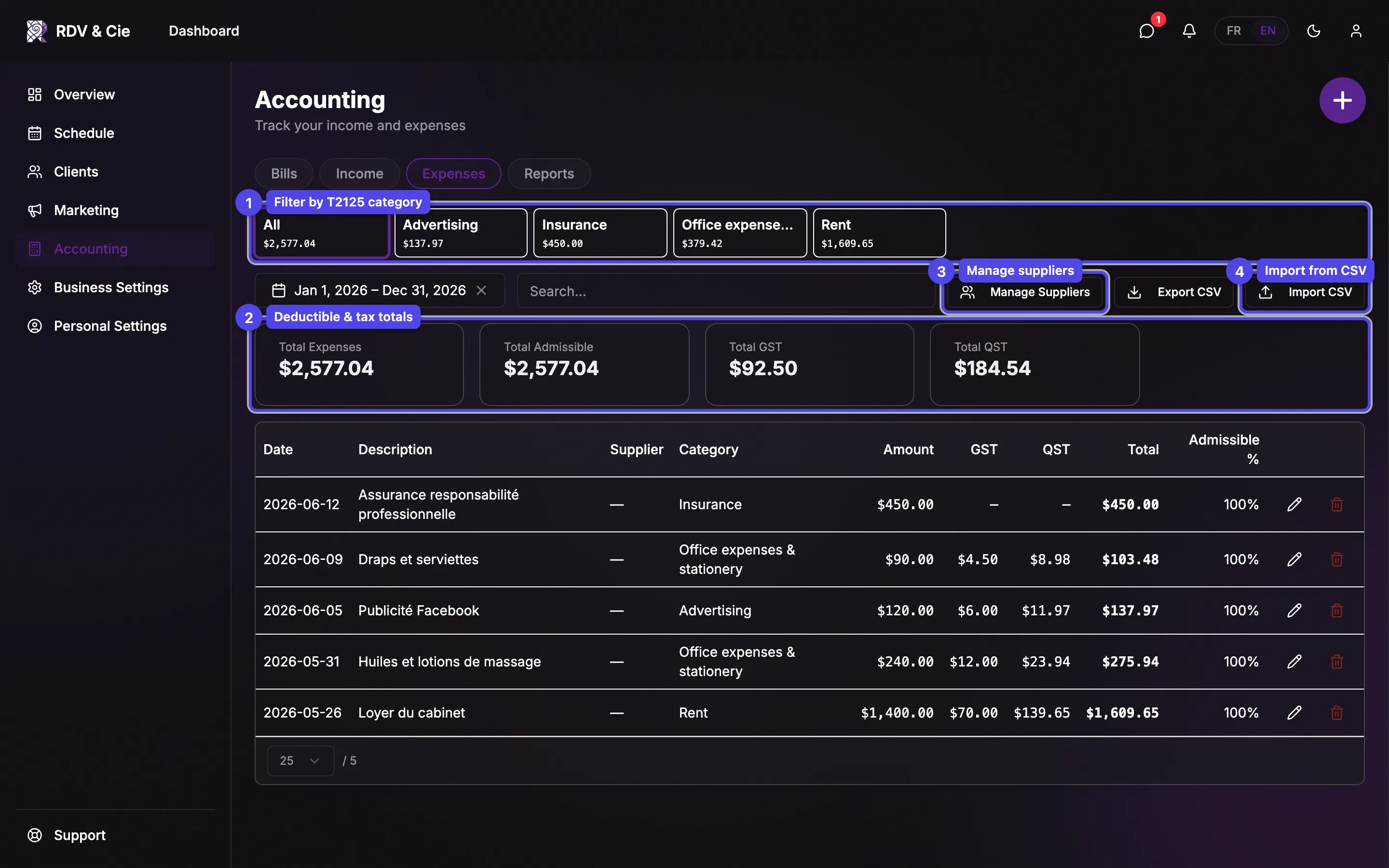
Category tiles & summary
A tile appears for each T2125 category that has entries, plus an All tile, each showing its running total — click one to filter. The summary cards show Total expenses, Total deductible, Total GST, Total QST, and Personal (when present). The table lists Date, Description, Supplier, Category, Amount, GST, QST, Total, and the Admissible %. Rows with a receipt show a paperclip to view it.
Record an expense
Press + to open the expense form.
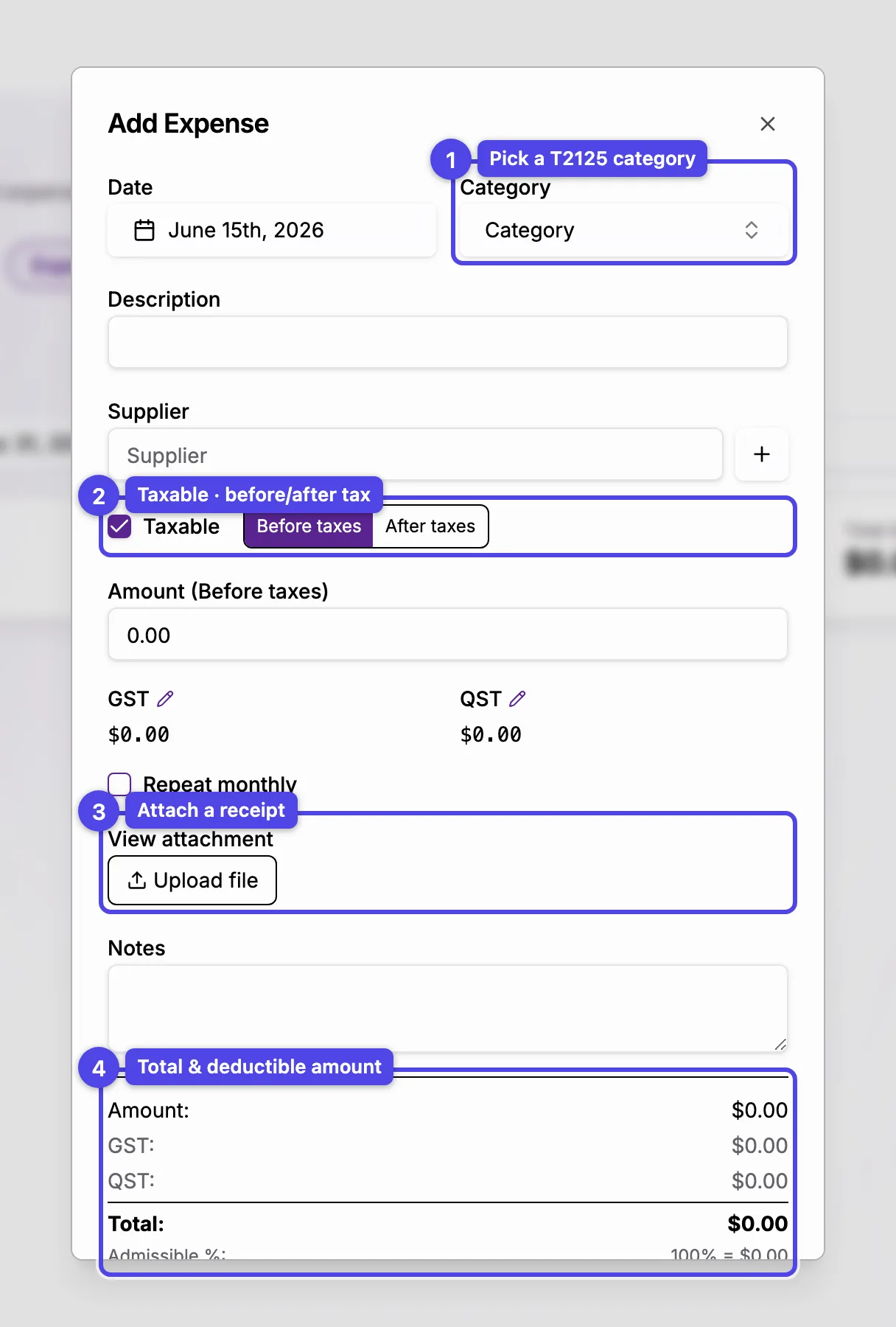
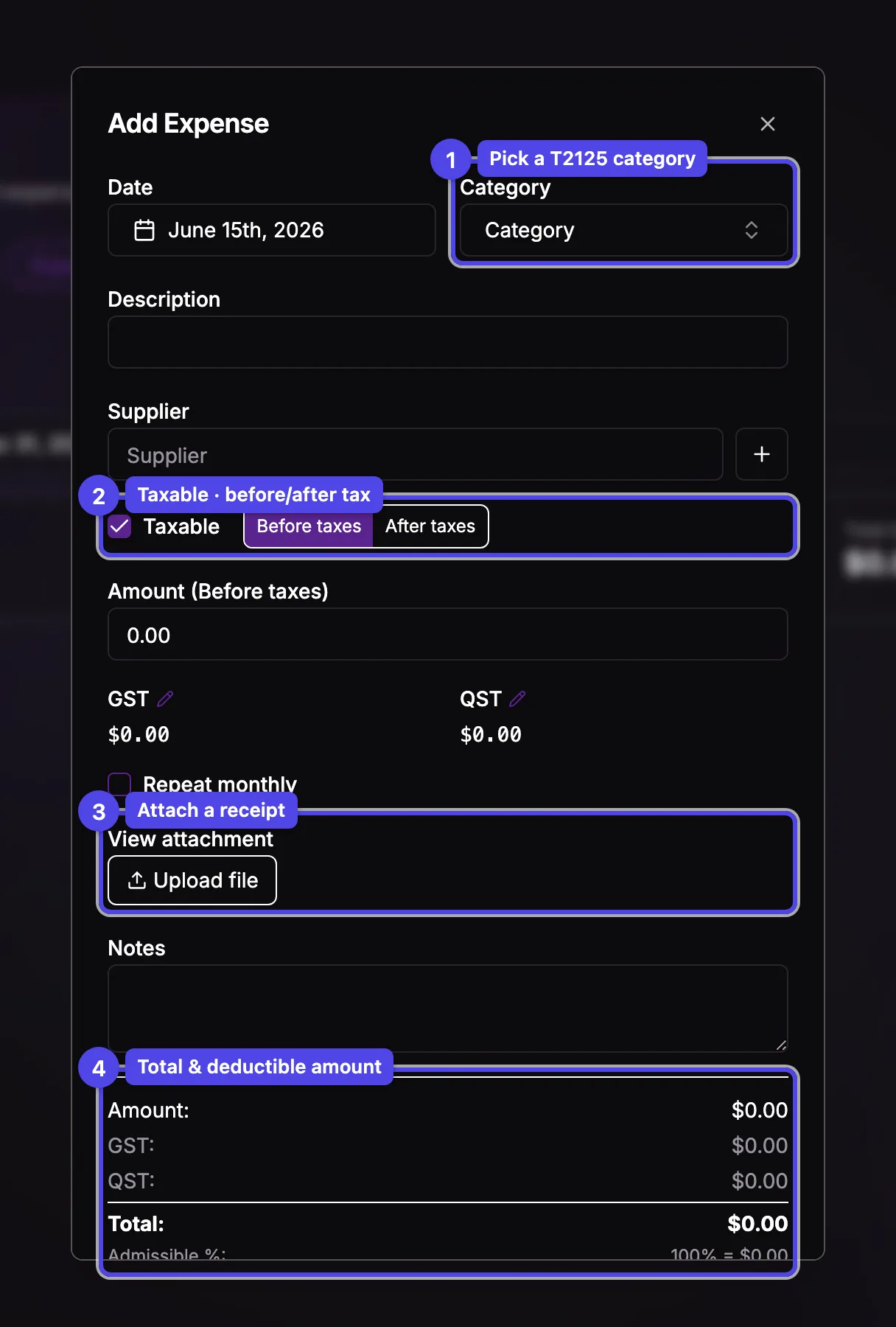
Date & Category
The Category picker groups every T2125 line into Business, Home office, Motor vehicle, and Personal. Picking one shows its description, examples, and default deductible percentage.
Description & Supplier
What you bought and from whom. You can create a supplier on the spot, with its GST/QST numbers.
Taxable, before/after tax
Toggle Taxable, then choose whether you're entering the amount before or after taxes. GST and QST are computed for you and can be edited by hand if a receipt differs.
Admissible %
For business categories you can override the deductible percentage; home- office and motor-vehicle lines use your business-use percentages from settings.
Repeat monthly
On a new expense, repeat it every month through a chosen month — useful for rent, insurance, or subscriptions.
Receipt
Attach a PDF or image, or snap a photo on mobile. The summary shows the total and the deductible amount.
Manage suppliers
The Manage suppliers button opens a searchable list where you add, edit, or archive suppliers and store their GST/QST numbers. Archived suppliers stay on past expenses but no longer appear in the picker.
Import expenses from a CSV
Expense import works just like income import, with a Categories step in place of Therapists: match each CSV category to a T2125 category. New suppliers named in the file are created automatically, and the preview reports how many.
Deleting an income or expense entry is permanent. Entries linked to a bill can't be deleted from here — manage them through the bill.