
Email Notifications
Set up the automated emails your business sends — booking confirmations, reminders, follow-ups, and more.
Updated 2026-09-30
The Email Notifications tab controls every automated email your business sends. Open it from Business Settings → Email. Each email is driven by a rule you can edit — its subject, body, and (for the scheduled ones) when it goes out and whether it's active.
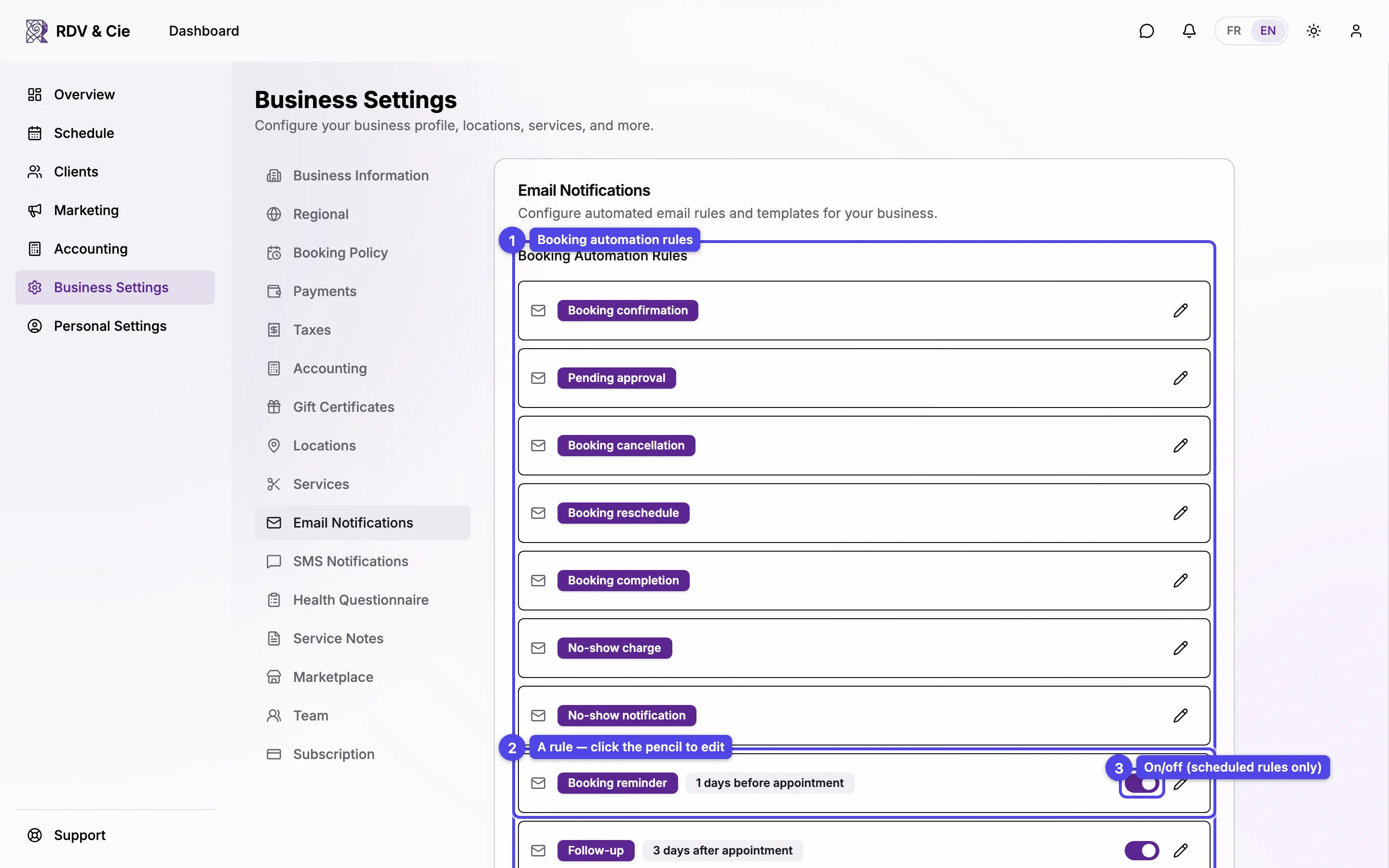
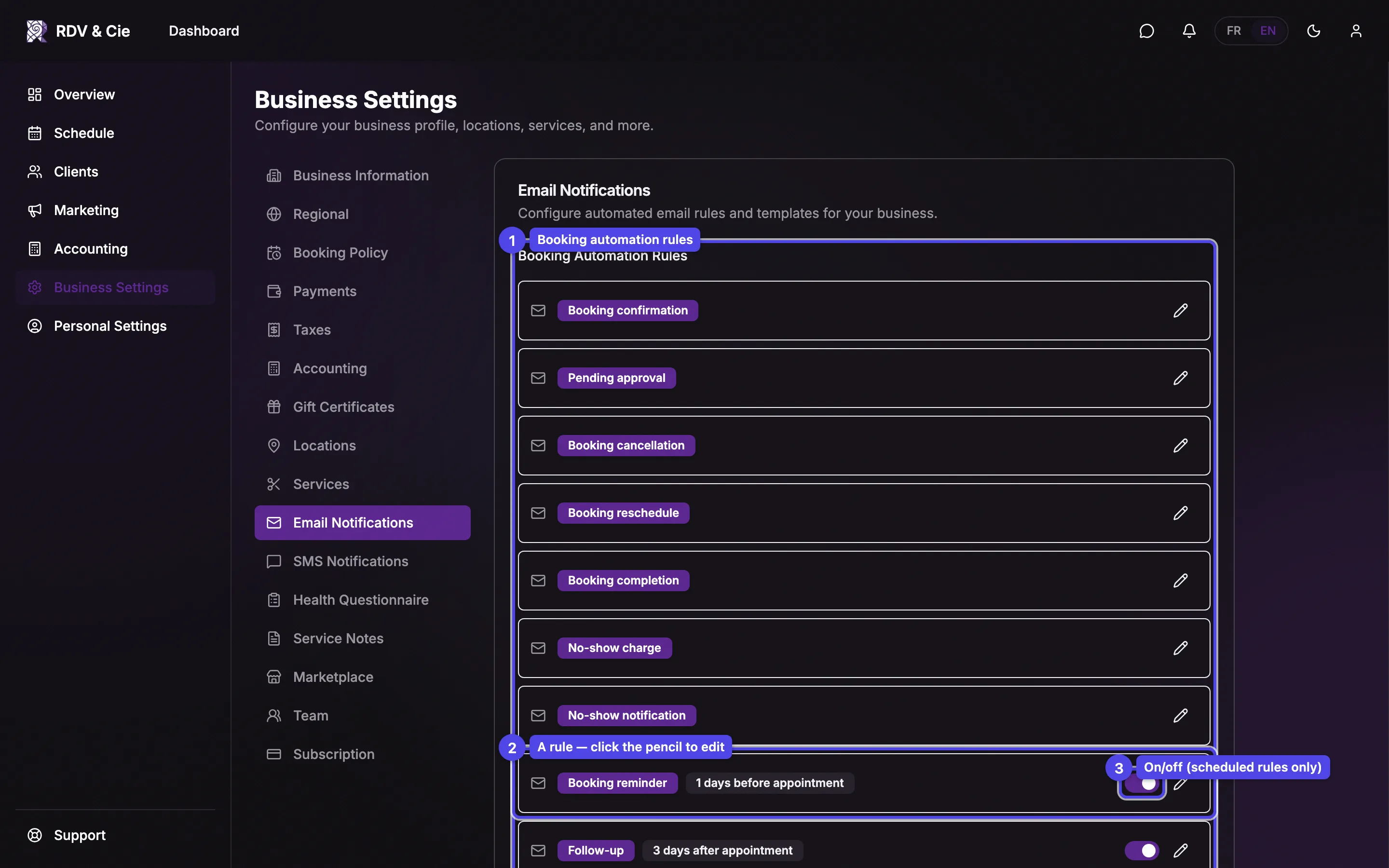
Two lists
The tab is split into two sections.
- Booking Automation Rules — the emails tied to a booking's lifecycle: Booking confirmation, Pending approval, Booking cancellation, Booking reschedule, Booking completion, No-show charge, No-show notification, Booking reminder, Follow-up, and Rebooking reminder.
- Email Templates — other emails your business sends (account setup, bills and quotes, health questionnaire, waiting list, gift certificates). You can customize their subject and body the same way.
Each row shows the email's name, its timing (for scheduled rules), and an inactive badge when it's turned off.
The rules are created automatically the first time you open the tab. If a row shows only a pencil, click it to start from the default template — saving creates your own editable copy.
Which rules can be turned off
Only the three scheduled rules have an on/off toggle: Booking reminder, Follow-up, and Rebooking reminder. Every other automation email is always active — turning a confirmation or cancellation email off would leave clients in the dark, so those have no toggle.
Editing a rule
Click the pencil on any rule to open the editor.
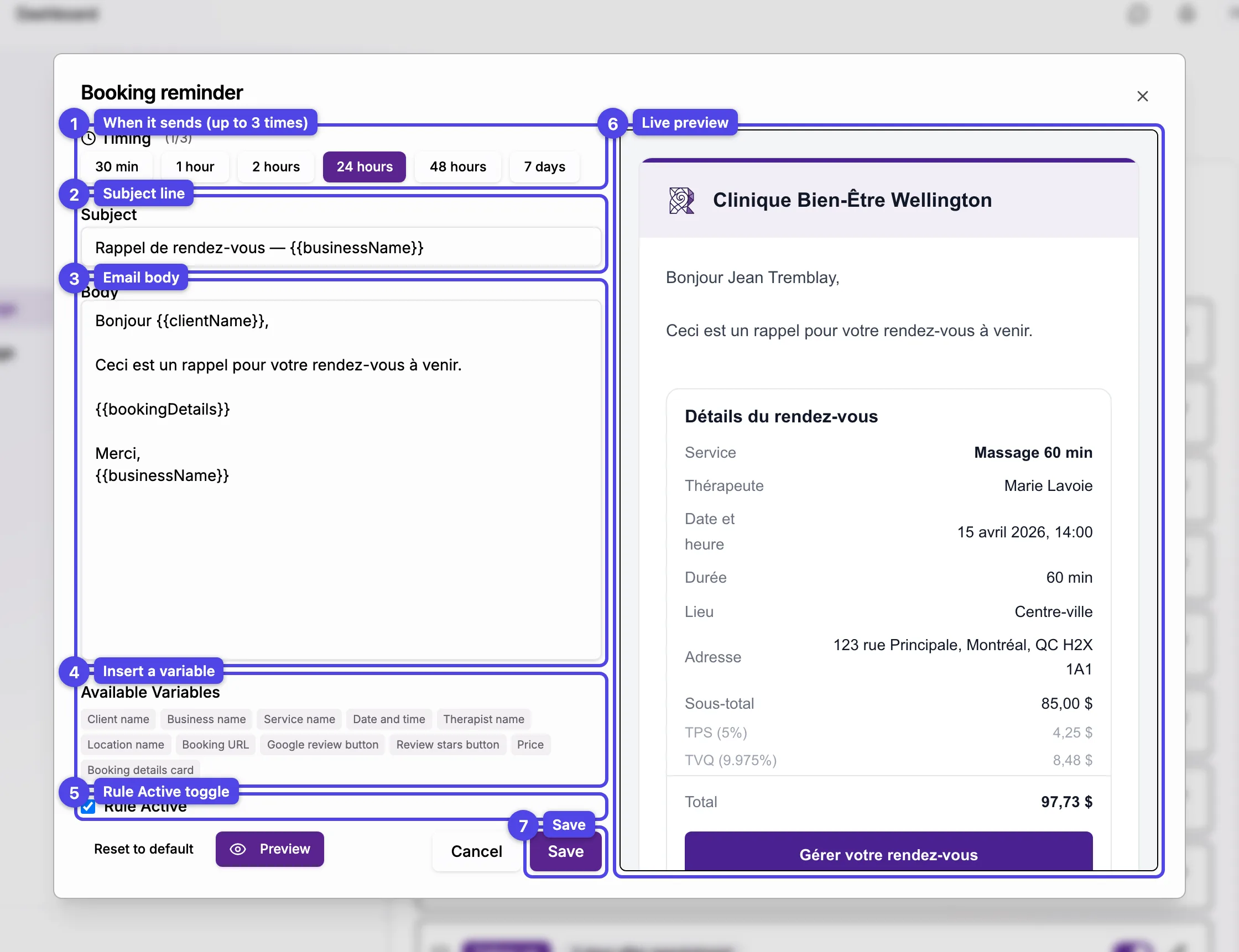
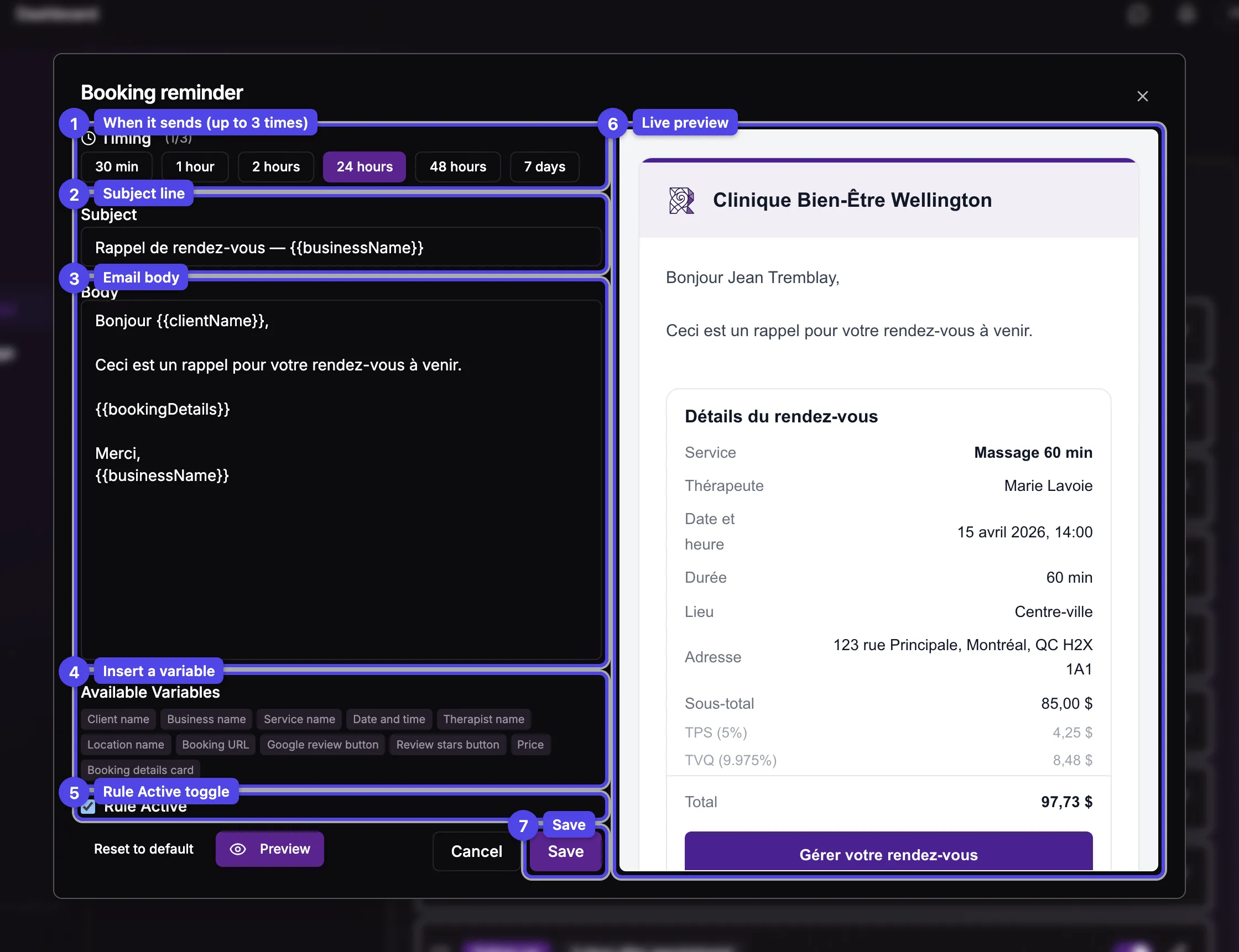
Timing
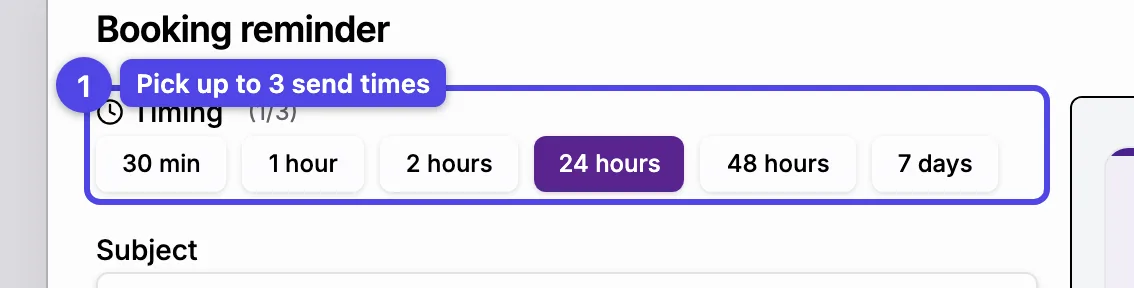
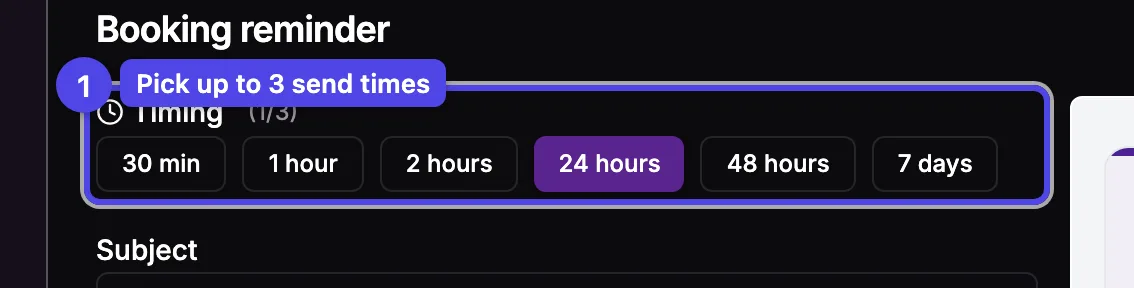
For the three scheduled rules, pick when the email sends. Booking reminder lets you choose up to 3 send times (for example 48 hours, 24 hours, and 2 hours before) that all share the same subject and body. Follow-up and Rebooking reminder take a single timing. The other automation emails send immediately on their event and have no timing control.
Subject
The email's subject line.
Body
The full message. You can use the variables below anywhere in the subject or body.
Available Variables
Click a variable chip to drop a placeholder (like the client's name or the appointment date) into the field you last clicked. It's filled in with the real value when the email is sent.
Rule Active
Shown only for the three scheduled rules — uncheck it to stop the email from sending without losing your edited text. Unchecking it also cancels the emails of that rule already scheduled for upcoming appointments; checking Booking reminder again schedules its reminders for upcoming appointments.
Reset to default / Preview
Reset to default puts the platform's standard subject and body back. Preview opens a live render of the email on the right; it updates as you type.
Save
Click Save to apply your changes. Cancel discards them.
The timing picker
For Booking reminder, the timing buttons toggle on and off — pick the moments you want (the counter shows how many of the 3 slots are used). At least one must stay selected.
The Follow-up email is sent only after a client's first completed booking — repeat clients won't receive it.