
Chat overview
Message clients in real time from one inbox — read their messages, reply with text or photos, and see when they've read yours.
Updated 2026-09-30
Chat is your message inbox. Clients can reach you from your page or their booking, and every conversation lands here in real time — new messages appear without a refresh. Open a conversation to read the thread and reply.
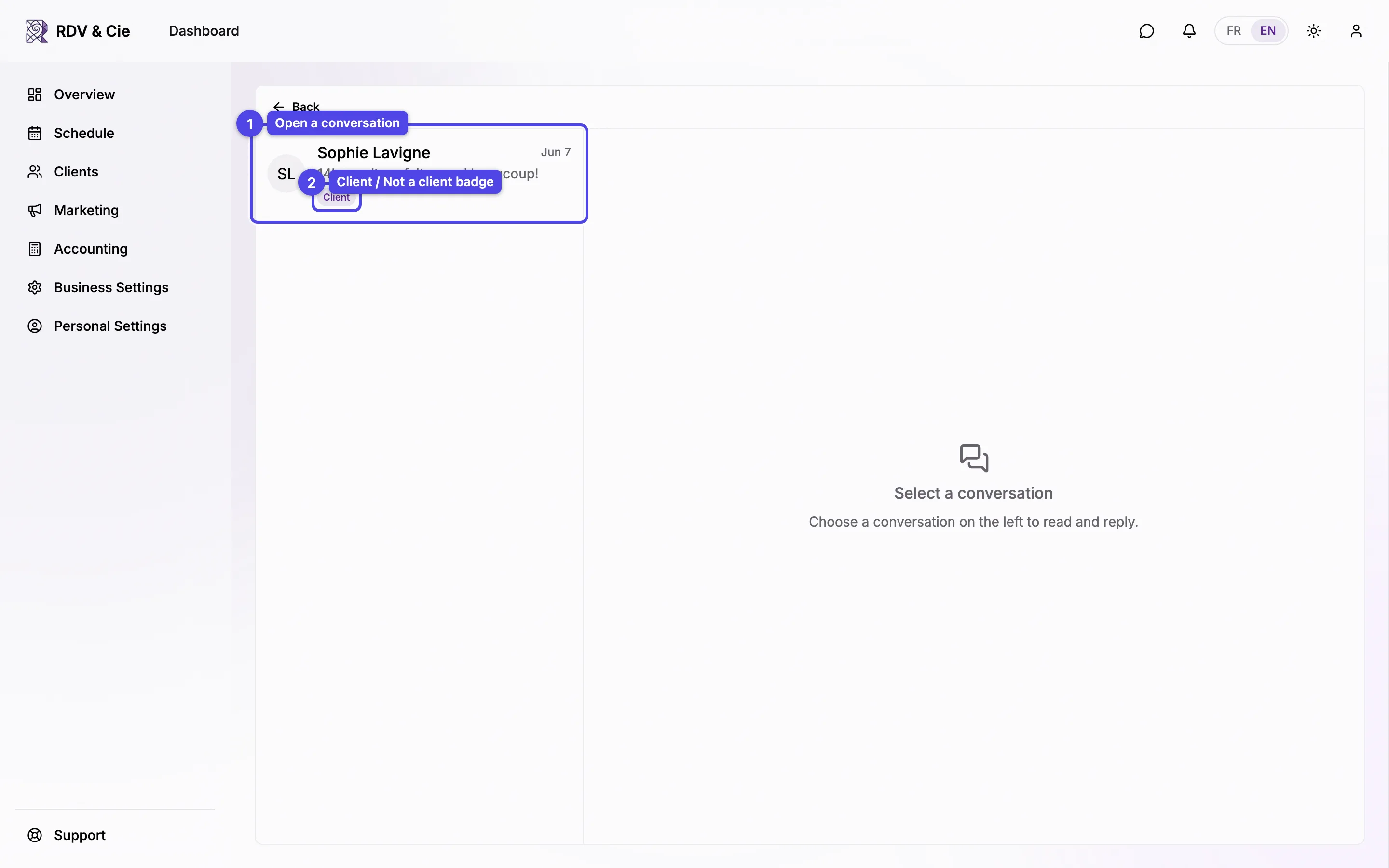
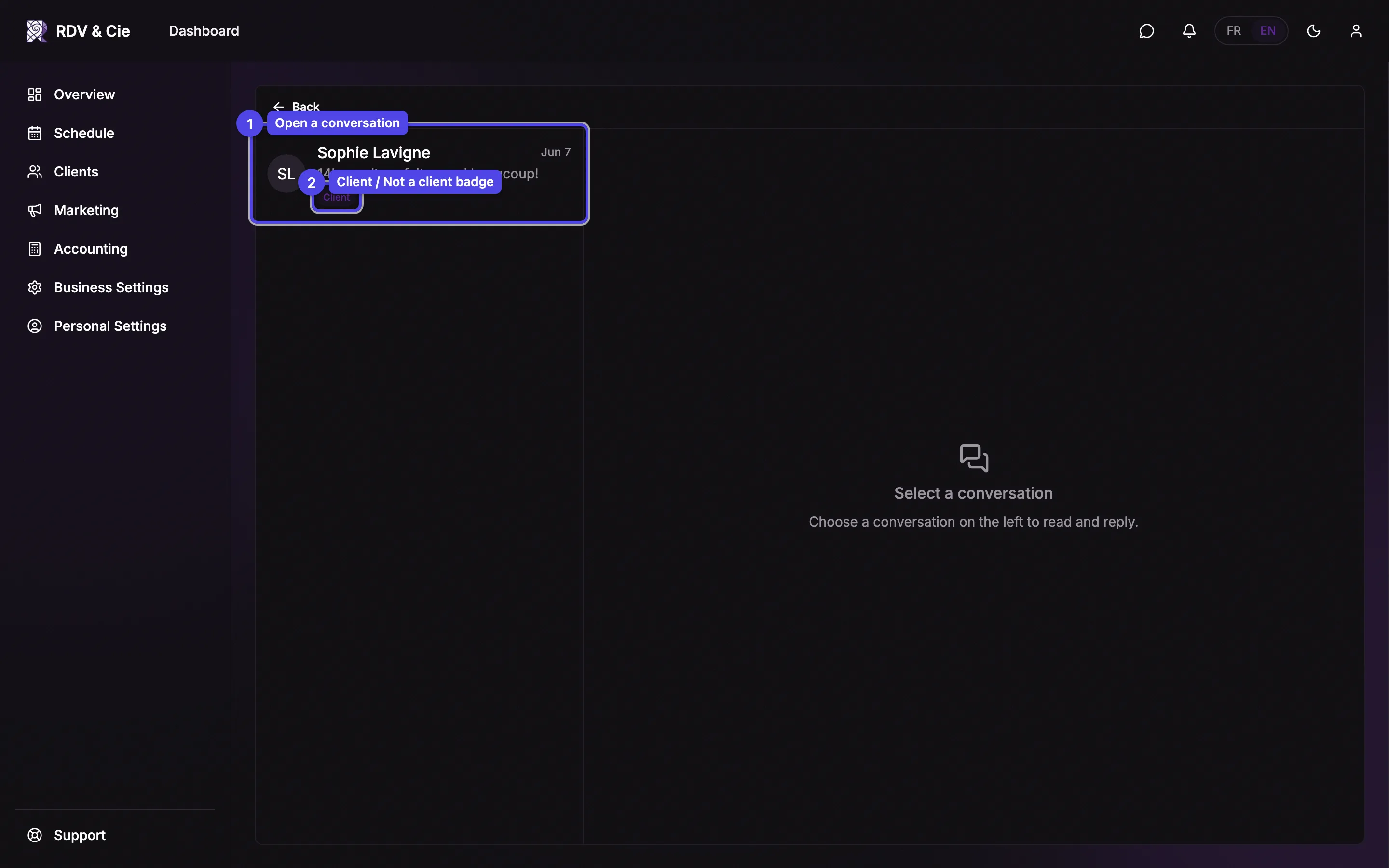
The inbox
Conversations are listed newest-first on the left. Each row shows the contact's name, the last message (or 📷 Photo for an image), the time, and an unread dot when there's something new. Older conversations load with Load more conversations at the bottom of the list.
Open a conversation
Click a row to open the thread. On a phone the thread fills the screen; tap Back to return to the list.
Client / Not a client badge
A small badge tells you who you're talking to: Client — they're in your client list · Not a client — they have an account but aren't a client of yours · No account — added by you without an account · Guest — someone who messaged you without signing up.
The inbox stays live. A new message bumps the conversation to the top and shows an unread dot, and the chat icon in the top bar keeps its own unread count.
A conversation thread
Opening a conversation shows the full message history, with day separators and, for a booking conversation, the service and appointment time under the name.
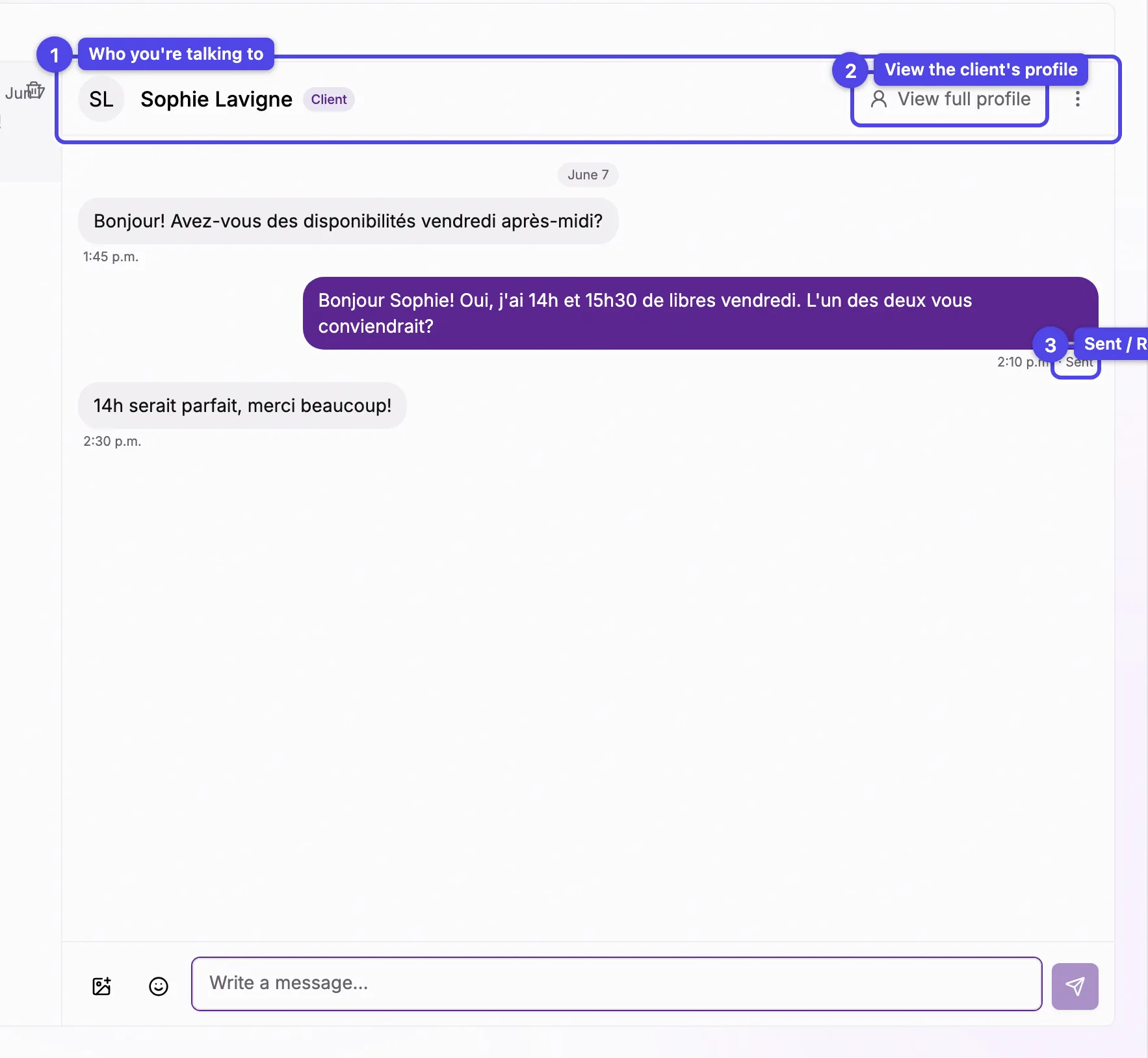
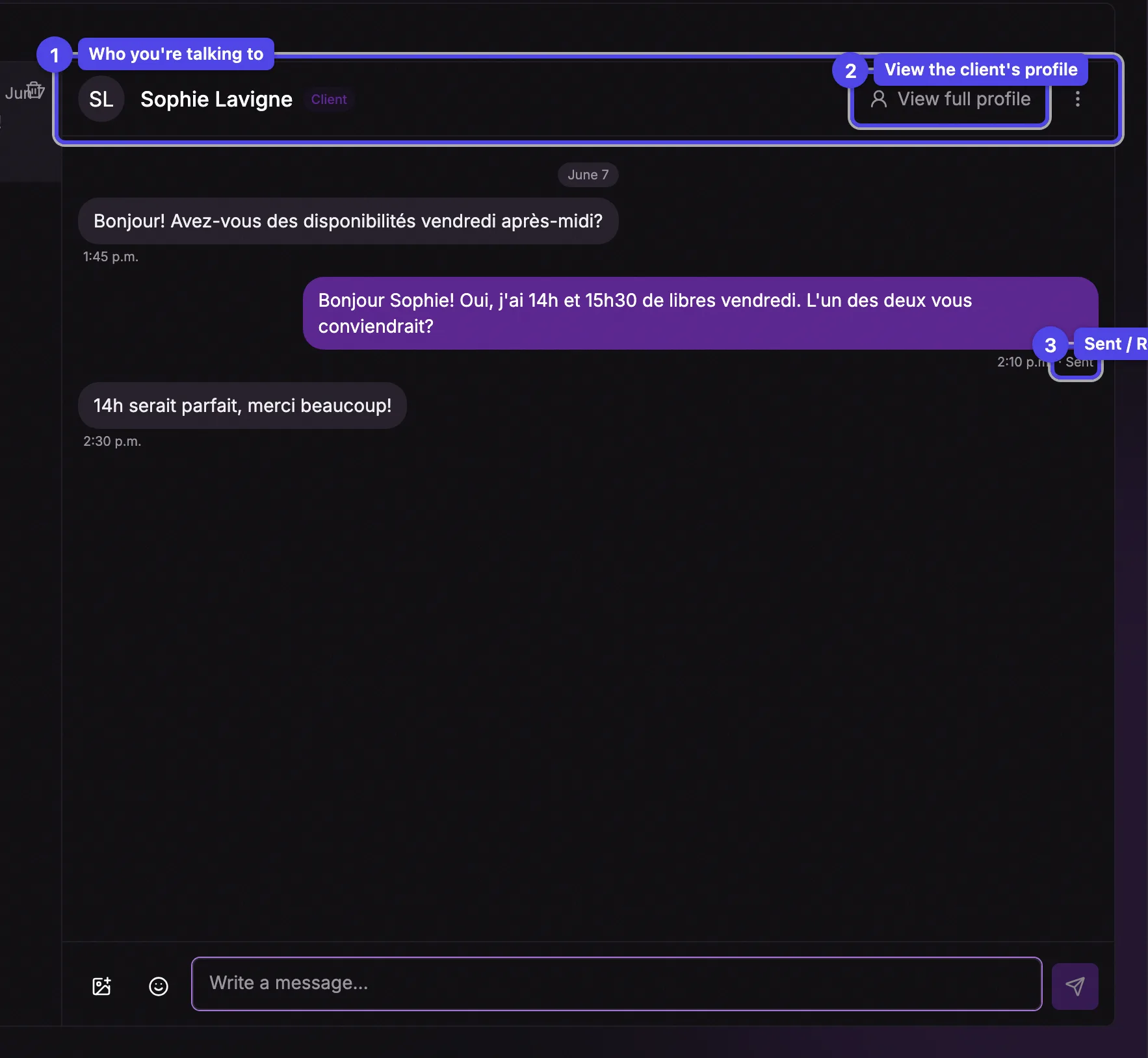
Who you're talking to
The header shows the contact's name, their avatar, and the same badge as the list. Booking conversations also show the service and date.
View full profile
When the contact is one of your clients, a profile shortcut appears in the header — it opens their client overview without leaving the chat.
Sent / Read receipt
Under your most recent message you'll see Sent, then Read once the client has seen it. edited marks a message you changed.
For how to write, attach a photo, or edit and delete messages, see Messaging clients.
Hover a message (or open its ⋮ menu) to Edit or Delete your own messages. A deleted message is replaced with This message was deleted for both sides.