
Link Generator
Build a pre-filled booking link, turn it into a short link, and share it with a client by copy, text, email, or your phone's share sheet — or share your newsletter signup page with a link or a QR code.
Updated 2026-10-02
The Link Generator creates short booking links you can hand to a client so they land on your booking page with the service, therapist, location, or date already chosen — they just pick a time. Every link you generate is saved to a shared history you can copy, re-share, or delete later.
Open it from Link Generator in the dashboard menu. The page opens on the Booking link tab, described below. A second tab, Newsletter link, shares your newsletter signup page — see Newsletter link.
Build the link
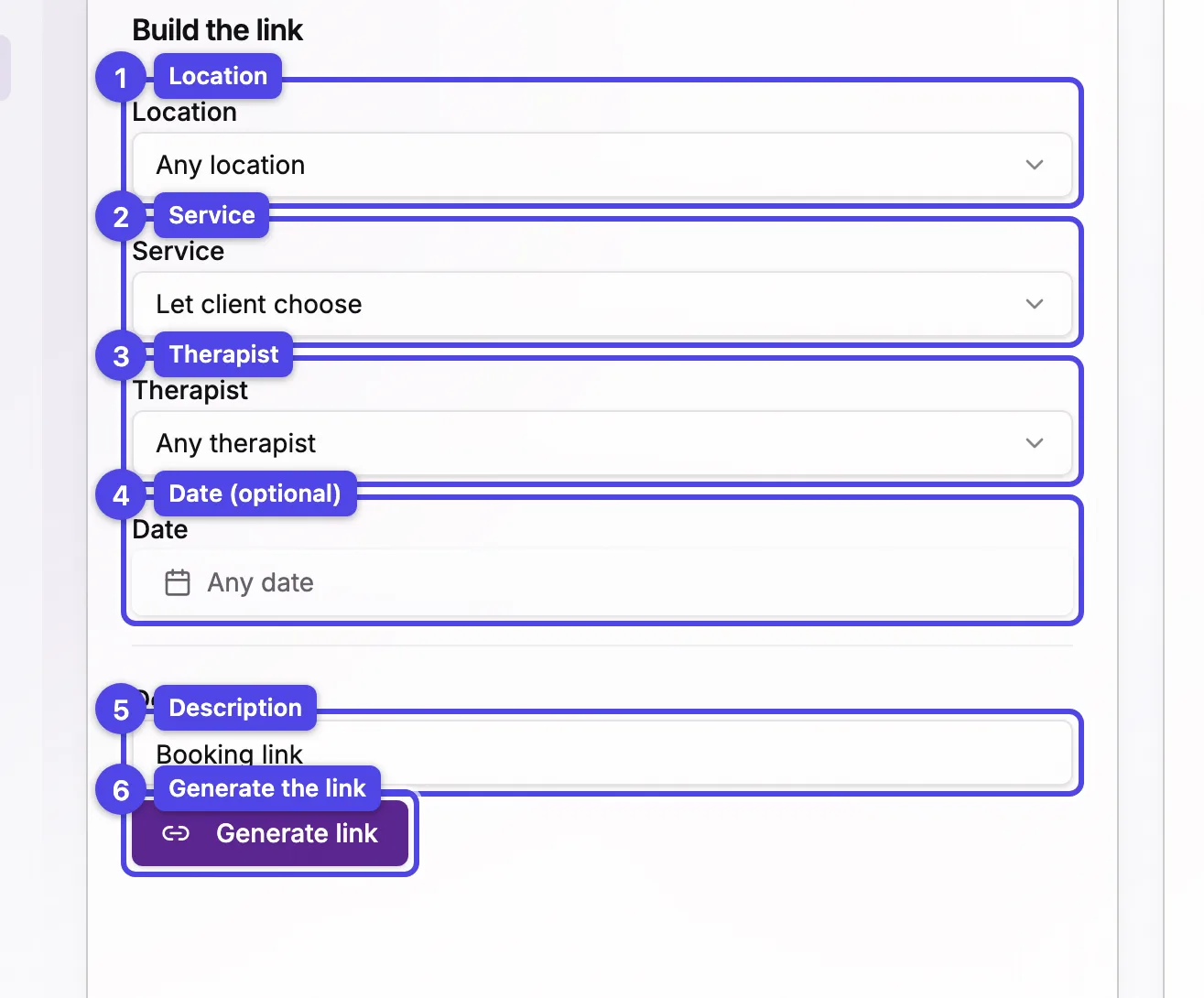
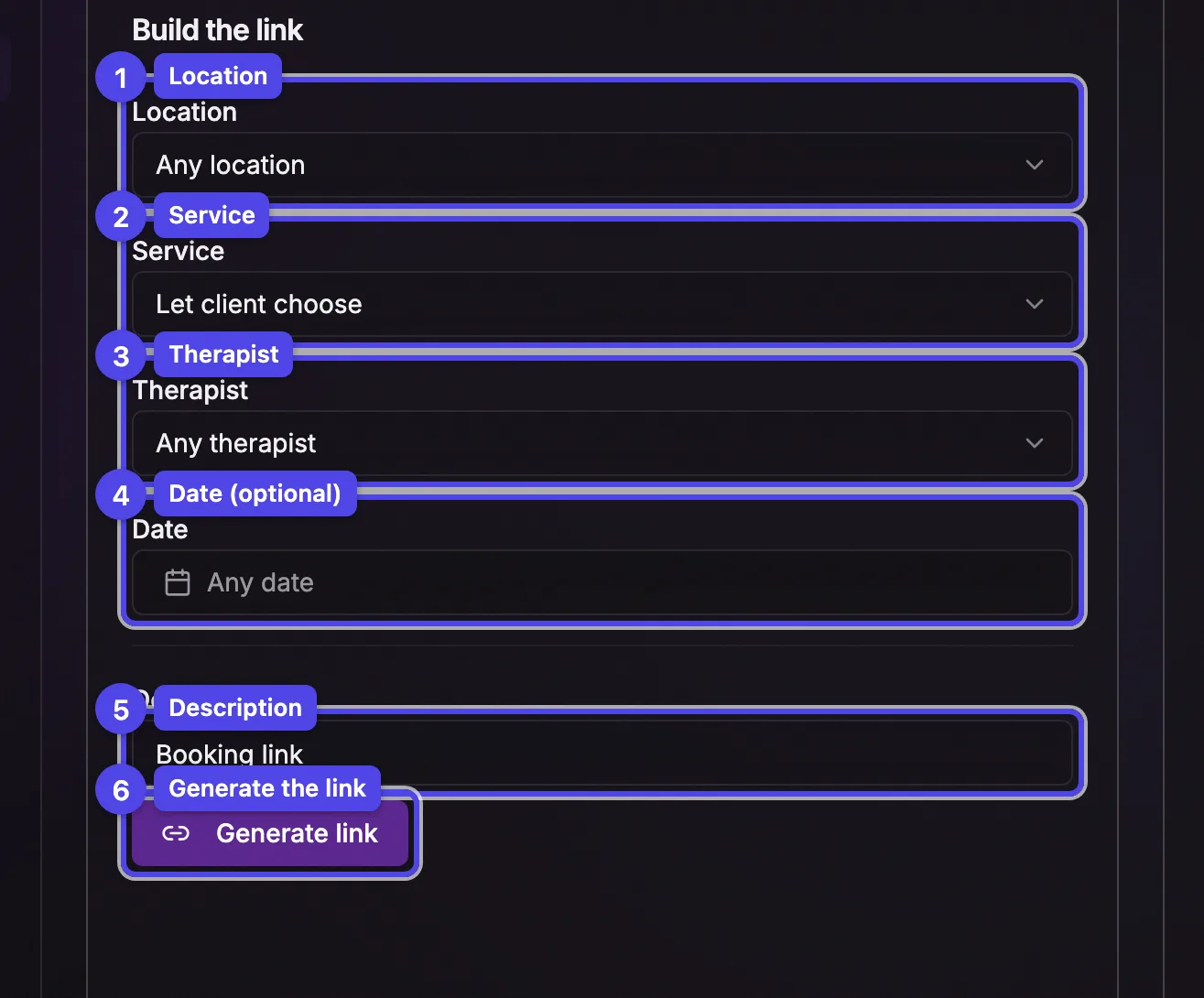
The left card decides where the booking page opens. Leave a selector blank to let the client choose it themselves.
Location
Sends the client straight to that location's booking page. The service and therapist lists narrow to what's offered there.
Service
Pre-selects a service (grouped by category). Only services offered at the chosen location appear.
Therapist
Pre-selects a team member. Only therapists who offer the chosen service (and work at the chosen location) appear. Leave it on Any therapist to let the client choose.
Date
Pre-fills a date so the client only has to pick a time. Once a service is chosen, dates with no availability for that combination are greyed out.
Generate link
Press Generate link to create the short link, copy it to your clipboard, and add it to Recent links in the next card. Each link is named automatically from your selections (for example Massage · Marie · Downtown) so you can recognise it later.
The selectors keep each other consistent — if you pick a therapist who doesn't offer a service you later choose, the therapist is cleared so you can never build a link for an impossible combination.
Send & share
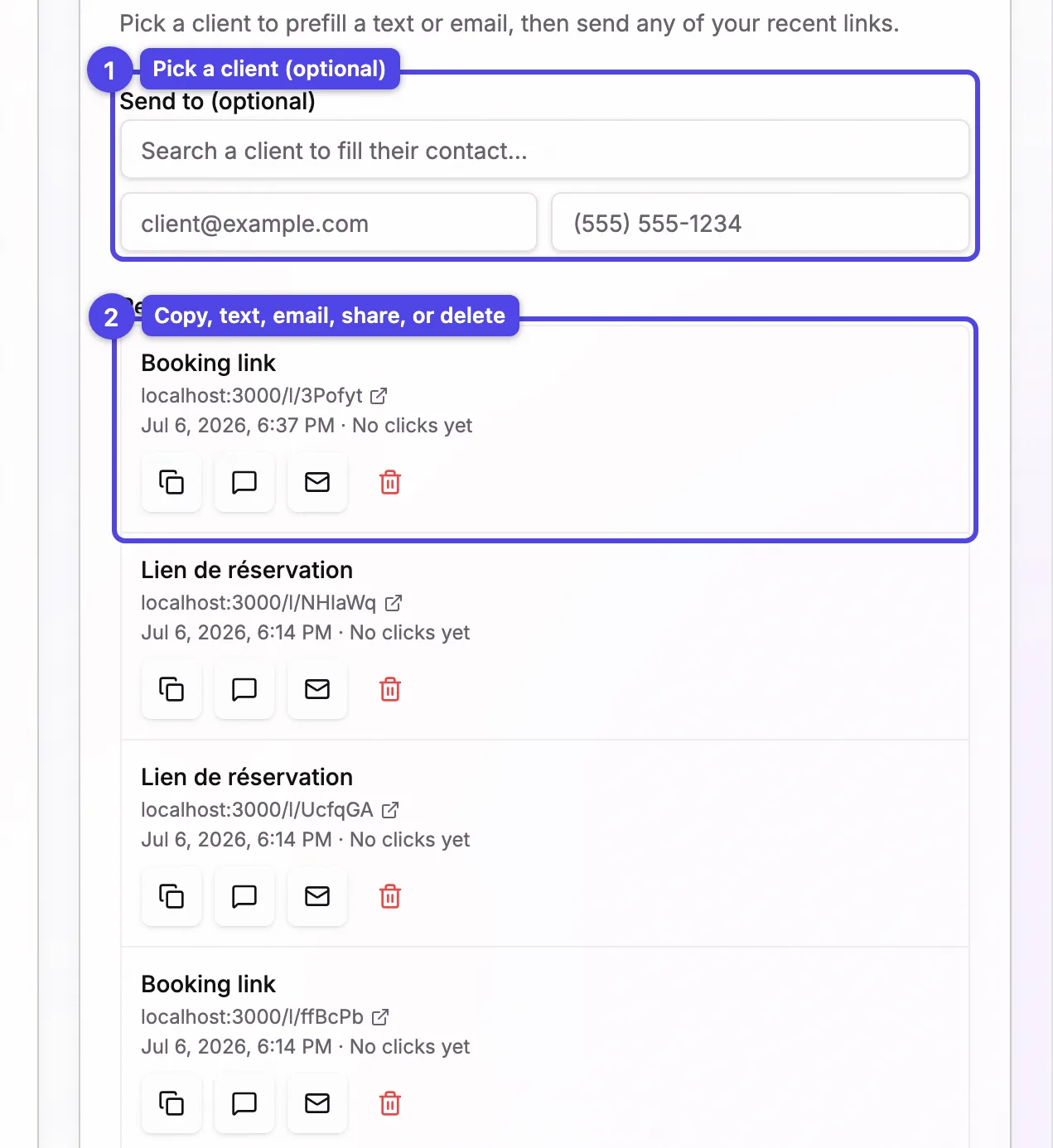
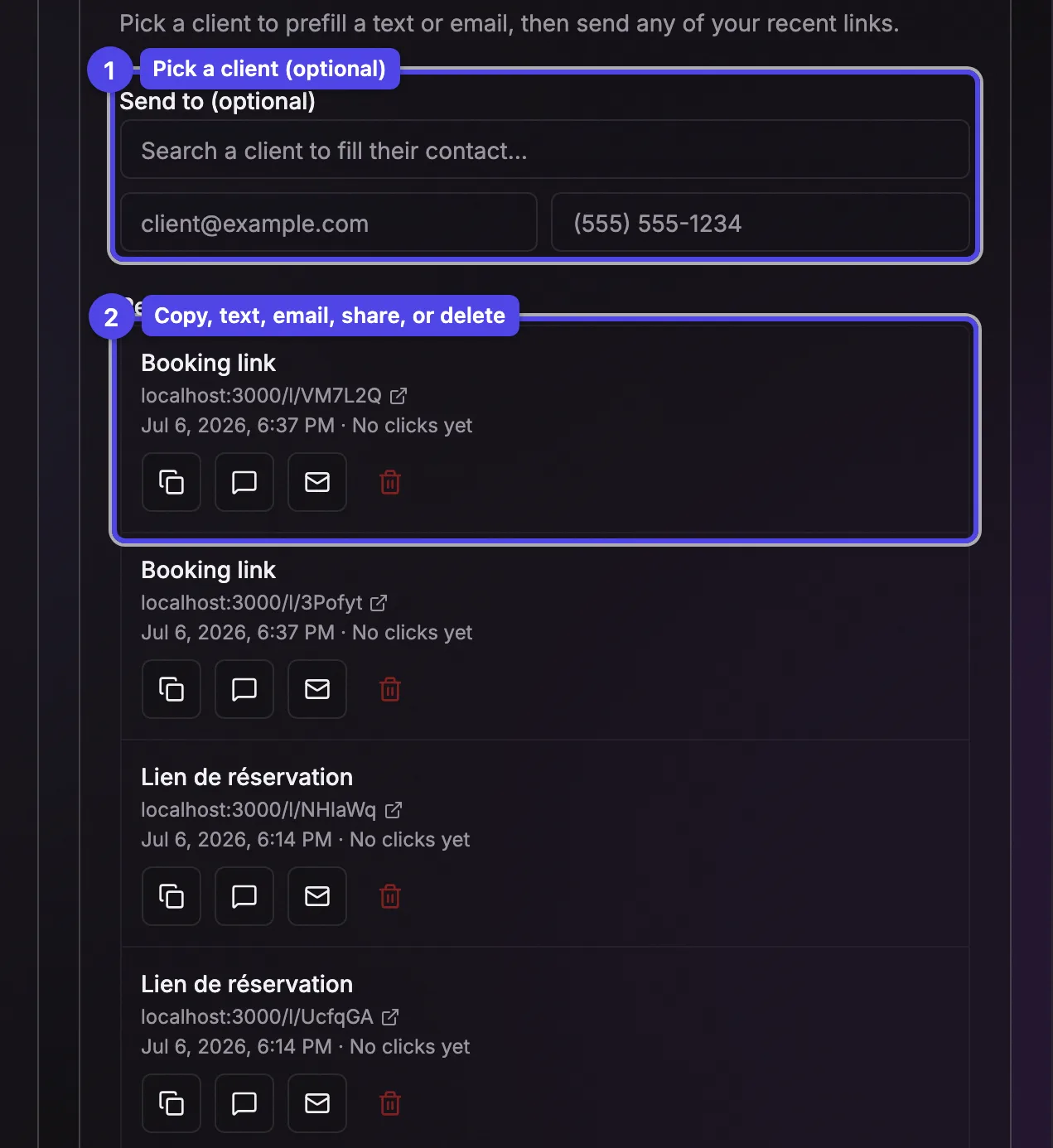
Under Send to (optional) you can search for a client — their email and phone fill in automatically so the Text and Email buttons on each saved link open your own Messages or Mail app addressed to them. You can also type an address or number by hand.
Recent links
Every link your team generates is listed here, newest first, with how many times it's been opened. Each link has these actions:
Copy
Copies the short link to your clipboard.
Text
Opens your phone's messaging app with the recipient and link pre-filled.
Opens your email app with the subject, message, and link pre-filled.
Share
Opens your device's share sheet (send it through any app). Shown on devices that support it.
Delete
Removes the link from the history after a confirmation. Any copy you've already shared stops working — the short link no longer reaches the booking page.
Short links show the same rich preview as your booking page when pasted into a text or chat, and they never expire until you delete them.
Newsletter link
The Newsletter link tab gives you the link to your newsletter signup page, ready to share on your website, in your Instagram bio, or as a QR code at the front desk.
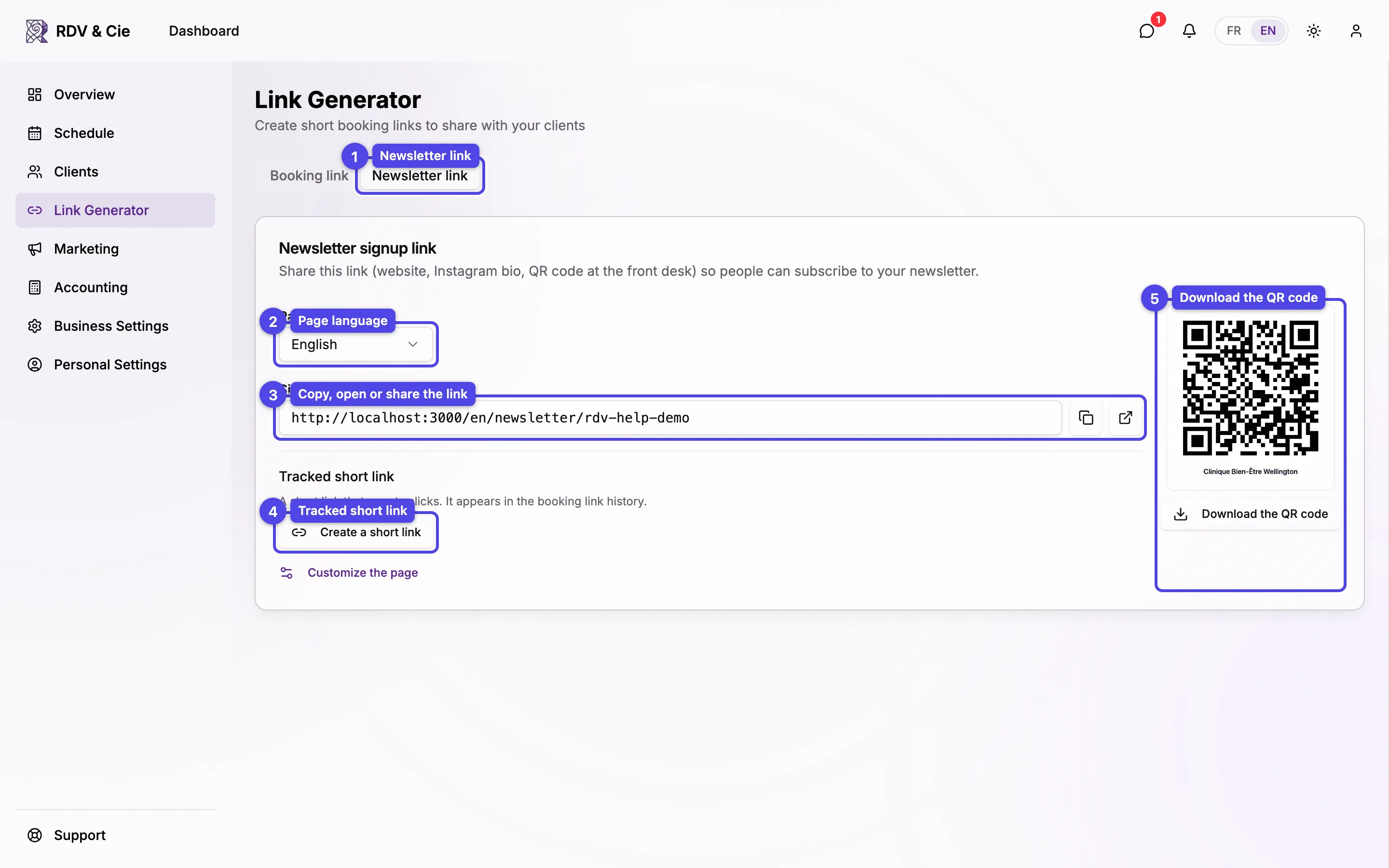
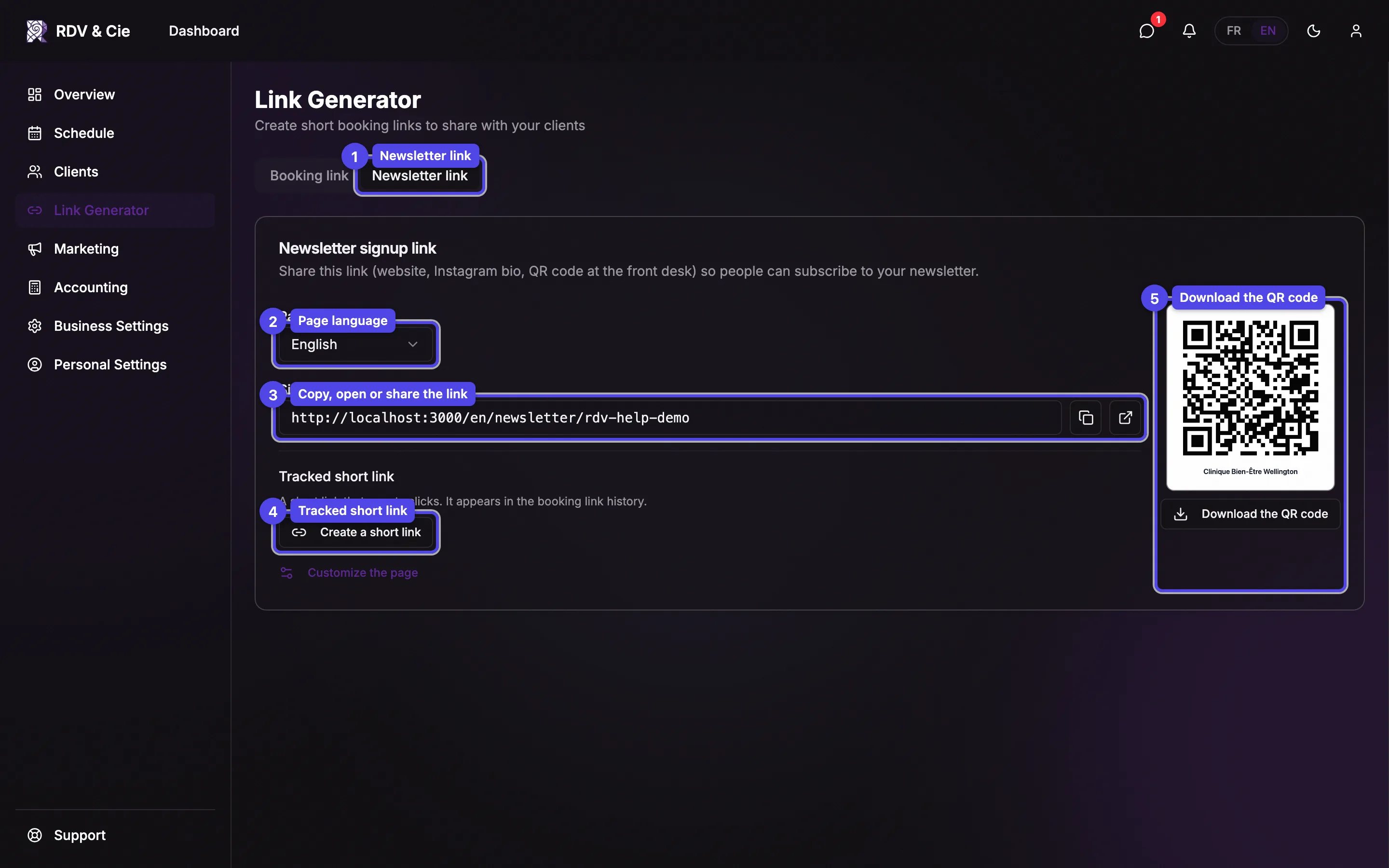
Newsletter link
Switch to the Newsletter link tab.
Page language
Choose whether the link opens the page in French or in English. The link and the QR code follow your choice.
Signup page link
Copy the link, Open the page in a new tab to check it, or Share it through your device's share sheet (on devices that support it).
Tracked short link
Create a short link makes a short link that counts clicks and copies it to your clipboard. It appears in the Recent links of the Booking link tab with a Newsletter badge.
QR code
Download the QR code saves a PNG image of the code, with your business name under it — ready to print for your front desk or flyers.
If your signup page is turned off, the tab warns you that the link shows "not found". The owner (or an employee who can manage business settings) gets a Turn it on button; others are asked to check with the business owner. Customize the page opens the signup page settings.