
Service Notes Form
Build the form therapists fill out for each service note — sections, fields, field types, and restore defaults.
Updated 2026-06-14
The Service Notes Form defines the fields a therapist fills out after each appointment to document the care given. Like the health questionnaire, it is a builder of sections and fields. Open it from Business settings → Service Notes Form.
There is no on/off switch here — the service notes form is always available. The tab opens straight onto the builder, pre-filled with a default Description section (Service description, Notes, and a Body Diagram).
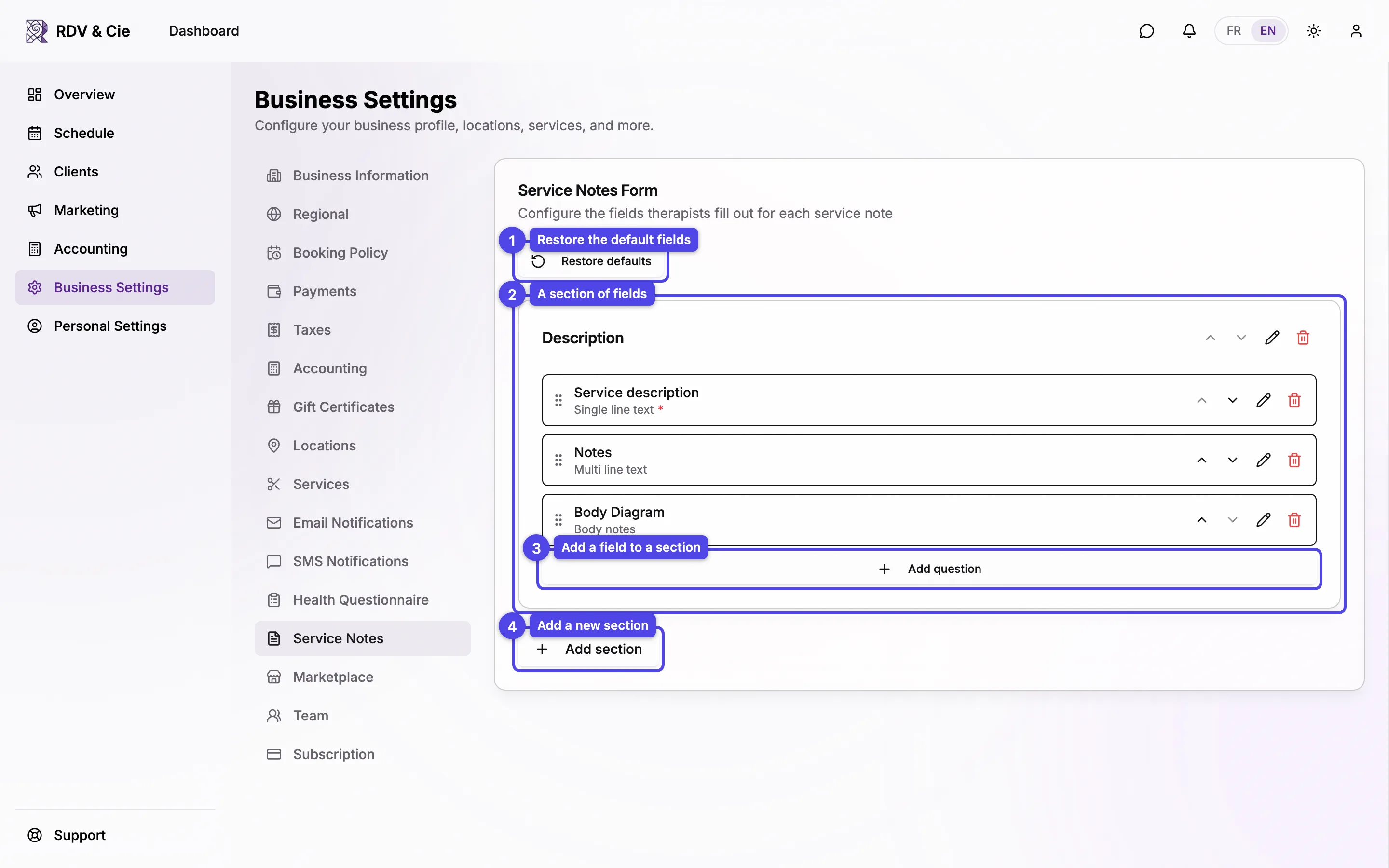
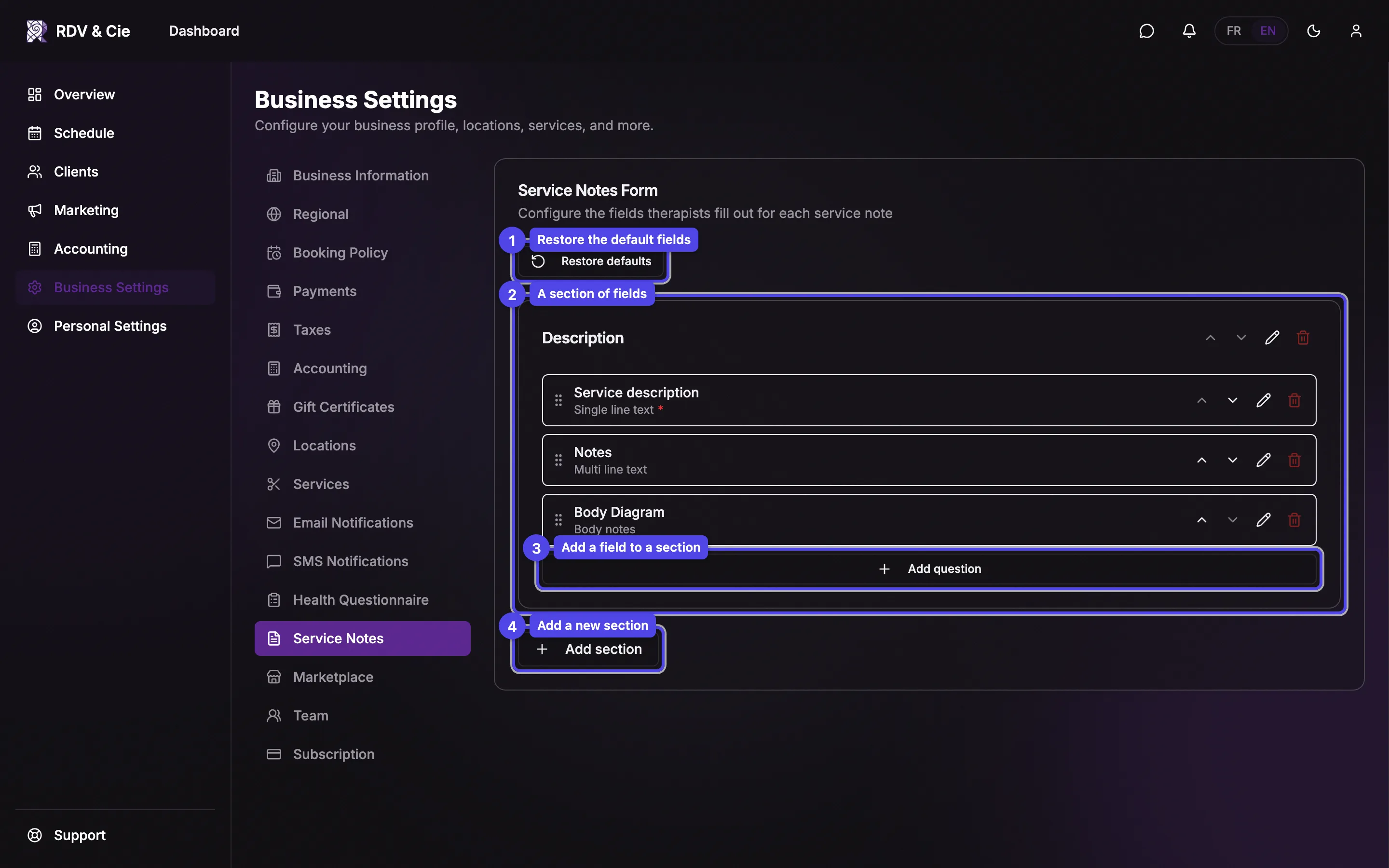
Restore defaults
Click Restore defaults to reset the whole form back to the standard Description / Notes / Body Diagram layout, discarding your customizations.
Sections
Each card is a section. Use the up/down arrows to reorder it, the pencil to rename it, and the trash icon to delete it. A section can be marked Therapist only with a badge.
Fields
Inside a section, each row is a field showing its label and type. Use the row's arrows to reorder, the pencil to edit, and the trash to delete. Required fields show a red asterisk.
Add question
Click Add question at the bottom of a section to add a field. The field dialog has the label (French and English when bilingual), a type selector, and a Required checkbox.
Add section
Click Add section below the cards to create a new section.
Field types
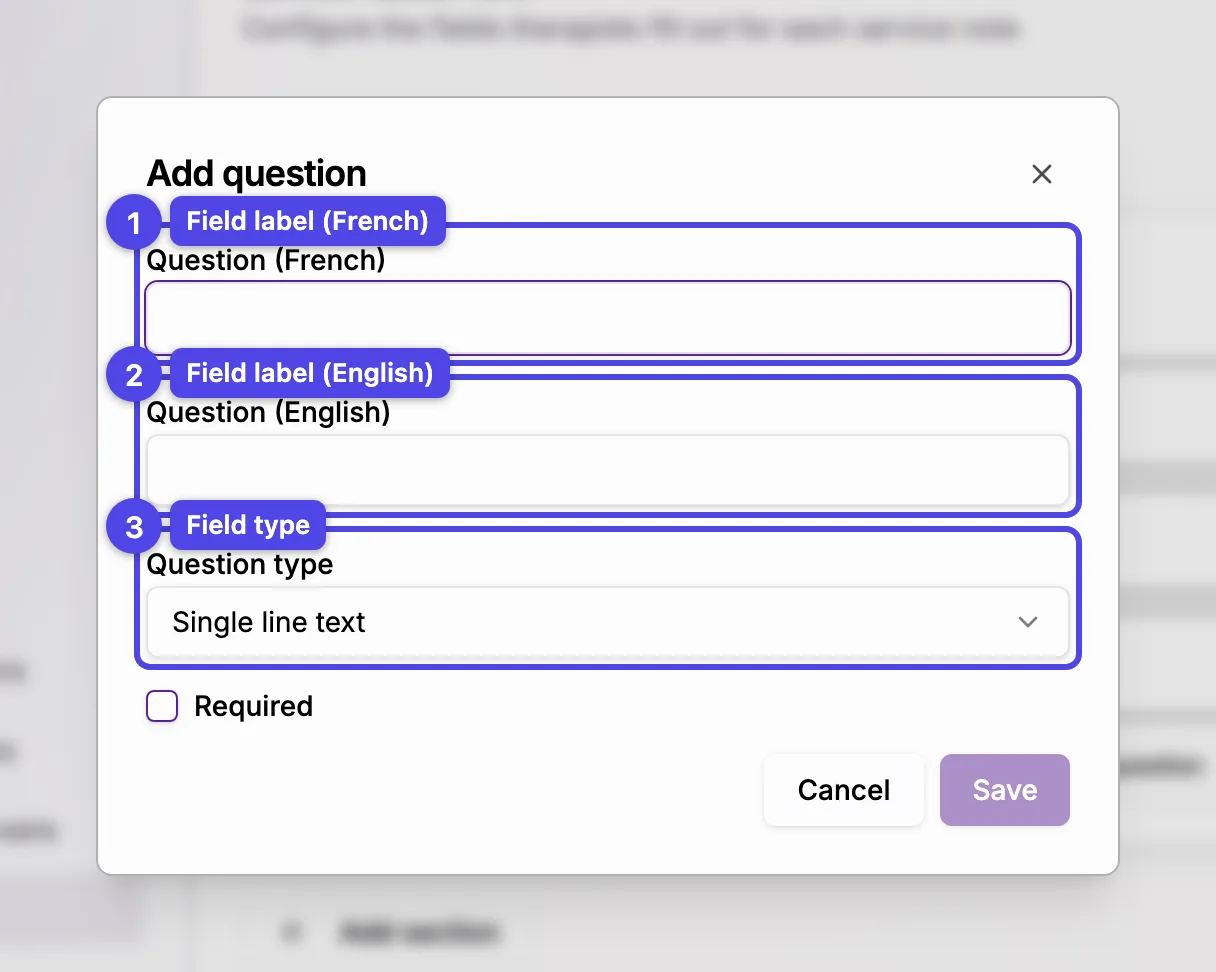
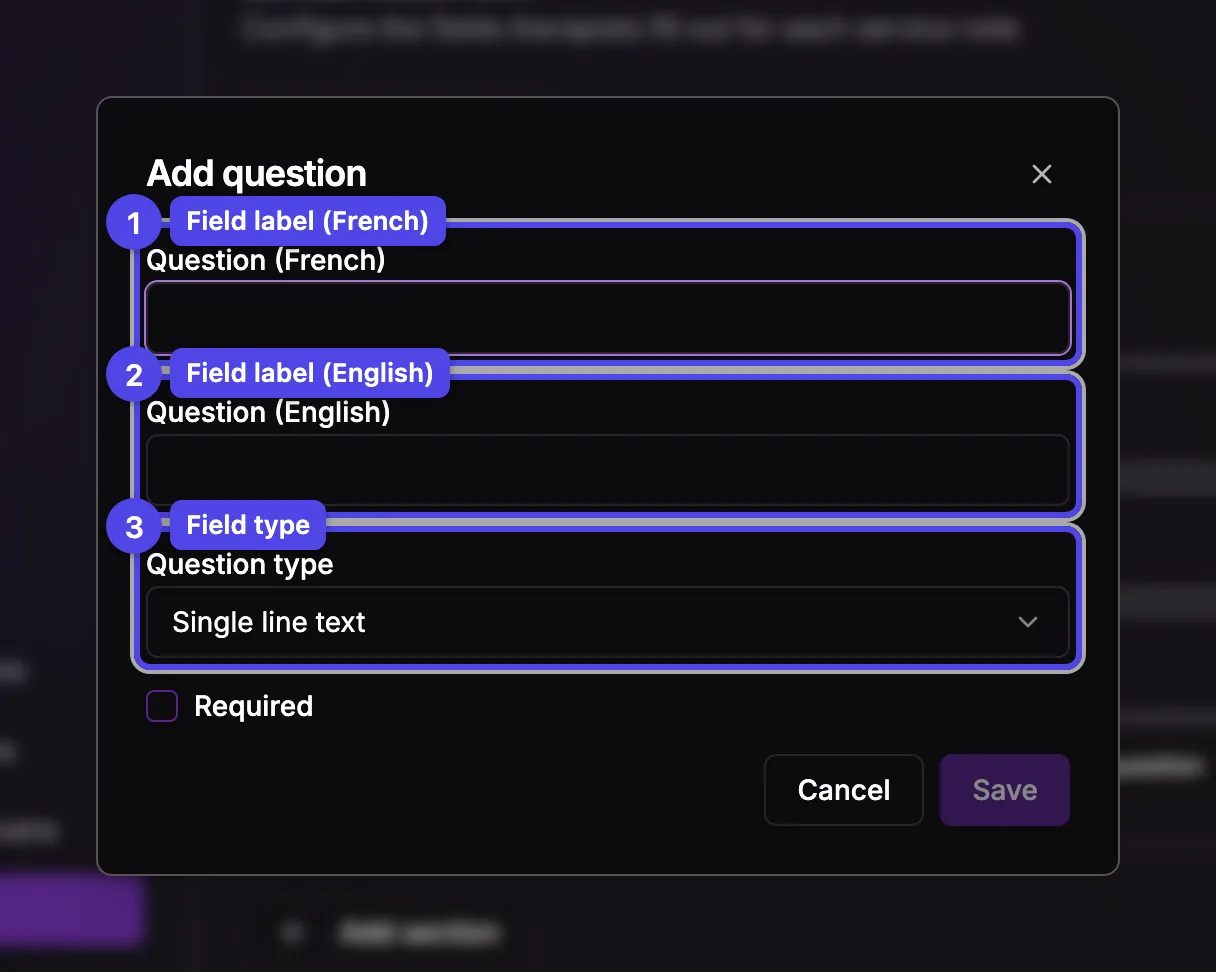
When you add or edit a field, choose how the therapist records it: Single line text, Multi line text, Toggle Yes/No, Checkbox, Dropdown, Multi-select, or Body notes — an interactive body diagram for marking areas worked on. Dropdown and Multi-select let you add a list of Options.
The builder saves automatically as you edit. Each save bumps the form's Version — past notes stay tied to the version they were written under, so changing the form never alters old records.