
Services
Create categories and services, set durations, prices, colors, buffers, and per-employee pricing.
Updated 2026-10-02
The Services tab is where you build your menu: services grouped into categories, each with its own duration, price, schedule color, and buffer times.
Categories first
Services live inside categories (for example Relaxation and Therapeutic).
Add a category
Click Add Category. Give it a name (and description) in each language your booking page supports. Categories group services on your booking page.
Reorder or edit
Use the up/down arrows on a category to change its order. The pencil edits it; the trash icon deletes it (its services become uncategorized, not deleted).
Add a service
Inside a category, click Add service / forfait and choose Service to open the service dialog. (Choosing Forfait instead creates a multi-service package — see the Forfaits article.) The dialog has three tabs: General, Locations, and Employees.
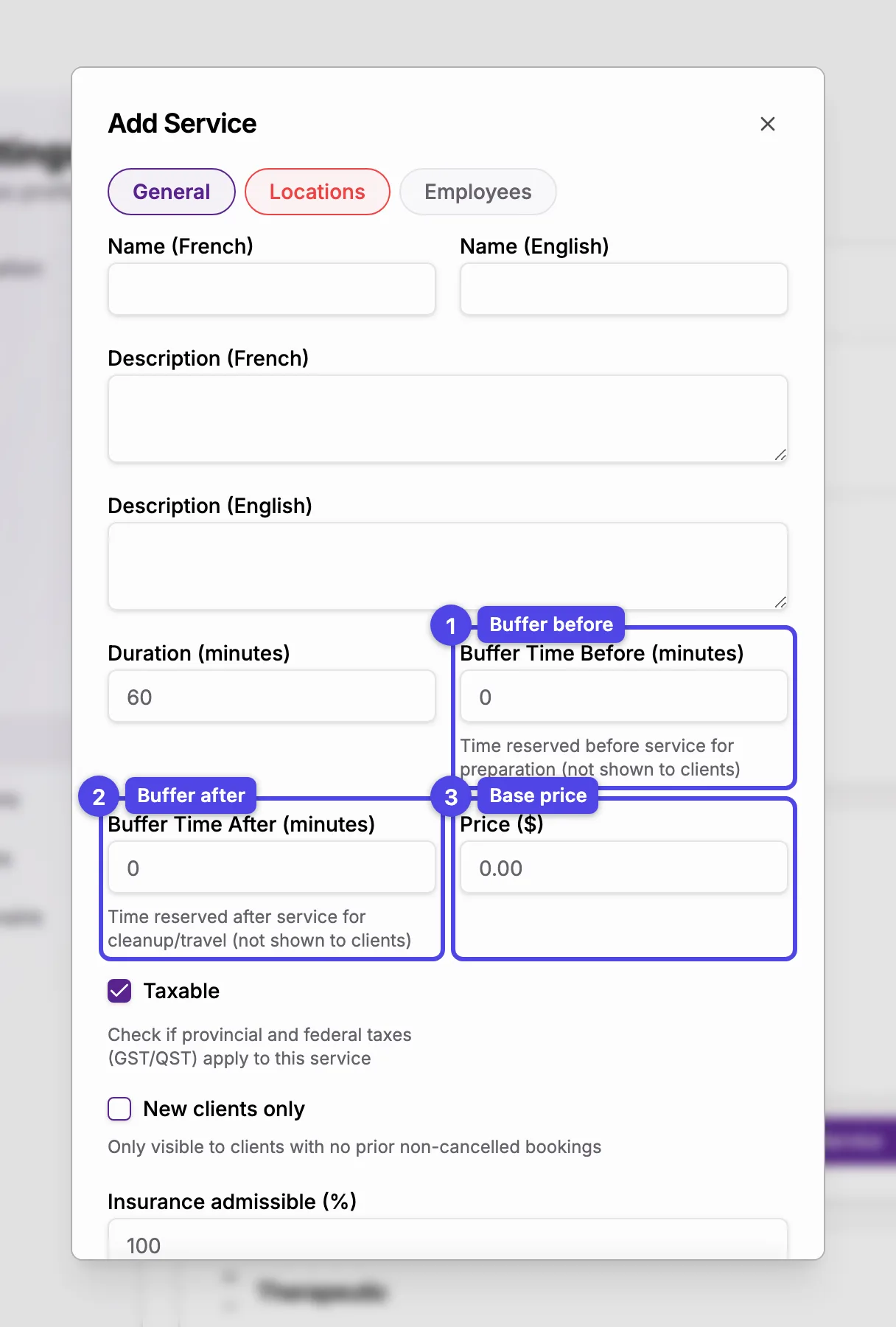
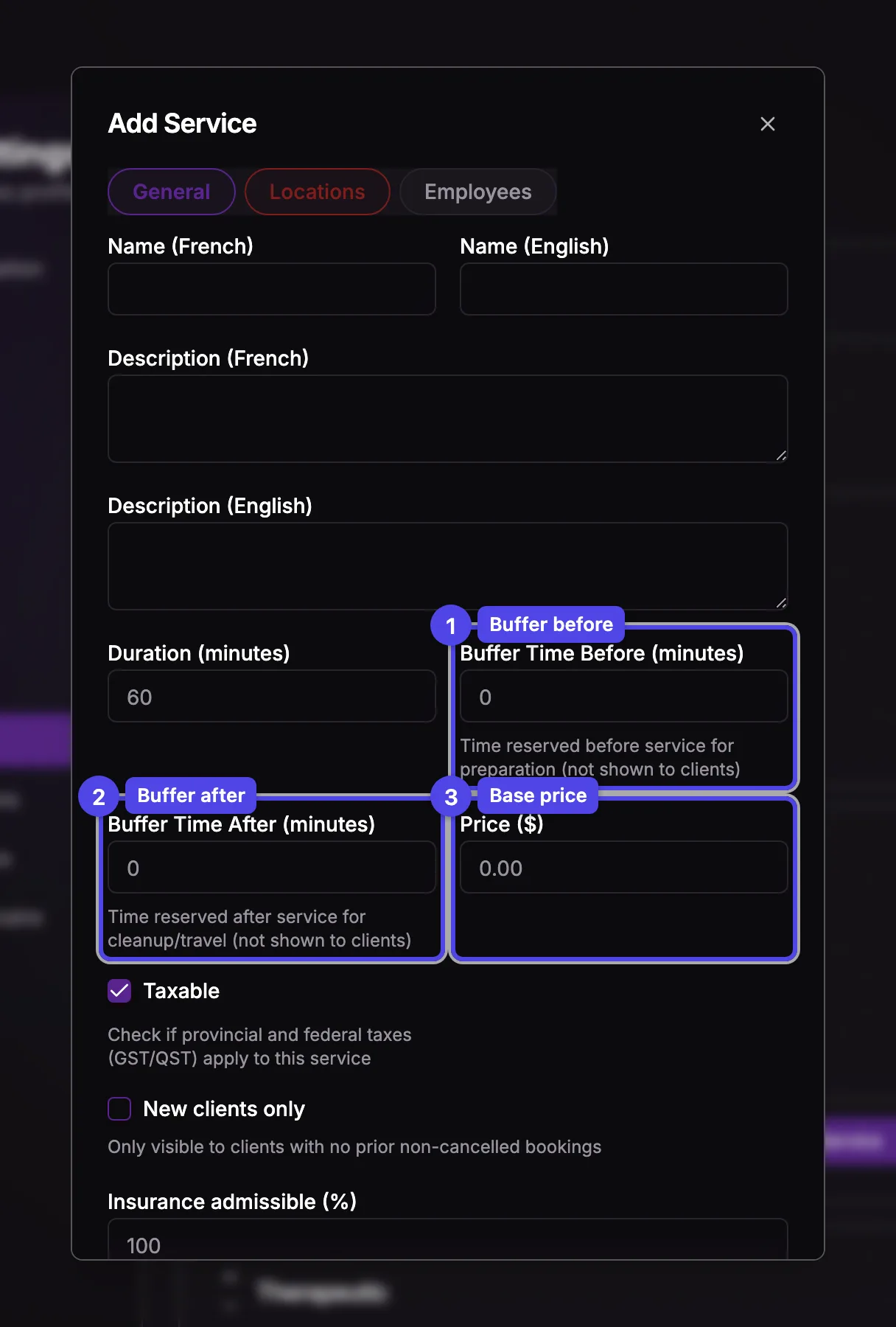
General tab
Name and description
Enter them per supported language. These show to clients on the booking page. A long description (service or category) is shortened to two lines there, with a Show more link to read the rest.
Duration
The length of the appointment, in minutes.
Buffer before / after
Extra time reserved before (preparation) and after (cleanup or travel) the service. Buffers protect your schedule but are not shown to clients and don't change the price.
Price
The base price in dollars. Mark Taxable if GST/QST apply. Prefer not to show your prices to clients? Uncheck Show prices to clients in Booking Policy — bookings are still priced normally.
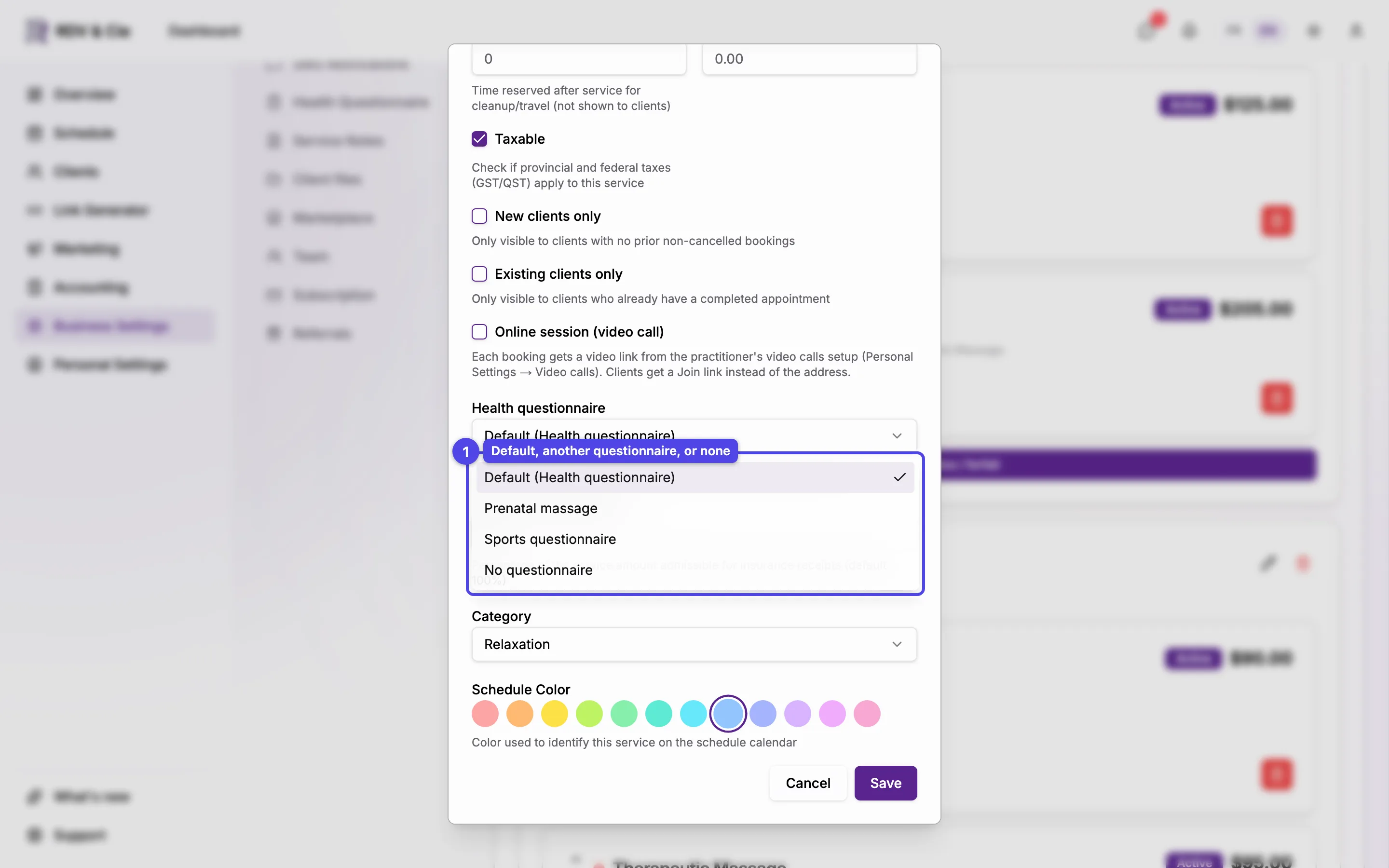
New clients only
When checked, only clients with no prior bookings can pick this service.
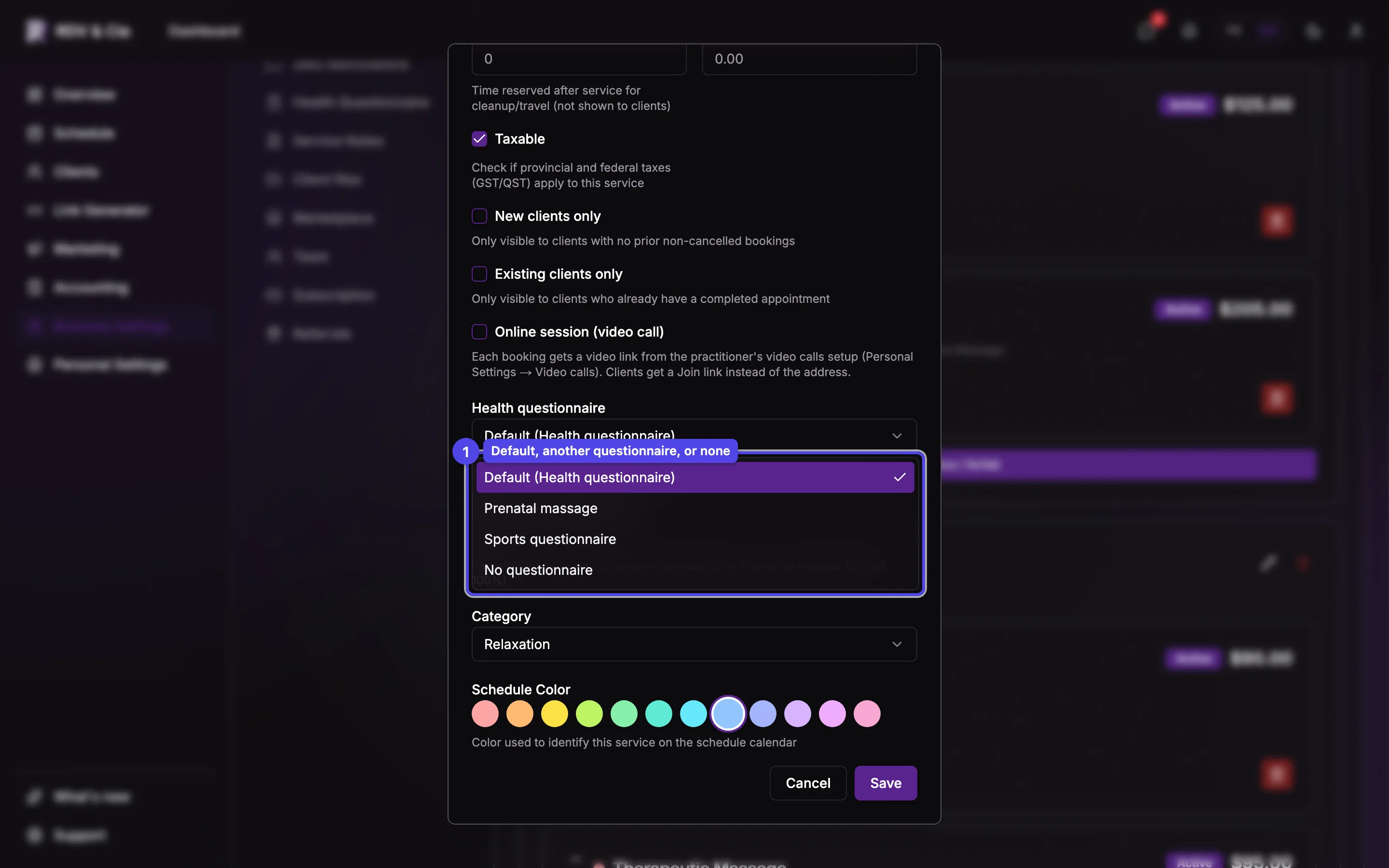
Existing clients only
When checked, only clients who already have a completed appointment with you can pick this service on the booking page — a follow-up treatment, for example. It can't be combined with New clients only: checking one unchecks the other. A client whose appointments are all still upcoming is neither new nor existing, so they can't book either kind yet. You can still book any client into these services from your schedule.
Online session (video call)
Shown when online sessions are available for your business. Tick it for a service given by video call: each booking gets a meeting link and your client a Join your session button instead of your address. See Online sessions.
Health questionnaire
Shown when the health questionnaire is turned on. Default asks clients for your default questionnaire — what every service does unless you change it. Pick another questionnaire if this service needs different questions, or No questionnaire if it needs none: clients then aren't asked to fill one out when they book it. In the services list, a service that isn't on Default shows a small badge with its questionnaire (or No questionnaire).
Insurance admissible (%)
The portion of the price eligible on insurance receipts (defaults to 100%).
Category and schedule color
Assign the category and pick a color from the official palette. The color identifies the service on your schedule calendar.
Clients you imported (for example from a CSV file) have no appointments in RDV & Cie yet, so they only count as existing clients after their first completed appointment here.
Locations tab
Check which locations offer this service. At least one is required — the tab turns red until you pick one.
Employees tab
Check which team members can perform the service (at least one required). For any checked member you can type a price override — leave it blank to use the base price. Overrides update upcoming bookings when you save.
Unlike the rest of settings, the service dialog has a Save button — your changes apply when you click it, not as you type.
Managing services
Each service card shows its color, price, duration, buffers, and location badges. The action buttons let you activate/deactivate (hide from clients while keeping it bookable by staff), edit, duplicate, or delete. Use the arrows to reorder services within a category.
Deleting a service does not change past or upcoming bookings — they keep their saved details. If you only want to hide a service from clients, deactivate it instead.
After editing
If upcoming bookings use the service, you'll be asked whether to update them with the new duration, price, or buffers — or skip and leave them as booked.