
Gift Certificate Settings
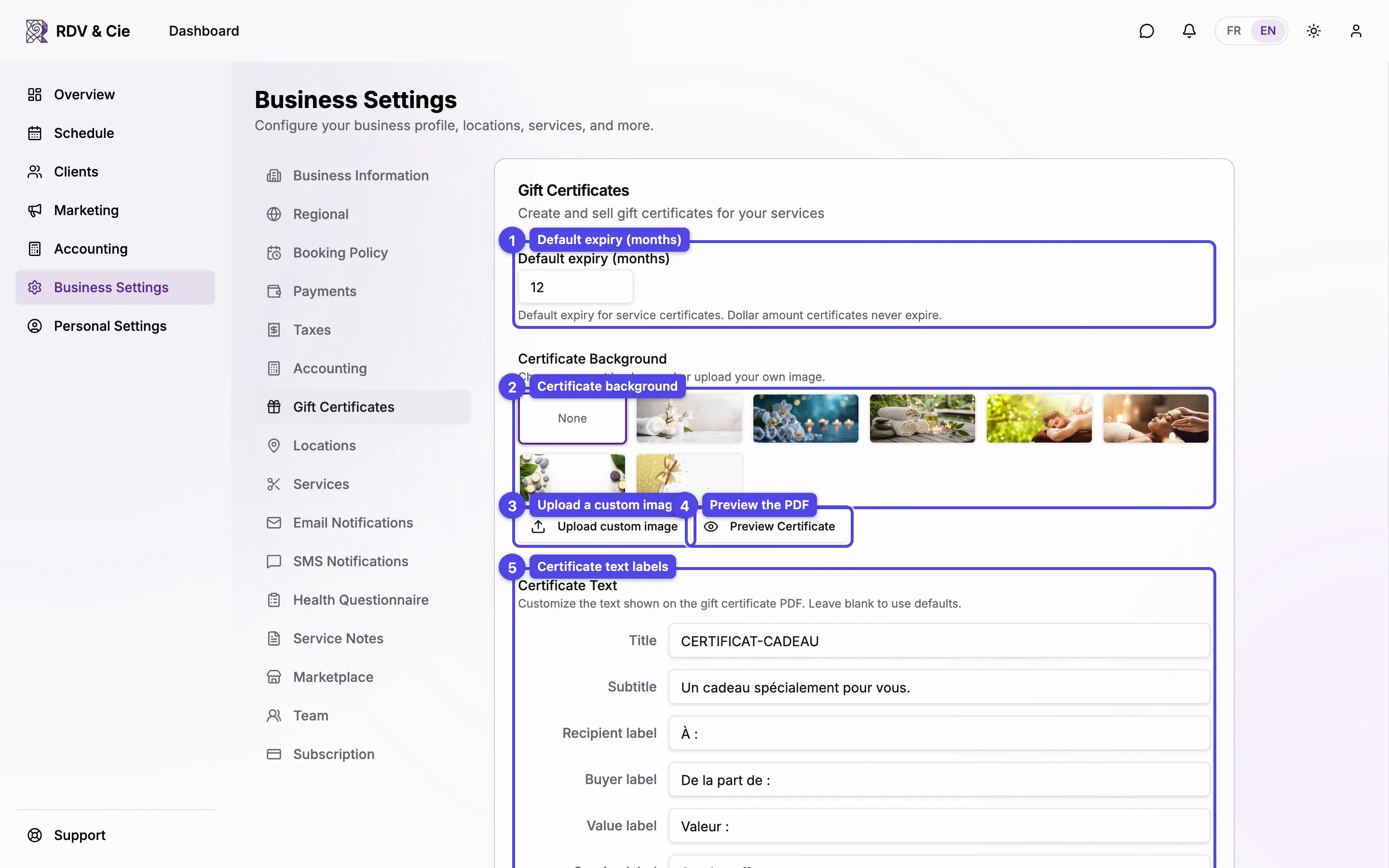
Set the default expiry, choose or upload a certificate background, customize the certificate text, and preview the PDF.
Updated 2026-06-14
The Gift Certificates section controls how the gift certificates you sell look and behave. Open it from Business settings → Gift Certificates.
Default expiry (months)
Set how many months a service certificate stays valid (1–120). Dollar amount certificates never expire, so this only applies to service certificates.
Certificate Background
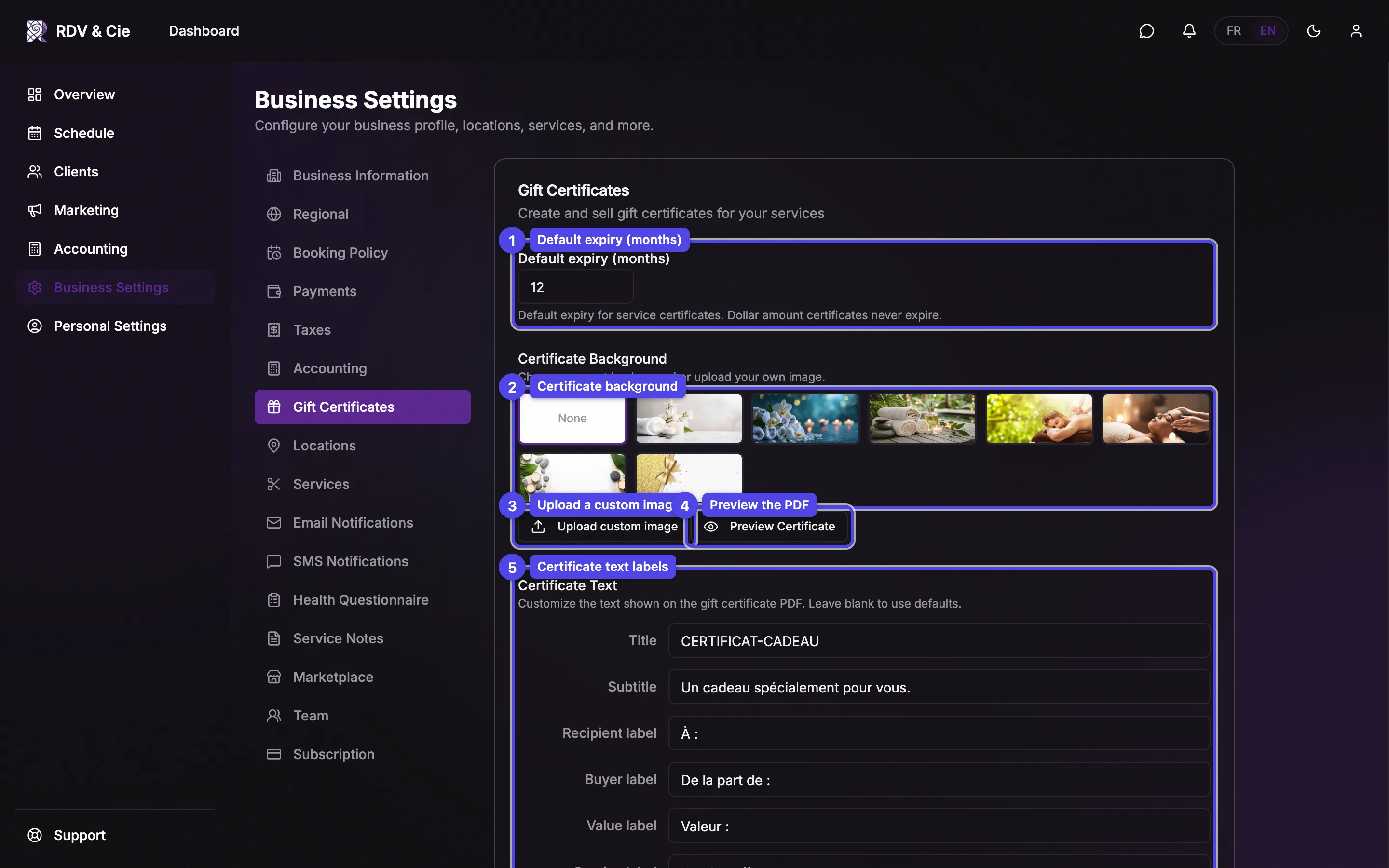
Choose a background for the certificate PDF. Pick None for a plain white certificate, select one of the seven preset backgrounds, or use Upload custom image to add your own. The selected option is outlined.
Upload a custom image
Clicking Upload custom image opens a crop dialog so you can frame the image to the certificate's shape, with a Zoom slider. Save the crop to apply it. A custom image shows a Remove background button to revert to none.
Preview Certificate
Click Preview Certificate to open a PDF preview of how a certificate will print with your current background and text.
Certificate Text
Customize the wording printed on the PDF — the Title, Subtitle, and the labels for Recipient, Buyer, Value, Service, Certificate code, and Valid until. Leave a field blank to use the default (shown as the field's placeholder).
The expiry and text labels save automatically as you change them. Choosing a preset, uploading, or removing a background saves immediately with its own confirmation.